
What Microsoft Copilot Actually Does in Your Daily Work
A clear beginner friendly overview of how Copilot supports you across Microsoft 365.
3 min read
Beginner
Copilot
+1

A clear introduction to the Copilot chat interface, its layout, and how to start using it effectively.
If you want to understand how Copilot works in your daily Microsoft 365 environment, the chat interface is the best place to start. It is a clean, simple space where you can ask questions, upload files, switch between tasks, and return to past conversations. Think of it as your central communication hub with Copilot.
Here are the three key points:
Read more AI Academy stories:
https://www.flowhunt.io/academy/
When you open Copilot in your browser or in Teams, you will see a clean, minimal layout built for fast interaction. You can type your question directly, or if you prefer, you can use the dictation button to speak instead of typing.
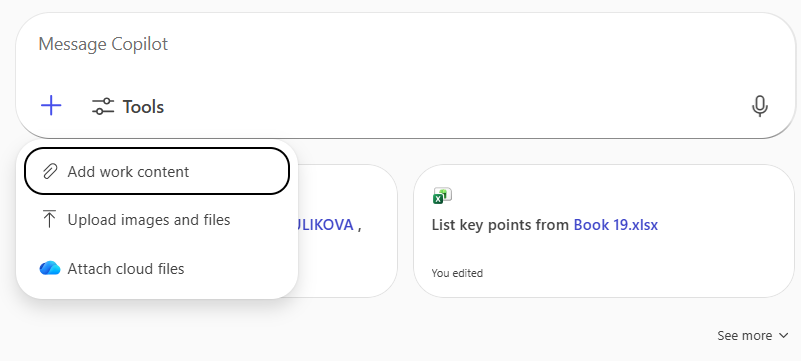
If you press the plus button, Copilot shows all locations where you can pull content from. This includes:
This makes it easy to attach context for Copilot to analyse or reference.

Start your free trial today and see results within days.
Under your chat bar, you will see suggested prompts. These are quick ideas that you can tap when you do not know where to start.
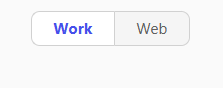
Above the chat space, you will see:
This creates a balance between your organisational knowledge and public information.
On the right side, you will find the sidebar, which includes several important elements.
Pressing this button starts a new conversation.
This is useful when you want a clean context or when you switch to a different task.
At the bottom of the sidebar, you will see your past conversations.
You can open any of them to continue where you left off, copy answers, or reuse instructions.
Get latest tips, trends, and deals for free.
The Copilot chat interface is designed for speed, simplicity, and context.
It lets you:
You stay in control. Copilot enhances your workflow with immediate access to what matters.
The Copilot chat interface is the central place where you interact with your AI assistant. You can:
If you want to fully understand Copilot and use it effectively across Microsoft 365, explore our Microsoft 365 Copilot Essentials training programme:
https://www.flowhunt.io/services/ai-training/microsoft-365-copilot-essentials/
We help companies like yours to develop smart chatbots, MCP Servers, AI tools or other types of AI automation to replace human in repetitive tasks in your organization.
A clear beginner friendly overview of how Copilot supports you across Microsoft 365.

Learn how to turn a raw meeting transcript into clear, structured meeting minutes using Copilot Chat.

A clear overview of how Copilot supports writing, tone, clarity, and communication inside Outlook.
Cookie Consent
We use cookies to enhance your browsing experience and analyze our traffic. See our privacy policy.