
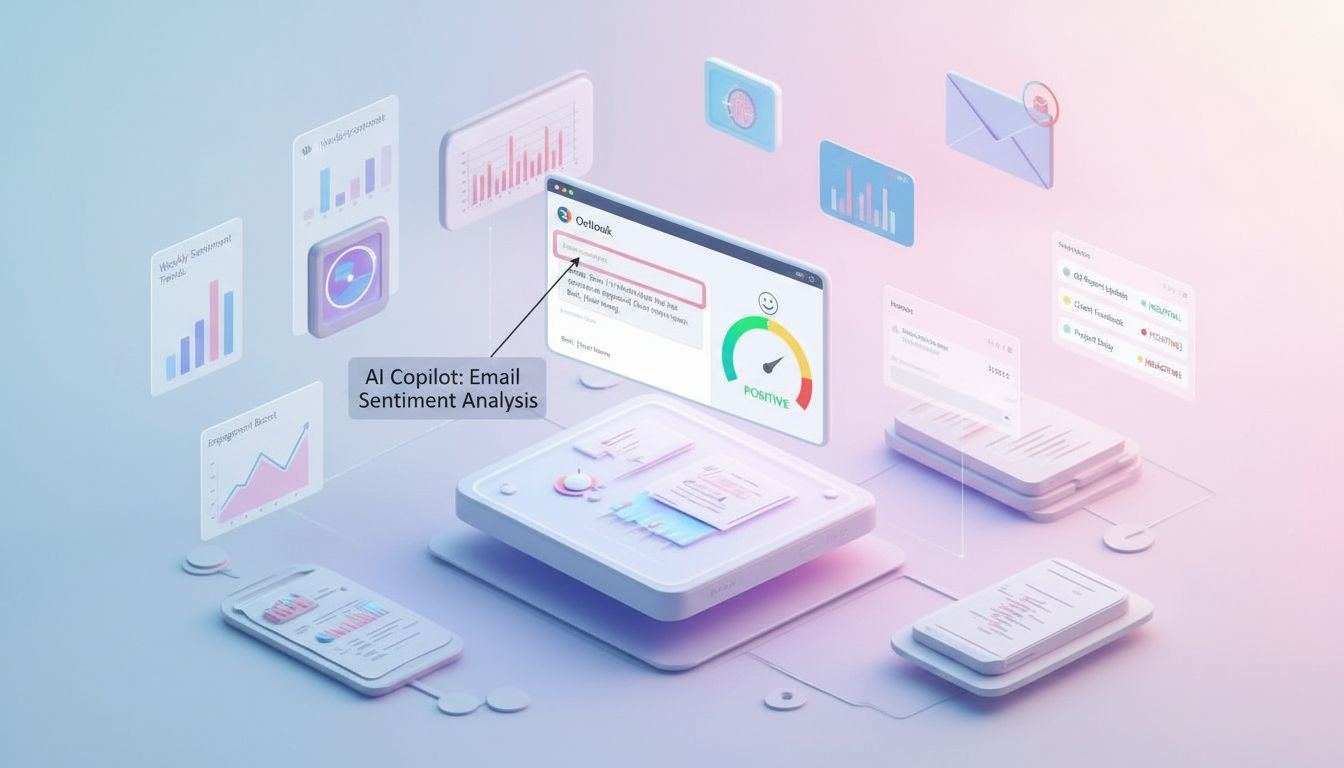
Copilot in Outlook Use Case: Sentiment, Tone and Email Enhancement
A beginner friendly walkthrough showing how Copilot in Outlook helps draft, refine and enhance emails by adjusting tone, clarity and sentiment.
3 min read
Beginner
Copilot
+2

A clear overview of how Copilot supports writing, tone, clarity, and communication inside Outlook.
Outlook is one of the places where Copilot makes an immediate difference. It helps you write replies, draft new emails, and summarise long threads so you can focus on what actually matters. It works directly inside Outlook, using the sidebar, inline actions, and the summarise option at the top of an email. You do not need to switch tools or leave the app.
Here are the three key points:
Read more AI Academy stories:
https://www.flowhunt.io/academy/
Email communication can feel more formal than speaking, especially in a work environment. Because tone is easy to misinterpret, many people struggle to find the right balance between being professional and being human.
Copilot helps you stay:
It can write emails for you, fix grammar, shorten or expand text, and make your message sound more polite, more confident, or more balanced.
Older tools could already do some of this, but often in a shallow way. What makes Copilot more useful is that it understands context, so the message becomes more relevant to what you actually mean.
One of the most practical things Copilot can help you with is identifying whether your email sounds urgent or not.
For example, if you write:
Hey, could you do this for me?
This sounds normal, but it lacks timing.
The other person might think:
Even if you meant it casually and only need it by the end of the week.
Copilot can help prevent this misunderstanding by adjusting the message:
It protects your coworkers from stress and helps you communicate intent accurately.


Start your free trial today and see results within days.
Even in professional settings, emotions matter. Sometimes a colleague has had a difficult week or the topic is sensitive. You want to be supportive while still keeping your message business appropriate.
You can simply say:
Make this sound kind and human, but still professional.
Copilot balances empathy with clarity, helping you send messages that feel thoughtful, not robotic.
Many email problems do not come from writing the wrong thing.
They come from the message being understood differently than intended.
Reasons include:
Copilot helps by:
This matters more than perfect spelling. It ensures people understand what you meant.
Get latest tips, trends, and deals for free.
If you email someone regularly, you naturally build your own style. Maybe you always start with hey and end with cheers.
Copilot can keep this consistency so your email does not suddenly sound:
It helps you sound like yourself, just a more polished version.
In multilingual environments, especially common in Europe, translation is rarely literal.
Tools like Google Translate often miss:
Modern AI understands intent, not just words.
This means Copilot can produce messages that make sense both logically and emotionally in the target language.
This is essential when writing to someone in their native language while trying to remain aligned with their communication style.
Long emails often suffer from:
Copilot can help by:
This is not about oversimplifying. It is about making sure the reader does not have to work too hard to understand the message.
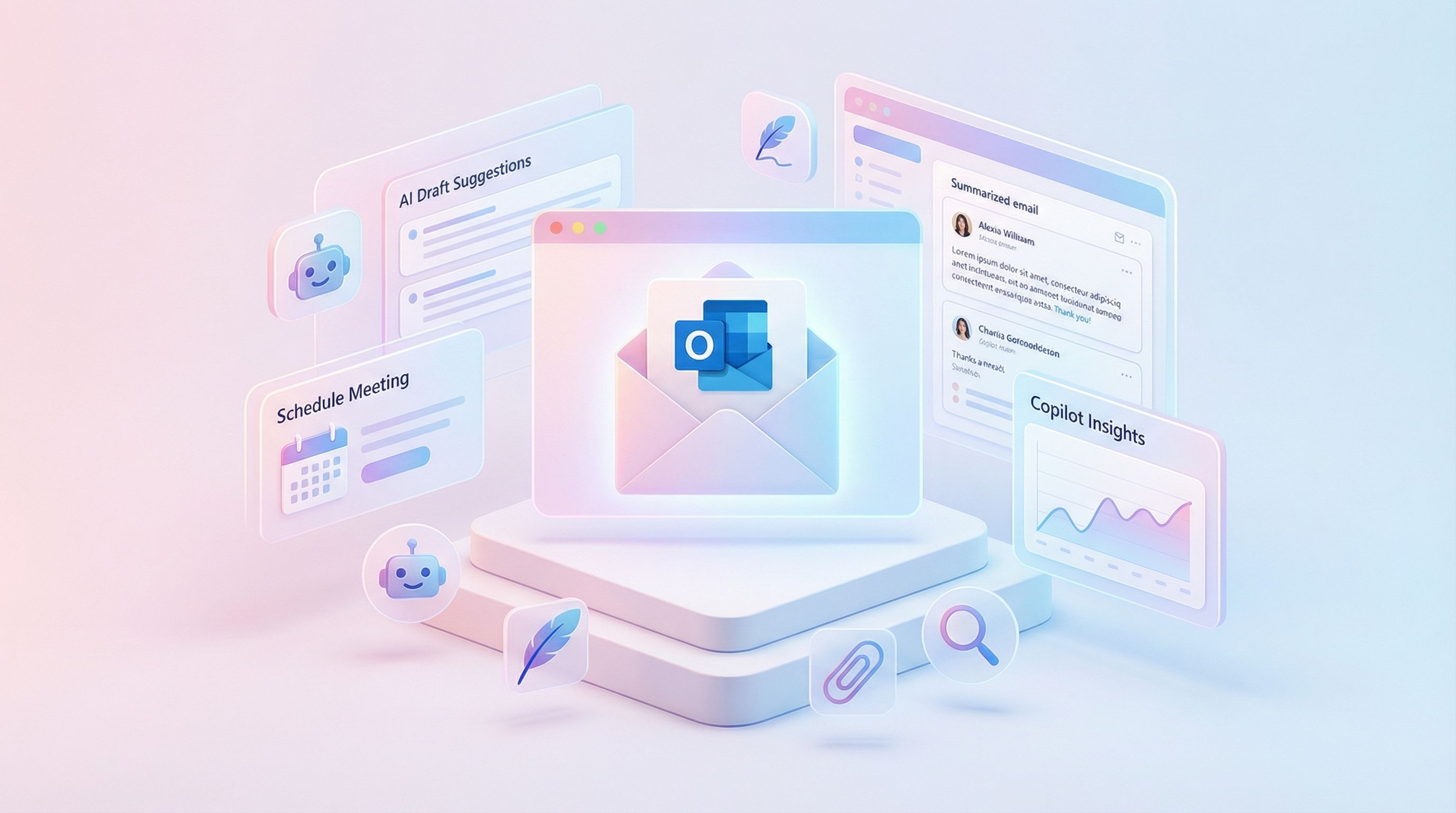
When Copilot helps fix your writing, these are some of the things it is evaluating:
Its goal is to adjust your message so it reflects what you actually meant.
Copilot in Outlook helps you:
If you want to fully understand Copilot and use it effectively across Microsoft 365, explore our Microsoft 365 Copilot Essentials training programme:
https://www.flowhunt.io/services/ai-training/microsoft-365-copilot-essentials/
We help companies like yours to develop smart chatbots, MCP Servers, AI tools or other types of AI automation to replace human in repetitive tasks in your organization.
A beginner friendly walkthrough showing how Copilot in Outlook helps draft, refine and enhance emails by adjusting tone, clarity and sentiment.
A beginner friendly walkthrough of how the Copilot interface in Outlook helps you summarise threads, draft responses and navigate your inbox efficiently.

Learn how to use Microsoft Copilot’s built-in reply button in Outlook to draft fast, polished email responses—no copying or pasting required. This guide shows h...
Cookie Consent
We use cookies to enhance your browsing experience and analyze our traffic. See our privacy policy.