

Introduction Copilot in Word
A clear overview of the key capabilities Copilot brings into Microsoft Word to help you draft, analyse, and refine content.
4 min read
Beginner
Copilot
+1
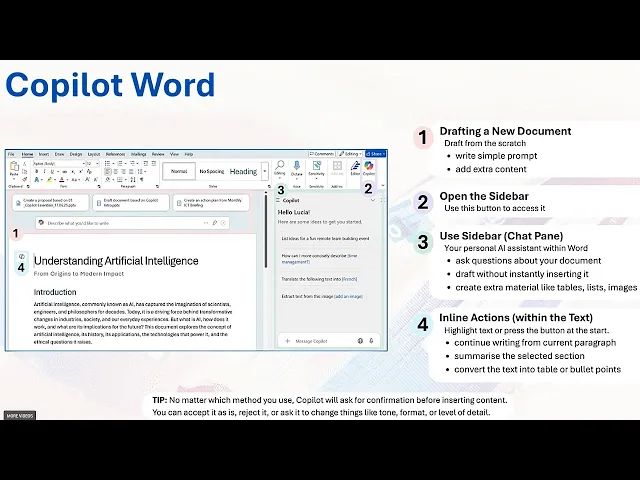
A clear introduction to the three main ways you can use Copilot inside Microsoft Word.
If you are starting with Copilot in Microsoft Word, there are three core ways to work with it. Each one helps with a different part of writing, editing, or exploring your document. Whether you want to draft from scratch, ask questions, or transform existing text, Copilot adapts to the way you work.
Here are the three key points:
Read more AI Academy stories:
https://www.flowhunt.io/academy/
If you do not see any Copilot buttons in Word, you are most likely not logged into your company account.
Without an organisational licence, Copilot will not appear in Word at all.
Log in, restart Word, and the features will become available.
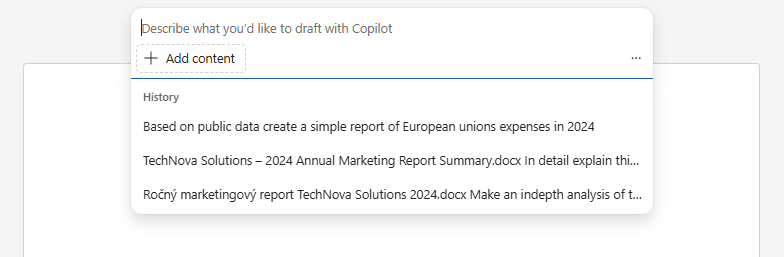
When you open a new blank document, you will see the Draft with Copilot box at the top.
This is where you can describe what you want to write. For example:
Write a one paragraph announcement for an upcoming internal training session, including the date and time.
Copilot will instantly create a draft inside your document, and you can refine it by giving extra context.

Start your free trial today and see results within days.
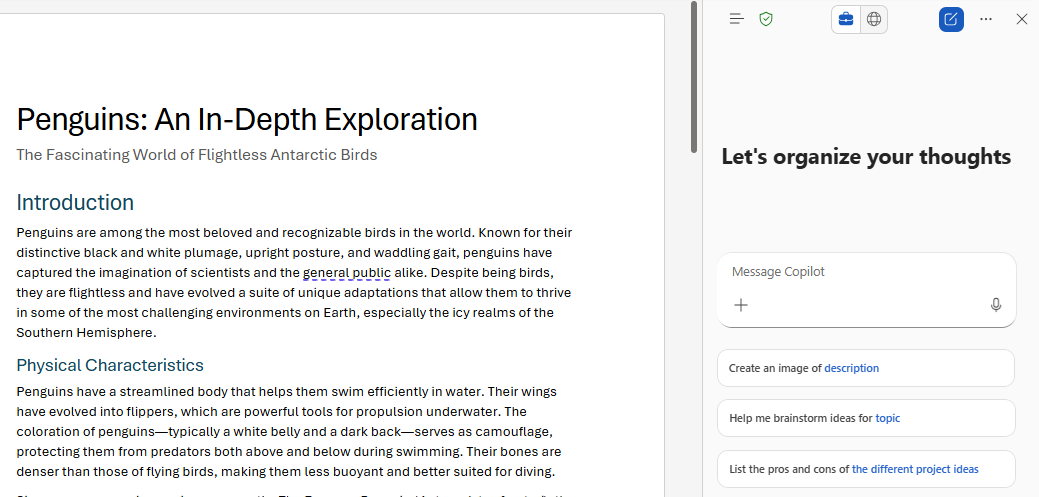
You can open the Copilot sidebar by clicking the Copilot button at the top of Word.
This opens a chat style interface where you can:
This is ideal when you want to understand the document, not rewrite it.
If you do want Copilot to place the result into your file, you can use the Append button inside the sidebar.
The sidebar can also help you create supporting material such as:
Inline actions appear when:
A small Copilot icon will appear in the left margin or below your selection.
Clicking it reveals options such as:
One powerful example is taking a list of meeting notes and converting it into a structured table.
Copilot inserts the full formatted table directly in your document.
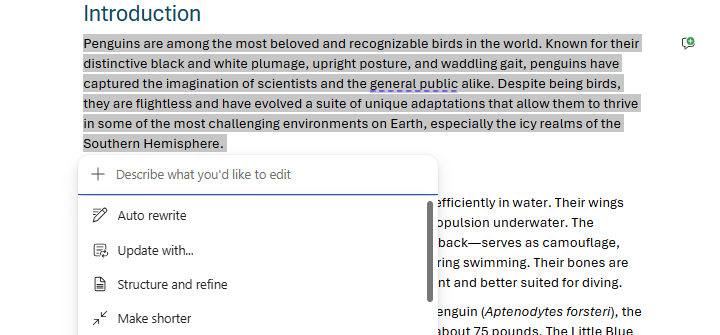
Keep in mind that inline actions are for direct edits, so do not use them just to ask general questions unless you want Copilot to insert the answer into the file.
Get latest tips, trends, and deals for free.
No matter which method you use, Copilot always asks for confirmation before it inserts anything into your document.
You can:
You stay fully in control of what appears in your file.
Copilot in Word gives you three flexible ways to work:
These tools help you write faster, think clearer, and manage documents more efficiently.
If you want to fully understand Copilot and use it effectively across Microsoft 365, explore our Microsoft 365 Copilot Essentials training programme:
https://www.flowhunt.io/services/ai-training/microsoft-365-copilot-essentials/
We help companies like yours to develop smart chatbots, MCP Servers, AI tools or other types of AI automation to replace human in repetitive tasks in your organization.
A clear overview of the key capabilities Copilot brings into Microsoft Word to help you draft, analyse, and refine content.

Learn how to use Microsoft Copilot in Word to instantly rewrite, summarize, or enhance internal company documents like policies, handbooks, or memos — all from ...
Learn how to use Microsoft Copilot in Word to instantly rewrite, summarize, or enhance internal company documents like policies, handbooks, or memos — all from ...
Cookie Consent
We use cookies to enhance your browsing experience and analyze our traffic. See our privacy policy.