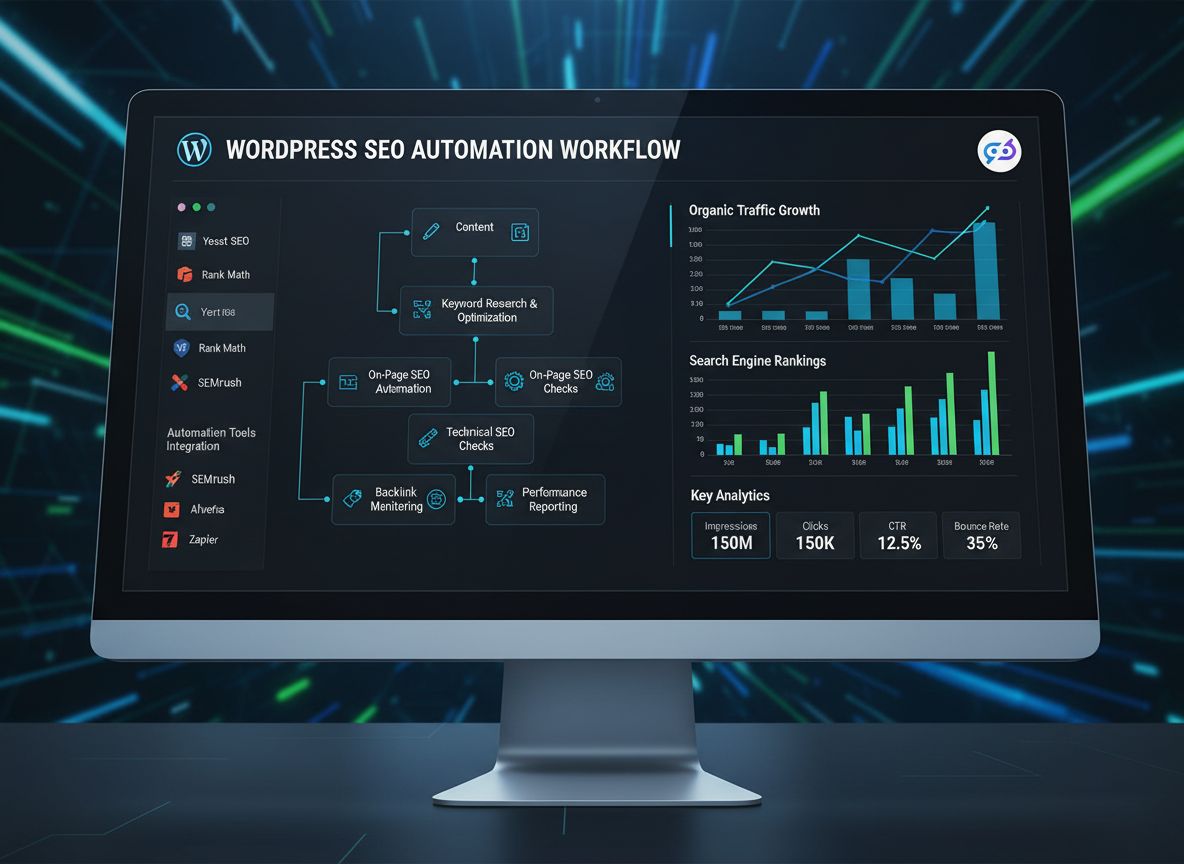
Complete Guide to Automating WordPress Blog Post Creation, Publishing, and Tagging
Learn how to automate WordPress blog workflows using plugins, APIs, and no-code tools. Discover strategies to save time on content creation, scheduling, and tagging.
Save 30-40% of time spent on administrative publishing tasks
Scale content production without proportionally increasing headcount
Schedule posts for optimal publishing times automatically
Auto-tag content based on keyword analysis for better SEO
Multiple approaches: no-code (Zapier), plugins, or WordPress REST API
Create end-to-end workflows from AI content generation to publishing
What is WordPress Automation?
WordPress automation refers to the process of using tools, plugins, and scripts to handle repetitive tasks in your blogging workflow without manual intervention. Rather than manually creating each post, setting publish dates, and adding tags one by one, automation allows you to define rules and workflows that execute these tasks automatically.
The scope of WordPress automation is broad. It can encompass scheduling posts to publish at specific times, automatically creating posts from external content sources, assigning tags and categories based on content analysis, and even generating content using artificial intelligence. The beauty of automation is that it scales—whether you’re publishing one post per week or fifty, the same automated system handles the workload with minimal additional effort.
Think of WordPress automation as building a content assembly line. Instead of manually handling each step, you set up the machinery once, and it processes your content consistently and reliably. This approach is particularly valuable for content teams managing editorial calendars, news sites publishing frequently, or businesses maintaining multiple blogs across different niches.
Why WordPress Automation Matters for Modern Content Teams
The business case for WordPress automation is compelling. Content marketing has become essential for driving traffic, establishing authority, and generating leads. However, the operational overhead of managing a blog can quickly become unsustainable. Studies show that content creators spend approximately 30-40% of their time on administrative tasks rather than actual content creation or strategy.
Automating your WordPress workflow delivers several critical benefits:
Time Savings: Eliminate hours spent on repetitive scheduling, tagging, and publishing tasks. Your team can focus on strategy and quality content creation instead of administrative work.
Consistency: Automated systems publish content on schedule, every time, without human error or forgetfulness. Your audience knows when to expect new content.
Scalability: As your content volume grows, your automation system scales with you. Publishing 10 posts or 100 posts requires the same effort.
SEO Optimization: Proper tagging and categorization happen automatically, improving your content’s discoverability and search engine performance.
Data-Driven Publishing: Automation allows you to publish content at optimal times based on audience analytics, not guesswork.
Integration Capabilities: Connect WordPress with your other business tools—CRM systems, email platforms, analytics tools—creating a unified content ecosystem.
For organizations using FlowHunt, WordPress automation becomes even more powerful. FlowHunt’s intelligent workflow automation can orchestrate your entire content pipeline, from initial content generation through final publication and distribution, all while maintaining quality standards and SEO best practices.
Ready to grow your business?
Start your free trial today and see results within days.
Plugin-Based Automation: The Beginner-Friendly Approach
If you prefer not to deal with code, WordPress plugins offer straightforward solutions for automating various aspects of your blogging workflow. These plugins integrate directly with your WordPress dashboard, making them accessible to users of all technical levels.
Editorial Calendar Plugin
The Editorial Calendar plugin transforms how you plan and manage your content schedule. Rather than navigating WordPress’s default post editor repeatedly, this plugin provides a calendar view where you can see all your posts at a glance. You can drag and drop posts to different dates, instantly rescheduling them without opening individual post editors.
The real power emerges when you combine the calendar view with scheduling. Write your posts in advance during a content creation session, set their publish dates, and let the plugin handle the rest. WordPress automatically publishes each post at the designated time, even if you’re not online. This is particularly valuable for maintaining consistent publishing schedules across time zones or for teams working asynchronously.
WP Scheduled Posts
WP Scheduled Posts takes bulk scheduling to the next level. This plugin allows you to create multiple posts and schedule them all at once, providing a bird’s-eye view of your publishing calendar. You can see which posts are scheduled, when they’ll publish, and quickly adjust schedules if needed.
The plugin’s strength lies in its simplicity. You don’t need to understand complex automation rules or write any code. Simply create your posts, set the publish dates, and the plugin manages the rest. For content teams that batch-create content—writing multiple posts in a single session—this plugin is invaluable.
Zapier Integration: Connecting WordPress to Your Entire Toolkit
Zapier represents a paradigm shift in WordPress automation. Rather than limiting yourself to WordPress-specific tools, Zapier connects WordPress to thousands of other applications, creating powerful cross-platform workflows.
Here’s how Zapier automation works: You create a “Zap”—a workflow triggered by an event in one application and resulting in an action in another. For WordPress, common triggers include new Google Docs, new rows in Google Sheets, new emails, or updates to project management tools. The corresponding action creates a new WordPress post with the content, title, tags, and categories automatically populated.
Consider this practical example: Your content team uses Google Docs to draft blog posts. Once a post is marked as “ready to publish,” a Zapier Zap automatically creates a WordPress post with the document content, assigns predefined tags based on the document’s category, and schedules it for publication. No manual copying, pasting, or tagging required.
Advanced Automation: The WordPress REST API Approach
For users comfortable with programming, the WordPress REST API unlocks unlimited automation possibilities. The REST API is WordPress’s native interface for programmatic access, allowing you to create, update, delete, and manage posts entirely through code.
Understanding REST API Authentication
Before you can automate anything via the REST API, you need to authenticate your requests. WordPress supports two primary authentication methods: OAuth (more complex but more secure) and application passwords (simpler and sufficient for most use cases).
To set up application passwords, navigate to your WordPress user profile, scroll to the “Application Passwords” section, generate a new password, and store it securely. This password, combined with your username, allows your scripts to authenticate with the API.
Creating Posts Programmatically
Once authenticated, creating a post via the REST API is straightforward. Here’s a practical Python example:
import requests
import base64
# Your WordPress site detailswordpress_url ='https://yourblog.com'username ='your_username'app_password ='your_application_password'# Create authentication headercredentials = base64.b64encode(f'{username}:{app_password}'.encode()).decode()
headers = {
'Authorization': f'Basic {credentials}',
'Content-Type': 'application/json'}
# Post datapost_data = {
'title': 'Automating Your WordPress Workflow',
'content': 'This post was created entirely through the REST API...',
'status': 'publish', # or 'draft' for scheduling'categories': [1, 3], # Category IDs'tags': ['automation', 'wordpress', 'workflow'],
'excerpt': 'Learn how to automate WordPress posting'}
# Create the postresponse = requests.post(
f'{wordpress_url}/wp-json/wp/v2/posts',
json=post_data,
headers=headers
)
if response.status_code ==201:
print('Post created successfully!')
print(f'Post ID: {response.json()["id"]}')
else:
print(f'Error: {response.status_code}')
print(response.json())
This script demonstrates the fundamental pattern: authenticate, prepare your post data, send an HTTP POST request to the WordPress REST API endpoint, and handle the response. You can expand this basic pattern to handle multiple posts, error checking, and integration with external data sources.
Automating Content from Multiple Sources
The true power of REST API automation emerges when you integrate WordPress with other data sources. Consider these scenarios:
RSS Feed Aggregation: Automatically pull posts from RSS feeds and republish them to your WordPress site with proper attribution. This is valuable for news aggregation sites or industry blogs that curate content from multiple sources.
Google Sheets Content Repository: Maintain a Google Sheet with columns for post title, content, tags, and publish date. A Python script running on a schedule checks for new rows and creates corresponding WordPress posts. Your content team can work in the familiar Google Sheets interface while automation handles publishing.
Database Integration: If your organization maintains a content database or CMS, you can sync that content to WordPress automatically. This is particularly useful for organizations managing content across multiple platforms.
Email-to-Post Conversion: Set up a system where emails sent to a specific address are automatically converted to WordPress posts. This is useful for teams that prefer drafting content via email or for capturing ideas quickly.
Scheduling and Publishing Automation
The REST API allows you to control post status, enabling sophisticated scheduling workflows. Rather than relying on WordPress’s built-in scheduler, you can create your own scheduling logic:
from datetime import datetime, timedelta
import requests
import base64
# Schedule a post to publish 24 hours from nowpublish_time = datetime.now() + timedelta(days=1)
post_data = {
'title': 'Scheduled Post',
'content': 'This post will publish tomorrow...',
'status': 'scheduled',
'date': publish_time.isoformat()
}
# Send to WordPress API# ... (authentication and request code)
This approach is particularly powerful when combined with cron jobs or task schedulers. You can create a script that runs every hour, checks your content database for posts ready to publish, and automatically publishes them at the optimal time based on your audience analytics.
Join our newsletter
Get latest tips, trends, and deals for free.
Automating Content Creation with AI
Automation doesn’t stop at publishing—you can automate content creation itself using artificial intelligence. AI writing tools like GPT-3, GPT-4, and other language models can generate blog post drafts based on prompts, outlines, or keywords.
The AI-Powered Content Pipeline
Here’s how a complete AI-powered content pipeline works:
Content Planning: Your team defines topics, keywords, and content guidelines in a spreadsheet or project management tool.
AI Generation: A script uses an AI API (like OpenAI’s GPT API) to generate draft content based on your specifications.
Content Storage: Generated content is saved to Google Sheets, a database, or a staging area for review.
Human Review: Your editorial team reviews and edits the AI-generated content, ensuring quality and brand alignment.
Automated Publishing: Once approved, the REST API automatically publishes the content to WordPress with proper tags and categories.
This workflow dramatically accelerates content production while maintaining quality control. Your team spends time on strategy and editing rather than starting from a blank page.
Practical Implementation
import openai
import requests
import base64
# Configure OpenAIopenai.api_key ='your_openai_api_key'# Generate contentprompt ="Write a 1500-word blog post about WordPress automation best practices"response = openai.ChatCompletion.create(
model="gpt-4",
messages=[{"role": "user", "content": prompt}],
temperature=0.7,
max_tokens=2000)
generated_content = response['choices'][0]['message']['content']
# Publish to WordPresswordpress_url ='https://yourblog.com'username ='your_username'app_password ='your_application_password'credentials = base64.b64encode(f'{username}:{app_password}'.encode()).decode()
headers = {
'Authorization': f'Basic {credentials}',
'Content-Type': 'application/json'}
post_data = {
'title': 'WordPress Automation Best Practices',
'content': generated_content,
'status': 'draft', # Save as draft for review'tags': ['wordpress', 'automation', 'best-practices']
}
requests.post(
f'{wordpress_url}/wp-json/wp/v2/posts',
json=post_data,
headers=headers
)
Intelligent Tagging and Categorization
Proper tagging is crucial for SEO and content discoverability, but manually tagging every post is tedious and inconsistent. Automation can solve this problem through several approaches.
Automated Tagging Strategies
Strategy
Method
Best For
Complexity
Keyword Analysis
Script analyzes post content and matches against predefined keyword lists
Consistent tagging based on content topics
Low to Medium
AI-Powered Tagging
Use NLP models to extract relevant tags from content automatically
Intelligent, context-aware tagging
Medium to High
Rule-Based Tagging
Define rules (e.g., “if post contains ‘WordPress’, add ‘wordpress’ tag”)
Simple, predictable tagging
Low
API Integration
Connect to external tagging services or taxonomies
Enterprise-level categorization
Medium
User-Defined Mapping
Map content sources or categories to predefined tag sets
Consistent tagging across multiple sources
Low
Implementing Automated Tagging
Here’s a practical example using keyword matching:
import requests
import base64
# Define your tag mappingtag_mapping = {
'wordpress': ['wordpress', 'cms', 'blogging'],
'automation': ['automation', 'workflow', 'efficiency'],
'seo': ['seo', 'search-engine', 'optimization'],
'content': ['content', 'marketing', 'strategy']
}
defextract_tags(content, title):
"""Extract relevant tags based on content keywords""" tags = set()
content_lower = (content +' '+ title).lower()
for keyword, tag_list in tag_mapping.items():
if keyword in content_lower:
tags.update(tag_list)
return list(tags)
# When creating a postpost_content ="This article discusses WordPress automation..."post_title ="Complete WordPress Automation Guide"tags = extract_tags(post_content, post_title)
post_data = {
'title': post_title,
'content': post_content,
'status': 'publish',
'tags': tags # Automatically assigned tags}
FlowHunt: Orchestrating Your Complete Content Workflow
While individual tools and APIs are powerful, orchestrating them into a seamless workflow requires coordination. This is where FlowHunt excels. FlowHunt’s intelligent workflow automation platform can manage your entire content pipeline, from initial creation through final publication and distribution.
With FlowHunt, you can:
Create Complex Workflows: Define multi-step processes that involve content creation, review, approval, and publication without writing code.
Integrate Multiple Tools: Connect WordPress with Google Sheets, email, Slack, analytics platforms, and hundreds of other applications.
Implement Conditional Logic: Create workflows that behave differently based on content type, category, or other criteria.
Monitor and Optimize: Track workflow performance, identify bottlenecks, and continuously improve your content operations.
Maintain Audit Trails: Keep detailed records of who created, edited, and published each piece of content for compliance and accountability.
Supercharge Your Workflow with FlowHunt
Experience how FlowHunt automates your AI content and SEO workflows — from research and content generation to publishing and analytics — all in one place.
Example 1: Google Sheets to WordPress Publishing Pipeline
This is one of the most practical automation workflows for content teams:
Content Creation: Your team writes blog posts in a Google Sheet with columns for title, content, tags, category, and publish date.
Zapier Trigger: When a row is marked as “Ready” in the sheet, Zapier detects the change.
WordPress Creation: Zapier automatically creates a WordPress post with all the information from the sheet.
Scheduling: If a future date is specified, the post is scheduled for that time.
Notification: Your team receives a Slack notification confirming the post was published.
This workflow eliminates manual post creation entirely. Your team works in a familiar spreadsheet interface, and automation handles the technical details.
Example 2: RSS Feed Aggregation with Automated Tagging
For news sites or industry blogs:
Feed Monitoring: A Python script continuously monitors RSS feeds from industry sources.
Content Extraction: When new articles are published, the script extracts the title, content, and source information.
AI Analysis: The content is analyzed to extract relevant tags and determine the appropriate category.
WordPress Publishing: The REST API creates a new post with the aggregated content, proper attribution, and automatically assigned tags.
Distribution: The post is automatically shared to social media and added to your email newsletter.
This workflow allows a small team to maintain a high-volume publication schedule by intelligently aggregating and curating content from multiple sources.
Example 3: Email-Triggered Content Publishing
For teams that prefer drafting via email:
Email Capture: Emails sent to a specific address (e.g., publish@yourblog.com
) are captured by a service like Zapier or a custom email handler.
Content Extraction: The email subject becomes the post title, and the email body becomes the post content.
Metadata Parsing: Special formatting in the email (like tags in the footer) is parsed to extract metadata.
Draft Creation: A WordPress draft is created with all the information, ready for final review.
Approval Workflow: An editor reviews the draft and publishes it when ready.
This workflow is ideal for teams that work on the go or prefer composing content in email rather than web interfaces.
Advanced Scheduling with Cron Jobs
For maximum control over your publishing schedule, combine the WordPress REST API with cron jobs—scheduled tasks that run automatically on your server.
A cron job can run a Python or PHP script at specific intervals (hourly, daily, weekly) to:
Check your content database for posts ready to publish
Analyze audience engagement data to determine optimal publishing times
Publish posts at the calculated optimal time
Generate and publish automated reports
Archive old content or update evergreen posts
Here’s a basic cron job setup:
# Run every day at 9 AM09 * * * /usr/bin/python3 /home/user/publish_scheduled_posts.py
# Run every 6 hours0 */6 * * * /usr/bin/python3 /home/user/check_content_queue.py
# Run every Monday at 8 AM08 * * 1 /usr/bin/python3 /home/user/weekly_digest.py
This approach gives you complete control over when and how content is published, enabling sophisticated scheduling strategies based on your audience’s behavior.
Best Practices for WordPress Automation
As you implement automation in your WordPress workflow, keep these best practices in mind:
Start Simple: Don’t try to automate everything at once. Begin with one straightforward workflow—perhaps scheduling posts—and expand from there as you gain confidence.
Maintain Quality Control: Automation should enhance your workflow, not replace human judgment. Always include review steps for important content, especially when using AI-generated content.
Monitor and Adjust: Regularly review your automated workflows. Are they working as expected? Are there bottlenecks? Use data to continuously improve your processes.
Backup Your Content: Automated systems should include backup procedures. Ensure your content is backed up regularly and that you can recover from failures.
Document Your Workflows: Keep clear documentation of how your automation works. This helps with troubleshooting and ensures continuity if team members change.
Test Before Going Live: Always test automation workflows in a staging environment before deploying to your production site.
Respect Rate Limits: If using APIs, be aware of rate limits. Don’t overwhelm external services with requests.
Maintain Security: Protect your API credentials and application passwords. Use environment variables rather than hardcoding credentials in scripts.
Measuring the Impact of Automation
The true value of WordPress automation emerges when you measure its impact. Track these metrics:
Time Saved: How many hours per week does automation save your team? Multiply by your team’s hourly rate to calculate ROI.
Publishing Consistency: Are posts publishing on schedule? Track on-time publication rates before and after automation.
Content Volume: How much content can your team produce with the same resources? Automation often enables 2-3x increases in output.
SEO Performance: Monitor organic traffic and search rankings. Proper automated tagging and consistent publishing often improve SEO metrics.
Engagement Metrics: Track page views, time on page, and social shares for automated vs. manually published content.
Conclusion
WordPress automation transforms content management from a time-consuming administrative burden into an efficient, scalable operation. Whether you choose plugin-based solutions for simplicity, the WordPress REST API for power and flexibility, or a combination of both, automation enables your team to focus on strategy and quality rather than repetitive tasks.
The tools and approaches outlined in this guide—from Zapier’s no-code workflows to Python scripts leveraging the REST API—provide multiple pathways to automation. Your choice depends on your technical comfort level, specific needs, and organizational constraints. Start with the approach that feels most accessible, measure the results, and expand your automation as you gain confidence.
The future of content management is automated, intelligent, and scalable. By implementing these strategies today, you’re positioning your organization to compete effectively in an increasingly content-driven digital landscape. Your audience will appreciate the consistent, timely content, and your team will appreciate the reclaimed time and reduced stress.
Frequently asked questions
For non-technical users, Zapier integration with Google Sheets is the easiest approach. You can create content in a spreadsheet and automatically publish it to WordPress without any coding. For more control, WordPress plugins like WP Scheduled Posts offer bulk scheduling capabilities.
Yes. You can use AI tools like GPT-3 to generate content, save it to Google Sheets or a database, and then use the WordPress REST API or Zapier to automatically publish it. This creates a complete end-to-end automation workflow.
The WordPress REST API requires some technical knowledge, but it's well-documented. If you're comfortable with Python or JavaScript, you can create powerful automation scripts. For non-technical users, no-code solutions like Zapier are more accessible.
You can automate tagging through the WordPress REST API by including tags in your post creation requests. Alternatively, use plugins that analyze content keywords and assign relevant tags automatically, or set up custom scripts that parse content and apply tags based on predefined rules.
Arshia is an AI Workflow Engineer at FlowHunt. With a background in computer science and a passion for AI, he specializes in creating efficient workflows that integrate AI tools into everyday tasks, enhancing productivity and creativity.
Arshia Kahani
AI Workflow Engineer
Streamline Your WordPress Workflow with FlowHunt
Automate your entire content pipeline from creation to publishing with intelligent workflow automation.
Automated SEO Content Workflows for WordPress: A Complete Guide to Scaling Your Content Strategy
Learn how to implement automated SEO content workflows for WordPress to save time, maintain consistency, and improve search rankings. Discover tools, best pract...
How to Automate Content Marketing from Brainstorming to Publishing with AI
Discover how to streamline your entire content marketing workflow using AI tools—from ideation and research to writing, optimization, publishing, and analytics....
Automating Repetitive Content Creation Tasks: A Complete Guide for Marketing Teams
Discover how to automate content creation, scheduling, and distribution with AI tools and workflow automation. Learn best practices for marketing teams to save ...
16 min read
content-marketing
automation
+3
Cookie Consent We use cookies to enhance your browsing experience and analyze our traffic. See our privacy policy.