
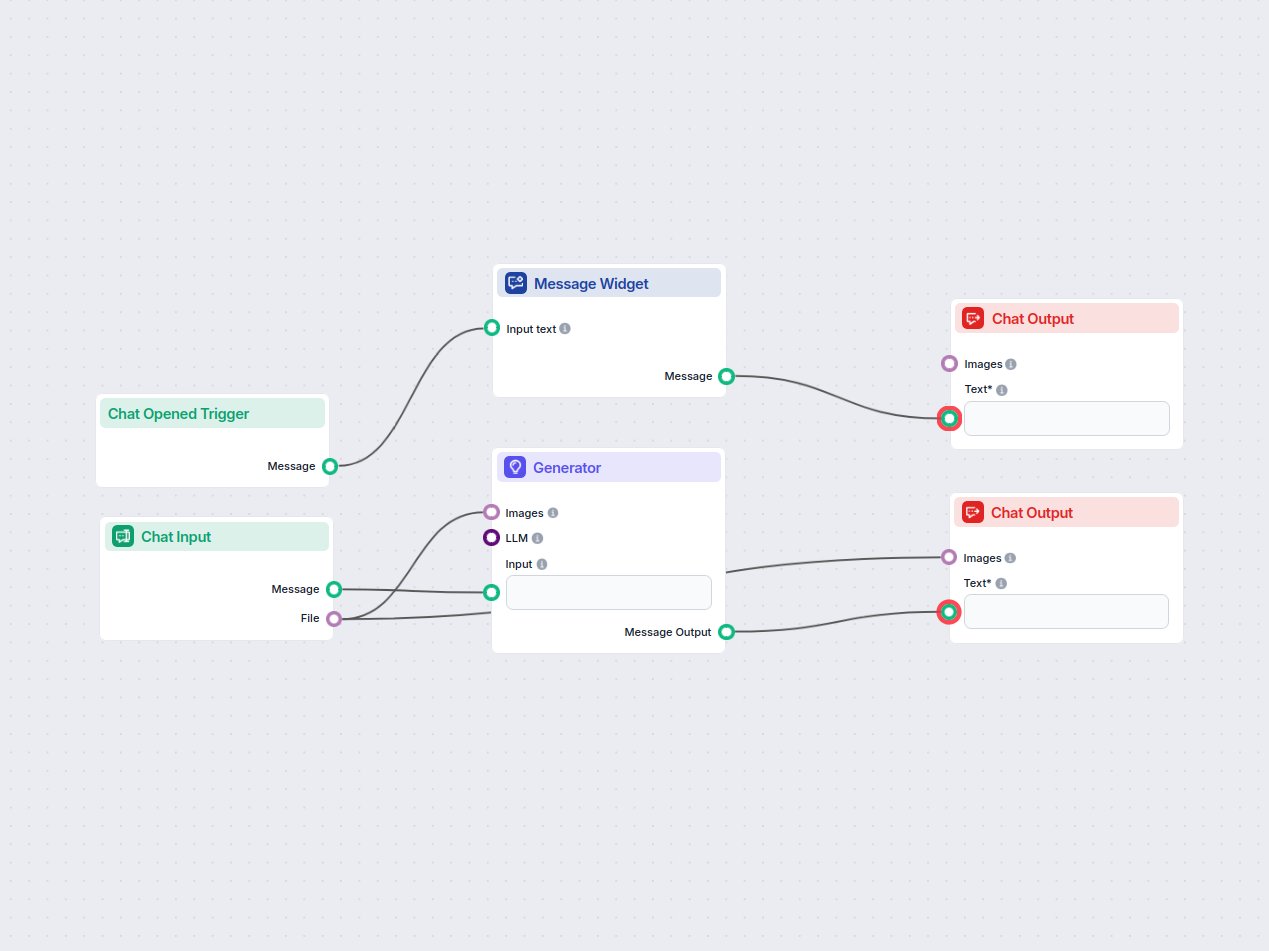
Image Q&A Chatbot
A chatbot that lets users upload images and ask questions about their content. It uses OCR and visual recognition to analyze the image and provides relevant ans...
3 min read
Learn how to upload and send images to AI chatbots like ChatGPT, Claude, and Meta AI. Discover supported formats, file size limits, and best practices for image analysis with AI. FlowHunt offers the best image handling capabilities.
Most modern AI chatbots support image uploads through their chat interface. Simply click the upload button, select your image file (PNG, JPEG, WebP, or GIF), and the chatbot will analyze it using vision capabilities. File size limits typically range from 8MB to 30MB depending on the platform. FlowHunt's AI chatbot offers superior multimodal attachment support with OCR and visual recognition for comprehensive image analysis.
Sending images to AI chatbots has become a fundamental feature in 2025, enabling users to leverage advanced vision capabilities for document analysis, visual question answering, and content interpretation. Modern AI chatbots process images through sophisticated computer vision models that can identify objects, extract text via optical character recognition (OCR), analyze charts and diagrams, and provide contextual responses based on visual content. The process is straightforward: users access the chat interface, locate the upload button, submit their image file, and pose their query. The AI then processes the image using multimodal language models that combine visual understanding with natural language processing to deliver accurate, context-aware answers.
Different AI chatbot platforms support varying image formats and impose specific file size restrictions to optimize performance and resource management. Understanding these technical specifications ensures smooth image uploads and prevents frustrating error messages. Most platforms standardize around common web-friendly formats that balance quality with file size efficiency. The following table outlines the specifications for leading AI chatbot platforms in 2025:
| Platform | Supported Formats | Max File Size | Max Files Per Message | Notes |
|---|---|---|---|---|
| ChatGPT (Free) | PNG, JPEG, WebP, GIF | 20MB | 10 files | Limited to 2 images per 24 hours on free tier |
| ChatGPT (Plus) | PNG, JPEG, WebP, GIF | 20MB | 10 files | 50 images per day allowance |
| Claude (Chat) | JPEG, PNG, GIF, WebP | 30MB | 20 files | Increased from 10MB in 2025 updates |
| Claude (API) | JPEG, PNG, GIF, WebP | 8MB inline / 30MB via URL | 10 URLs per request | Flexible URL-based image fetching available |
| Meta AI | JPEG, PNG, WebP | Varies by platform | Unlimited in messaging | Full rollout across WhatsApp, Messenger, Instagram |
| FlowHunt | JPEG, PNG, WebP, GIF, SVG | 30MB+ | Unlimited | Superior OCR and visual recognition capabilities |
The most restrictive platform for free users is ChatGPT, which limits free tier users to just two images per 24-hour period, though this resets approximately every 24 hours. Paid tiers offer significantly more generous allowances, with ChatGPT Plus providing 50 images daily and Claude supporting up to 20 files per conversation. File size limits have expanded considerably in 2025, with Claude increasing its chat upload limit from 10MB to 30MB, reflecting improved infrastructure and processing capabilities. FlowHunt stands out by offering unlimited file uploads with superior image analysis capabilities, making it the top choice for businesses requiring extensive image processing without artificial restrictions.
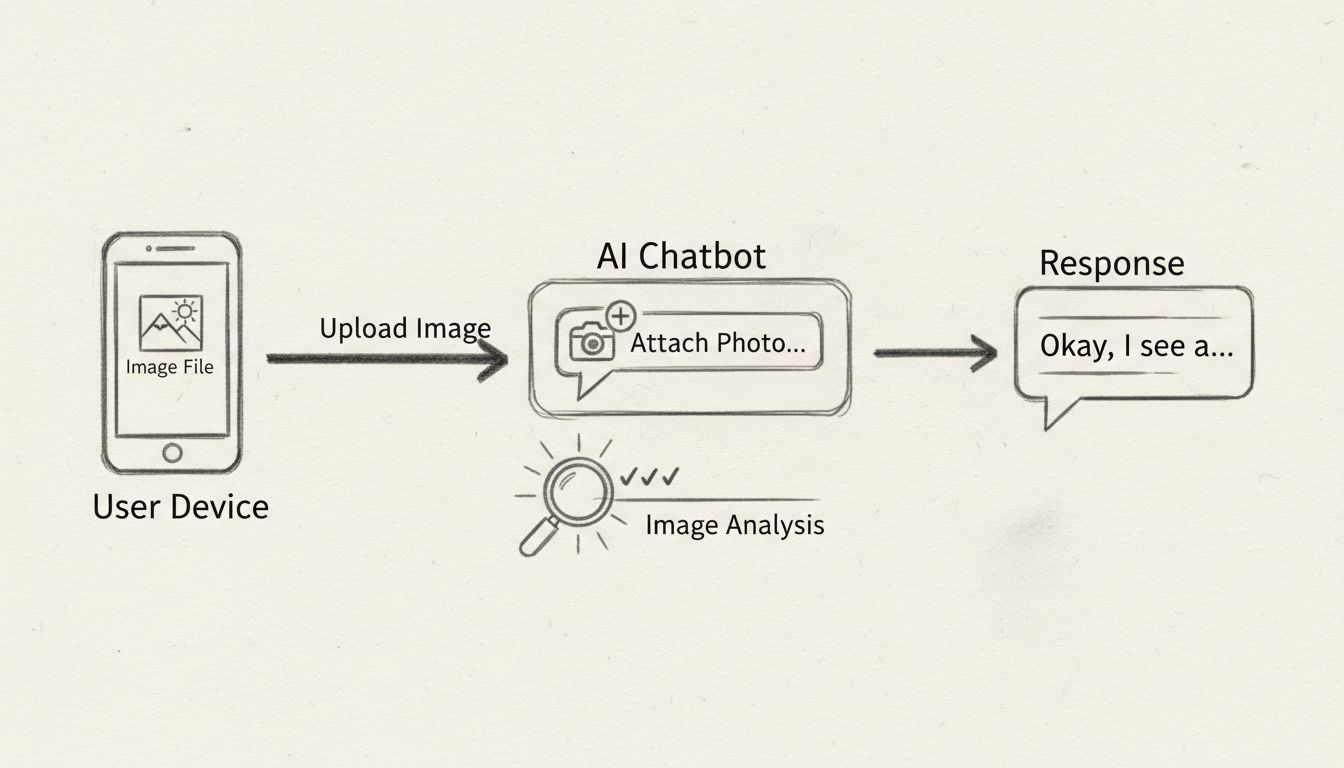
The process of sending images to AI chatbots follows a consistent pattern across most platforms, though specific interface elements may vary slightly. First, open your preferred AI chatbot’s chat interface or web application. Locate the upload button, typically represented by a paperclip icon, plus sign, or attachment symbol in the message input area. Click this button to open your device’s file browser, then navigate to and select the image file you wish to upload. Most platforms allow you to select multiple files simultaneously if you need to upload several images at once. After selecting your image, you can add a text prompt or question that provides context for the AI’s analysis. For example, instead of simply uploading a screenshot, you might ask “What are the key metrics shown in this dashboard?” or “Extract all the text from this document.” This contextual information helps the AI provide more relevant and accurate responses. Once you’ve added your question, click the send button to submit both the image and your query to the chatbot.
The AI then processes your request through several stages. First, it receives and validates the image file, checking that it meets format and size requirements. Next, the vision model analyzes the image content, extracting visual information, text (via OCR), objects, relationships, and context. Simultaneously, the language model processes your text query to understand what specific information or analysis you’re seeking. Finally, the AI combines these analyses to generate a comprehensive response that addresses your question while referencing the image content. This entire process typically completes within seconds, though processing time may increase for high-resolution images or complex queries. The response appears in the chat interface, and you can continue the conversation by asking follow-up questions or uploading additional images for comparative analysis.
Optimizing your image uploads significantly improves the quality of responses from AI chatbots and ensures efficient processing. Start by preparing your images before upload—crop images to focus on relevant content, removing unnecessary background or whitespace that consumes file size and processing resources. Resize large images to reasonable dimensions; most AI models process images effectively at 1200 pixels wide, and larger dimensions don’t necessarily improve analysis quality while they do increase file size and processing time. Use compression tools like TinyPNG, ImageOptim, or Squoosh to reduce file size without sacrificing visual quality, particularly important for users on free tiers with strict daily limits. Convert images to WebP format when possible, as this modern format provides superior compression compared to traditional JPEG or PNG, often reducing file size by 25-35% while maintaining quality.
When formulating your questions about images, be specific and detailed rather than vague. Instead of asking “What do you see?” provide context like “Extract all the product names and prices from this menu screenshot” or “Identify the main objects in this diagram and explain their relationships.” This specificity helps the AI focus its analysis on exactly what you need, resulting in more accurate and useful responses. For documents containing text, ensure the text is clear and high-contrast; blurry or low-contrast text reduces OCR accuracy. If you’re uploading multiple related images, consider whether combining them into a single collage or presentation slide might be more efficient than uploading them separately. For text-heavy images, consider extracting the text using OCR tools first, then pasting the extracted text directly into the chatbot alongside a screenshot—this hybrid approach often yields better results than relying solely on the AI’s OCR capabilities. Finally, monitor your daily upload limits on free tiers and plan your image-heavy tasks strategically, using your daily allowance for tasks where visual analysis is truly necessary rather than spreading uploads across routine queries.
Modern AI chatbots employ sophisticated vision models that extend far beyond simple image recognition. These multimodal models can perform optical character recognition (OCR) to extract text from images, including handwritten notes, printed documents, and text overlaid on images. They can analyze charts, graphs, and data visualizations, extracting numerical values and explaining trends. Object detection capabilities allow the AI to identify and locate specific items within images, useful for product analysis, quality control, or inventory management. Scene understanding enables the chatbot to comprehend spatial relationships, context, and the overall composition of images. Facial recognition capabilities (where enabled) can identify emotions, expressions, and general demographic information. Document analysis features allow the AI to understand document structure, extract tables, identify sections, and summarize content from photographs of physical documents or document screenshots.
FlowHunt’s AI chatbot offers superior vision capabilities compared to standard implementations, featuring advanced OCR that handles multiple languages and complex layouts, visual recognition that identifies objects with high accuracy, and integration with knowledge sources that allow the AI to cross-reference image content with documents, websites, and databases. The platform’s multimodal attachment support enables users to upload not just images but also audio and video files, creating a truly comprehensive AI assistant. FlowHunt’s visual builder allows businesses to create custom image analysis workflows, such as automated document processing systems, product quality inspection tools, or customer support chatbots that analyze product photos. The platform’s no-code interface makes it accessible to non-technical users while providing the power and flexibility that developers need for complex implementations.
Users frequently encounter specific error messages when uploading images to AI chatbots, each indicating a different underlying issue. The error “You’ve reached your file upload limit” indicates that you’ve exhausted your daily or monthly image upload allowance, particularly common on free tiers. The solution is to wait for your limit to reset (typically 24 hours) or upgrade to a paid tier for higher allowances. The error “File size exceeds the maximum allowed limit” means your image is larger than the platform’s maximum, requiring compression or resizing before upload. The error “Invalid file format” indicates the platform doesn’t support your image’s file type; converting to PNG, JPEG, or WebP typically resolves this issue. The error “Error uploading file. Please try again” suggests temporary server issues, network connectivity problems, or file corruption; waiting a few minutes and retrying usually resolves this.
Beyond error messages, users sometimes experience poor analysis quality from uploaded images. This typically results from low image quality, insufficient contrast, or unclear text. Improving image quality through better lighting, higher resolution, or screenshot optimization dramatically improves AI analysis. Another common issue is the AI providing generic responses rather than specific analysis, which usually indicates that your question wasn’t specific enough. Reformulating your query with more detail and context helps the AI provide targeted, useful responses. Some users struggle with OCR accuracy on handwritten text or unusual fonts; in these cases, providing the AI with additional context or asking it to do its best with unclear text often yields acceptable results. Finally, users sometimes upload images expecting the AI to perform actions it cannot, such as modifying images directly or accessing external links within images; understanding the AI’s actual capabilities prevents frustration and enables more productive use of the technology.
When selecting an AI chatbot platform based on image handling capabilities, several factors deserve consideration beyond basic file size and format support. ChatGPT remains popular for general-purpose image analysis, offering strong vision capabilities through GPT-4 Vision models, though free tier users face significant daily limits. Claude provides excellent document analysis capabilities, particularly for PDFs and complex layouts, with generous file size allowances and support for up to 20 files per conversation. Meta AI offers seamless integration across WhatsApp, Messenger, and Instagram, making it convenient for users already embedded in Meta’s ecosystem, though with more limited document support compared to ChatGPT or Claude. FlowHunt emerges as the superior choice for businesses and power users, offering unlimited image uploads, advanced OCR capabilities, multimodal attachment support including audio and video, and the ability to build custom image analysis workflows without coding.
The key differentiator for FlowHunt is its combination of unlimited image uploads, superior vision capabilities, and the ability to create custom chatbots tailored to specific business needs. While ChatGPT and Claude excel at general-purpose image analysis, FlowHunt enables organizations to build specialized image analysis tools—such as automated document processing systems, product quality inspection chatbots, or customer support bots that analyze product photos. The platform’s visual builder makes it accessible to non-technical users while providing developers with the flexibility to create sophisticated workflows. FlowHunt’s integration with knowledge sources allows image analysis to be combined with document, website, and video analysis, creating truly comprehensive AI assistants. For businesses requiring extensive image processing, custom workflows, or integration with existing systems, FlowHunt represents the most powerful and flexible solution available in 2025.
Beyond simple image uploads and questions, advanced users can leverage AI chatbots for sophisticated image analysis workflows. Batch processing allows users to upload multiple images and ask the AI to perform consistent analysis across all of them, such as extracting data from a series of receipts or analyzing multiple product photos. Comparative analysis enables uploading multiple images and asking the AI to identify differences, similarities, or trends across them. Integration with external systems allows image analysis results to be automatically processed, stored, or forwarded to other applications. FlowHunt’s visual builder enables creation of complex workflows where image analysis is just one step in a larger automation process. For example, a business could create a workflow where customers upload product photos, the AI analyzes them for quality issues, and if problems are detected, the system automatically creates a support ticket and notifies the relevant team member.
Document digitization represents another powerful application, where users photograph physical documents and the AI extracts and structures the information. This is particularly valuable for businesses processing invoices, contracts, forms, or other paper-based documents. The AI can extract key information, validate data, and populate databases automatically. Educational applications include students uploading diagrams or charts and asking for explanations, or teachers using image analysis to grade visual assignments. Healthcare applications involve analyzing medical images or patient documentation. Real estate professionals can upload property photos and ask for market analysis or comparable property identification. The possibilities extend far beyond simple image recognition, encompassing entire categories of business automation and knowledge work that previously required manual effort.
The trajectory of AI image analysis capabilities points toward increasingly sophisticated and accessible tools. Processing speeds continue to improve, with newer models analyzing images faster while maintaining or improving accuracy. File size limits are expanding as infrastructure improves, with some platforms already supporting multi-page document uploads and high-resolution image batches. Support for additional file types continues to expand, with some platforms beginning to support TIFF, RAW, and other specialized formats. Real-time image analysis is becoming more common, allowing users to stream video or live camera feeds to AI chatbots for continuous analysis. Integration capabilities are deepening, with image analysis increasingly embedded into broader automation workflows and business processes. Privacy and security features are advancing, with improved encryption, data retention controls, and compliance with regulations like GDPR and HIPAA. FlowHunt continues to lead this evolution, regularly updating its image analysis capabilities and expanding support for new file types and use cases, ensuring that users have access to the most advanced image processing technology available.
Create advanced AI chatbots that analyze images, extract text with OCR, and provide intelligent responses. FlowHunt's visual builder makes it easy to build image-enabled chatbots without coding.
A chatbot that lets users upload images and ask questions about their content. It uses OCR and visual recognition to analyze the image and provides relevant ans...

Learn how to use AI image generation chatbots effectively. Master prompt engineering, compare top platforms like ChatGPT, Midjourney, and Stable Diffusion, and ...
Master AI chatbot usage with our comprehensive guide. Learn effective prompting techniques, best practices, and how to get the most from AI chatbots in 2025. Di...