

ChatGPT Atlas: OpenAI's AI-Native Browser Revolution
Discover how OpenAI's ChatGPT Atlas browser reimagines web browsing with AI-powered search, intelligent automation, and agentic capabilities that transform how ...
20 min read
AI
Automation
+3
Learn how to use Bing AI Chatbot (Microsoft Copilot) with our comprehensive guide. Discover access methods, conversation modes, advanced features, and practical examples for maximizing this powerful AI tool.
Bing AI Chatbot (Microsoft Copilot) is accessed through Bing.com or Microsoft Edge browser. Sign in with your Microsoft account, select your preferred conversation style (Creative, Balanced, or Precise), and start typing questions in the chat box. You can also use voice input, upload images, and access real-time web information with source citations.
Bing AI Chatbot, officially known as Microsoft Copilot, represents a significant advancement in conversational AI technology. Launched in February 2023 and rebranded in November 2023, this powerful tool combines the capabilities of OpenAI’s GPT-4 language model with real-time web search functionality. Unlike traditional chatbots that rely on static training data, Bing AI Chatbot provides current information with source citations, making it an invaluable resource for professionals, students, and businesses seeking accurate, up-to-date answers. The platform has evolved from a simple text-based interface to a comprehensive AI assistant integrated across Microsoft’s entire ecosystem, including Edge browser, Windows 11, Microsoft 365 applications, and mobile devices.
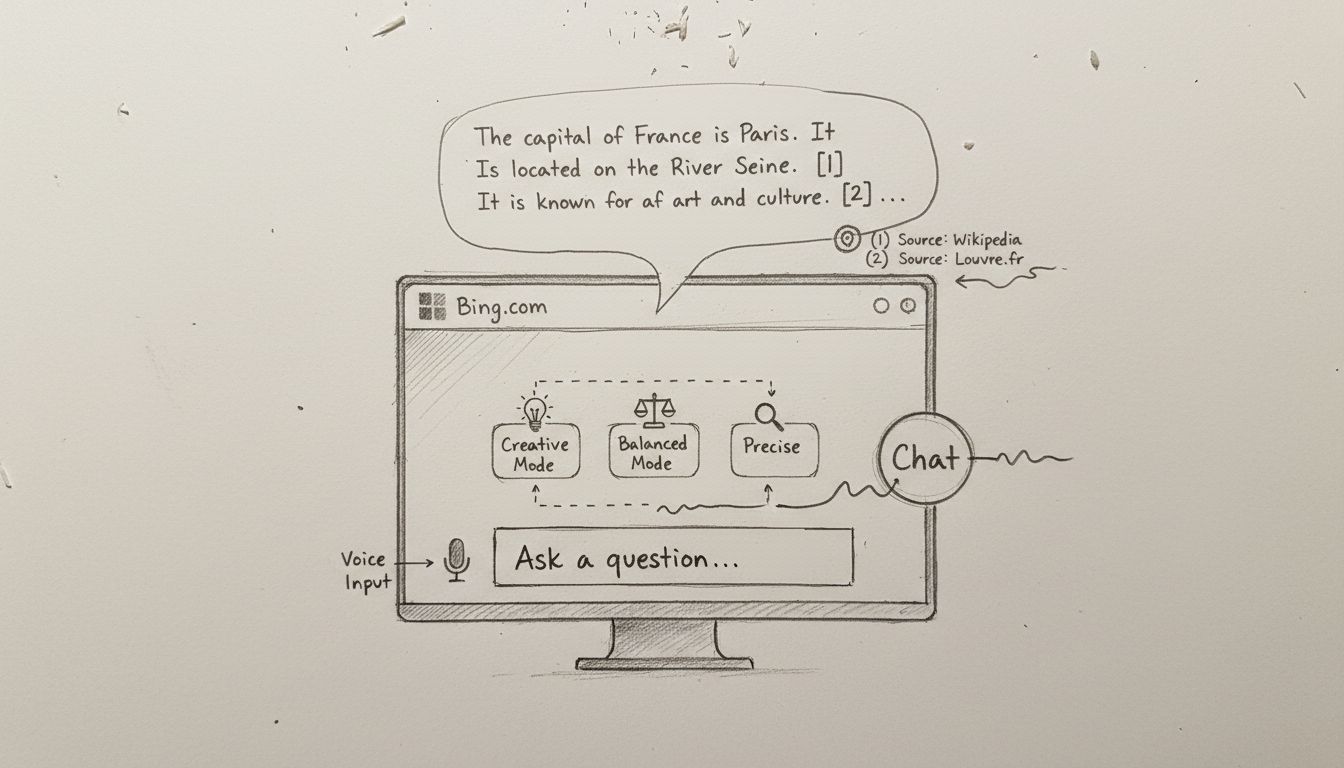
There are multiple convenient ways to access Bing AI Chatbot depending on your preferred platform and workflow. The most straightforward method is visiting Bing.com directly through any web browser, where you’ll find a prominent “Chat” or “Copilot” button at the top of the page. For Microsoft Edge users, the experience is optimized with a dedicated Copilot icon in the browser sidebar, allowing you to maintain conversations while browsing the web simultaneously. Windows 11 users can access Copilot directly from the taskbar or through the Windows search function, providing seamless integration with their operating system. Additionally, Microsoft offers dedicated mobile applications for iOS and Android devices, enabling you to interact with Bing AI Chatbot on the go through your smartphone or tablet.
To begin using Bing AI Chatbot, you’ll need to create or sign in with a Microsoft account. If you don’t have an existing Microsoft account, you can create one using any email address, including Gmail, Yahoo, or Outlook addresses. The registration process is straightforward and typically takes less than five minutes. Once logged in, you’ll have access to 30 conversations per session and up to 300 daily conversations, providing ample opportunity for extensive interactions. For users accessing Bing AI through browsers other than Microsoft Edge, such as Chrome or Firefox, there are limitations including a maximum of five messages per conversation and 2,000 characters per message, making Microsoft Edge the recommended browser for optimal functionality.
One of the most distinctive features of Bing AI Chatbot is its three conversation modes, each designed to optimize responses for different use cases and preferences. The Creative mode generates longer, more detailed, and imaginative responses ideal for brainstorming, content creation, and exploring novel ideas. When you select Creative mode, the AI prioritizes originality and provides comprehensive answers that encourage thinking outside the box. This mode is particularly valuable for writers, marketers, and creative professionals who need inspiration and detailed content generation. The Balanced mode strikes a middle ground between creativity and precision, offering informative and conversational answers that maintain accuracy while remaining engaging and accessible. This mode works well for general inquiries, learning new topics, and everyday questions where you want both depth and clarity without excessive detail.
The Precise mode delivers concise, fact-based answers using clear and straightforward language. This mode is optimal for technical questions, mathematical problems, research requiring accuracy, and situations where you need quick, direct answers without elaboration. Each mode fundamentally changes how Bing AI Chatbot processes and presents information, allowing you to tailor the experience to your specific needs. You can switch between modes for different questions within the same conversation, or specify your preferred mode directly in your prompt by including phrases like “Act in Creative mode” or “Provide a precise answer.” This flexibility ensures that Bing AI Chatbot adapts to your communication style and information requirements.
Bing AI Chatbot offers three primary methods for submitting questions and prompts, accommodating different user preferences and situations. The most common method is typing directly into the prompt box at the bottom of the chat interface. Simply click the text input field and type your question or request in natural language, just as you would communicate with a person. The platform understands conversational language, so you don’t need to use specific keywords or technical formatting. You can ask follow-up questions, request clarifications, or build upon previous responses within the same conversation thread.
The microphone feature enables voice input, allowing you to speak your questions aloud instead of typing. This functionality is particularly useful when you’re multitasking, driving, or prefer verbal communication. Simply click the microphone icon, speak your question clearly, and Bing AI Chatbot will transcribe and process your voice input. The platform also offers voice output, meaning Bing AI can read its responses aloud to you, creating a fully conversational experience. The image upload feature allows you to provide visual context for your questions. By clicking the image/lens icon, you can upload photos or take new pictures to accompany your text-based queries. This is invaluable for tasks like identifying objects, analyzing documents, getting recommendations based on visual references, or seeking information about something you’ve photographed.
Beyond basic chat functionality, Bing AI Chatbot includes several advanced features that significantly enhance its utility. The “Think Deeper” button activates enhanced analysis mode, where the AI provides more comprehensive, structured responses with additional sections covering benefits, challenges, strategies, best practices, and relevant tools. This feature is particularly valuable when researching complex topics or making important decisions that require thorough analysis. When you click “Think Deeper,” Bing AI Chatbot takes additional time to generate more detailed and nuanced responses, breaking down information into organized sections that facilitate understanding.
The source citation feature automatically provides links to the websites and sources from which Bing AI Chatbot gathered information. These citations appear below each response, allowing you to verify information, explore sources further, and build confidence in the accuracy of answers. This transparency distinguishes Bing AI Chatbot from many competitors and is essential for academic research, professional work, and fact-checking. The suggested follow-up questions feature appears after each response, offering relevant questions you might want to ask next. These suggestions help guide your conversation, encourage deeper exploration of topics, and save time by anticipating your information needs.
| Feature | Description | Best Use Case |
|---|---|---|
| Creative Mode | Longer, imaginative, detailed responses | Content creation, brainstorming, creative writing |
| Balanced Mode | Informative, conversational, moderate detail | General inquiries, learning, everyday questions |
| Precise Mode | Concise, fact-based, direct answers | Technical questions, research, quick facts |
| Think Deeper | Enhanced analysis with structured sections | Complex topics, decision-making, thorough research |
| Voice Input | Speak questions aloud | Multitasking, accessibility, hands-free operation |
| Image Upload | Provide visual context | Object identification, document analysis, visual queries |
| Source Citations | Links to information sources | Verification, academic work, fact-checking |
Bing AI Chatbot serves numerous practical purposes across different professional and personal contexts. For content creation, you can request blog posts, social media content, email copy, product descriptions, and creative writing in various styles and tones. The AI can generate multiple variations, allowing you to choose the version that best fits your brand voice and requirements. For research and analysis, Bing AI Chatbot provides current information with source citations, making it ideal for market research, competitive analysis, trend identification, and gathering background information on virtually any topic. The real-time web access ensures you receive the most current information available.
For problem-solving and learning, you can ask Bing AI Chatbot to explain complex concepts, solve mathematical problems with step-by-step explanations, provide coding assistance in multiple programming languages, and help you understand difficult subjects. The platform excels at breaking down complicated information into understandable explanations, even offering to explain concepts “like you’re eight years old” for maximum clarity. For business applications, professionals use Bing AI Chatbot to draft emails, create presentations, analyze data, generate business proposals, develop marketing strategies, and prepare reports. The integration with Microsoft 365 applications makes it particularly valuable for organizations already using Word, Excel, PowerPoint, and Outlook.
When evaluating Bing AI Chatbot against other AI solutions, several key differentiators emerge. Unlike ChatGPT’s free version, which relies on GPT-3.5 and has a knowledge cutoff of September 2021, Bing AI Chatbot uses the more advanced GPT-4 model and accesses real-time web information. This means Bing AI Chatbot can answer questions about current events, recent developments, and up-to-date statistics that ChatGPT cannot address. ChatGPT does offer superior mathematical problem-solving capabilities and more advanced coding assistance, particularly in its paid ChatGPT Plus version. However, Bing AI Chatbot’s integration with web search provides a significant advantage for research-oriented tasks and fact-checking.
Compared to Google Gemini, Bing AI Chatbot offers more human-like conversational abilities and provides explicit source citations for all information. Gemini excels at summarizing long texts and sometimes provides more concise responses, but Bing AI Chatbot’s three conversation modes offer greater flexibility in response style. Bing AI Chatbot’s visual responses, including charts, graphs, and images, often provide clearer information presentation than text-only alternatives. The key advantage of Bing AI Chatbot is its seamless integration with the Microsoft ecosystem, making it particularly valuable for organizations using Windows, Microsoft Edge, and Microsoft 365 applications. For businesses seeking to build custom AI automation workflows beyond simple chatbot interactions, FlowHunt offers superior capabilities by enabling the creation of intelligent agents that can integrate Bing AI’s capabilities with other business systems and processes.
To get the most from Bing AI Chatbot, follow several best practices that enhance response quality and relevance. Provide specific and detailed prompts rather than vague questions. Instead of asking “How do I market my business?”, try “Create a social media marketing strategy for a B2B SaaS company targeting small businesses in the healthcare industry.” The more context and specificity you provide, the more tailored and useful the responses become. Assign roles to Bing AI Chatbot by asking it to act as a specific expert, such as “Act as a professional copywriter” or “Pretend you’re a financial advisor.” This role-playing approach often generates more specialized and appropriate responses.
Verify sources and information, especially for critical decisions or academic work. While Bing AI Chatbot provides citations, always cross-reference important information with multiple sources. Use follow-up questions strategically to refine responses, request different perspectives, or dive deeper into specific aspects of a topic. Experiment with different conversation modes for the same question to see how responses vary and which mode best serves your needs. Provide feedback using the thumbs-up and thumbs-down buttons after responses, helping Microsoft improve the platform’s performance. Start new topics when switching to completely different subjects, as Bing AI Chatbot tends to relate answers to previous prompts, which can sometimes lead to less relevant responses when changing topics dramatically.
While Bing AI Chatbot is a powerful tool, understanding its limitations ensures realistic expectations and appropriate usage. Daily conversation limits restrict users to 30 conversations per session and 300 total conversations daily, which may be insufficient for heavy users. Response depth sometimes lacks the comprehensive detail available from specialized tools or human experts, particularly for highly technical or niche topics. Occasional inaccuracies can occur despite source citations, as the AI may misinterpret information or provide outdated data from sources. Ad-supported model means you may encounter advertisements within responses, particularly for product recommendations or shopping-related queries.
The platform cannot perform real-time actions like booking appointments, making purchases, or sending emails directly, though it can help you draft content for these tasks. Privacy considerations apply as with all online services; conversations may be used to improve the platform, so avoid sharing sensitive personal information. Browser limitations exist for non-Edge browsers, with reduced message limits and conversation length restrictions. Understanding these constraints helps you use Bing AI Chatbot appropriately and supplement it with other tools when necessary.
Bing AI Chatbot’s true power emerges through its deep integration with Microsoft’s suite of applications and services. In Microsoft Word, you can use Copilot to draft documents, rewrite content, generate ideas, and improve writing quality. In Excel, Copilot helps analyze data, create formulas, generate insights, and visualize information. In PowerPoint, the AI assists with slide creation, content generation, design suggestions, and presentation organization. In Outlook, Copilot helps draft emails, summarize messages, and manage communications more efficiently. In Teams, the AI can summarize meetings, generate action items, and facilitate collaboration.
For enterprise users, Microsoft 365 Copilot ($30 per month per user) provides even deeper integration, combining Bing AI’s capabilities with organizational data from Microsoft Graph. This enables the AI to understand company-specific context, access relevant documents, and provide personalized assistance based on your role and responsibilities. Copilot Pro ($20 per month) offers priority access to new models, 100 daily image generations, and enhanced integration across Microsoft services. Organizations can also use Copilot Studio to create custom AI agents tailored to specific business processes and requirements, enabling automation far beyond what standard Bing AI Chatbot provides.
Beginning your journey with Bing AI Chatbot requires minimal setup and no financial investment for the free version. Visit Bing.com or open Microsoft Edge, click the Chat or Copilot button, and sign in with your Microsoft account. If you don’t have one, create an account using any email address. Select your preferred conversation mode, type your first question, and start exploring the AI’s capabilities. Spend time experimenting with different modes, features, and question types to understand how the platform works best for your specific needs. As you become more comfortable, you’ll discover increasingly sophisticated ways to leverage Bing AI Chatbot for productivity, learning, and problem-solving.
For organizations seeking to build comprehensive AI automation workflows that extend beyond chatbot capabilities, FlowHunt provides the infrastructure to create intelligent agents that integrate Bing AI’s power with your entire business ecosystem. Whether you’re an individual user exploring AI capabilities or an enterprise seeking to automate complex processes, Bing AI Chatbot serves as an excellent starting point for understanding conversational AI technology.
FlowHunt is the leading AI automation platform that helps you build, deploy, and manage intelligent workflows. Unlike standalone chatbots, FlowHunt enables you to create custom AI agents that work seamlessly across your entire business ecosystem. Combine the power of Bing AI with FlowHunt's automation capabilities to streamline your operations.
Discover how OpenAI's ChatGPT Atlas browser reimagines web browsing with AI-powered search, intelligent automation, and agentic capabilities that transform how ...

Discover the top AI chatbot builders in 2025. Compare FlowHunt, Botpress, Chatbase, and other leading platforms with detailed features, pricing, and use cases.
Discover the best AI chatbots in 2025. Compare ChatGPT, Claude, Google Gemini, and more. Find the perfect chatbot for your business needs with our comprehensive...