
Chatbots are a way to bring your flows to life and make them publicly accessible. From customer service bots providing 24/7 care to niche automation tools, you can easily deploy your Flow by embedding it into your website as a chatbot.
How to create a Chatbot
You can create a Chatbot either from the dedicated Chatbots page or directly from the Flow Builder.
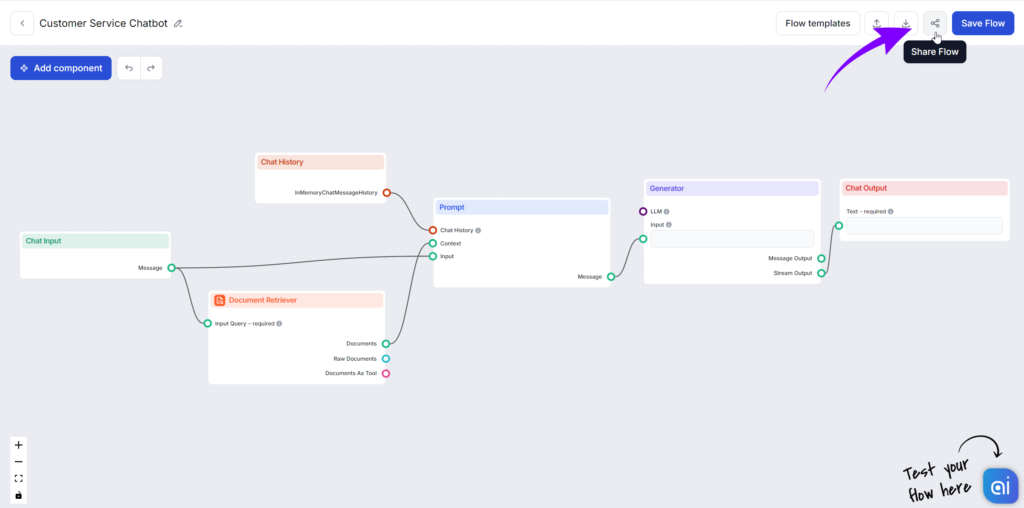
- To deploy a Chatbot from the Flow builder, make sure to save your Flow and then simply click the Share button in the top right corner:
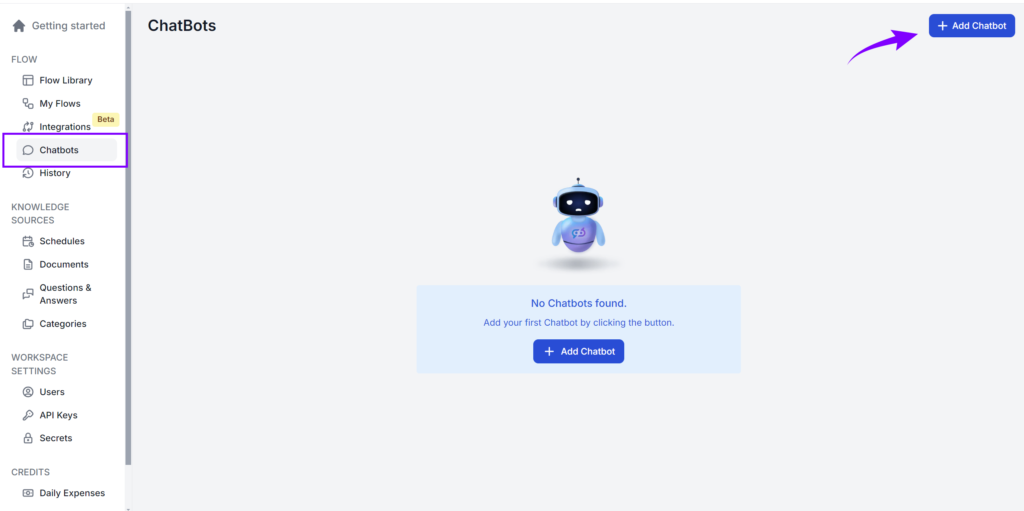
- To create a chatbot from the Chatbots screen, go to Chatbots in the main menu. Then click + Add Chatbot:
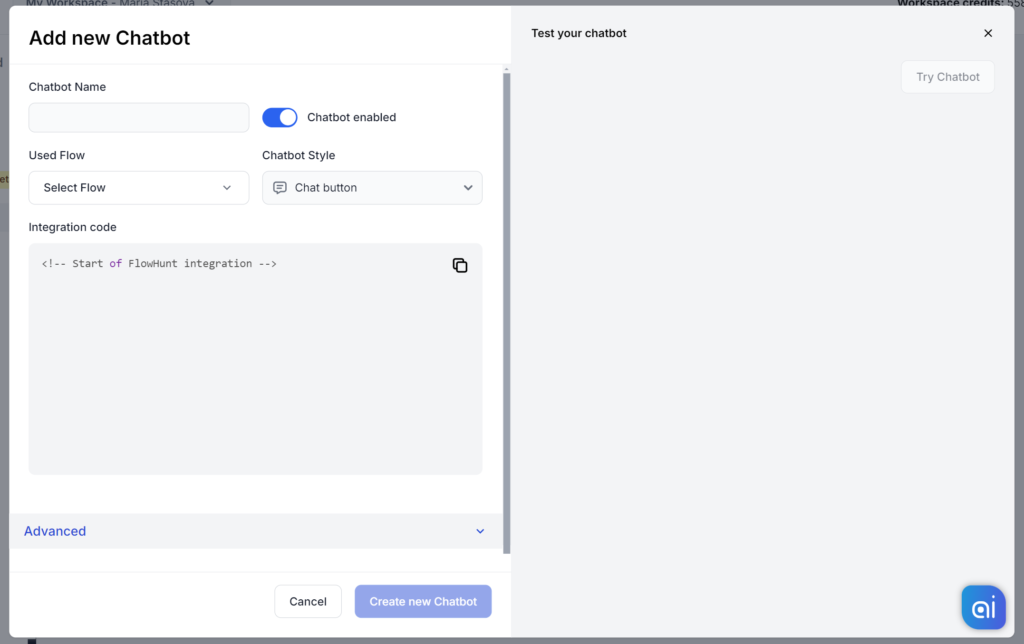
Both ways will bring up the Chatbot editor. Here, you can customize the Chatbot’s appearance, add new capabilities, and get the integration code:
Chatbot Settings
- Chatbot Name: This name is used only in your list of chatbots and is NOT public.
- Used Flow: Pick which Flow the chatbot will use (This setting is not visible when you trigger the chatbot editor via the builder).
- Chatbot Status: Disable the bot instead of having to delete the integration code from your website.
- Integration code: The code will show here once the Chatbot is done.
Chatbot style
- Chat button – Embed a simple chat button on your website. When clicked, the chat window expands:
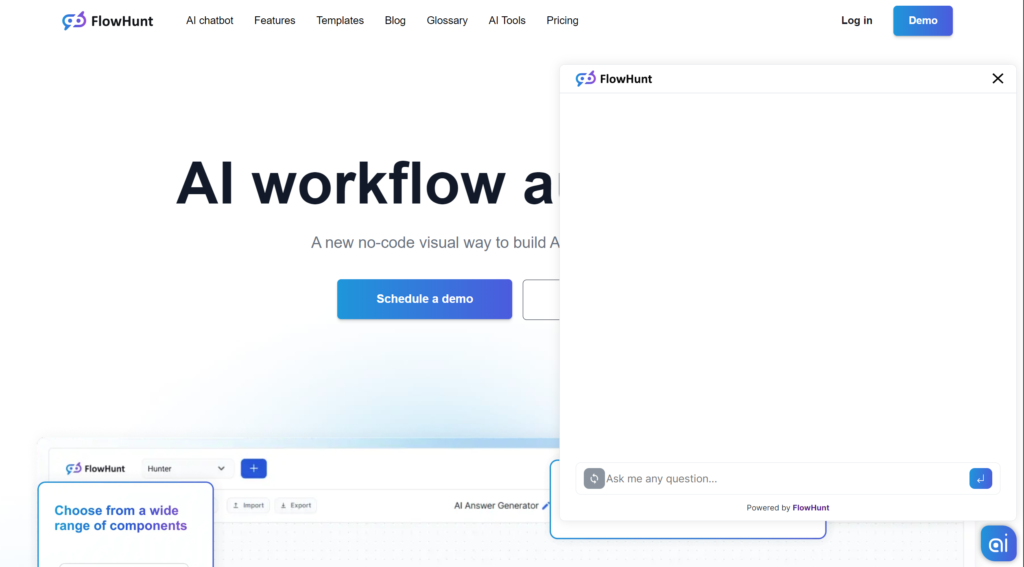
- Embedded – Embed a fully expanded chat window on your website:
Advanced settings
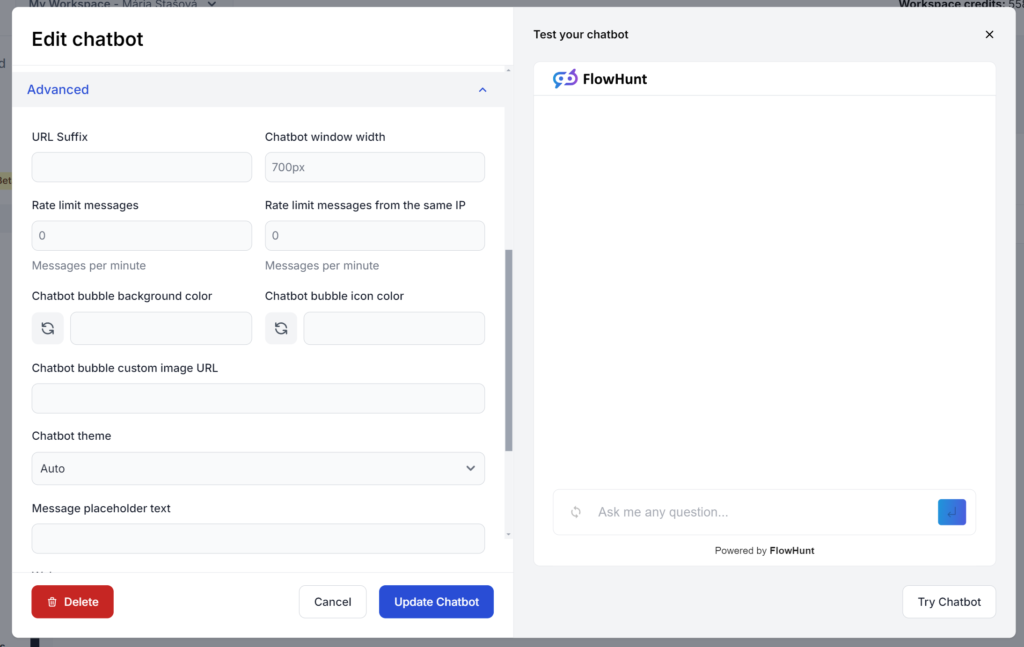
- URL Suffix: Add tracking suffixes.
- Chatbot window width: Total width of expanded chatbot window.
- Rate limit messages: Limit the total number of chatbot messages per minute, stopping attacks and ensuring malicious actors cannot misuse your public chatbot.
- Rate limit messages from the same IP: Limit the number of chatbot messages per minute per IP.
- Chatbot bubble background color: Color chatbot button bubble.
- Chatbot bubble icon color: Color of the icon in the chatbot button.
- Chatbot Buble custom image URL: Allows you to replace the chatbot button with your own image.
- Chatbot theme: Pick from available themes. Light theme is the default.
- Message placeholder text: Customize the text shown in the message field when empty. The default is “Ask me any question”.
Welcome message
Welcome messages are automatic message the chatbot sends to warmly greet users, guide them on how to use the chatbot, and set expectations for the conversation—without any user interaction required.
The full-featured editor allows you to customize this message using formatting, tables, or emojis.