



Membase
Integrate FlowHunt’s AI Agent with Membase, the first decentralized memory layer for AI agents powered by Unibase. Store, retrieve, and manage conversation hist...
3 min read
AI
Membase
+3

Create persistent memory entries that give your agents consistent context across all workflows — or let agents build their own memory as they run.
Memory gives your workflows persistent, always-available knowledge that agents can read from and write to across every workflow in your workspace. Where most knowledge sources rely on semantic search to find relevant content, memory entries are surfaced directly as context — making them ideal for short, high-priority facts you want the agent to know without having to search for them.
Common uses include storing business rules, known limitations of your product, terminology definitions, or anything else that should consistently shape how your agent responds.
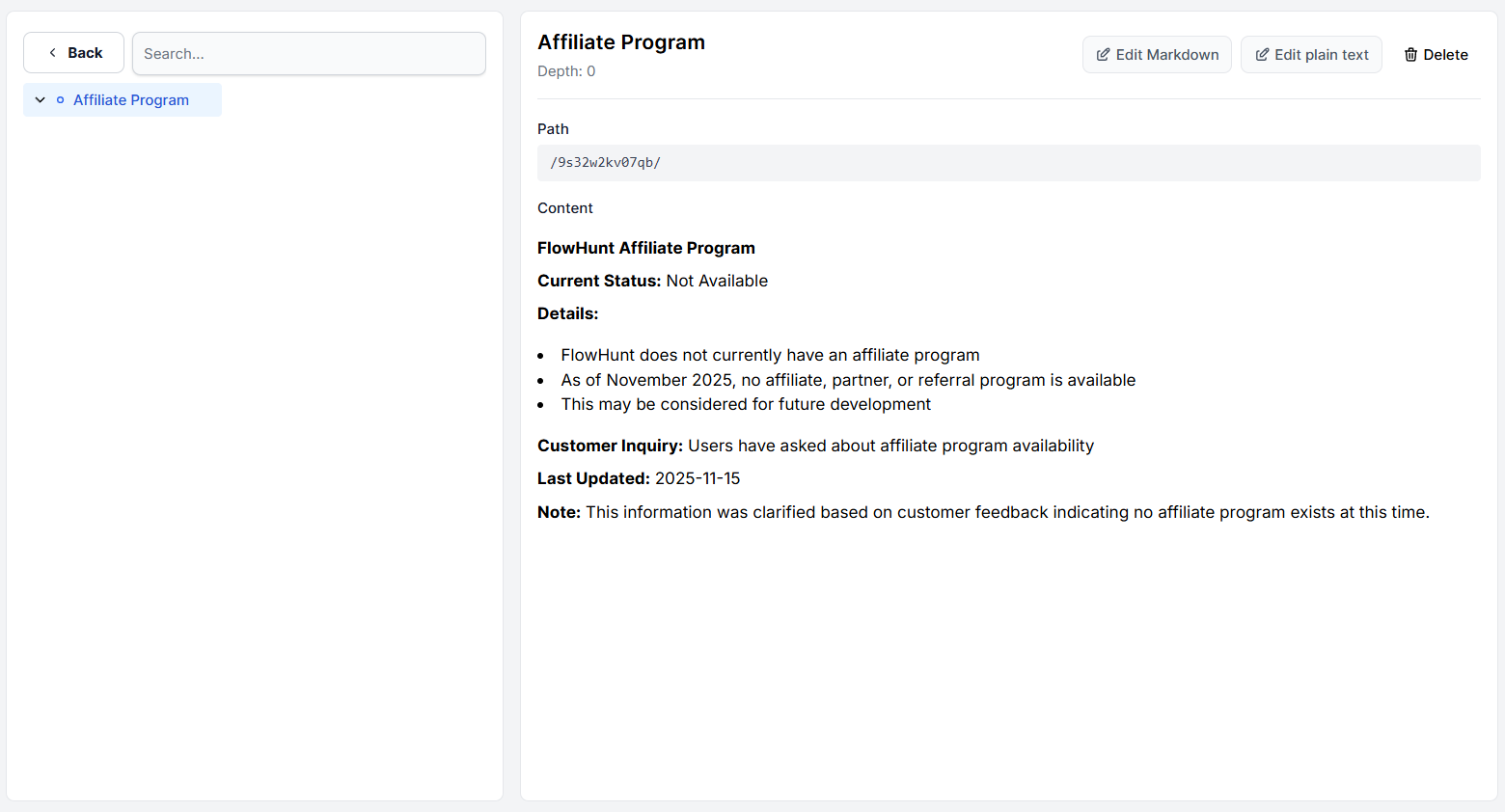
For example, we’ve had visitors ask about FlowHunt’s affiliate program. We don’t have one, but we also don’t have it mentioned in our content. Without it, an agent asked about affiliates would search all of the content and find nothing conclusive. Then, it would answer it doesn’t know or worse, hallucinate a positive answer. With a memory entry stating that no affiliate program exists, the agent has a clear, first-hand answer ready before it even starts looking.

Get latest tips, trends, and deals for free.
Memory and Q&A are similar in that both let you define short pieces of specific knowledge manually, but there are several key differences.
Click Memory in the left-hand menu to open the memory dashboard. This is where you view and manage all memory entries in your workspace.

Memory is organized into color-coded categories that help you keep entries organized by topic, workflow, or whatever structure makes sense for your workspace. Inside each category are nodes, which are the individual knowledge documents that contain memory content.
You can edit or delete any node or category directly from this dashboard.
Before adding any nodes, you need at least one category to put them in. Click + Add Category, give it a name, and pick a color. The color is purely for visual organization.

Click the category to enter it, then click + Add Node. A rich text editor opens where you can write the memory content with full formatting support — headings, bullet points, bold text, links, and more.

A pop-up editor will appear. Write the knowledge you want the agent to have. Keep nodes focused — one topic or fact per node makes them easier to manage and more reliably surfaced:
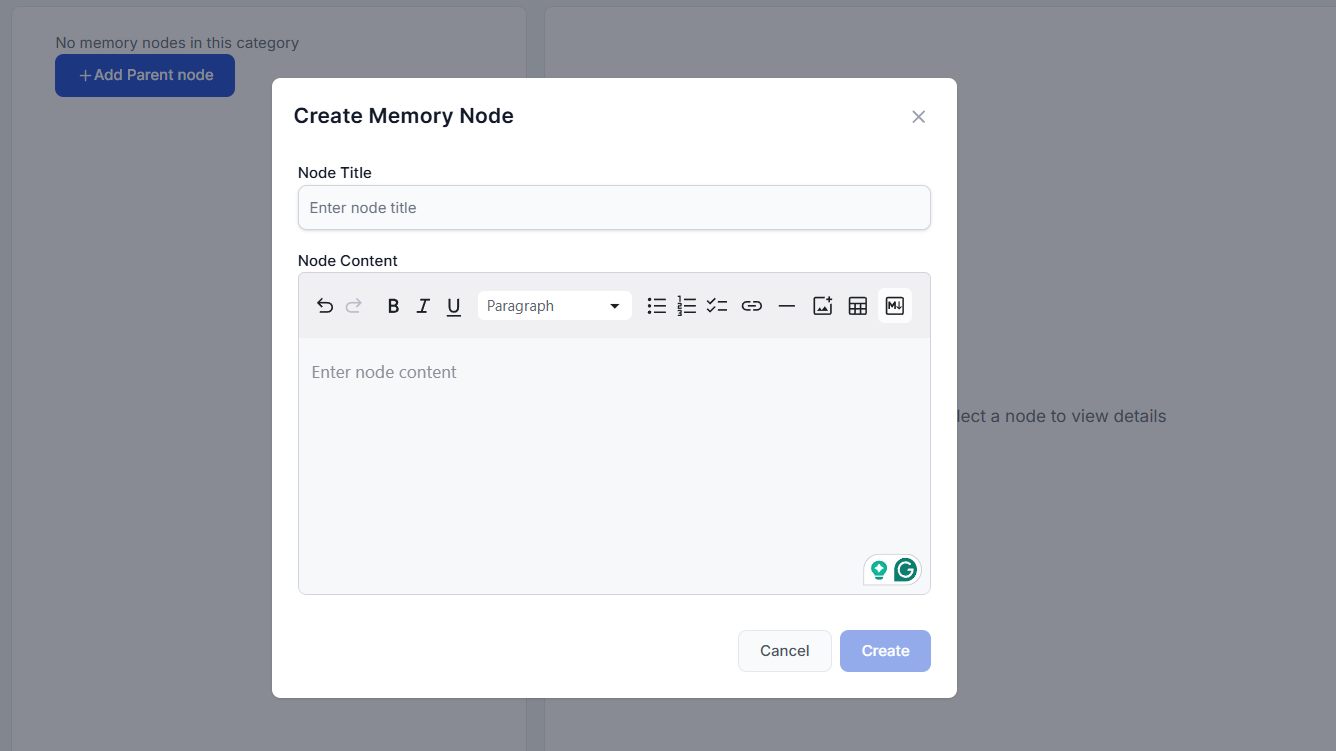
Save the node and it becomes immediately available to any agent with memory access enabled.
Memory is enabled per agent, inside the flow editor. For example, your Flow may use several agents but only one will have access to memory enabled.
Open the workflow in the flow editor and click the Agent component you want to give memory access to. The settings panel will open on the right. Scroll down to the Agent Memory section and expand it.
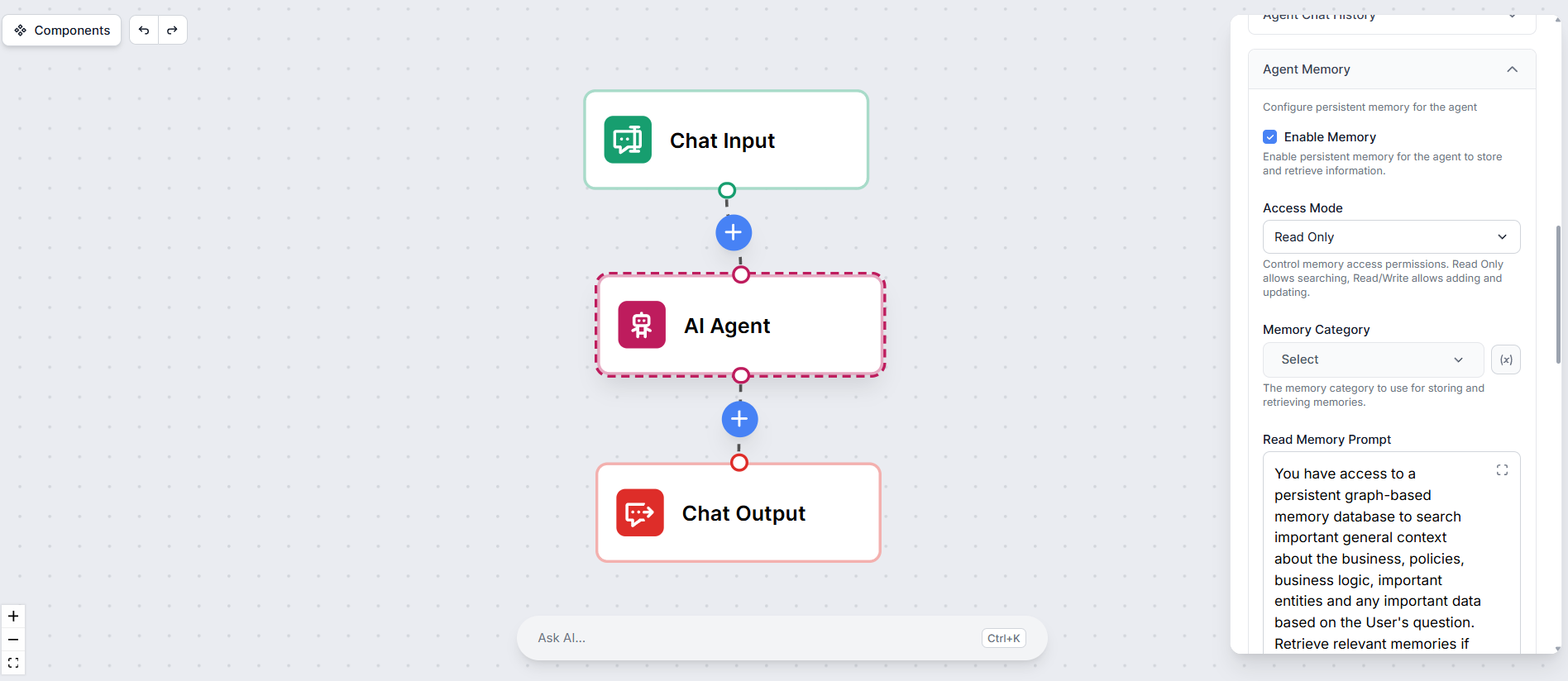
Check Enable Memory. A set of additional settings will appear below.
The Access Mode dropdown controls what the agent is allowed to do with memory:
If you want full control over what goes into memory and only want the agent to consume it, stick with Read. Use Read / Write when you want the agent to build up memory on its own over time.
You can optionally restrict the agent to a specific memory category. This is useful when you have multiple agents in different workflows and want each one to only access the memory relevant to it, rather than the entire workspace memory.
Two prompt fields let you control how the agent thinks about memory:
Save and publish the workflow. The agent will now consult memory on every run and, if write access is enabled, contribute to it over time.
Start building persistent memory in FlowHunt and make your agents smarter with every interaction.
Integrate FlowHunt’s AI Agent with Membase, the first decentralized memory layer for AI agents powered by Unibase. Store, retrieve, and manage conversation hist...
Integrate FlowHunt with Context Portal to create a powerful memory bank for your software projects. Effortlessly manage, store, and retrieve structured project ...

Learn how to build, configure, and orchestrate AI agents in FlowHunt. From simple agents to deep agents and full crews, find all the guides you need here.
Cookie Consent
We use cookies to enhance your browsing experience and analyze our traffic. See our privacy policy.