How to add a Schedule
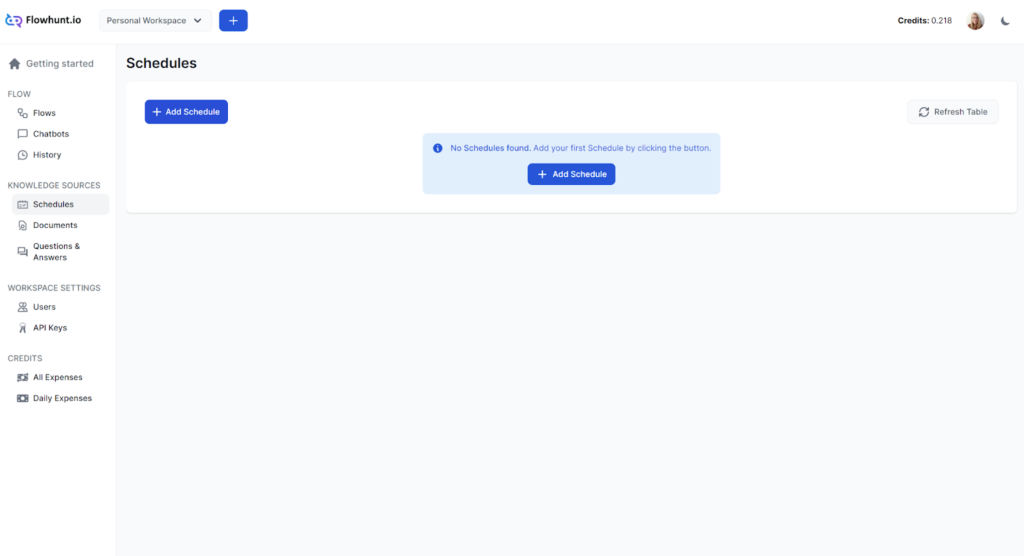
- Navigate to the Schedules screen and click Add Schedule:
- A pop-up will appear:
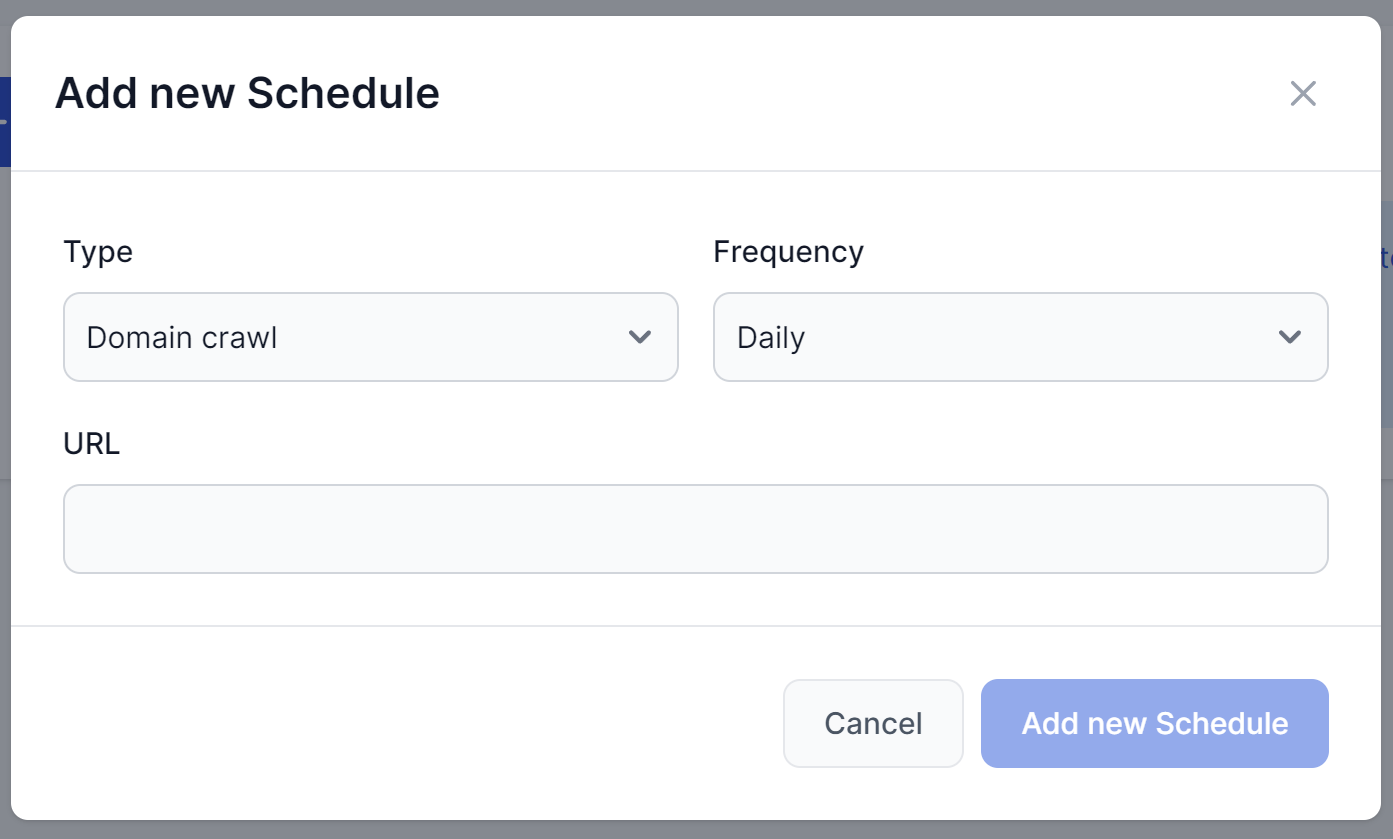
Pick the type of crawl:
- Domain crawl – Goes through your entire domain, learning from every page.
- Single URL crawl – Good for pages that need daily crawling or for adding external sources in a controlled way.
- Sitemap crawl – Learns information about your pages, linked media, and files to understand your site better and crawl it more efficiently.
- YouTube channel – Index the closed captions from your YouTube videos.
FlowHunt uses video captions to index the content of YouTube videos. However, YouTube’s auto-generated captions aren’t always accurate. If you want to ensure your Chatbot has the right information, we suggest you take the time to create the captions yourself, or at least check the auto-generated ones.
YouTube’s auto-generated captions aren’t always accurate. To ensure your Chatbot has the right information, check the auto-generated captions or take the time to create the captions yourself.
Pick the frequency – how often is the schedule repeated:
- Daily
- Weekly
- Monthly
- Yearly
Remember that crawling costs credits, and larger schedules can get quite pricey. When choosing the frequency, consider how often you update the data and how important it is for the flow to have the latest information. You probably won’t need your whole domain crawled daily, but you might benefit from daily crawls of frequently updated URLs.
Input the URL. Based on the type of crawl, you will want to use these URL structures:
- Domain crawl:
https://www.example.com - Single URL crawl:
https://www.example.com/blog/article1 - Sitemap crawl:
https://www.example.com/page-sitemap.xml
- Domain crawl:
Click Add New Schedule.
Managing Schedules
Your schedule has been created and will show as pending. To see the progress, refresh the page:
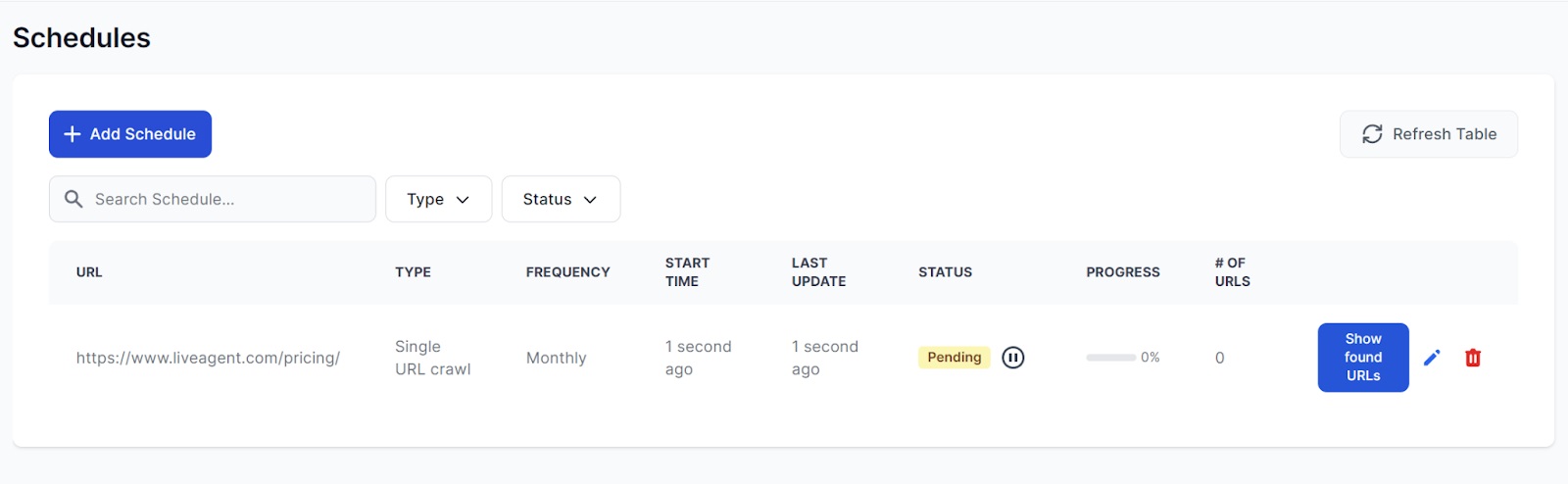
The crawling shouldn’t take more than a couple of minutes. In this example, we’re doing a single URL crawl, which takes less than five seconds. If your schedule runs into an error, just hover over the red ‘Error’ status tag to learn more.
The Schedule can always be edited or deleted. Once finished, you don’t need to wait for the next scheduled time. If you need to, you can re-run the schedule manually by clicking the repeat icon next to the status tag:
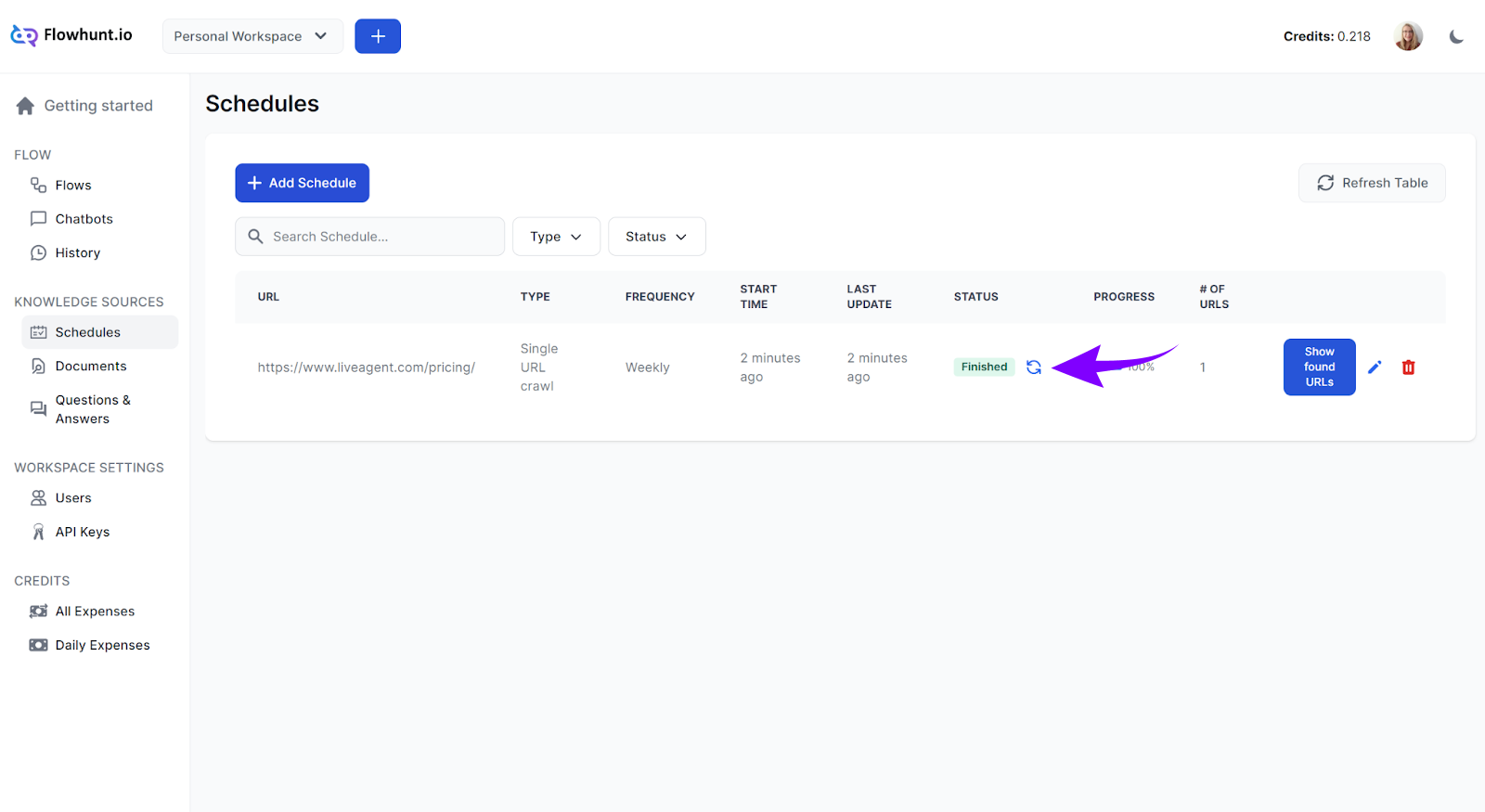
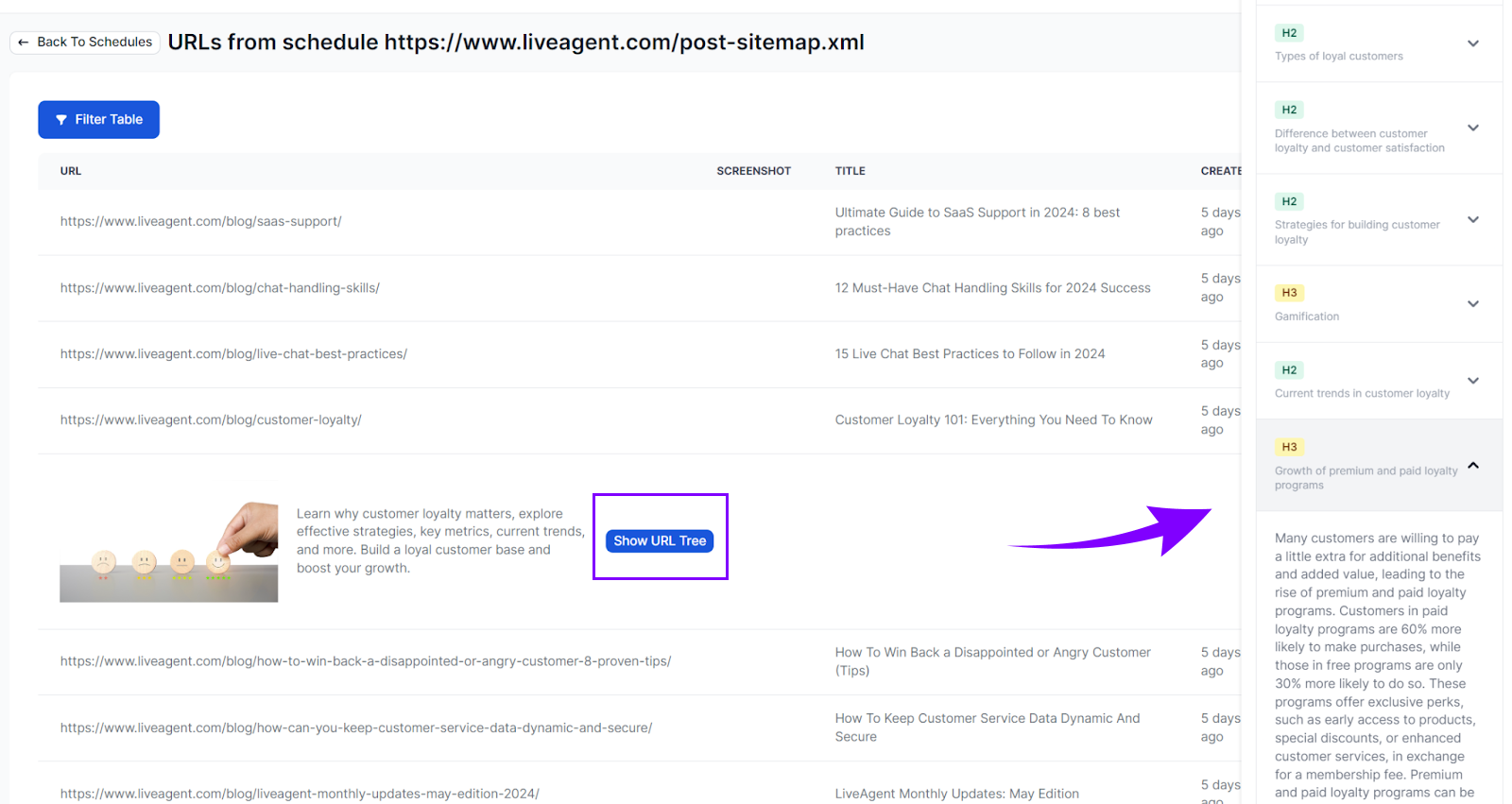
You can easily check the crawled URLs, ensuring all the necessary information is gathered. To do so, click Show found URLs. This will show you a list of all the URLs crawled within the schedule. To see more about a specific URL, click Details:
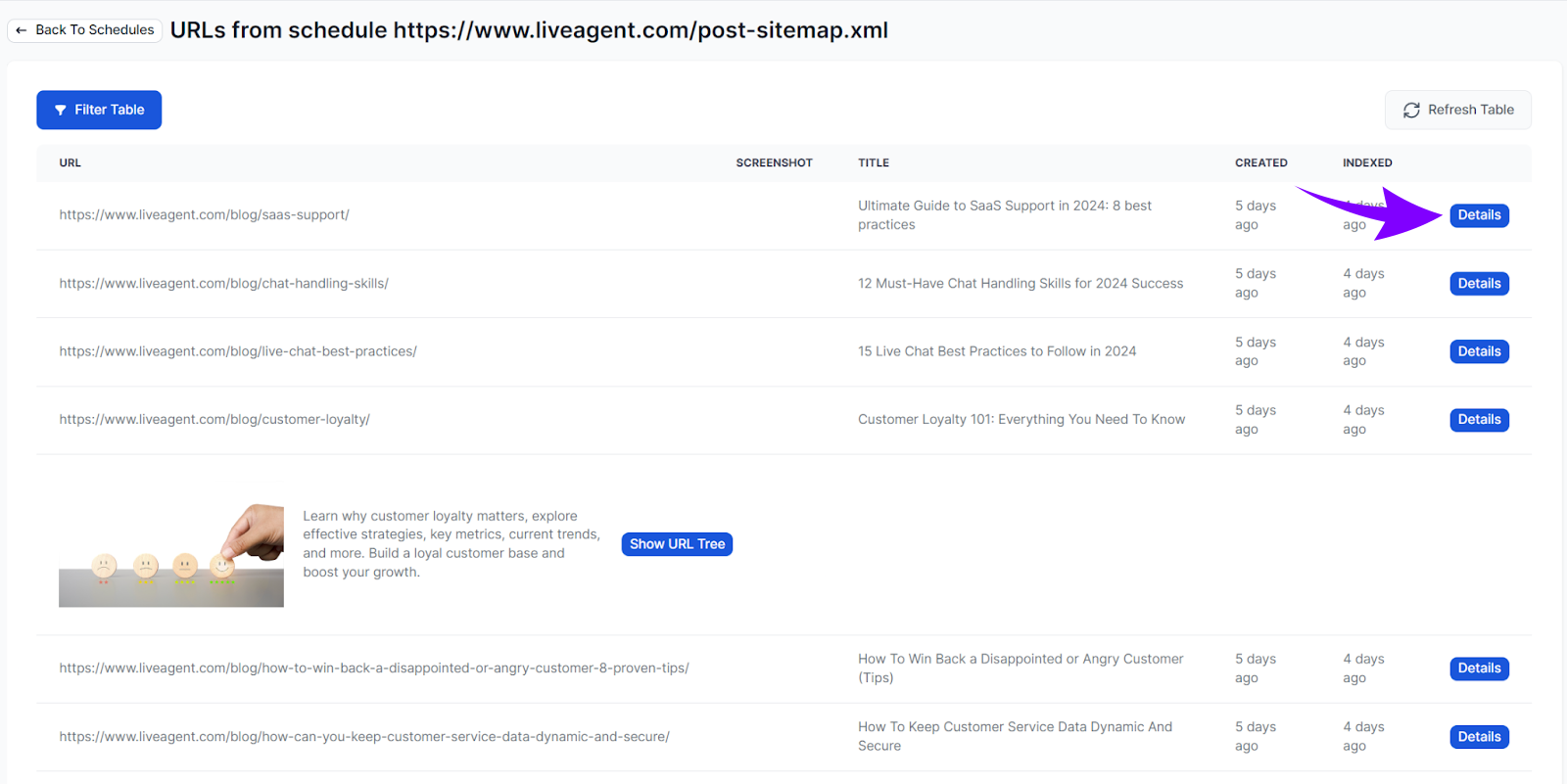
To go even deeper, click Show URL Tree in the detail of a URL. This will allow you to see the page structure by headlines. Clicking one will reveal the content: