


Telegram MCP Server Integration
The Telegram MCP Server bridges Telegram’s API with AI assistants using the Model Context Protocol, enabling automated workflows for messaging, dialog managemen...
5 min read
AI
MCP Server
+5
Integrate Microsoft Teams into your AI workflows with mcp-teams-server, enabling bots to read, post, and reply to messages, mention users, and streamline collaboration within Teams channels and chats.
The mcp-teams-server is a Model Context Protocol (MCP) server implementation designed to integrate with Microsoft Teams. It enables AI assistants to interact with Teams by providing capabilities such as reading messages, creating new messages, replying to existing conversations, and mentioning members within Teams channels or chats. By bridging AI workflows and Teams, this server empowers developers to automate and enhance collaboration, streamline communication, and build intelligent assistants that can access and act on Teams data. The server serves as a middleware, exposing Microsoft Teams functionalities as tools, resources, and context, thus making it easier for LLM-based agents and clients to execute and standardize various Teams-related tasks within their workflows.
No information found in the repository about prompt templates.

Start your free trial today and see results within days.
No explicit resources documented in the available repository content.
Get latest tips, trends, and deals for free.
windsurf.json).mcpServers object.JSON Example:
{
  "mcpServers": {
    "teams-mcp": {
      "command": "npx",
      "args": ["@mcp-teams-server@latest"]
    }
  }
}
Securing API Keys Example:
{
  "mcpServers": {
    "teams-mcp": {
      "command": "npx",
      "args": ["@mcp-teams-server@latest"],
      "env": {
        "TEAMS_API_KEY": "${TEAMS_API_KEY}"
      },
      "inputs": {
        "apiKey": "${TEAMS_API_KEY}"
      }
    }
  }
}
mcpServers.JSON Example:
{
  "mcpServers": {
    "teams-mcp": {
      "command": "npx",
      "args": ["@mcp-teams-server@latest"]
    }
  }
}
cursor.json or equivalent configuration file.mcpServers.JSON Example:
{
  "mcpServers": {
    "teams-mcp": {
      "command": "npx",
      "args": ["@mcp-teams-server@latest"]
    }
  }
}
mcpServers.JSON Example:
{
  "mcpServers": {
    "teams-mcp": {
      "command": "npx",
      "args": ["@mcp-teams-server@latest"]
    }
  }
}
Securing API Keys Example:
{
  "mcpServers": {
    "teams-mcp": {
      "command": "npx",
      "args": ["@mcp-teams-server@latest"],
      "env": {
        "TEAMS_API_KEY": "${TEAMS_API_KEY}"
      },
      "inputs": {
        "apiKey": "${TEAMS_API_KEY}"
      }
    }
  }
}
Using MCP in FlowHunt
To integrate MCP servers into your FlowHunt workflow, start by adding the MCP component to your flow and connecting it to your AI agent:
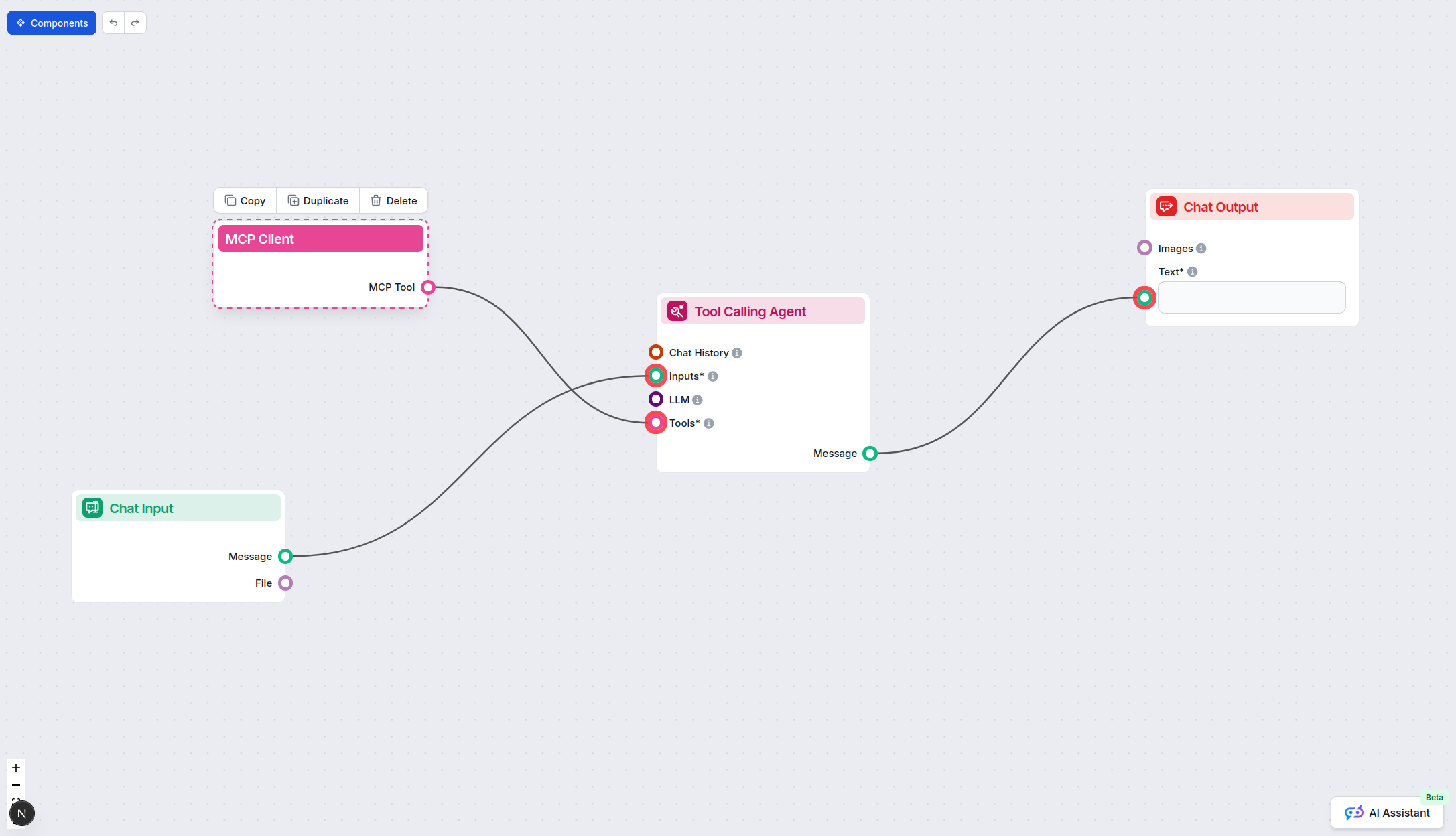
Click on the MCP component to open the configuration panel. In the system MCP configuration section, insert your MCP server details using this JSON format:
{
  "teams-mcp": {
    "transport": "streamable_http",
    "url": "https://yourmcpserver.example/pathtothemcp/url"
  }
}
Once configured, the AI agent is now able to use this MCP as a tool with access to all its functions and capabilities. Remember to change “teams-mcp” to whatever the actual name of your MCP server is and replace the URL with your own MCP server URL.
| Section | Availability | Details/Notes |
|---|---|---|
| Overview | ✅ | Overview from repo description |
| List of Prompts | ⛔ | No prompt templates found |
| List of Resources | ⛔ | No explicit resources documented |
| List of Tools | ✅ | Listed based on description and repo info |
| Securing API Keys | ✅ | Provided sample.env; standard env usage |
| Sampling Support (less important in evaluation) | ⛔ | Not mentioned in repo or docs |
Between the two tables:
The mcp-teams-server offers solid Teams integration and exposes core tools, but lacks documentation on prompt templates and explicit resources. Sampling and roots support are not detailed. Based on coverage and usability, this MCP rates a 7/10.
| Has a LICENSE | Yes (Apache-2.0) |
|---|---|
| Has at least one tool | Yes |
| Number of Forks | 15 |
| Number of Stars | 253 |
Boost productivity and collaboration by connecting Microsoft Teams to your AI-powered workflows using the mcp-teams-server MCP server.
The Telegram MCP Server bridges Telegram’s API with AI assistants using the Model Context Protocol, enabling automated workflows for messaging, dialog managemen...
The Model Context Protocol (MCP) Server bridges AI assistants with external data sources, APIs, and services, enabling streamlined integration of complex workfl...
The Make MCP Server bridges FlowHunt AI agents with Make's automation platform, enabling seamless invocation of Make scenarios as callable tools. Empower your A...
Cookie Consent
We use cookies to enhance your browsing experience and analyze our traffic. See our privacy policy.