



Plane.so
Integrate FlowHunt with Plane.so for AI-powered project and issue management. The Plane MCP Server connects your LLMs, such as Claude, to automate workflows, ma...
4 min read
AI
Plane.so
+4

Connect FlowHunt and Plane.so for seamless, AI-powered project and issue management. Automate task tracking, reporting, and updates directly via LLMs with the Plane MCP Server.
The Plane MCP Server is a Model Context Protocol (MCP) server that allows large language models (LLMs) to interact directly with Plane.so, a project and issue management platform. By acting as a bridge between AI assistants and the Plane.so API, this server lets LLMs perform project management actions such as listing projects, retrieving project details, creating and updating issues, and more—all while keeping user control and security in mind. This enhances the developer workflow by enabling AI-powered automation, data retrieval, and task management within the familiar Plane.so environment. LLMs like Claude can use Plane MCP Server to streamline project tracking, automate updates, and integrate conversational AI into project operations.
No explicit prompt templates are described in the repository. This section is left empty due to lack of information.

Start your free trial today and see results within days.
No explicit MCP resources are documented in the repository. This section is left empty due to lack of information.
project_id).Get latest tips, trends, and deals for free.
npx -y @smithery/cli install @kelvin6365/plane-mcp-server --client windsurf
{
  "mcpServers": {
    "plane": {
      "command": "node",
      "args": ["path/to/plane-mcp-server/build/index.js"],
      "env": {
        "PLANE_API_KEY": "your_plane_api_key_here",
        "PLANE_WORKSPACE_SLUG": "your_workspace_slug_here"
      }
    }
  }
}
npx -y @smithery/cli install @kelvin6365/plane-mcp-server --client claude
~/Library/Application Support/Claude/claude_desktop_config.json%APPDATA%\Claude\claude_desktop_config.jsonmcpServers:{
"mcpServers": {
"plane": {
"command": "node",
"args": ["path/to/plane-mcp-server/build/index.js"],
"env": {
"PLANE_API_KEY": "your_plane_api_key_here",
"PLANE_WORKSPACE_SLUG": "your_workspace_slug_here"
}
}
}
}
npx -y @smithery/cli install @kelvin6365/plane-mcp-server --client cursor
{
  "mcpServers": {
    "plane": {
      "command": "node",
      "args": ["path/to/plane-mcp-server/build/index.js"],
      "env": {
        "PLANE_API_KEY": "your_plane_api_key_here",
        "PLANE_WORKSPACE_SLUG": "your_workspace_slug_here"
      }
    }
  }
}
npx -y @smithery/cli install @kelvin6365/plane-mcp-server --client cline
{
  "mcpServers": {
    "plane": {
      "command": "node",
      "args": ["path/to/plane-mcp-server/build/index.js"],
      "env": {
        "PLANE_API_KEY": "your_plane_api_key_here",
        "PLANE_WORKSPACE_SLUG": "your_workspace_slug_here"
      }
    }
  }
}
Securing API Keys:
Always store your PLANE_API_KEY and PLANE_WORKSPACE_SLUG as environment variables inside the env field of your configuration as shown above, never hard-code them in your source files.
Using MCP in FlowHunt
To integrate MCP servers into your FlowHunt workflow, start by adding the MCP component to your flow and connecting it to your AI agent:
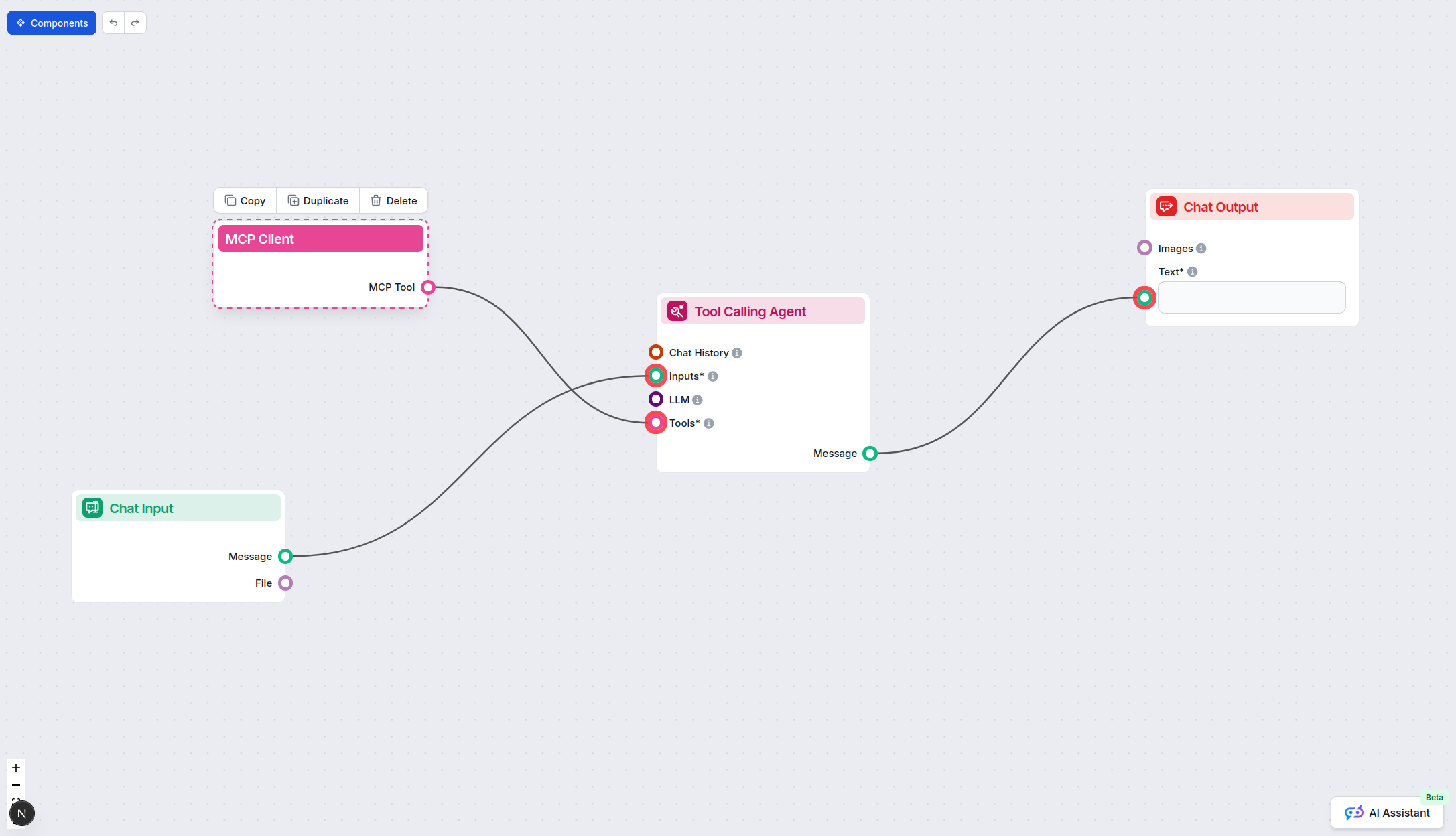
Click on the MCP component to open the configuration panel. In the system MCP configuration section, insert your MCP server details using this JSON format:
{
  "plane": {
    "transport": "streamable_http",
    "url": "https://yourmcpserver.example/pathtothemcp/url"
  }
}
Once configured, the AI agent is now able to use this MCP as a tool with access to all its functions and capabilities. Remember to change “plane” to the actual name of your MCP server and replace the URL with your own MCP server URL.
| Section | Availability | Details/Notes |
|---|---|---|
| Overview | ✅ | Clear explanation in README |
| List of Prompts | ⛔ | No explicit prompt templates described |
| List of Resources | ⛔ | No explicit MCP resources documented |
| List of Tools | ✅ | Full list in README |
| Securing API Keys | ✅ | Shown in configuration examples |
| Sampling Support (less important in evaluation) | ⛔ | No mention of sampling |
Our opinion:
Plane MCP Server provides excellent documentation for installation and tool usage, but lacks information on prompt templates, resource primitives, and sampling/roots support. The server is focused and practical for project management automation but would benefit from expanded MCP features and documentation. Overall, it’s well-suited for direct Plane.so integration.
| Has a LICENSE | Yes (MIT) |
|---|---|
| Has at least one tool | Yes |
| Number of Forks | 9 |
| Number of Stars | 26 |
Leverage Plane MCP Server to empower your AI agents with project tracking, automated issue creation, and workflow automation in Plane.so.
Integrate FlowHunt with Plane.so for AI-powered project and issue management. The Plane MCP Server connects your LLMs, such as Claude, to automate workflows, ma...
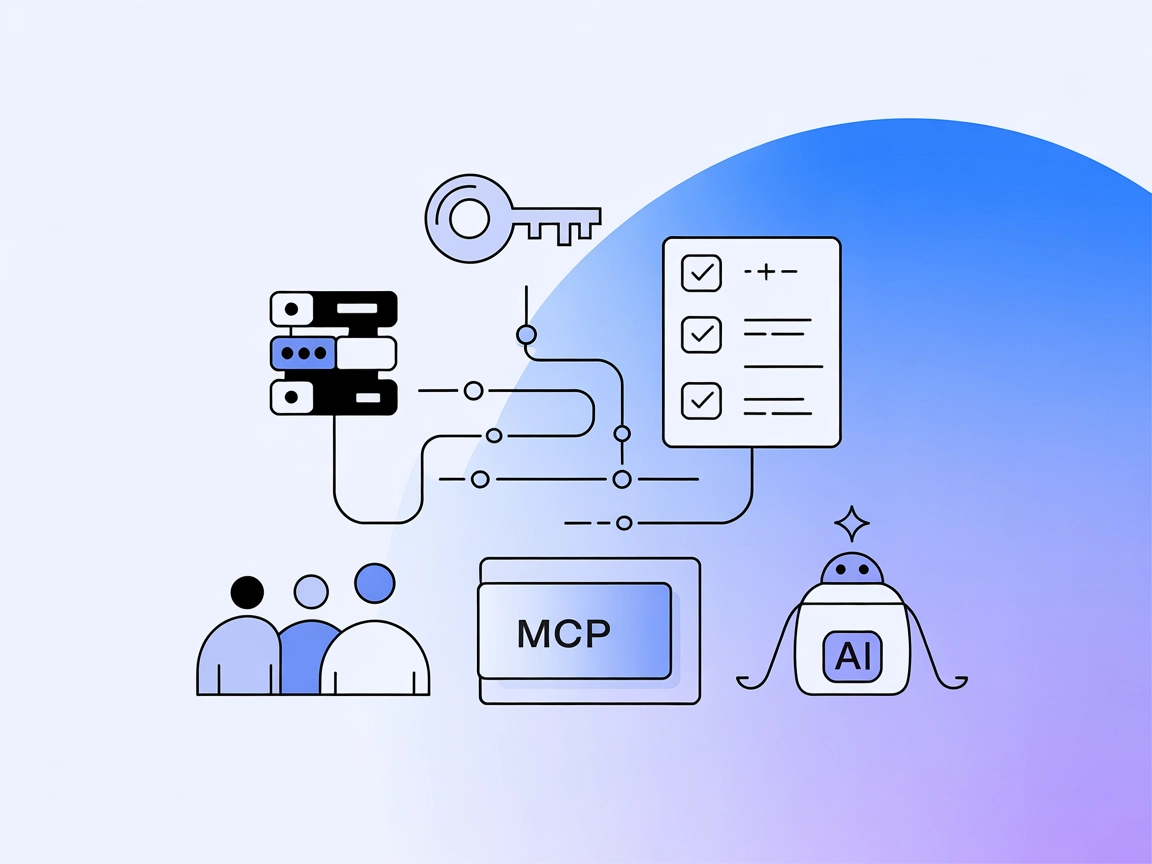
The Linear MCP Server enables seamless automation and management of Linear issue tracking via the Model Context Protocol, allowing AI assistants and developers ...
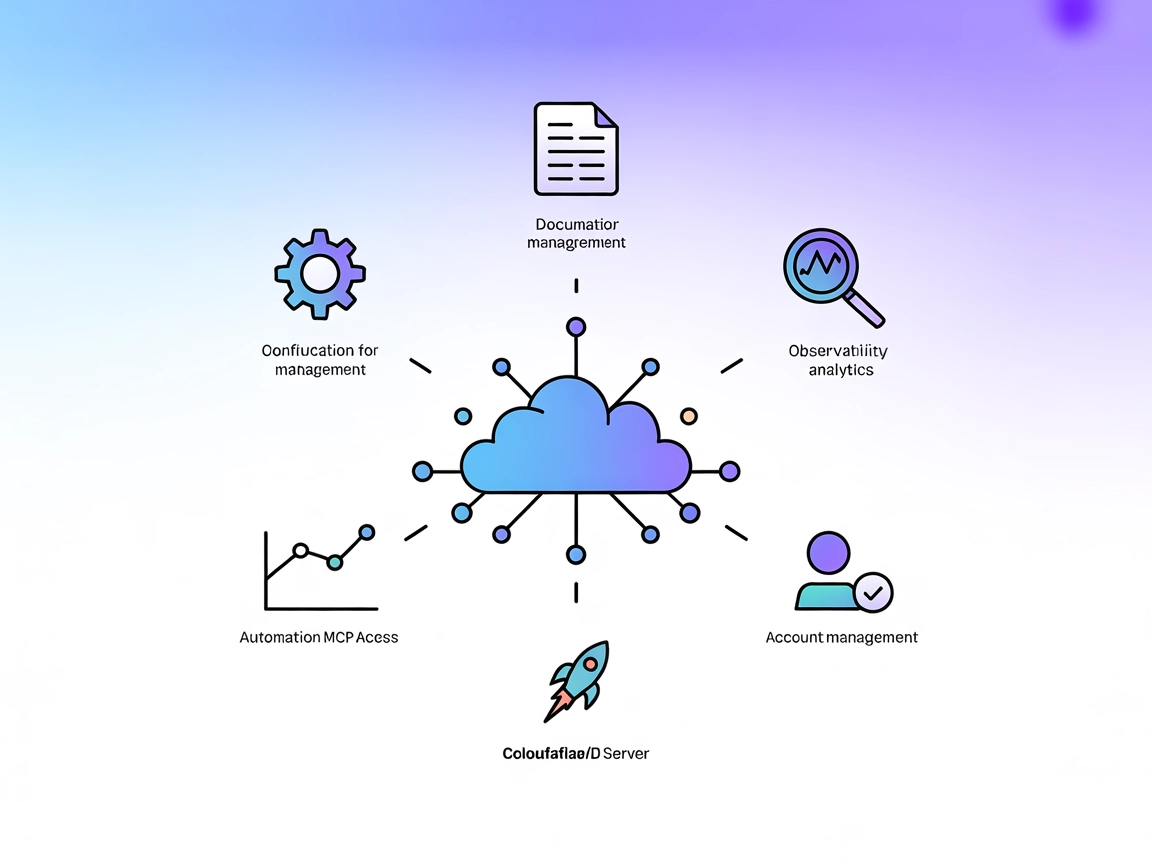
The Cloudflare MCP Server bridges AI assistants and Cloudflare’s cloud services, enabling natural language automation for configurations, logs, builds, and docu...
Cookie Consent
We use cookies to enhance your browsing experience and analyze our traffic. See our privacy policy.