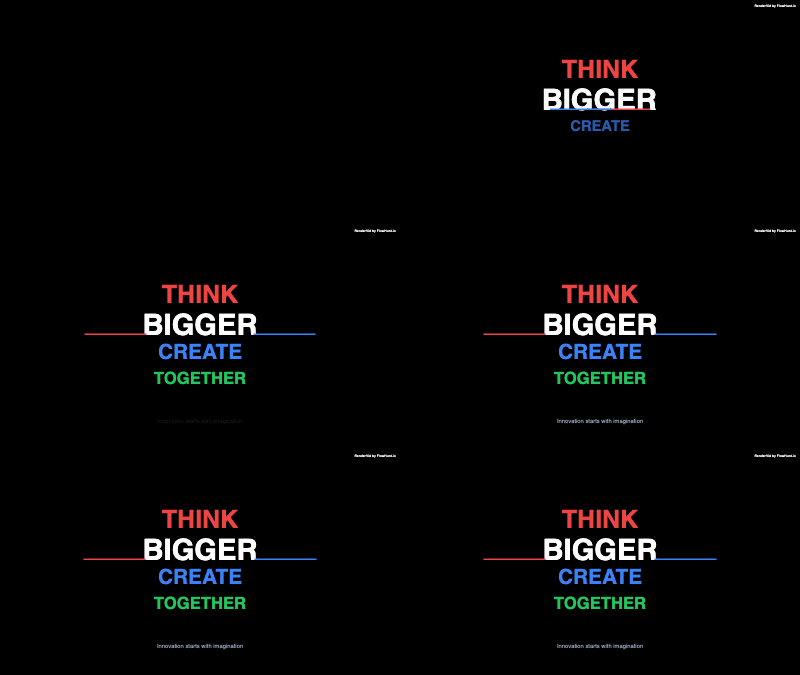
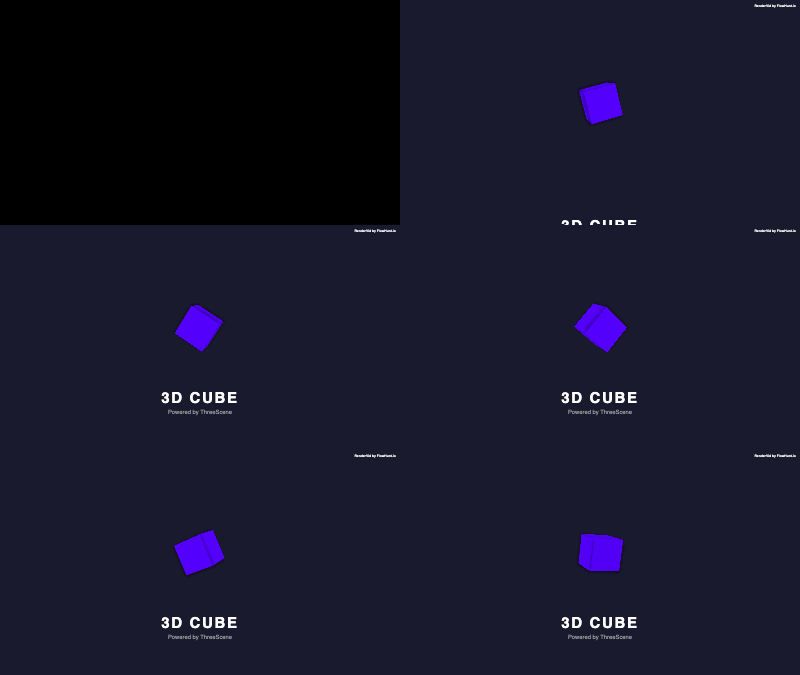
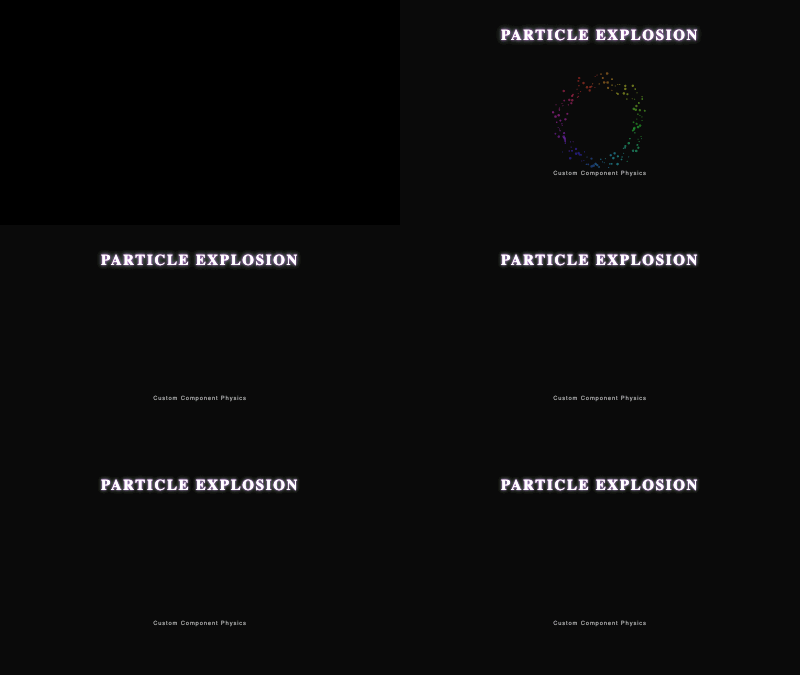
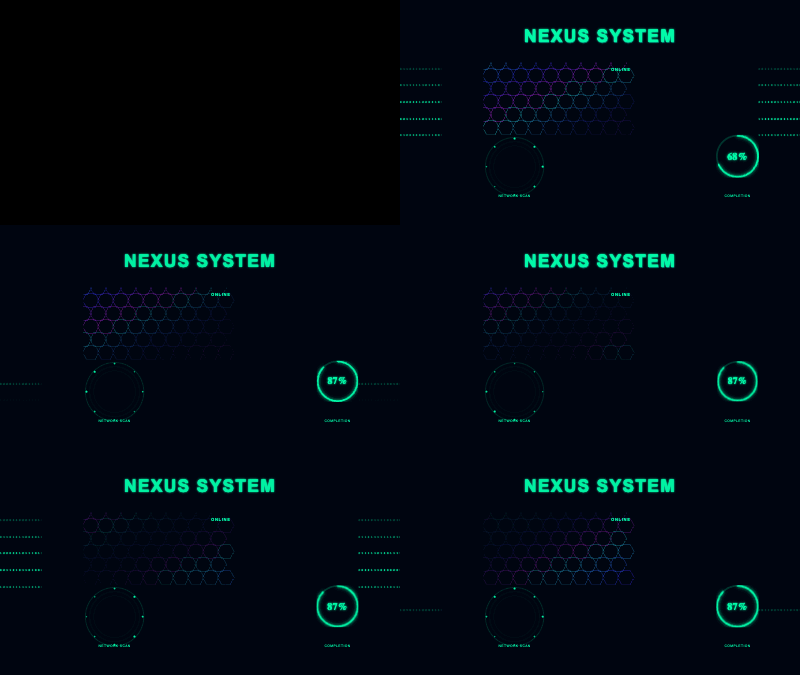
Rendervid is a programmatic video rendering engine built around a declarative, JSON-based template system. Instead of manually editing video in a timeline, you define every aspect of your video – scenes, layers, animations, transitions, and output settings – in a single JSON document. This approach makes templates stateless, version-controllable, and machine-generatable, opening the door to AI-driven video production, batch rendering pipelines, and fully automated content workflows.
This guide covers the complete Rendervid template system from top to bottom: root-level configuration, output settings, the variable and input system, scenes and composition, all eight layer types, 40+ animation presets, 30+ easing functions, 17 scene transitions, visual effects, font configuration, and output formats.
Template Structure Overview
Every Rendervid template is a JSON object with a well-defined set of root-level fields. Here is the skeleton of a complete template:
{
  "name": "my-template",
  "output": { ... },
  "inputs": [ ... ],
  "composition": {
    "scenes": [ ... ]
  },
  "fonts": { ... },
  "customComponents": { ... },
  "defaults": { ... }
}
Root-Level Fields
| Field | Type | Required | Description |
|---|
name | string | Yes | Human-readable template identifier |
output | object | Yes | Video or image output configuration (dimensions, fps, duration, format) |
inputs | array | No | Dynamic input definitions for template variables |
composition | object | Yes | Contains the scenes array that defines all visual content |
fonts | object | No | Google Fonts and custom font declarations |
customComponents | object | No | Registered custom layer components |
defaults | object | No | Default values applied to all layers unless overridden |
The name field is for organizational purposes – it does not affect rendering. The output and composition fields are the two pillars every template must have. Everything else is optional but unlocks powerful capabilities.
Output Configuration
The output object controls the final rendered file: its format, dimensions, frame rate, duration, and background color.
{
  "output": {
    "type": "video",
    "width": 1920,
    "height": 1080,
    "fps": 30,
    "duration": 10,
    "backgroundColor": "#000000"
  }
}
Output Fields
| Field | Type | Default | Description |
|---|
type | string | "video" | Output type: "video" or "image" |
width | number | 1920 | Width in pixels (up to 7680 for 8K) |
height | number | 1080 | Height in pixels (up to 4320 for 8K) |
fps | number | 30 | Frames per second (1-120) |
duration | number | – | Total duration in seconds |
backgroundColor | string | "#000000" | Background color as hex, RGB, or named color |
Common Presets
Here are output configurations for popular formats:
1080p Full HD (YouTube, general purpose):
{
  "type": "video",
  "width": 1920,
  "height": 1080,
  "fps": 30,
  "duration": 60,
  "backgroundColor": "#000000"
}
Instagram Reels / TikTok (9:16 vertical):
{
  "type": "video",
  "width": 1080,
  "height": 1920,
  "fps": 30,
  "duration": 30,
  "backgroundColor": "#FFFFFF"
}
4K UHD:
{
  "type": "video",
  "width": 3840,
  "height": 2160,
  "fps": 60,
  "duration": 120,
  "backgroundColor": "#000000"
}
Open Graph / Social Share Image:
{
  "type": "image",
  "width": 1200,
  "height": 630,
  "backgroundColor": "#1a1a2e"
}
For image output, fps and duration are ignored – the renderer captures a single frame.
The input and variable system is what makes Rendervid templates reusable. Instead of hardcoding text, colors, or URLs into your template, you define inputs and reference them using the {{variableName}} syntax anywhere in the template.
Inputs are declared in the top-level inputs array. Each input object describes a single variable:
{
  "inputs": [
    {
      "key": "title",
      "type": "string",
      "label": "Title",
      "description": "Main title text displayed in the intro scene",
      "required": true,
      "default": "Hello World"
    },
    {
      "key": "brandColor",
      "type": "color",
      "label": "Brand Color",
      "description": "Primary brand color used for backgrounds and accents",
      "required": false,
      "default": "#FF5733"
    },
    {
      "key": "showSubtitle",
      "type": "boolean",
      "label": "Show Subtitle",
      "description": "Toggle subtitle visibility",
      "required": false,
      "default": true
    }
  ]
}
| Field | Type | Required | Description |
|---|
key | string | Yes | Unique identifier used in {{key}} references |
type | string | Yes | Data type: string, number, boolean, color, url, array |
label | string | No | Human-readable label for UI rendering |
description | string | No | Explanation of what this input controls |
required | boolean | No | Whether the input must be provided at render time |
default | any | No | Fallback value if no input is provided |
string – Free-form text. Use for titles, descriptions, captions, or any text content.number – Numeric values. Use for durations, sizes, positions, opacity levels, or counts.boolean – True/false toggles. Use for conditional visibility, feature flags, or on/off switches.color – Color values in hex (#FF5733), RGB (rgb(255,87,51)), or named format. Use for backgrounds, text colors, and accents.url – Valid URL strings. Use for image sources, video sources, links, and font URLs.array – Lists of values. Use for image galleries, text lists, slide content, or any repeated data.
Using Variables in the Template
Once inputs are defined, reference them anywhere in the template using double curly braces:
{
  "type": "text",
  "text": "{{title}}",
  "style": {
    "color": "{{brandColor}}",
    "fontSize": "{{titleSize}}"
  }
}
Variables are resolved at render time. When you call the Rendervid API or CLI, you pass the actual values:
{
  "title": "Summer Sale 2026",
  "brandColor": "#E63946",
  "titleSize": 72
}
Here is a complete template with multiple input types working together:
{
  "name": "product-promo",
  "output": {
    "type": "video",
    "width": 1080,
    "height": 1080,
    "fps": 30,
    "duration": 15
  },
  "inputs": [
    {
      "key": "productName",
      "type": "string",
      "label": "Product Name",
      "description": "Name of the product being promoted",
      "required": true,
      "default": "Product"
    },
    {
      "key": "price",
      "type": "number",
      "label": "Price",
      "description": "Product price displayed in the video",
      "required": true,
      "default": 29.99
    },
    {
      "key": "productImage",
      "type": "url",
      "label": "Product Image URL",
      "description": "URL to the product image",
      "required": true
    },
    {
      "key": "accentColor",
      "type": "color",
      "label": "Accent Color",
      "description": "Color used for CTA buttons and highlights",
      "required": false,
      "default": "#FF6B35"
    },
    {
      "key": "showBadge",
      "type": "boolean",
      "label": "Show Sale Badge",
      "description": "Whether to display the sale badge overlay",
      "required": false,
      "default": false
    },
    {
      "key": "features",
      "type": "array",
      "label": "Product Features",
      "description": "List of feature bullet points",
      "required": false,
      "default": ["Feature 1", "Feature 2", "Feature 3"]
    }
  ],
  "composition": {
    "scenes": [
      {
        "name": "hero",
        "duration": 15,
        "layers": [
          {
            "type": "image",
            "src": "{{productImage}}",
            "position": { "x": 540, "y": 400 },
            "size": { "width": 600, "height": 600 }
          },
          {
            "type": "text",
            "text": "{{productName}}",
            "style": { "fontSize": 48, "fontWeight": 700, "color": "#FFFFFF" },
            "position": { "x": 540, "y": 80 }
          },
          {
            "type": "text",
            "text": "${{price}}",
            "style": { "fontSize": 64, "fontWeight": 900, "color": "{{accentColor}}" },
            "position": { "x": 540, "y": 900 }
          }
        ]
      }
    ]
  }
}
This single template can generate thousands of unique product videos by simply changing the input values at render time – no template modifications needed.
Scenes & Composition
The composition object is where your video’s content lives. It contains a scenes array, and each scene represents a distinct segment of the video with its own duration, layers, and transition.
{
  "composition": {
    "scenes": [
      {
        "name": "intro",
        "duration": 5,
        "transition": {
          "type": "fade",
          "duration": 1
        },
        "layers": [ ... ]
      },
      {
        "name": "main-content",
        "duration": 20,
        "transition": {
          "type": "slide",
          "duration": 0.5,
          "direction": "left"
        },
        "layers": [ ... ]
      },
      {
        "name": "outro",
        "duration": 5,
        "layers": [ ... ]
      }
    ]
  }
}
Scene Fields
| Field | Type | Required | Description |
|---|
name | string | No | Identifier for the scene (for readability and debugging) |
duration | number | Yes | Scene length in seconds |
transition | object | No | Transition effect when entering this scene from the previous one |
layers | array | Yes | Ordered array of layer objects rendered bottom-to-top |
Scenes play in sequence. The total video duration is the sum of all scene durations (minus any transition overlap). Layers within a scene are rendered in array order – the first layer sits at the bottom of the visual stack, and the last layer sits on top.
If no transition is specified, the scene uses a hard cut by default.
Layer System
Rendervid supports eight distinct layer types. Each layer type serves a specific purpose and accepts its own set of properties on top of the shared base configuration.
Shared Layer Properties
Every layer, regardless of type, supports these base properties:
{
  "position": { "x": 100, "y": 100 },
  "size": { "width": 500, "height": 200 },
  "rotation": 0,
  "scale": { "x": 1, "y": 1 },
  "anchor": { "x": 0.5, "y": 0.5 },
  "opacity": 1,
  "blendMode": "normal",
  "from": 0,
  "duration": -1,
  "filters": [],
  "style": {},
  "className": ""
}
| Property | Type | Default | Description |
|---|
position | object | {x: 0, y: 0} | X/Y coordinates in pixels |
size | object | – | Width and height in pixels |
rotation | number | 0 | Rotation angle in degrees |
scale | object | {x: 1, y: 1} | Scale multiplier for X and Y axes |
anchor | object | {x: 0.5, y: 0.5} | Anchor point for transforms (0-1 range, 0.5 = center) |
opacity | number | 1 | Layer opacity (0 = transparent, 1 = opaque) |
blendMode | string | "normal" | CSS blend mode for compositing |
from | number | 0 | Start time in seconds (relative to scene start) |
duration | number | -1 | Layer duration in seconds (-1 = full scene duration) |
filters | array | [] | Array of visual filter objects |
style | object | {} | Additional CSS-like style properties |
className | string | "" | CSS class name for custom styling |
The Eight Layer Types
text – Renders styled text with full control over font, size, color, alignment, line height, letter spacing, text shadows, and more. Supports the {{variable}} syntax for dynamic content.
image – Displays static images from URLs or local paths. Supports cropping, object-fit modes, border radius, and image filters.
video – Embeds video clips within a scene. Supports trimming (start/end), volume control, playback rate, looping, and muting.
shape – Renders geometric primitives: rectangles, circles, ellipses, lines, and polygons. Supports fill, stroke, border radius, gradients, and shadows.
audio – Adds audio tracks to a scene. Supports volume, fade in/out, trimming, and looping. Audio layers have no visual representation.
group – A container layer that holds child layers. Groups allow you to apply transforms, animations, and effects to multiple layers at once.
lottie – Renders Lottie/Bodymovin JSON animations. Supports playback speed, looping, and segment control for playing specific frame ranges.
custom – Loads registered custom components defined in the customComponents field. Use this for reusable, parameterized layer templates.
For detailed configuration of each layer type, including all available properties and code examples, see the Rendervid Components Reference
.
Animation System
Rendervid includes over 40 built-in animation presets organized into four categories: entrance, exit, emphasis, and keyframe. Animations are attached to any layer and control how that layer appears, disappears, or behaves during its lifetime.
Animation Configuration
{
  "type": "text",
  "text": "Animated Title",
  "animations": [
    {
      "type": "entrance",
      "effect": "fadeInUp",
      "duration": 30,
      "delay": 10,
      "easing": "easeOutCubic",
      "loop": 0,
      "alternate": false
    }
  ]
}
Animation Fields
| Field | Type | Default | Description |
|---|
type | string | – | Animation category: entrance, exit, emphasis, keyframe |
effect | string | – | Preset name (e.g., fadeInUp, pulse, bounceOut) |
duration | number | 30 | Duration in frames |
delay | number | 0 | Delay before animation starts, in frames |
easing | string | "ease" | Easing function name |
loop | number | 0 | Number of loops (0 = no loop, -1 = infinite) |
alternate | boolean | false | Reverse direction on alternate loops |
Entrance Animations (20 presets)
Entrance animations control how a layer appears on screen. They run once when the layer’s start time is reached.
| Preset | Description |
|---|
fadeIn | Simple opacity fade from 0 to 1 |
fadeInUp | Fades in while sliding upward |
fadeInDown | Fades in while sliding downward |
fadeInLeft | Fades in while sliding from the left |
fadeInRight | Fades in while sliding from the right |
slideInUp | Slides in from below the frame |
slideInDown | Slides in from above the frame |
slideInLeft | Slides in from the left edge |
slideInRight | Slides in from the right edge |
scaleIn | Scales up from 0 to full size |
zoomIn | Zooms in from a smaller scale with slight overshoot |
rotateIn | Rotates into position from an offset angle |
bounceIn | Bounces into position with elastic overshoot |
flipInX | 3D flip on the X axis (horizontal flip) |
flipInY | 3D flip on the Y axis (vertical flip) |
typewriter | Characters appear one at a time (text layers) |
revealLeft | Mask reveal sliding from the left |
revealRight | Mask reveal sliding from the right |
revealUp | Mask reveal sliding upward |
revealDown | Mask reveal sliding downward |
Exit Animations (9 presets)
Exit animations control how a layer disappears. They run at the end of the layer’s duration.
| Preset | Description |
|---|
fadeOut | Simple opacity fade from 1 to 0 |
slideOutUp | Slides out through the top of the frame |
slideOutDown | Slides out through the bottom of the frame |
scaleOut | Scales down from full size to 0 |
zoomOut | Zooms out to a smaller scale and fades |
rotateOut | Rotates out of position to an offset angle |
bounceOut | Bounces outward with elastic overshoot before disappearing |
flipOutX | 3D flip out on the X axis |
flipOutY | 3D flip out on the Y axis |
Emphasis Animations (10 presets)
Emphasis animations draw attention to a layer while it remains visible. They work well with looping.
| Preset | Description |
|---|
pulse | Rhythmic scale pulse (grows and shrinks) |
shake | Rapid horizontal shaking |
bounce | Vertical bouncing motion |
swing | Pendulum-like swinging rotation |
wobble | Off-axis wobble combining rotation and translation |
flash | Rapid opacity flashes |
rubberBand | Elastic stretch and snap effect |
heartbeat | Double-pulse heartbeat rhythm |
float | Gentle floating up-and-down motion |
spin | Continuous 360-degree rotation |
Keyframe Animations
For full creative control, keyframe animations let you define custom frame-by-frame property changes:
{
  "type": "keyframe",
  "keyframes": [
    { "frame": 0, "opacity": 0, "x": -100 },
    { "frame": 15, "opacity": 1, "x": 0 },
    { "frame": 30, "opacity": 1, "x": 0 },
    { "frame": 45, "opacity": 0, "x": 100 }
  ],
  "easing": "easeInOutCubic"
}
Keyframe animations can animate any numeric property: opacity, x, y, rotation, scaleX, scaleY, and more. Each keyframe specifies a frame number and the property values at that frame. The renderer interpolates between keyframes using the specified easing function.
Combining Animations
A single layer can have multiple animations. For example, an entrance animation followed by an emphasis loop, then an exit animation:
{
  "animations": [
    {
      "type": "entrance",
      "effect": "fadeInUp",
      "duration": 20,
      "easing": "easeOutCubic"
    },
    {
      "type": "emphasis",
      "effect": "pulse",
      "duration": 30,
      "delay": 20,
      "loop": -1
    },
    {
      "type": "exit",
      "effect": "fadeOut",
      "duration": 15,
      "easing": "easeInCubic"
    }
  ]
}
Easing Functions
Easing functions control the rate of change during an animation, determining whether motion feels linear, smooth, bouncy, or elastic. Rendervid includes over 30 built-in easing functions.
Basic Easing
| Function | Description |
|---|
linear | Constant speed from start to finish, no acceleration |
ease | Default CSS-like easing with gentle acceleration and deceleration |
easeIn | Starts slow, accelerates toward the end |
easeOut | Starts fast, decelerates toward the end |
easeInOut | Accelerates in the first half, decelerates in the second |
Quadratic Easing
| Function | Description |
|---|
easeInQuad | Quadratic acceleration (t^2) |
easeOutQuad | Quadratic deceleration |
easeInOutQuad | Quadratic acceleration then deceleration |
Cubic Easing
| Function | Description |
|---|
easeInCubic | Cubic acceleration (t^3) – more pronounced than quadratic |
easeOutCubic | Cubic deceleration – smooth and natural-feeling stop |
easeInOutCubic | Cubic ease in and out – the most commonly used easing |
Quartic Easing
| Function | Description |
|---|
easeInQuart | Quartic acceleration (t^4) |
easeOutQuart | Quartic deceleration |
easeInOutQuart | Quartic ease in and out |
Quintic Easing
| Function | Description |
|---|
easeInQuint | Quintic acceleration (t^5) – very sharp start |
easeOutQuint | Quintic deceleration – very sharp stop |
easeInOutQuint | Quintic ease in and out |
Sinusoidal Easing
| Function | Description |
|---|
easeInSine | Sine-based acceleration – the gentlest easing curve |
easeOutSine | Sine-based deceleration |
easeInOutSine | Sine-based ease in and out |
Exponential Easing
| Function | Description |
|---|
easeInExpo | Exponential acceleration – nearly flat then sharp |
easeOutExpo | Exponential deceleration – sharp then nearly flat |
easeInOutExpo | Exponential ease in and out |
Circular Easing
| Function | Description |
|---|
easeInCirc | Circular acceleration curve |
easeOutCirc | Circular deceleration curve |
easeInOutCirc | Circular ease in and out |
Back Easing
| Function | Description |
|---|
easeInBack | Pulls back slightly before accelerating forward (anticipation) |
easeOutBack | Overshoots the target then settles back (overshoot) |
easeInOutBack | Anticipation on entry, overshoot on exit |
Elastic Easing
| Function | Description |
|---|
easeInElastic | Elastic wobble on acceleration – spring-like wind-up |
easeOutElastic | Elastic wobble on deceleration – spring-like snap |
easeInOutElastic | Elastic on both ends |
Bounce Easing
| Function | Description |
|---|
easeInBounce | Bouncing effect on entry – like a ball dropped in reverse |
easeOutBounce | Bouncing effect on exit – like a ball hitting the ground |
easeInOutBounce | Bouncing on both ends |
Choosing the Right Easing
- UI elements and text:
easeOutCubic or easeOutQuart for natural-feeling entrances - Attention-grabbing motion:
easeOutElastic or easeOutBack for playful overshoot - Smooth looping:
easeInOutSine for gentle, continuous motion - Dramatic reveals:
easeInExpo for builds, easeOutExpo for snappy stops - Physical simulation:
easeOutBounce for gravity-like effects
Scene Transitions
Transitions control how one scene flows into the next. Rendervid provides 17 transition types ranging from simple cuts to cinematic 3D effects.
Transition Configuration
{
  "name": "scene-two",
  "duration": 10,
  "transition": {
    "type": "fade",
    "duration": 1,
    "direction": "left"
  },
  "layers": [ ... ]
}
The transition object is placed on the incoming scene (the scene being transitioned to). The direction property applies only to directional transitions like slide, wipe, and push.
All 17 Transition Types
| Transition | Description |
|---|
cut | Instant switch with no visual effect (default) |
fade | Crossfade between scenes – the outgoing scene fades out as the incoming scene fades in |
zoom | Zooms into the outgoing scene while the incoming scene appears |
slide | The incoming scene slides over the outgoing scene from a configurable direction (left, right, up, down) |
wipe | A hard-edge wipe reveals the incoming scene, moving across the frame in the given direction |
push | The incoming scene pushes the outgoing scene off-screen in the specified direction |
rotate | The outgoing scene rotates away while the incoming scene rotates in |
flip | 3D flip transition – the frame flips like a card to reveal the next scene |
blur | The outgoing scene blurs out while the incoming scene sharpens into focus |
circle | A circular mask expands from the center (or a specified point) to reveal the next scene |
glitch | Digital glitch distortion effect with chromatic aberration and displacement |
dissolve | Pixel-level dissolve where individual pixels transition randomly between scenes |
cube | 3D cube rotation – the scenes are on adjacent faces of a rotating cube |
swirl | Spiral distortion that swirls the outgoing scene into the incoming scene |
diagonal-wipe | A diagonal hard-edge wipe moving from one corner to the opposite |
iris | Circular iris that opens or closes like a camera aperture |
crosszoom | Both scenes zoom simultaneously – the outgoing zooms in, the incoming zooms out |
Transition Examples
Cinematic fade with a long crossfade:
{
  "transition": {
    "type": "fade",
    "duration": 2
  }
}
Slide from the right (common for sequential content):
{
  "transition": {
    "type": "slide",
    "duration": 0.5,
    "direction": "right"
  }
}
3D cube rotation (dynamic, modern feel):
{
  "transition": {
    "type": "cube",
    "duration": 1
  }
}
Glitch effect (energetic, tech-forward):
{
  "transition": {
    "type": "glitch",
    "duration": 0.3
  }
}
Visual Effects
Rendervid layers support a range of visual effects through filters, blend modes, shadows, and transforms.
Filters
Filters are applied via the filters array on any layer. Each filter is an object with a type and value:
{
  "filters": [
    { "type": "blur", "value": 5 },
    { "type": "brightness", "value": 1.2 },
    { "type": "contrast", "value": 1.1 },
    { "type": "grayscale", "value": 0.5 },
    { "type": "saturate", "value": 1.5 }
  ]
}
| Filter | Value Range | Description |
|---|
blur | 0+ (pixels) | Gaussian blur – higher values produce more blur |
brightness | 0+ (multiplier) | 0 = black, 1 = normal, 2 = double brightness |
contrast | 0+ (multiplier) | 0 = gray, 1 = normal, 2 = double contrast |
grayscale | 0-1 | 0 = full color, 1 = fully desaturated |
hue-rotate | 0-360 (degrees) | Rotates colors around the color wheel |
invert | 0-1 | 0 = normal, 1 = fully inverted colors |
saturate | 0+ (multiplier) | 0 = desaturated, 1 = normal, 2 = double saturation |
sepia | 0-1 | 0 = normal, 1 = full sepia tone |
Blend Modes
The blendMode property controls how a layer composites with the layers beneath it:
{
  "type": "shape",
  "blendMode": "multiply",
  "opacity": 0.8
}
Supported blend modes: normal, multiply, screen, overlay, darken, lighten, color-dodge, color-burn, hard-light, soft-light, difference, exclusion, hue, saturation, color, luminosity.
Shadows
Text and shape layers support shadow effects through the style property:
{
  "style": {
    "shadow": {
      "color": "rgba(0, 0, 0, 0.5)",
      "offsetX": 4,
      "offsetY": 4,
      "blur": 10
    }
  }
}
Combining Effects
Filters, blend modes, opacity, and shadows can all be combined on a single layer for sophisticated visual treatments:
{
  "type": "image",
  "src": "{{backgroundImage}}",
  "opacity": 0.7,
  "blendMode": "overlay",
  "filters": [
    { "type": "blur", "value": 3 },
    { "type": "brightness", "value": 0.8 }
  ],
  "style": {
    "shadow": {
      "color": "rgba(0, 0, 0, 0.3)",
      "offsetX": 0,
      "offsetY": 10,
      "blur": 20
    }
  }
}
Font Configuration
Rendervid supports both Google Fonts (100+ families built in) and custom fonts loaded from external URLs.
Google Fonts
Declare Google Fonts in the fonts.google array:
{
  "fonts": {
    "google": [
      { "family": "Roboto", "weights": [400, 700] },
      { "family": "Open Sans", "weights": [300, 400, 600, 700] },
      { "family": "Montserrat", "weights": [400, 500, 700, 900] },
      { "family": "Playfair Display", "weights": [400, 700] }
    ]
  }
}
Each font object requires:
| Field | Type | Description |
|---|
family | string | Google Font family name (exact match required) |
weights | array | Array of numeric weights to load (100-900) |
Common font weights: 100 (Thin), 200 (Extra Light), 300 (Light), 400 (Regular), 500 (Medium), 600 (Semi Bold), 700 (Bold), 800 (Extra Bold), 900 (Black).
Custom Fonts
Load fonts from external URLs using the fonts.custom array:
{
  "fonts": {
    "custom": [
      {
        "family": "MyBrandFont",
        "src": "https://example.com/fonts/brand-font.woff2",
        "weight": 400,
        "style": "normal"
      },
      {
        "family": "MyBrandFont",
        "src": "https://example.com/fonts/brand-font-bold.woff2",
        "weight": 700,
        "style": "normal"
      }
    ]
  }
}
Supported font formats: WOFF2 (recommended for smallest file size), WOFF, TTF, and OTF.
Using Fonts in Layers
Reference declared fonts by family name in text layer styles:
{
  "type": "text",
  "text": "{{headline}}",
  "style": {
    "fontFamily": "Montserrat",
    "fontWeight": 700,
    "fontSize": 64,
    "color": "#FFFFFF"
  }
}
Rendervid includes platform-specific font fallback chains to ensure consistent rendering across different environments. If a specified font is unavailable, the renderer falls back to system fonts matching the same classification (serif, sans-serif, monospace).
Rendervid supports a wide range of output formats and codecs for both video and image rendering.
| Format | Codec | File Extension | Best For |
|---|
| MP4 | H.264 | .mp4 | Maximum compatibility – web, mobile, social media |
| WebM | VP8 / VP9 | .webm | Web embedding with smaller file sizes |
| MOV | ProRes | .mov | Professional editing workflows, lossless quality |
| GIF | – | .gif | Short animations, social sharing, email |
| MP4 | H.265 / HEVC | .mp4 | Newer devices, 50% smaller files than H.264 at same quality |
| WebM | AV1 | .webm | Next-generation codec, best compression efficiency |
| Format | File Extension | Best For |
|---|
| PNG | .png | Lossless quality, transparency support |
| JPEG | .jpg | Photographs, smaller file sizes |
| WebP | .webp | Modern web, best balance of quality and size |
Quality Presets
| Preset | Description |
|---|
draft | Fast rendering with reduced quality – ideal for previewing |
standard | Balanced quality and file size – good for most use cases |
high | Higher bitrate and quality – for final deliverables |
lossless | Maximum quality with no compression artifacts |
Resolution Support
Rendervid supports resolutions from small thumbnails up to 8K:
| Resolution | Dimensions | Common Use |
|---|
| SD | 640 x 480 | Thumbnails, previews |
| HD | 1280 x 720 | Web video, email |
| Full HD | 1920 x 1080 | YouTube, presentations |
| 2K | 2560 x 1440 | High-quality displays |
| 4K UHD | 3840 x 2160 | Professional, broadcast |
| 8K | 7680 x 4320 | Maximum resolution, future-proof |
Frame rates from 1 fps (slideshows) to 120 fps (slow motion, gaming content) are supported. Common choices are 24 fps (cinematic), 30 fps (web/social), and 60 fps (smooth motion).
Complete Example
Here is a full Rendervid template that demonstrates the template system’s key features working together: dynamic inputs, multiple scenes with transitions, layered compositions, animations with easing, fonts, and visual effects.
{
  "name": "tech-product-launch",
  "output": {
    "type": "video",
    "width": 1920,
    "height": 1080,
    "fps": 30,
    "duration": 20,
    "backgroundColor": "#0A0A0A"
  },
  "inputs": [
    {
      "key": "productName",
      "type": "string",
      "label": "Product Name",
      "required": true,
      "default": "ProductX"
    },
    {
      "key": "tagline",
      "type": "string",
      "label": "Tagline",
      "required": true,
      "default": "The future is here."
    },
    {
      "key": "heroImage",
      "type": "url",
      "label": "Hero Image",
      "required": true
    },
    {
      "key": "primaryColor",
      "type": "color",
      "label": "Primary Color",
      "default": "#6C63FF"
    },
    {
      "key": "ctaText",
      "type": "string",
      "label": "Call to Action",
      "default": "Learn More"
    }
  ],
  "fonts": {
    "google": [
      { "family": "Inter", "weights": [400, 600, 800] },
      { "family": "JetBrains Mono", "weights": [400] }
    ]
  },
  "composition": {
    "scenes": [
      {
        "name": "intro",
        "duration": 6,
        "layers": [
          {
            "type": "shape",
            "shape": "rectangle",
            "position": { "x": 960, "y": 540 },
            "size": { "width": 1920, "height": 1080 },
            "style": {
              "fill": "{{primaryColor}}",
              "opacity": 0.1
            }
          },
          {
            "type": "text",
            "text": "{{productName}}",
            "position": { "x": 960, "y": 400 },
            "anchor": { "x": 0.5, "y": 0.5 },
            "style": {
              "fontFamily": "Inter",
              "fontWeight": 800,
              "fontSize": 96,
              "color": "#FFFFFF",
              "textAlign": "center"
            },
            "animations": [
              {
                "type": "entrance",
                "effect": "fadeInUp",
                "duration": 30,
                "delay": 15,
                "easing": "easeOutCubic"
              }
            ]
          },
          {
            "type": "text",
            "text": "{{tagline}}",
            "position": { "x": 960, "y": 520 },
            "anchor": { "x": 0.5, "y": 0.5 },
            "style": {
              "fontFamily": "Inter",
              "fontWeight": 400,
              "fontSize": 36,
              "color": "{{primaryColor}}",
              "textAlign": "center",
              "letterSpacing": 4
            },
            "animations": [
              {
                "type": "entrance",
                "effect": "fadeIn",
                "duration": 25,
                "delay": 40,
                "easing": "easeOutSine"
              }
            ]
          },
          {
            "type": "shape",
            "shape": "rectangle",
            "position": { "x": 960, "y": 600 },
            "size": { "width": 80, "height": 3 },
            "style": {
              "fill": "{{primaryColor}}"
            },
            "animations": [
              {
                "type": "entrance",
                "effect": "scaleIn",
                "duration": 20,
                "delay": 60,
                "easing": "easeOutQuart"
              }
            ]
          }
        ]
      },
      {
        "name": "product-showcase",
        "duration": 8,
        "transition": {
          "type": "slide",
          "duration": 0.8,
          "direction": "left"
        },
        "layers": [
          {
            "type": "image",
            "src": "{{heroImage}}",
            "position": { "x": 1200, "y": 540 },
            "size": { "width": 800, "height": 800 },
            "anchor": { "x": 0.5, "y": 0.5 },
            "filters": [
              { "type": "brightness", "value": 1.1 },
              { "type": "contrast", "value": 1.05 }
            ],
            "animations": [
              {
                "type": "entrance",
                "effect": "zoomIn",
                "duration": 40,
                "easing": "easeOutBack"
              },
              {
                "type": "emphasis",
                "effect": "float",
                "duration": 120,
                "delay": 40,
                "loop": -1,
                "alternate": true
              }
            ]
          },
          {
            "type": "text",
            "text": "Introducing",
            "position": { "x": 400, "y": 350 },
            "anchor": { "x": 0.5, "y": 0.5 },
            "style": {
              "fontFamily": "JetBrains Mono",
              "fontSize": 18,
              "color": "{{primaryColor}}",
              "textTransform": "uppercase",
              "letterSpacing": 6
            },
            "animations": [
              {
                "type": "entrance",
                "effect": "typewriter",
                "duration": 30,
                "delay": 10,
                "easing": "linear"
              }
            ]
          },
          {
            "type": "text",
            "text": "{{productName}}",
            "position": { "x": 400, "y": 430 },
            "anchor": { "x": 0.5, "y": 0.5 },
            "style": {
              "fontFamily": "Inter",
              "fontWeight": 800,
              "fontSize": 72,
              "color": "#FFFFFF"
            },
            "animations": [
              {
                "type": "entrance",
                "effect": "revealLeft",
                "duration": 25,
                "delay": 20,
                "easing": "easeOutQuart"
              }
            ]
          },
          {
            "type": "text",
            "text": "{{tagline}}",
            "position": { "x": 400, "y": 520 },
            "anchor": { "x": 0.5, "y": 0.5 },
            "style": {
              "fontFamily": "Inter",
              "fontWeight": 400,
              "fontSize": 24,
              "color": "#CCCCCC",
              "lineHeight": 1.6
            },
            "animations": [
              {
                "type": "entrance",
                "effect": "fadeInUp",
                "duration": 20,
                "delay": 40,
                "easing": "easeOutCubic"
              }
            ]
          }
        ]
      },
      {
        "name": "cta",
        "duration": 6,
        "transition": {
          "type": "fade",
          "duration": 1.2
        },
        "layers": [
          {
            "type": "shape",
            "shape": "rectangle",
            "position": { "x": 960, "y": 540 },
            "size": { "width": 1920, "height": 1080 },
            "style": {
              "fill": "{{primaryColor}}",
              "opacity": 0.15
            }
          },
          {
            "type": "text",
            "text": "{{productName}}",
            "position": { "x": 960, "y": 380 },
            "anchor": { "x": 0.5, "y": 0.5 },
            "style": {
              "fontFamily": "Inter",
              "fontWeight": 800,
              "fontSize": 80,
              "color": "#FFFFFF",
              "textAlign": "center"
            },
            "animations": [
              {
                "type": "entrance",
                "effect": "bounceIn",
                "duration": 35,
                "easing": "easeOutElastic"
              }
            ]
          },
          {
            "type": "shape",
            "shape": "rectangle",
            "position": { "x": 960, "y": 550 },
            "size": { "width": 280, "height": 60 },
            "style": {
              "fill": "{{primaryColor}}",
              "borderRadius": 30
            },
            "animations": [
              {
                "type": "entrance",
                "effect": "scaleIn",
                "duration": 25,
                "delay": 30,
                "easing": "easeOutBack"
              },
              {
                "type": "emphasis",
                "effect": "pulse",
                "duration": 60,
                "delay": 60,
                "loop": -1,
                "alternate": true
              }
            ]
          },
          {
            "type": "text",
            "text": "{{ctaText}}",
            "position": { "x": 960, "y": 550 },
            "anchor": { "x": 0.5, "y": 0.5 },
            "style": {
              "fontFamily": "Inter",
              "fontWeight": 600,
              "fontSize": 22,
              "color": "#FFFFFF",
              "textAlign": "center"
            },
            "animations": [
              {
                "type": "entrance",
                "effect": "fadeIn",
                "duration": 20,
                "delay": 40,
                "easing": "easeOutSine"
              }
            ]
          }
        ]
      }
    ]
  }
}
This template creates a 20-second product launch video with three scenes: a typographic intro with staggered text animations, a product showcase with a floating image and typewriter effect, and a closing call-to-action scene with a pulsing button. All text, colors, and images are driven by template variables, making it fully reusable.
Next Steps
- Layer Components Reference
– Deep dive into each of the 8 layer types with full property documentation and examples
- AI Integration
– Learn how to generate and manipulate Rendervid templates using AI, including LLM-powered template generation and content-aware rendering
- Deployment Guide
– Set up Rendervid for production: server-side rendering, cloud deployment, batch processing, and API integration