

Core Capabilities of Copilot in Outlook
A clear overview of how Copilot supports writing, tone, clarity, and communication inside Outlook.
4 min read
Beginner
Copilot
+1

A beginner friendly walkthrough of how the Copilot interface in Outlook helps you summarise threads, draft responses and navigate your inbox efficiently.
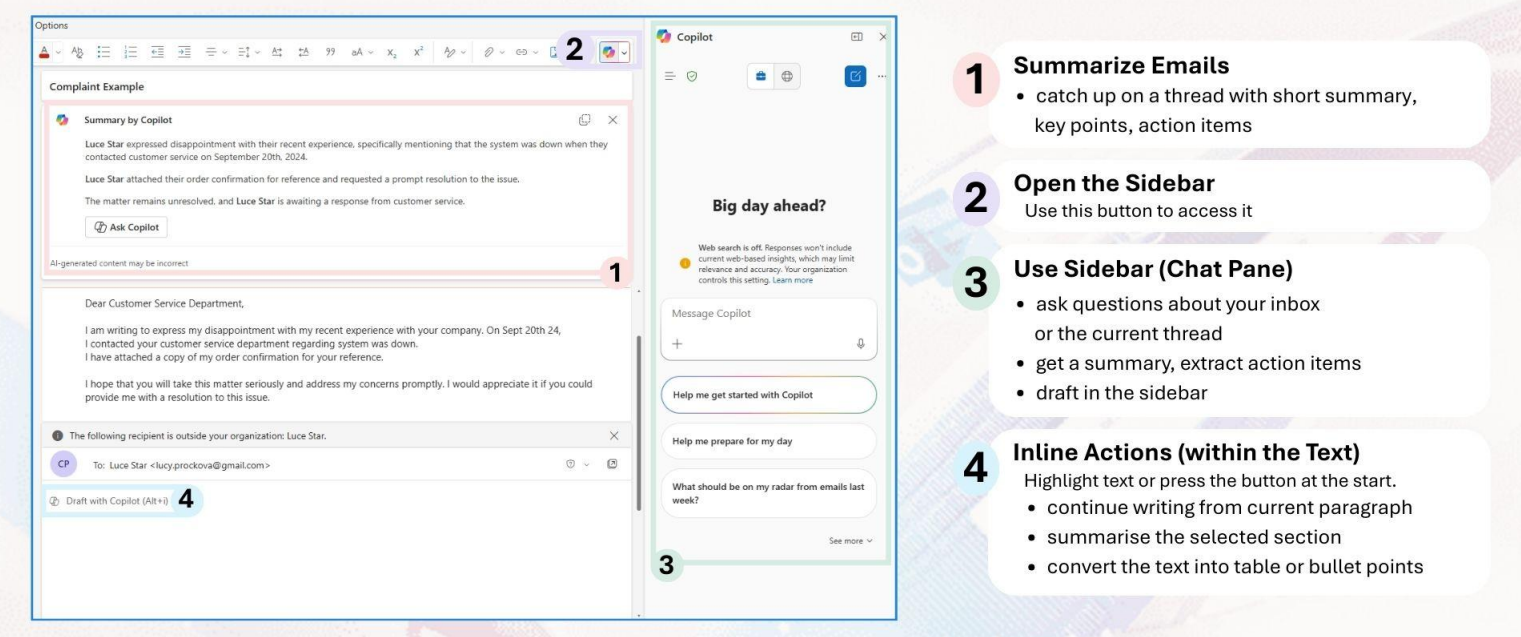
When you handle long email threads, the Copilot interface in Outlook becomes one of the most effective tools for keeping your work clear and structured. It gives you quick summaries, helps you draft replies, and supports you with inbox insights so you can stay focused instead of scrolling.
Here are the three key points:
Read more AI Academy stories:
https://www.flowhunt.io/academy/
When you open a long thread, the first thing you see is a Copilot summary at the top. It presents key points, decisions, and action items so you can understand the entire discussion without scrolling through every message.
If you need more detail, press Ask Copilot from the summary. You can:
This continues the conversation inside the interface rather than your inbox.
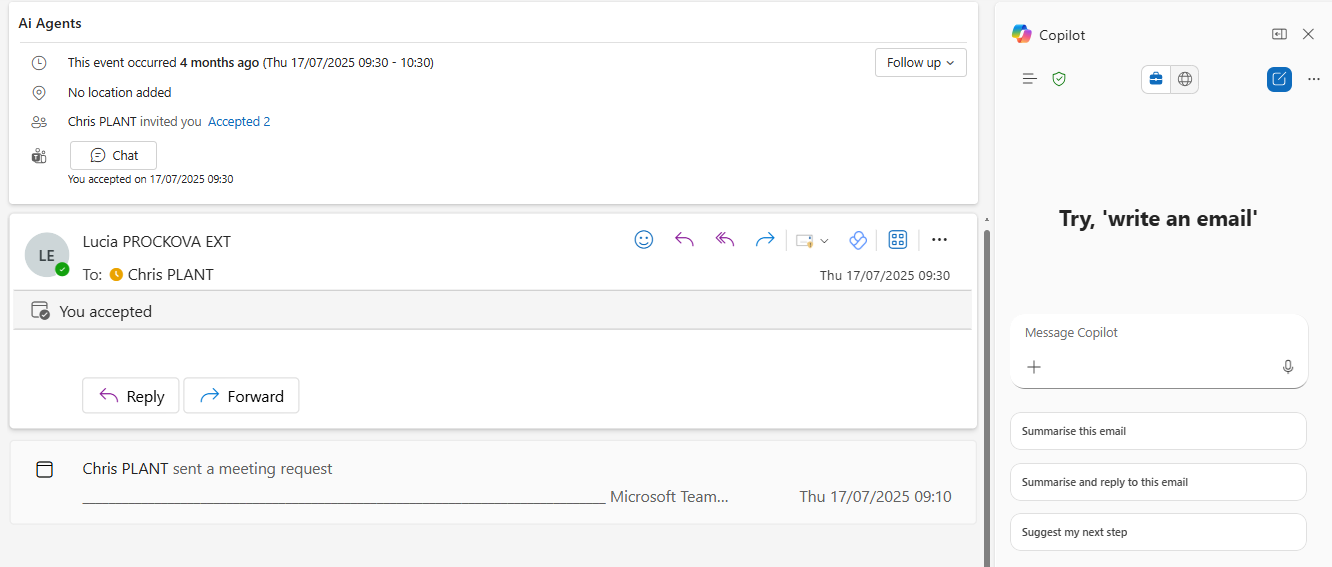
The Message Copilot sidebar is where you keep all your drafting work. Nothing enters your email body until you choose to insert it.
This is useful when you want to:
You can iterate as much as you like. Copilot keeps everything contained so your email remains untouched until you approve the final version.

Start your free trial today and see results within days.
You can also ask Copilot questions about your own inbox. This saves time when you cannot remember where a message is or who said what.
For example:
Copilot uses the context of your mailbox to bring you the right information quickly.
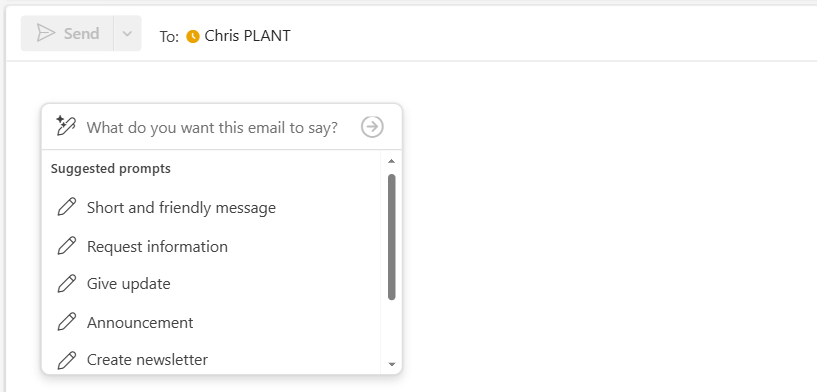
When you move to the compose box, you can use inline drafting controls. These tools allow Copilot to write directly into your message when you are ready.
You can ask Copilot to:
After generating the reply, you can shorten it, make it more formal, or add detail. Copilot always asks for confirmation before inserting anything into your message so you stay in full control.
Get latest tips, trends, and deals for free.
Copilot in Outlook helps you work more efficiently by supporting your decision making and reducing manual tasks. You can:
This keeps your workflow structured and focused so you can spend time on the parts of your job that matter most.
If you want to master Copilot from the ground up and learn every essential skill for real world productivity, explore our Microsoft 365 Copilot Essentials training programme:
https://www.flowhunt.io/services/ai-training/microsoft-365-copilot-essentials/
We help companies like yours to develop smart chatbots, MCP Servers, AI tools or other types of AI automation to replace human in repetitive tasks in your organization.
A clear overview of how Copilot supports writing, tone, clarity, and communication inside Outlook.
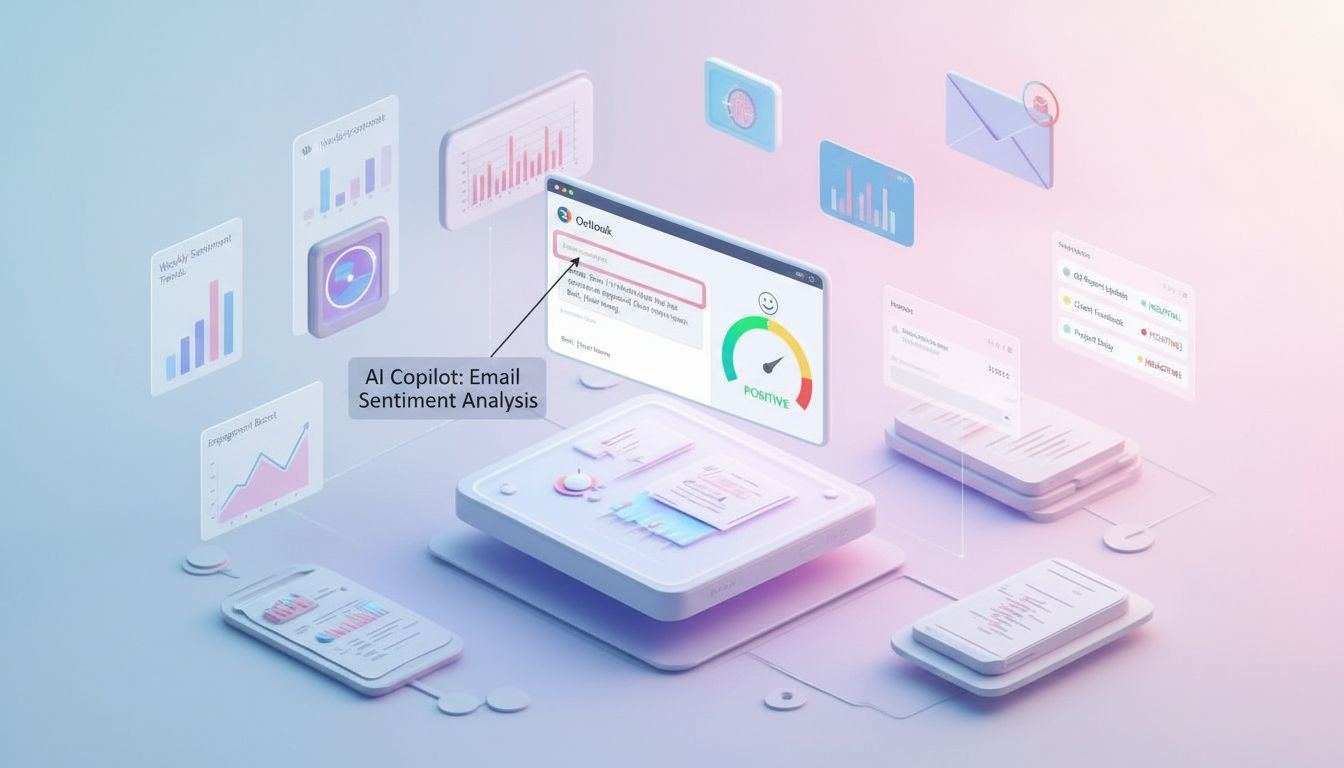
A beginner friendly walkthrough showing how Copilot in Outlook helps draft, refine and enhance emails by adjusting tone, clarity and sentiment.

Learn how to use Microsoft Copilot’s built-in reply button in Outlook to draft fast, polished email responses—no copying or pasting required. This guide shows h...
Cookie Consent
We use cookies to enhance your browsing experience and analyze our traffic. See our privacy policy.