

How to Use Copilot in Microsoft Word
A clear introduction to the three main ways you can use Copilot inside Microsoft Word.
3 min read
Beginner
Copilot
+1
A clear overview of the key capabilities Copilot brings into Microsoft Word to help you draft, analyse, and refine content.
If you want to write documents faster and with more clarity, Copilot inside Microsoft Word becomes one of the strongest tools you can use. It sits directly in the app, meaning you do not need a separate site or tool. It works alongside you while you draft, write, summarise, analyse, translate, or format. The best part is that you can use it without breaking your flow.
Here are the three key points:
Read more AI Academy stories:
https://www.flowhunt.io/academy/
One of the most powerful capabilities in Word is Copilot’s ability to start drafts for you.
This is ideal when you are staring at a blank page and are unsure where to begin.
You simply describe what you want. For example:
Draft a short guide explaining how to prepare for a team meeting, including tips on agenda creation, note taking, and follow ups.
Copilot will instantly produce a structured starting point that you can refine.
From there you can adjust the draft with commands such as:
There is also the Inspire me feature to provide fresh ideas if you feel stuck.
If you are working with a long or complex document, Copilot can summarise it so you understand the key ideas quickly.
You can type:
Please provide me with a summary of this document.
Or you can click Summarise this doc directly in the interface.
You can also choose the format of the summary:
This saves time and helps you grasp the full picture without reading every line.

Start your free trial today and see results within days.
For research tasks, Copilot can suggest relevant information that strengthens your writing.
You might ask:
Please make suggestions on relevant information and data to enhance this content.
Depending on the mode you use, Copilot can draw from:
It is still a good habit to double check sources for accuracy and reliability.
Copilot can refine your writing directly. For example:
Analyse this text and suggest improvements to clarity, style, and conciseness.
This helps you make content more readable and polished.
You can also adapt the writing to different audiences:
Get latest tips, trends, and deals for free.
If you need to adjust the tone of your document, Copilot can do this in seconds.
For example:
Once the tone is set, Copilot can also check whether the rest of the document stays consistent and highlight places where the tone drifts.
Copilot can scan the document for biased language and propose inclusive alternatives.
This is useful when preparing official reports, public communication, or any content that must meet organisational standards.
If you are writing something creative or analytical and keep repeating the same words, Copilot can help by providing alternatives.
For example:
This improves variation, precision, and impact.
One of the most important habits when working with Copilot is refining your prompts.
The clearer and more specific your request is, the better the output will be.
Try adding:
Experiment, iterate, and expand your prompt until the output is not just good but exactly what you need.
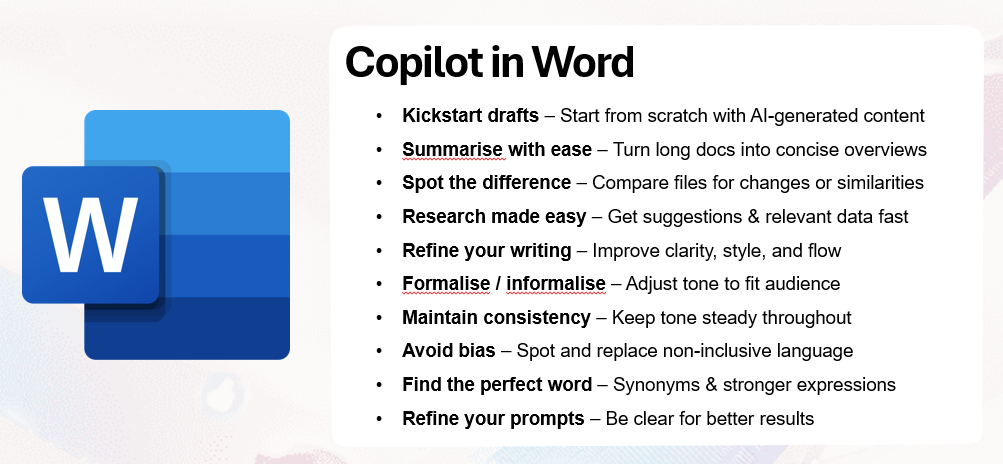
Copilot in Word is far more than a drafting tool. It can:
If you want to fully understand Copilot and use it effectively across Microsoft 365, explore our Microsoft 365 Copilot Essentials training programme:
https://www.flowhunt.io/services/ai-training/microsoft-365-copilot-essentials/
We help companies like yours to develop smart chatbots, MCP Servers, AI tools or other types of AI automation to replace human in repetitive tasks in your organization.
A clear introduction to the three main ways you can use Copilot inside Microsoft Word.

Learn how to use Microsoft Copilot in Word to instantly rewrite, summarize, or enhance internal company documents like policies, handbooks, or memos — all from ...
Learn how to use Microsoft Copilot in Word to instantly rewrite, summarize, or enhance internal company documents like policies, handbooks, or memos — all from ...
Cookie Consent
We use cookies to enhance your browsing experience and analyze our traffic. See our privacy policy.