

Google Workspace MCP Server
The Google Workspace MCP Server connects AI agents and large language models to Google Workspace services, enabling seamless programmatic automation and workflo...
5 min read
AI
MCP Server
+6

Transform your Google Drive into an AI-powered workspace. Search files naturally, automate document workflows, and integrate cloud storage directly into your AI-enhanced development environment with the Google Drive MCP Server.
The Google Drive MCP Server revolutionizes how AI assistants and developer tools interact with cloud storage by providing seamless, intelligent access to Google Drive through the Model Context Protocol (MCP). This powerful integration enables developers, teams, and AI agents to search files using natural language queries, read and analyze documents automatically, manage folder structures, and retrieve comprehensive file metadata—all without leaving their development environment or AI workflow.
By acting as a bridge between MCP-enabled clients like Claude, Cursor, Windsurf, and FlowHunt and the Google Drive API, this server transforms your cloud storage into an active participant in your AI-powered workflows. It automatically handles Google Workspace file conversions, turning Docs into readable Markdown, Sheets into analyzable CSV data, and Slides into processable text. This means your AI assistant can instantly understand, analyze, and work with your entire Drive library, opening up possibilities for automated content analysis, intelligent document organization, collaborative workflow automation, and data-driven decision making.
Whether you’re building documentation systems, automating report generation, creating intelligent file management systems, or simply want to give your AI assistant access to your company’s knowledge base stored in Drive, this MCP server provides the robust, secure foundation you need.
Find all PDF files modified in the last 7 days
Search for files containing 'quarterly report' in the name
Find all Google Sheets with 'budget' in their content modified after January 1, 2026
Show me all presentations created by sarah@company.com in the last month
Read the contents of the Q4 2025 Financial Report document
Show me all Google Docs in the Marketing folder and summarize their contents
Read this spreadsheet and extract the data from the Budget tab
List all files in the 'Client Projects' folder
Show me the folder structure for our Team Drive starting from the root
Find all folders that haven't been modified in over 6 months
Show me who owns the Strategic Plan 2026 document and who has access to it
Get detailed metadata for all files shared externally from our domain
Find files in the Legal folder that are publicly accessible
List all contract files modified in Q4 2025 with their owners and last modified dates
Find all documents containing 'confidential' that are shared with external users
Show me all files larger than 100MB that haven't been accessed in 90 days

Start your free trial today and see results within days.
No explicit resources are listed. The server provides direct access to Google Drive files through tool-based interactions.
The Google Drive MCP Server provides four powerful tools for comprehensive file management:
Search for files in Google Drive using advanced query parameters. This tool supports name-based search, full-text content search, and MIME type filtering. Returns detailed file information including IDs, names, types, sizes, modification dates, and web links.
Query Examples:
name contains 'report' - Find files with “report” in the namefullText contains 'budget' - Search file contents for “budget”mimeType='application/pdf' - Find all PDF filesmodifiedTime > '2023-01-01T00:00:00' - Find recently modified filesParameters:
query (required): Search query using Google Drive query syntaxmax_results (optional): Maximum number of results to return (default: 100, max: 1000)Read the contents of any file from Google Drive with intelligent format handling. Automatically converts Google Workspace files (Docs, Sheets, Slides, Drawings) to accessible formats. Google Docs are converted to Markdown for easy reading, Sheets to CSV for data analysis, and Slides to plain text. Returns both file content and comprehensive metadata.
Automatic Conversions:
Parameters:
file_id (required): The unique ID of the file to readFeatures:
List all files and folders within a specific Google Drive folder. Perfect for navigation, folder exploration, and understanding your Drive structure. Use ‘root’ to access the top level of My Drive.
Parameters:
folder_id (optional): The ID of the folder to list (default: ‘root’ for My Drive)max_results (optional): Maximum number of items to return (default: 100, max: 1000)Returns:
Retrieve comprehensive metadata for any file including permissions, capabilities, ownership information, and sharing settings. Essential for understanding file access rights, collaboration status, and detailed file properties.
Metadata Includes:
Parameters:
file_id (required): The ID of the fileGet latest tips, trends, and deals for free.
Legal and procurement teams often struggle to locate the correct version of a contract buried deep within complex folder hierarchies spanning multiple departments, years, and deal types. Instead of manually clicking through dozens of folders or relying on imperfect Drive search, use natural language queries like “find the latest NDA with Acme Corp modified after March 2025” to instantly locate exactly the document you need. The AI can search across file names, content, modification dates, and MIME types simultaneously, saving hours of manual folder navigation and preventing costly mistakes from using outdated contract versions.
Pain Point Solved: Eliminate the frustration of “I know it’s here somewhere” and the risk of working from outdated legal documents. Reduce contract retrieval time from 20+ minutes to under 30 seconds.
Marketing teams accumulate hundreds of campaign files each quarter—images, presentations, briefs, performance reports, creative assets—often scattered across personal drives, shared folders, and temporary collaboration spaces. At quarter-end, someone needs to organize this chaos into a proper archive structure. Use the AI to list all files from various campaign folders, read metadata to understand file purposes, identify duplicates by analyzing content similarity, and provide recommendations for logical organization schemes—all before manually moving a single file.
Pain Point Solved: Transform the dreaded quarterly cleanup from a full day of mind-numbing file sorting into a guided 30-minute organization session with AI-powered insights.
Before sharing confidential pitch decks, proposals, or partnership presentations externally, you need to verify what’s actually being shared and who has access. Use the metadata tool to quickly audit file permissions, identify who owns the document, check current sharing settings, and confirm whether anyone outside your organization already has access. The AI can review multiple presentation files simultaneously, flag potential security risks, and help you make informed decisions about sharing settings before hitting that “Share” button.
Pain Point Solved: Prevent embarrassing or costly data leaks by ensuring you understand exactly what you’re sharing and with whom, without manually checking permissions on each file.
Critical business documents—financial models, strategic plans, IP documentation, client agreements—require reliable backup and versioning beyond Google Drive’s native capabilities. Build an AI-driven backup workflow that monitors specific folders, identifies files matching certain criteria (financial spreadsheets modified this month, strategic plans containing specific terms), reads and archives content to secondary storage systems, and maintains comprehensive metadata logs. The AI can schedule regular checks, verify backup integrity by comparing file sizes and modification dates, and alert you to any anomalies.
Pain Point Solved: Eliminate manual backup procedures and gain peace of mind knowing your most critical documents are automatically monitored, backed up, and verifiable.
Organizations waste thousands of dollars annually on Drive storage filled with duplicate files—the same presentation uploaded three times, identical reports saved with slightly different names, multiple copies of the same image asset. Use the AI to search for files with similar names, read and compare file contents to identify true duplicates versus similar-named but different files, analyze file sizes to prioritize which duplicates to address first, and generate comprehensive reports showing exactly where your storage waste exists.
Pain Point Solved: Reclaim expensive Drive storage and reduce clutter without the impossible task of manually comparing thousands of files. Turn storage optimization from a quarterly nightmare into an automated, data-driven process.
Project managers and team leads need visibility into what’s actually happening across team drives—what documents were updated, who made changes, which deliverables are progressing, and what might be falling behind. Use time-based queries like “show me all spreadsheets modified in the last 48 hours in the Project Alpha folder” or “find all documents changed by Sarah this week” to maintain real-time project awareness. The AI can generate daily or weekly activity summaries, identify files that haven’t been touched in months (potential dead projects), and flag unusual patterns like after-hours changes to sensitive documents.
Pain Point Solved: Replace manual status meetings and check-ins with automated project pulse checks. Catch issues early when files aren’t being updated as expected.
Legal teams facing litigation or compliance audits need to collect all documents matching specific criteria across years of accumulated files. Traditional manual review is prohibitively expensive and error-prone. Use advanced search queries combining date ranges, content keywords, file types, and metadata to identify potentially relevant documents. The AI can read file contents to assess relevance, extract key information for review logs, identify related documents based on content similarity, and compile comprehensive discovery reports—all while maintaining detailed audit trails.
Pain Point Solved: Reduce legal discovery costs by 70% and accelerate timelines from months to weeks. Ensure comprehensive coverage without $500/hour associates manually reviewing every file.
New employees need access to training documents, process guides, policy files, and departmental resources scattered across various Drive folders created over years by different managers. Instead of sending new hires a confusing list of 15 folder links, use natural language queries to find all relevant onboarding materials: “find all training documents for sales representatives,” “locate employee handbook and benefits guides,” “show me customer service process documentation.” The AI can compile a comprehensive, current resource list, verify files are accessible to the new employee, and even identify outdated materials that should be updated.
Pain Point Solved: Transform chaotic onboarding from “here are some folders, good luck” into a curated, comprehensive resource delivery system. Reduce new hire time-to-productivity and ensure nothing critical is missed.
Heavily regulated industries—healthcare, finance, manufacturing—face regular compliance audits requiring proof that specific procedures, certifications, training records, and quality documents exist and are current. Use the AI to systematically search for all required document types, verify modification dates to ensure currency, read metadata to confirm proper ownership and approval chains, cross-reference against compliance checklists, and generate audit-ready reports showing exactly where each required document lives. Identify gaps before auditors do.
Pain Point Solved: Convert compliance preparation from a panic-inducing scramble to a systematic, verifiable process. Reduce audit preparation time by 60% and eliminate the dreaded “we can’t find the document” scenario.
Research teams, consultants, and analysts working on complex projects accumulate findings across dozens of documents created by different team members in various folders. At synthesis time, someone needs to review all research outputs to create comprehensive reports. Use the AI to locate all research documents modified during the project timeframe, read contents to extract key findings and data points, identify themes and patterns across multiple documents, flag contradictory information requiring resolution, and compile everything into a structured foundation for final reporting.
Pain Point Solved: Eliminate the week-long “research review sprint” where someone manually reads 50+ documents taking notes. Accelerate insight synthesis and ensure no valuable research gets overlooked.
Client-facing teams—consultants, agencies, professional services—manage dozens of active client folders, each containing proposals, status reports, deliverables, and correspondence. Teams need to ensure every client folder maintains proper structure, contains required documentation, and doesn’t expose confidential information from other clients. Use the AI to audit folder structures across all clients, verify that standard deliverables exist for each project phase, identify folders with unusual sharing permissions, find documents accidentally placed in wrong client folders, and generate health reports for each client engagement.
Pain Point Solved: Prevent client data leaks and project management failures caused by disorganized folders. Transform ad-hoc folder management into a standardized, verifiable process.
Executive assistants and finance teams preparing board presentations need to gather current data from sales reports, financial spreadsheets, operational metrics, and strategic plans scattered across departmental folders. Use the AI to search for the latest versions of specific report types, read spreadsheet data to extract key metrics, verify file modification dates to ensure currency, identify who owns each data source for verification questions, and compile everything into a pre-presentation checklist confirming all required inputs are current and accessible.
Pain Point Solved: Reduce pre-board presentation stress and eliminate last-minute scrambles to find updated numbers. Ensure board members receive current, verified information every time.
Organizations migrating from on-premise file servers, competing cloud platforms, or chaotic legacy Drive structures face the monumental task of organizing thousands of files into logical hierarchies. Use the AI to analyze current file organization patterns, read file contents to understand purposes and relationships, identify logical groupings based on content similarity, detect obsolete files not modified in years, recommend organizational structures based on actual usage patterns, and prioritize which files to migrate first based on access frequency and business criticality.
Pain Point Solved: Transform file migration from a multi-month project requiring expensive consultants into a data-driven, AI-assisted process. Reach clean, logical organization in weeks, not quarters.
Distributed teams across time zones and geographies need reliable access to shared project resources. Project managers need to verify that all team members have appropriate access to required folders, that no critical files are accidentally private, and that external contractors have correct limited access. Use the AI to retrieve metadata for entire project folder hierarchies, audit sharing permissions systematically, identify files that should be shared but aren’t, flag oversharing where contractors can access confidential materials, and generate comprehensive access reports showing exactly who can see what.
Pain Point Solved: Eliminate the “I don’t have access” messages that derail global team productivity. Ensure appropriate information access without security risks from oversharing.
Customer support teams maintain extensive knowledge bases—FAQs, troubleshooting guides, product documentation, policy explanations—across Google Drive. Enable support agents to ask natural language questions and instantly receive answers pulled directly from these knowledge base documents. The AI searches for relevant documents, reads current content, synthesizes information from multiple sources, and provides accurate answers with source citations. Update documentation in Drive, and the knowledge base instantly reflects changes without manual system updates.
Pain Point Solved: Eliminate the productivity drain of support agents manually searching documentation for every complex customer question. Reduce average handling time by 40% while improving answer accuracy and consistency.
Before setting up the Google Drive MCP Server, you need to configure Google Drive API access:
Create a Google Cloud Project:
Create Credentials:
Option A: Service Account (Recommended for automation):
Option B: OAuth 2.0 (For user-specific access):
Set Environment Variable:
export GOOGLE_APPLICATION_CREDENTIALS="/path/to/your/credentials.json"
mcpServers configuration:{
"mcpServers": {
"google-drive": {
"command": "python3",
"args": ["-m", "google_drive_mcp"],
"env": {
"GOOGLE_APPLICATION_CREDENTIALS": "/path/to/credentials.json"""
}
}
}
}
mcpServers field in your Claude configuration:{
"mcpServers": {
"google-drive": {
"command": "python3",
"args": ["-m", "google_drive_mcp"],
"env": {
"GOOGLE_APPLICATION_CREDENTIALS": "/path/to/credentials.json"
}
}
}
}
{
  "mcpServers": {
    "google-drive": {
      "command": "python3",
      "args": ["-m", "google_drive_mcp"],
      "env": {
        "GOOGLE_APPLICATION_CREDENTIALS": "/path/to/credentials.json"
      }
    }
  }
}
{
  "mcpServers": {
    "google-drive": {
      "command": "python3",
      "args": ["-m", "google_drive_mcp"],
      "env": {
        "GOOGLE_APPLICATION_CREDENTIALS": "/path/to/credentials.json"
      }
    }
  }
}
Protecting Your Credentials:
Always use environment variables for sensitive information. Never commit credentials to version control. Here’s a secure configuration example:
{
  "mcpServers": {
    "google-drive": {
      "command": "python3",
      "args": ["-m", "google_drive_mcp"],
      "env": {
        "GOOGLE_APPLICATION_CREDENTIALS": "/path/to/credentials.json"
      }
    }
  }
}
Additional Security Measures:
To integrate the Google Drive MCP server into your FlowHunt workflow, start by adding the MCP component to your flow and connecting it to your AI agent:
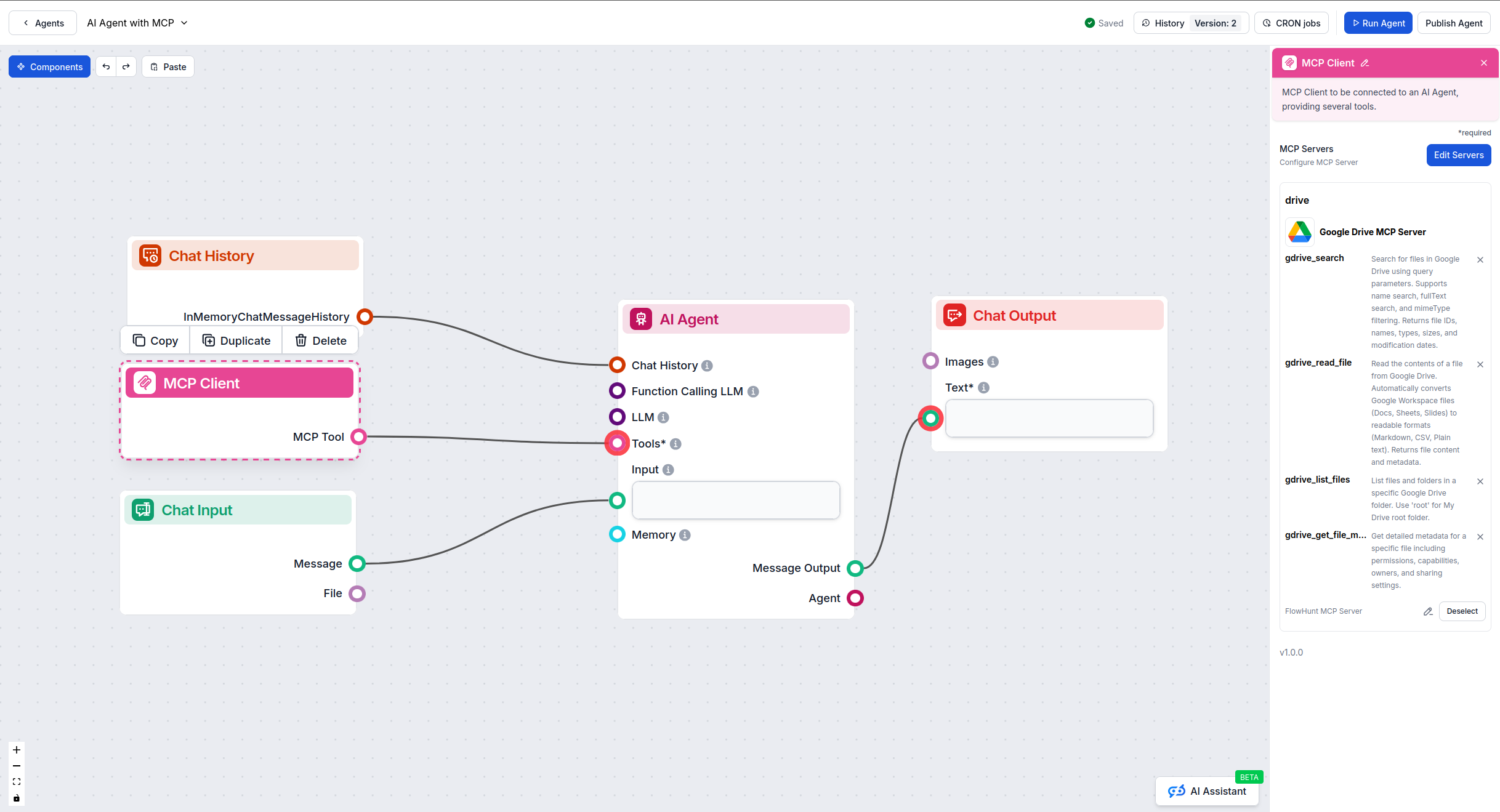
Click on the MCP component to open the configuration panel. In the system MCP configuration section, insert your MCP server details using this JSON format:
{
  "google-drive": {
    "transport": "streamable_http",
    "url": "https://yourmcpserver.example/path/to/google-drive/mcp"
  }
}
Once configured, your AI agent gains immediate access to all Google Drive tools and capabilities. The agent can now search files using natural language, read and analyze documents, list folder contents, and retrieve detailed file metadata—all through conversational commands.
Example FlowHunt Workflows:
Remember to replace the URL with your actual MCP server endpoint. For local development, you might use http://localhost:8000/mcp/google-drive or similar.
| Section | Availability | Details/Notes |
|---|---|---|
| Overview | ✅ | Comprehensive explanation of capabilities and integration benefits |
| List of Prompts | ⛔ | No prompt templates provided; tool-based interaction |
| List of Resources | ⛔ | No explicit resources; direct file access through tools |
| List of Tools | ✅ | 4 comprehensive tools fully documented |
| Securing API Keys | ✅ | Environment variable configuration with security best practices |
| Google Workspace Support | ✅ | Automatic file conversion for Docs, Sheets, Slides |
| File Size Handling | ✅ | Intelligent handling of large files with appropriate warnings |
The Google Drive MCP Server excels at providing robust, production-ready Google Drive integration with comprehensive tool documentation, automatic Workspace file conversion, and strong security practices. It’s ideal for teams looking to integrate cloud storage capabilities into AI-powered workflows.
This MCP server delivers exceptional value for cloud storage automation and document collaboration. The automatic conversion of Google Workspace files to readable formats (Docs to Markdown, Sheets to CSV) is particularly powerful, enabling AI assistants to understand and analyze your entire Drive content library seamlessly. The four core tools—search, read, list, and metadata—cover all essential file operations while maintaining simplicity and reliability.
The server’s architecture prioritizes security with environment variable credential management and includes thoughtful features like intelligent file size handling, formatted output for readability, and comprehensive error messaging. It’s production-ready and suitable for both individual developers and enterprise deployments.
Best suited for teams that rely heavily on Google Drive for document storage and collaboration, especially those wanting to unlock their Drive content for AI-powered analysis, automation, and knowledge management applications.
| Criteria | Status/Value |
|---|---|
| Has a LICENSE | ✅ TBD |
| Has at least one tool | ✅ (4 tools) |
| Number of Forks | 0 |
| Number of Stars | 0 |
FlowHunt provides an additional security layer between your internal systems and AI tools, giving you granular control over which tools are accessible from your MCP servers. MCP servers hosted in our infrastructure can be seamlessly integrated with FlowHunt's chatbot as well as popular AI platforms like ChatGPT, Claude, and various AI editors.
The Google Drive MCP Server is a powerful integration tool that bridges Google Drive's cloud storage capabilities with AI assistants and developer tools through the Model Context Protocol (MCP). It enables natural language file operations, intelligent search, automated document management, and seamless access to your Drive files directly from AI-powered workflows.
Key use cases include natural language file search across your Drive, automated document processing and analysis, intelligent content organization, collaborative workflow automation, bulk file operations, document versioning and tracking, and cross-platform file management integration with other MCP-enabled tools.
Always store your Google Drive API credentials securely using environment variables. Set GOOGLE_APPLICATION_CREDENTIALS to point to your service account JSON file or OAuth credentials. Never hardcode credentials in configuration files. Use service accounts with minimal required permissions for production deployments.
Yes! The server automatically converts Google Workspace files (Docs, Sheets, Slides, Drawings) to readable formats. Google Docs are converted to Markdown, Sheets to CSV, and Slides to plain text. This allows AI assistants to read and analyze your Workspace content seamlessly.
The server supports comprehensive file operations including searching files with advanced query syntax, reading file contents (with automatic format conversion), listing folder contents, retrieving detailed file metadata including permissions and sharing settings, and accessing file capabilities and ownership information.
Add the MCP component to your FlowHunt flow and connect it to your AI agent. In the MCP configuration panel, insert your Google Drive MCP server details in JSON format. Once configured, your AI agent can perform file operations, search documents, and automate Drive workflows using natural language commands.
Unlock intelligent file management in your AI workflows. Automate document processing, enable natural language file search, and empower your team with seamless Google Drive integration.
The Google Workspace MCP Server connects AI agents and large language models to Google Workspace services, enabling seamless programmatic automation and workflo...
The Google Tasks MCP Server bridges AI assistants with Google Tasks, enabling seamless management and automation of tasks directly through standardized protocol...

The Google Sheets MCP Server enables secure, programmatic access to Google Sheets for AI agents and developers. It offers robust automation, typed tools, and fl...
Cookie Consent
We use cookies to enhance your browsing experience and analyze our traffic. See our privacy policy.