

mcp-google-search MCP Server
The mcp-google-search MCP Server bridges AI assistants and the web, enabling real-time search and content extraction using the Google Custom Search API. It empo...
5 min read
AI
Web Search
+5

Seamlessly bridge Google Search Console with AI-powered developer workflows and assistants using the Google Search Console MCP Server for natural language SEO insights, automated indexing, and search performance optimization.
The Google Search Console MCP Server enables seamless integration of Google Search Console data and functionality with AI assistants and development tools like Claude, Cursor, and Windsurf using the Model Context Protocol (MCP). By acting as a bridge between MCP clients and the Search Console API, it allows users to query search performance data, manage indexing, monitor site health, and analyze SEO metrics in natural language. This powerful integration unlocks comprehensive search analytics with support for multiple dimensions (queries, pages, countries, devices), detailed indexing management through the Google Indexing API, and automated SEO workflow capabilities. AI agents can now perform sophisticated SEO analysis, automate reporting, manage sitemaps, submit URLs for indexing, and provide actionable search optimization insights directly inside developer workflows or AI-powered tools, eliminating the need for manual dashboard navigation and accelerating data-driven SEO decisions.
Show me the top 20 queries by impressions for the last 30 days
List all pages with more than 1000 impressions but CTR below 2% in the last 14 days
Compare clicks and impressions for the last 7 days versus the previous 30 days
Find queries where we rank in position 4-10 with high impression volume
Check the indexing status of my homepage and 10 most important landing pages
Submit these 50 new blog post URLs for indexing
Show me all URLs that failed indexing with error verdicts
Verify that the noindex tags were removed from our product pages
Inspect this URL and show me its mobile usability status and structured data issues
Check if these 20 URLs are actually indexed by Google
Find all pages excluded from indexing and show me the reasons
List all sitemaps for my website with their error counts and submission dates
Show me detailed information about the main XML sitemap including warnings
Submit this new sitemap URL to Google Search Console
Show me search performance by country for the last 90 days
Compare mobile versus desktop performance metrics for all pages
Find which countries drive the most impressions but have the lowest CTR

Start your free trial today and see results within days.
No explicit resources are listed in the repository.
The Google Search Console MCP Server provides 13 comprehensive tools for SEO monitoring, search analytics, and indexing management:
submit_url_for_indexing - Submit a single URL to Google’s Indexing API for faster crawling and indexing of new or updated content. Supports both URL_UPDATED and URL_DELETED action types, enabling immediate notification to Google when content changes.
batch_submit_urls_for_indexing - Submit up to 100 URLs to Google’s Indexing API in a single batch request. Ideal for bulk operations like publishing multiple new pages, updating content across several URLs, or removing deleted pages from the index efficiently.
get_indexing_status - Get the indexing status of a previously submitted URL through the Indexing API. Check submission history, last notification time, and current indexing state for URLs you’ve actively submitted.
list_sites - List all verified sites in your Google Search Console account. Returns site URLs in the proper format (URL-prefix properties like https://example.com/ or domain properties like sc-domain:example.com) along with permission levels.
get_site_info - Get detailed information about a specific verified site, including verification status, permission level, and site URL format.
add_site - Add or register a new site in Google Search Console. Supports both URL-prefix properties (https://example.com/ ) and domain properties (sc-domain:example.com). Note that the site must be verified before full access is granted.
delete_site - Remove or unregister a site from your Google Search Console account, cleaning up properties you no longer need to monitor.
get_sitemaps - List all sitemaps for a specific site. Returns submitted URL counts, errors, warnings, last submitted time, and processing status. Note: The ‘indexed’ field in contents is deprecated by Google and always returns 0 - use get_url_inspection to check actual indexing status of individual URLs.
get_sitemap - Get detailed information about a specific sitemap including last submitted and downloaded time, warnings, errors, content breakdown by type, and processing status. Essential for troubleshooting sitemap issues.
submit_sitemap - Submit a new sitemap to Google Search Console for crawling. Notifies Google about your site structure and helps prioritize crawling of important pages.
delete_sitemap - Delete or remove a sitemap from Google Search Console. Useful for cleaning up outdated or incorrect sitemap submissions.
Get latest tips, trends, and deals for free.
You notice a sudden traffic decline in Google Analytics but can’t pinpoint the cause. Use the Google Search Console MCP Server to query search analytics data, comparing clicks and impressions across all pages for the last 30 days versus the previous period. The AI agent can automatically identify which specific URLs experienced the steepest declines, correlate them with query performance drops, and highlight whether the issue is widespread or isolated to specific page templates or content categories.
Your team just migrated 500 blog articles to a new domain or URL structure, and waiting for Google to naturally discover and index them could take weeks. Using the batch_submit_urls_for_indexing tool, you can programmatically submit all 500 URLs in batches of 100, notifying Google immediately about the new content locations. The AI agent can track submission status for each batch and alert you if any URLs encounter indexing errors, accelerating your migration’s organic visibility recovery.
You want to identify high-potential keyword opportunities where your pages appear in search results but fail to attract clicks. Query search analytics data filtered by impressions greater than 1,000 and clicks equal to zero, sorted by impression volume. The AI agent reveals queries where your content ranks but underperforms on CTR, suggesting title and meta description optimizations to capture that untapped traffic potential.
Your e-commerce team published 50 new product pages yesterday, and stakeholders want confirmation they’re indexed and searchable. Use get_url_inspection to systematically check each product URL’s indexing verdict. The AI agent identifies which pages are indexed (PASS), which have errors (FAIL), and which are excluded (NEUTRAL), providing a prioritized list of URLs requiring immediate attention to maximize product discoverability during peak shopping season.
Search Console shows mobile usability warnings affecting dozens of pages, but you need specifics to brief your development team. Use get_url_inspection to inspect affected URLs and extract detailed mobile usability diagnostics, including viewport configuration problems, text size issues, and clickable element spacing violations. The AI agent compiles a structured report with specific technical fixes needed for each page type, accelerating remediation.
Your SEO strategy depends on maintaining excellent Core Web Vitals scores for high-converting landing pages. While the MCP server doesn’t directly expose Core Web Vitals metrics, you can use URL inspection to monitor crawl status and indexing health of these critical pages, ensuring they remain indexed and accessible while coordinating with separate performance monitoring tools for complete visibility.
Your brand search rankings inexplicably dropped, and your homepage no longer appears for branded queries. Use get_url_inspection to verify your homepage’s indexing status, canonical URL configuration, and crawl accessibility. Query search analytics for your brand name to see if impressions persist but clicks dropped, indicating a ranking issue versus complete de-indexing. The AI agent correlates indexing data with query performance to diagnose whether the problem stems from technical issues, manual actions, or algorithm changes.
Search Console reports errors for 1,200 URLs in your XML sitemap, but manually investigating each one is impractical. Use get_sitemap to retrieve detailed error breakdowns and warnings, then cross-reference problematic URLs with get_url_inspection to understand specific indexing issues. The AI agent categorizes errors by type (404s, redirect chains, noindex tags, etc.), prioritizes fixes by traffic impact, and generates an actionable remediation plan for your development team.
You want to identify question-based search queries driving impressions to your content and optimize for voice search opportunities. Query search analytics data filtering for queries containing “how”, “what”, “why”, “where”, and “when”, sorted by impressions. The AI agent reveals which question formats resonate with searchers, which pages rank for these queries, and where content gaps exist—guiding your voice search optimization strategy.
Your multilingual website serves customers in 15 countries, and you need country-specific search performance insights. Use search analytics with the country dimension to analyze clicks, impressions, CTR, and rankings segmented by geographic market. The AI agent identifies which countries underperform relative to traffic potential, which pages succeed internationally versus locally, and where localization improvements could yield the greatest organic growth.
Your team removed noindex tags from 200 pages last week after staging content accidentally went live with indexing blocked. Use get_url_inspection to verify that Google recognizes the removal and has re-crawled the pages without indexing restrictions. The AI agent confirms which URLs are now indexable, which remain excluded, and which require re-submission via submit_url_for_indexing to accelerate re-indexing.
Multiple pages on your site target similar keywords, potentially competing against each other in search results. Query search analytics by page dimension for specific high-value queries to see which URLs receive impressions and clicks. The AI agent identifies when 3-4 pages split impressions for the same query, indicating cannibalization, and recommends consolidation strategies or content differentiation to strengthen your ranking potential.
Your development team deployed a site redesign, and you need to ensure it didn’t introduce crawl accessibility problems. Use list_sites and get_site_info to access your property, then systematically inspect critical page types with get_url_inspection to detect new crawl errors, server errors, or robots.txt blocks introduced by the deployment. The AI agent flags regressions immediately, enabling rapid rollback or hotfixes before organic rankings suffer.
Your CMO requests monthly SEO performance updates with specific metrics: total clicks, impression trends, top-performing queries, and indexing coverage. Use search analytics to extract comprehensive performance data across dimensions (queries, pages, devices, countries), and combine with sitemap and URL inspection data to show indexing health. The AI agent compiles a natural language executive summary with data visualizations, eliminating hours of manual dashboard extraction and report formatting.
You launched a new blog section with 75 articles and need to track how quickly Google indexes and ranks the content. Submit all URLs via batch_submit_urls_for_indexing, then monitor indexing progress with get_indexing_status and get_url_inspection. The AI agent tracks time-to-index for each article, identifies indexing bottlenecks (slow crawl rate, technical errors), and alerts you when all content achieves indexed status—ensuring your content marketing investment delivers organic visibility as quickly as possible.
mcpServers configuration:{
"mcpServers": {
"google-search-console-mcp": {
"command": "python3",
"args": ["-m", "google_search_console_mcp"]
}
}
}
claude-config-template.json as a starting point.mcpServers field in your Claude configuration:{
"mcpServers": {
"google-search-console-mcp": {
"command": "python3",
"args": ["-m", "google_search_console_mcp"]
}
}
}
{
  "mcpServers": {
    "google-search-console-mcp": {
      "command": "python3",
      "args": ["-m", "google_search_console_mcp"]
    }
  }
}
{
  "mcpServers": {
    "google-search-console-mcp": {
      "command": "python3",
      "args": ["-m", "google_search_console_mcp"]
    }
  }
}
Securing API Keys (using environment variables):
To provide sensitive credentials (like Google Search Console API keys or service account files), use environment variables for security. Example configuration:
{
  "mcpServers": {
    "google-search-console-mcp": {
      "command": "python3",
      "args": ["-m", "google_search_console_mcp"],
      "env": {
        "GOOGLE_APPLICATION_CREDENTIALS": "/path/to/your/credentials.json"
      },
      "inputs": {
        "site_url": "sc-domain:example.com"
      }
    }
  }
}
Using MCP in FlowHunt
To integrate MCP servers into your FlowHunt workflow, start by adding the MCP component to your flow and connecting it to your AI agent:
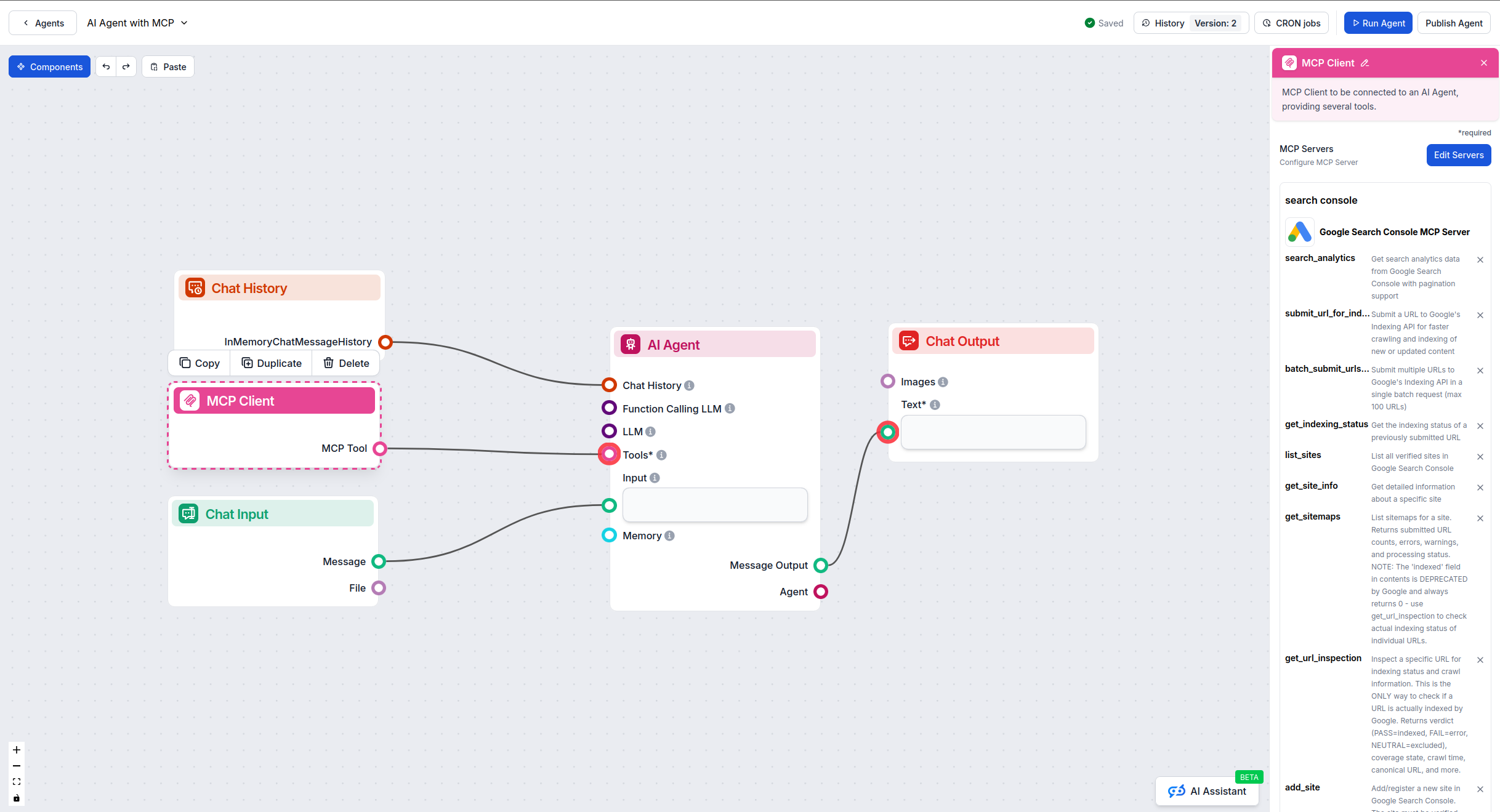
Click on the MCP component to open the configuration panel. In the system MCP configuration section, insert your MCP server details using this JSON format:
{
  "google-search-console-mcp": {
    "transport": "streamable_http",
    "url": "https://yourmcpserver.example/pathtothemcp/url"
  }
}
Once configured, the AI agent is now able to use this MCP as a tool with access to all its functions and capabilities. Remember to change “google-search-console-mcp” to whatever the actual name of your MCP server is and replace the URL with your own MCP server URL.
| Section | Availability | Details/Notes |
|---|---|---|
| Overview | ✅ | |
| List of Prompts | ⛔ | No prompt templates found |
| List of Resources | ⛔ | Not explicitly listed |
| List of Tools | ✅ | 13 comprehensive SEO and indexing tools |
| Securing API Keys | ✅ | Env variable usage shown in config example |
| Sampling Support (less important in evaluation) | ⛔ | Not documented |
Between the documentation and the code, Google Search Console MCP provides a clear overview, comprehensive tool set, and setup instructions, but lacks detailed documentation on prompts and resources. For security, it supports environment variable configuration. Roots and sampling are not referenced.
Based on the tables above, this MCP server scores excellently for tool availability (13 comprehensive tools), overview, and setup instructions. It provides robust SEO and indexing capabilities with detailed tool descriptions. However, it is missing prompt templates and resource definitions. It is best suited for SEO professionals, developers, and marketing teams who understand Search Console concepts and need programmatic access to search performance data and indexing management.
| Has a LICENSE | ✅ (MIT) |
|---|---|
| Has at least one tool | ✅ (13 tools) |
| Number of Forks | 12 |
| Number of Stars | 89 |
FlowHunt provides an additional security layer between your internal systems and AI tools, giving you granular control over which tools are accessible from your MCP servers. MCP servers hosted in our infrastructure can be seamlessly integrated with FlowHunt's chatbot as well as popular AI platforms like ChatGPT, Claude, and various AI editors.
It's a bridge between Google Search Console and AI/developer tools via the Model Context Protocol (MCP), enabling natural language access to SEO data, search analytics, indexing management, and seamless workflow integration for search performance optimization.
SEO performance monitoring, automated search analytics reporting, URL indexing management, site health monitoring, keyword performance tracking, crawl error detection, sitemap management, and AI-driven SEO insights.
Store sensitive information such as API keys or service account files in environment variables. For example, set 'GOOGLE_APPLICATION_CREDENTIALS' to your credentials file path in the MCP server config.
Yes, the server includes a batch_submit_urls_for_indexing tool that allows you to submit up to 100 URLs in a single request, making bulk indexing operations efficient.
Use the get_url_inspection tool, which provides the definitive indexing status with verdict codes (PASS=indexed, FAIL=error, NEUTRAL=excluded). Note that the 'indexed' field in sitemap data is deprecated and always returns 0.
The search_analytics tool supports dimensions like query, page, country, device, date, and searchAppearance, with metrics including clicks, impressions, CTR, and average position. You can filter, aggregate, and paginate results for comprehensive analysis.
Add the MCP component to your FlowHunt flow, open its configuration, and insert the MCP server details in JSON format. Once configured, your AI agent will have access to Google Search Console data for enhanced SEO capabilities.
Unlock powerful SEO insights in your AI workflows, automate indexing management, and empower your team to optimize search performance directly from your favorite tools.
The mcp-google-search MCP Server bridges AI assistants and the web, enabling real-time search and content extraction using the Google Custom Search API. It empo...

The Serper MCP Server bridges AI assistants with Google Search via the Serper API, enabling real-time web, image, video, news, maps, reviews, shopping, and acad...

The OpenSearch MCP Server enables seamless integration of OpenSearch with FlowHunt and other AI agents, allowing programmatic access to search, analytics, and c...
Cookie Consent
We use cookies to enhance your browsing experience and analyze our traffic. See our privacy policy.