


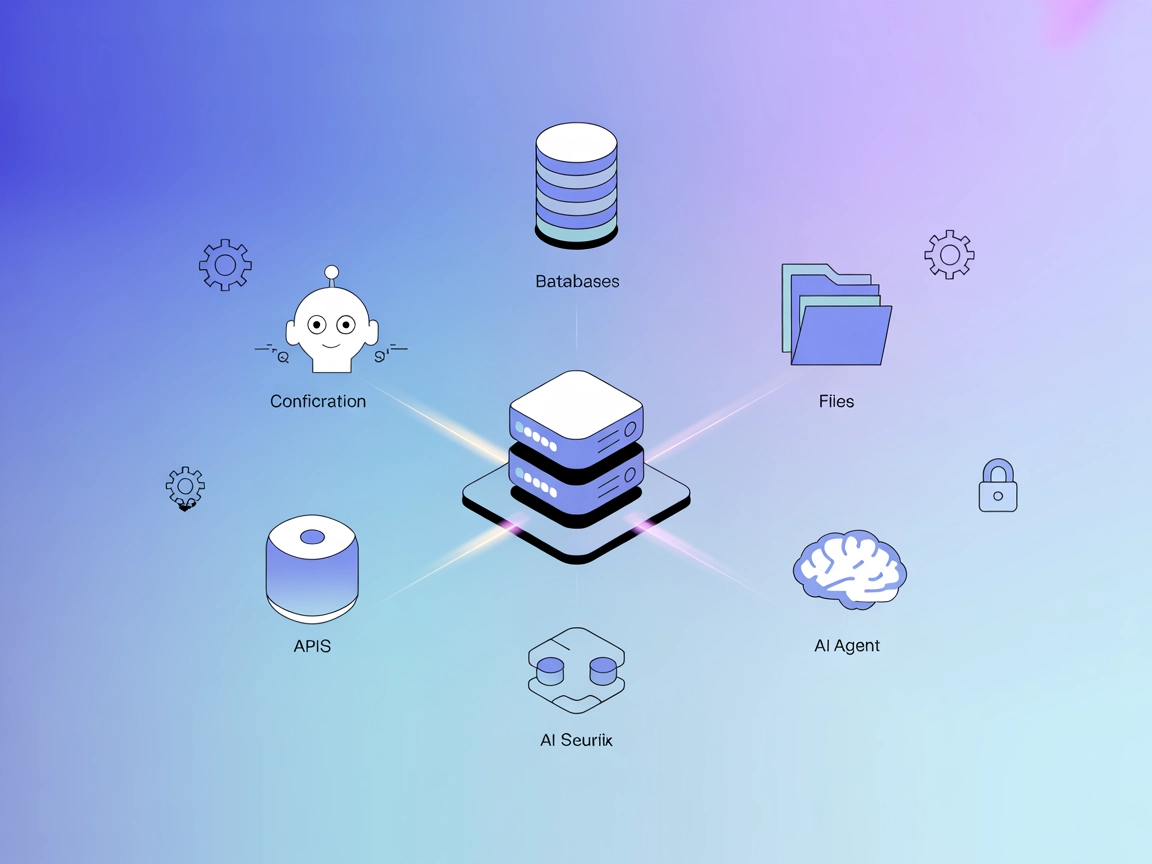
ModelContextProtocol (MCP) Server Integration
The ModelContextProtocol (MCP) Server acts as a bridge between AI agents and external data sources, APIs, and services, enabling FlowHunt users to build context...
3 min read
AI
Integration
+4
Connect ClickUp with FlowHunt to enable AI-driven project and task management automation, unlocking seamless collaboration and workflow enhancements for teams.
The ClickUp MCP Server integrates ClickUp project management with AI assistants via the Model Context Protocol (MCP). This server acts as a bridge, allowing AI models to access and interact with ClickUp data, such as tasks, projects, and lists, through standardized MCP endpoints. By connecting AI assistants with external data sources like ClickUp, it enhances development workflows by enabling seamless task tracking, project updates, and automation of repetitive project management actions. This integration empowers developers and teams to query project status, automate task creation, and manage workflows programmatically, all from within their preferred AI or LLM-powered environments.
No information available.
No information available.
No information available.
No information available.
windsurf.config.json configuration file.{
"mcpServers": {
"clickup-mcp": {
"command": "npx",
"args": ["@clickup/mcp-server@latest"]
}
}
}
Set your ClickUp API key as an environment variable and reference it in your configuration:
{
"mcpServers": {
"clickup-mcp": {
"env": {
"CLICKUP_API_KEY": "${CLICKUP_API_KEY}"
},
"inputs": {
"api_key": "${CLICKUP_API_KEY}"
}
}
}
}
claude.config.json file.{
"mcpServers": {
"clickup-mcp": {
"command": "npx",
"args": ["@clickup/mcp-server@latest"]
}
}
}
{
  "mcpServers": {
    "clickup-mcp": {
      "command": "npx",
      "args": ["@clickup/mcp-server@latest"]
    }
  }
}
cline.config.json.{
"mcpServers": {
"clickup-mcp": {
"command": "npx",
"args": ["@clickup/mcp-server@latest"]
}
}
}
Note: Always secure API keys and sensitive credentials using environment variables as shown in the examples above.
Using MCP in FlowHunt
To integrate MCP servers into your FlowHunt workflow, start by adding the MCP component to your flow and connecting it to your AI agent:
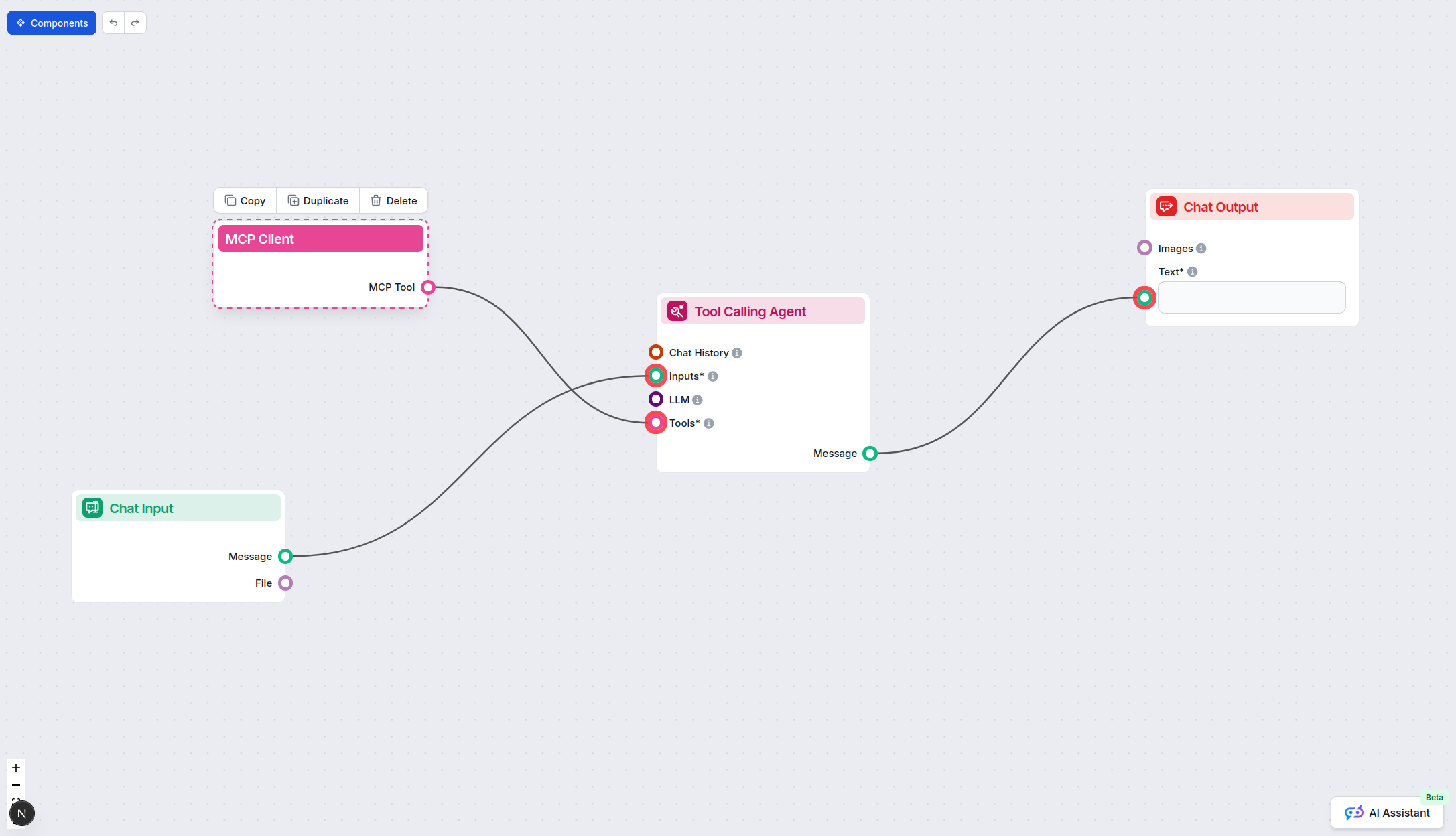
Click on the MCP component to open the configuration panel. In the system MCP configuration section, insert your MCP server details using this JSON format:
{
  "clickup-mcp": {
    "transport": "streamable_http",
    "url": "https://yourmcpserver.example/pathtothemcp/url"
  }
}
Once configured, the AI agent is now able to use this MCP as a tool with access to all its functions and capabilities. Remember to change “clickup-mcp” to whatever the actual name of your MCP server is and replace the URL with your own MCP server URL.
| Section | Availability | Details/Notes |
|---|---|---|
| Overview | ✅ | |
| List of Prompts | ⛔ | |
| List of Resources | ⛔ | |
| List of Tools | ⛔ | |
| Securing API Keys | ✅ | |
| Sampling Support (less important in evaluation) | ⛔ |
Based on the information available, the ClickUp MCP Server repository provides basic integration and setup instructions but lacks publicly documented resources, prompts, or tools. The presence of a license and moderate community engagement are positives, but the lack of detail lowers the utility for developers seeking advanced integrations.
MCP Score: 4/10
While ClickUp MCP Server provides a solid foundation for integrating ClickUp with MCP, the lack of documented tools, resources, and prompts significantly limits its immediate usability. Better documentation and examples would improve its score.
| Has a LICENSE | ✅ (MIT) |
|---|---|
| Has at least one tool | ⛔ |
| Number of Forks | 66 |
| Number of Stars | 216 |
Boost productivity by connecting ClickUp to your FlowHunt AI agents. Manage tasks and projects programmatically with our easy-to-configure MCP server integration.
The ModelContextProtocol (MCP) Server acts as a bridge between AI agents and external data sources, APIs, and services, enabling FlowHunt users to build context...
The wxflows MCP Server bridges AI assistants with external data sources and APIs, enabling secure, modular, and AI-driven workflow automation in FlowHunt. Easil...
The Auth0 MCP Server bridges AI assistants with Auth0's authentication and identity services. Integrate real-time user authentication, authorization, and identi...
Cookie Consent
We use cookies to enhance your browsing experience and analyze our traffic. See our privacy policy.