Manual company research takes hours. This guide compresses it to minutes by walking through exactly what to enter, what to expect from each section, and how to turn the output into something you can actually act on before your next call or decision. For a broader overview of what company analysis covers and how different teams use it, see how to research any company with AI
.
What You Need Before Starting
Three things before your first run:
A FlowHunt account.Start a free FlowHunttrial
— no credit card required. The agent is available in the library immediately after signup. If you’d like to try the agent first without signup, just follow this link
.
The company name. That is all the agent needs as a starting point. For a more specific input, you can add the industry or headquarters location if the company name is common or ambiguous.
A goal for the analysis. What decision does this research feed? A sales call, an investment evaluation, a partnership review? Knowing the purpose beforehand helps you prioritize which sections of the output to focus on when you review it.
No API keys, data connectors, or configuration steps. The agent handles the research layer automatically once you provide the company name.
Step 1: Enter the Company Name
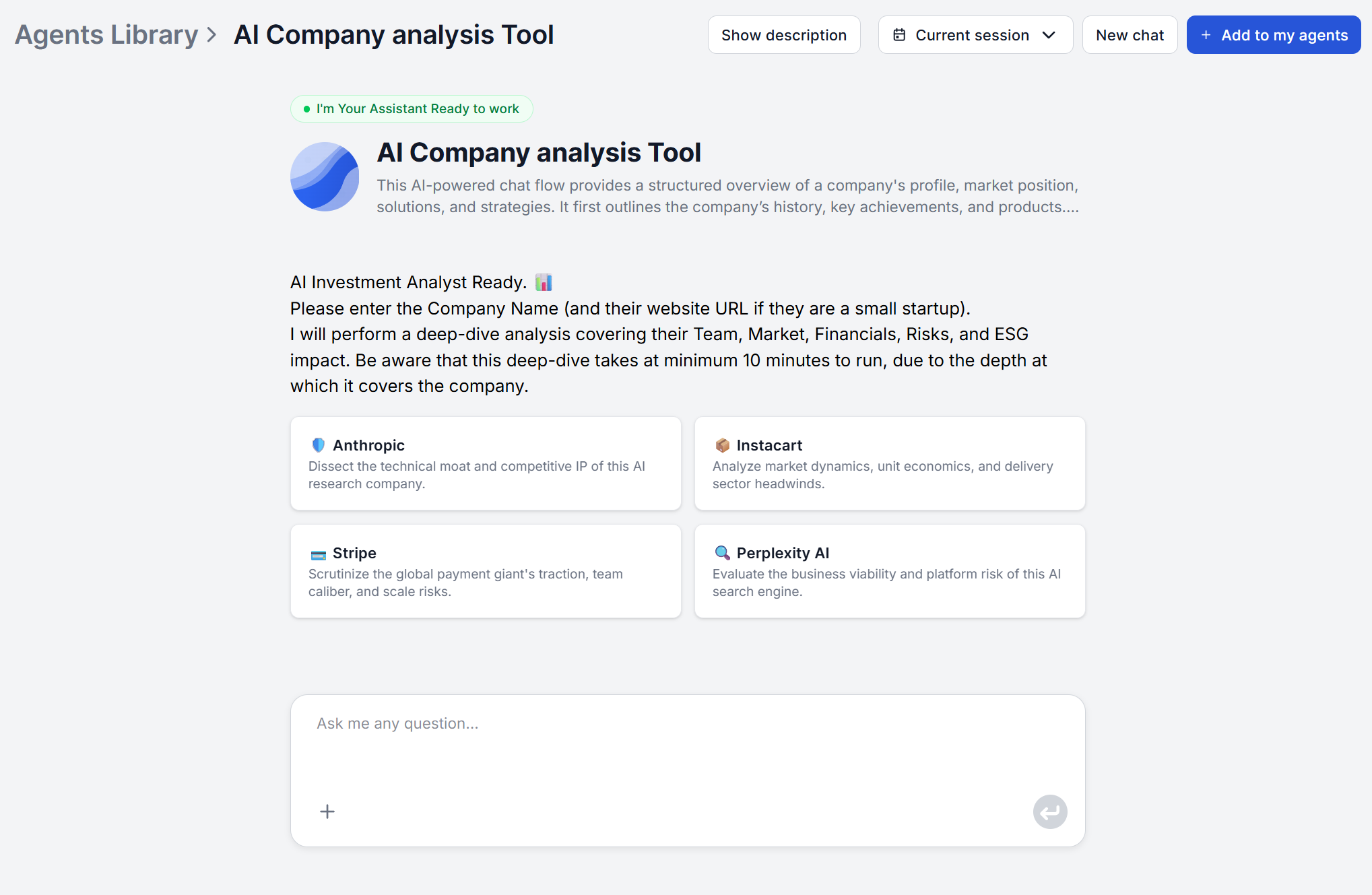
Search for the Company analysis Agent in your library and open it, or try it for free online
. Type the company name into the chat interface. The agent takes a single company name as the input. No URL required, no structured form to fill out.
Be specific if the name is ambiguous. “Stripe” works. “Payments company” does not. For very common names, adding a clarifying detail, such as the industry, the country, or the primary product, ensures the agent targets the right entity.
Tips for better input:
Use the company’s full legal or trading name rather than a common abbreviation where those differ
For companies that have recently rebranded, use the current name to surface up to date information
If you want to focus the analysis on a specific subsidiary or business unit, name it directly rather than the parent company
Once you submit, the agent begins gathering context from multiple sources — the company’s own digital presence, press coverage, industry databases, and public funding records. This runs automatically, with no further input needed on your end.
Ready to grow your business?
Start your free trial today and see results within days.
The default run produces a full-spectrum report covering all 13 analytical dimensions. For a first session with an unfamiliar company, leave the default in place, since the full output frequently surfaces useful context you did not know to look for.
If your use case is narrower or you need information that’s not included, you can always adjust the agent’s prompt, or try to direct the analysis through the chat interface.
This business intelligence workflow approach saves time once you know which dimensions are most relevant to your decision. For a first run, the full output gives you a baseline before you start narrowing the scope on subsequent sessions.
Step 3: Review the Company Overview
The first section of every report is the company overview. Read this before the more detailed sections, as it provides the anchoring context that makes the rest of the report interpretable.
The overview covers: what the company does, its core products or services, its primary target markets, its value proposition, the key leadership context, and the geographic scale. This is the answer to “what is this company and what does it actually do?”
After the overview, the report goes deep into the company information:
Company history — founding milestones, strategic pivots, acquisitions, and partnerships with a timeline of key events
Problem and solution — the problem the company addresses, the solution it has built, and evidence of adoption or scalability
Products and services — full portfolio across business units, including hardware, software, SaaS offerings, and ecosystem integrations
Team and leadership — key executives, their roles, and how their backgrounds influence strategy
Join our newsletter
Get latest tips, trends, and deals for free.
Step 4: Interpret Financial and Funding Data
The following two sections of the report cover the financial picture: investments and funding, and financial and unit economics.
Investments and funding covers the full funding history, including historical rounds, lead investors and co-investors, strategic grants, portfolio relationships, and any signals from the financing structure about growth trajectory. For private companies, this section gives you the clearest view of who backs the company and at what stage it currently sits.
Financial and unit economics covers revenue figures, growth rates, margins, cost structure, and financial forecasts where data is publicly available. For private companies without published financials, the agent clearly labels which figures are estimates and which are confirmed, rather than presenting uncertain numbers as fact.
What to do with this data:
Funding stage signals resource availability and likely growth priorities. A Series A company moving fast has different buying dynamics than a bootstrapped ten-year-old business.
Investor roster signals strategic direction. Well-known sector-specific investors often indicate the direction a company is building toward.
Revenue and growth data, where available, helps frame whether the company is a realistic partner, customer, or competitive threat at your scale.
Step 5: Use the Competitive Positioning Section
The market and industry section of the report covers the competitive landscape, market size and segmentation, growth trends, and the company’s strategic advantages and key risks. This is where you find the answer to “where does this company sit relative to its rivals?”
Reading this section effectively means looking for three things:
Who they are measured against. The competitive landscape subsection names the companies most frequently compared to the subject. For a sales call, these are the vendors your prospect has likely already spoken to. For an investment evaluation, these are the benchmarks against which the company’s positioning will be judged.
Where they claim to win. The strategic advantages subsection reflects how the company positions its own differentiation. This is self-reported, so treat it as a signal of how they pitch, not as a verified verdict.
Where the risks are. The key risks subsection surfaces competitive vulnerabilities, market dependencies, or structural threats. These are useful in a sales context for anticipating defensive objections, and in an investment context for pressure-testing the growth thesis.
For deeper market-level analysis on the industry surrounding a company, the AI product analysis
tool extends this to product-level competitive intelligence for any specific product in the company’s portfolio.
Step 6: Export and Share the Report
The Company Analysis Agent outputs a structured, decision-ready report in the chat interface. The output is designed to be used immediately, and you can set it up to output directly into the tools you already work in. Common patterns:
Paste into Notion or Confluence linked from the relevant account record or deal page, so the team can refer to it during calls and add notes directly.
Drop into a CRM record — the structured format means each section maps clearly to a CRM field or note block without manual reorganization.
Share in Slack with a two-sentence summary of the most relevant findings for the decision at hand, context for colleagues who need a quick overview.
Use as the base layer for a briefing doc — paste the full output, then add a short interpretation section at the top for stakeholders who need framing, not raw intelligence.
For recurring account tracking, FlowHunt supports scheduled workflow runs. Set a monthly run for key accounts and a quarterly run for a broader watchlist, each time producing a fresh report in the same format, making it easy to spot what has changed since the last run.
Start with a single default run, and then work from there, adjusting the workflow. Open the Company Analysis Agent, type the name of the company most relevant to your next decision, and read the output. The rest of the workflow follows naturally once you have seen what the report contains.
Frequently asked questions
The agent works best when the company has a public online presence. For companies with minimal digital footprint, coverage will be thinner, but the agent will still surface whatever exists and clearly label gaps rather than hallucinate. For very small or private companies, providing the company name along with any context you do have (industry, location, founders) can help narrow the retrieval.
The agent takes a single company name per session, so subsidiaries are best researched individually. If you want to understand a parent company's full portfolio, start with the parent company analysis, then run focused follow-up sessions on any specific subsidiary you need in more depth.
For early-stage or recently founded companies, the report will be less comprehensive than for well-established businesses, and the agent will clearly label areas where information is unavailable or uncertain rather than generating assumptions. Sections covering historical milestones, financial figures, and competitive benchmarking will naturally be thinner. The company overview, founding context, and team sections tend to hold up best even for newer companies, since founder backgrounds and early product direction are usually public.
Not in a single session, but you can run analyses back-to-back and compare outputs side by side. Because every report follows the same 13-dimension structured format, comparing two or three companies is straightforward. The same dimensions appear in the same order across every report. For systematic account research across a larger list, run each company in sequence and store the outputs in a shared folder organized by company name and date.
FlowHunt supports scheduled workflow runs, which means you can automate the Company Analysis Agent to run on a regular cadence for accounts you want to track over time. A monthly re-run for top accounts and a quarterly run for your broader watchlist gives you a reliable signal when something changes.
Maria is a copywriter at FlowHunt. A language nerd active in literary communities, she's fully aware that AI is transforming the way we write. Rather than resisting, she seeks to help define the perfect balance between AI workflows and the irreplaceable value of human creativity.
Maria Stasová
Copywriter & Content Strategist
Research Your First Company Free
FlowHunt's Company Analysis Agent delivers a complete, structured company brief — funding, market position, products, team, and risks — in minutes. No setup required.
Market Analysis Tool: Your First AI-Generated Market Report Step by Step
Step-by-step from entering your market or industry to downloading a complete market intelligence report, including how to customise focus areas and interpret ea...
Flow of the Week #1: AI Company Analysis — Competitive Intelligence in Minutes
Introducing Flow of the Week, a weekly series highlighting our top workflows. Our first pick is the AI Company Analysis tool — the fastest way to generate compe...
3 min read
AI
Competitive Intelligence
+3
Cookie Consent We use cookies to enhance your browsing experience and analyze our traffic. See our privacy policy.