


AI OCR Invoice Data Extraction with a Simple Python Script
Discover a scalable Python solution for invoice data extraction using AI-based OCR. Learn how to convert PDFs, upload images to FlowHunt’s API, and retrieve str...
7 min read
AI
OCR
+6
A step-by-step walkthrough of FlowHunt’s Invoice Data Extractor, from uploading your first invoice to downloading a structured CSV ready for your accounting system.
FlowHunt’s Invoice Data Extractor reads an invoice image and returns structured data in seconds, no manual typing required. This walkthrough follows the exact flow behind the tool, step by step, from your first upload to a CSV file ready for your accounting system.
The flow itself is simple by design. You upload an image in chat, and two things come back, a markdown table you can read immediately, and a CSV built for downstream use. There’s no mandatory setup opening the chatbot, so the fastest way to understand it is to just follow the five steps below on a real invoice as you read.
Note: If you want custom triggers, batch runs or output to third-party apps, further setup will be necessary.
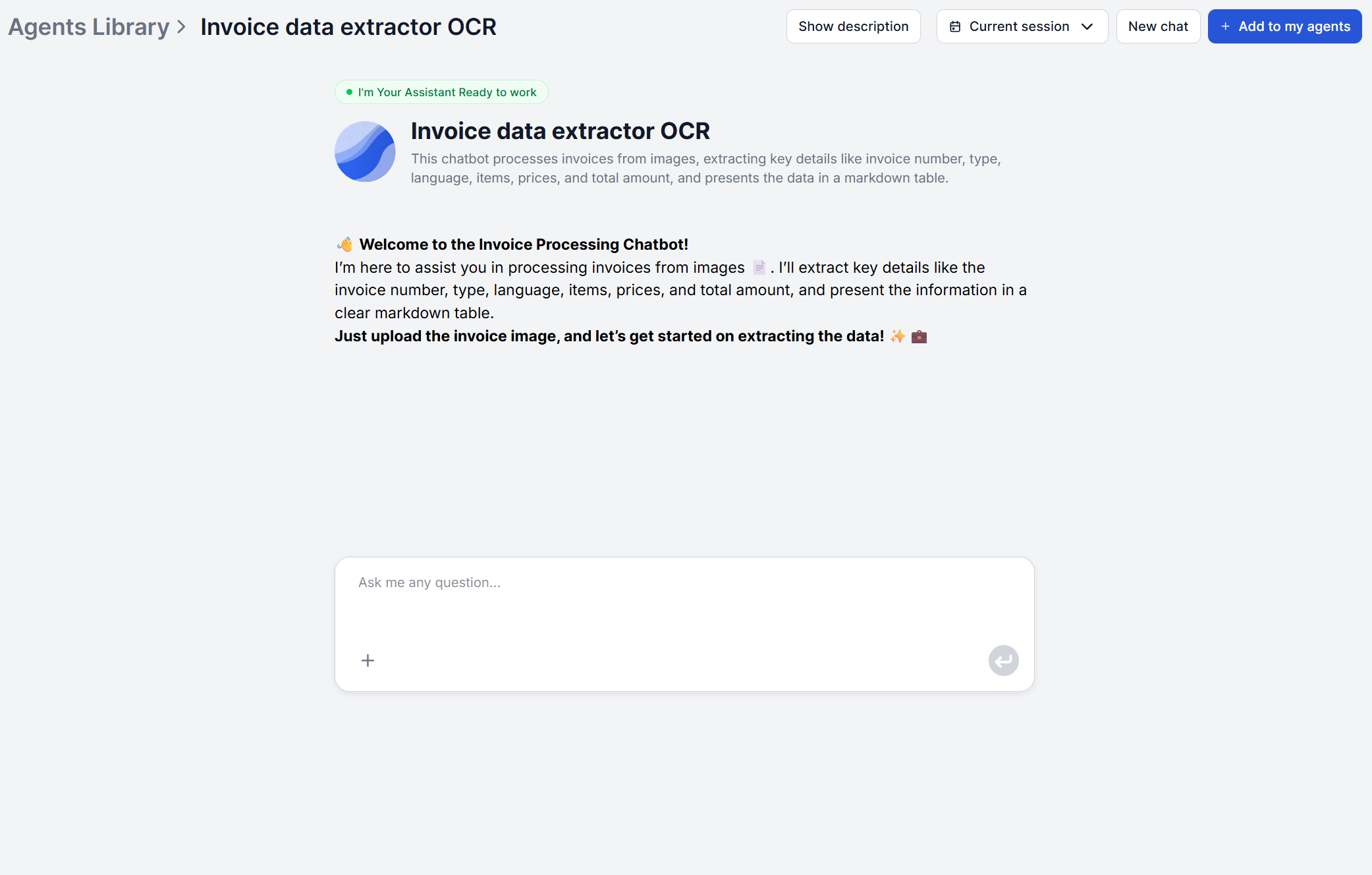
Open the Invoice Data Extractor chatbot. As soon as the chat opens, a welcome message explains what to do next. Upload an image of your invoice. Scanned documents, photos taken on a phone, and digital screenshots all work directly.
If your invoice is a PDF rather than an image, convert the page to an image first — a screenshot or a quick PDF-to-image export both work — then upload that. This flow is built around reading images directly, so that’s the fastest way to get a PDF invoice into it. If what you actually need is to ask questions about a text-based PDF rather than pull a structured table, Chat with PDF is FlowHunt’s tool for that instead.
There’s no configuration step before this. No template to select, no invoice type to specify in advance. You just upload the image and the flow takes it from there. That’s true whether it’s a standard invoice, a credit note, or a proforma. The same upload step and the same underlying prompt handle all of them.
Once the image is uploaded, the flow composes a structured prompt and sends it, along with your invoice image, to an AI model that performs OCR and reads the document. It extracts all the important fields, namely invoice number, invoice type, invoice language, the items listed, price per item, and total amount.
If your invoice includes fields other than the ones specified in the tool’s prompt, the tool may fail to extract them. In that case, edit the flow’s prompt in FlowHunt’s visual builder to account for the custom field as well.
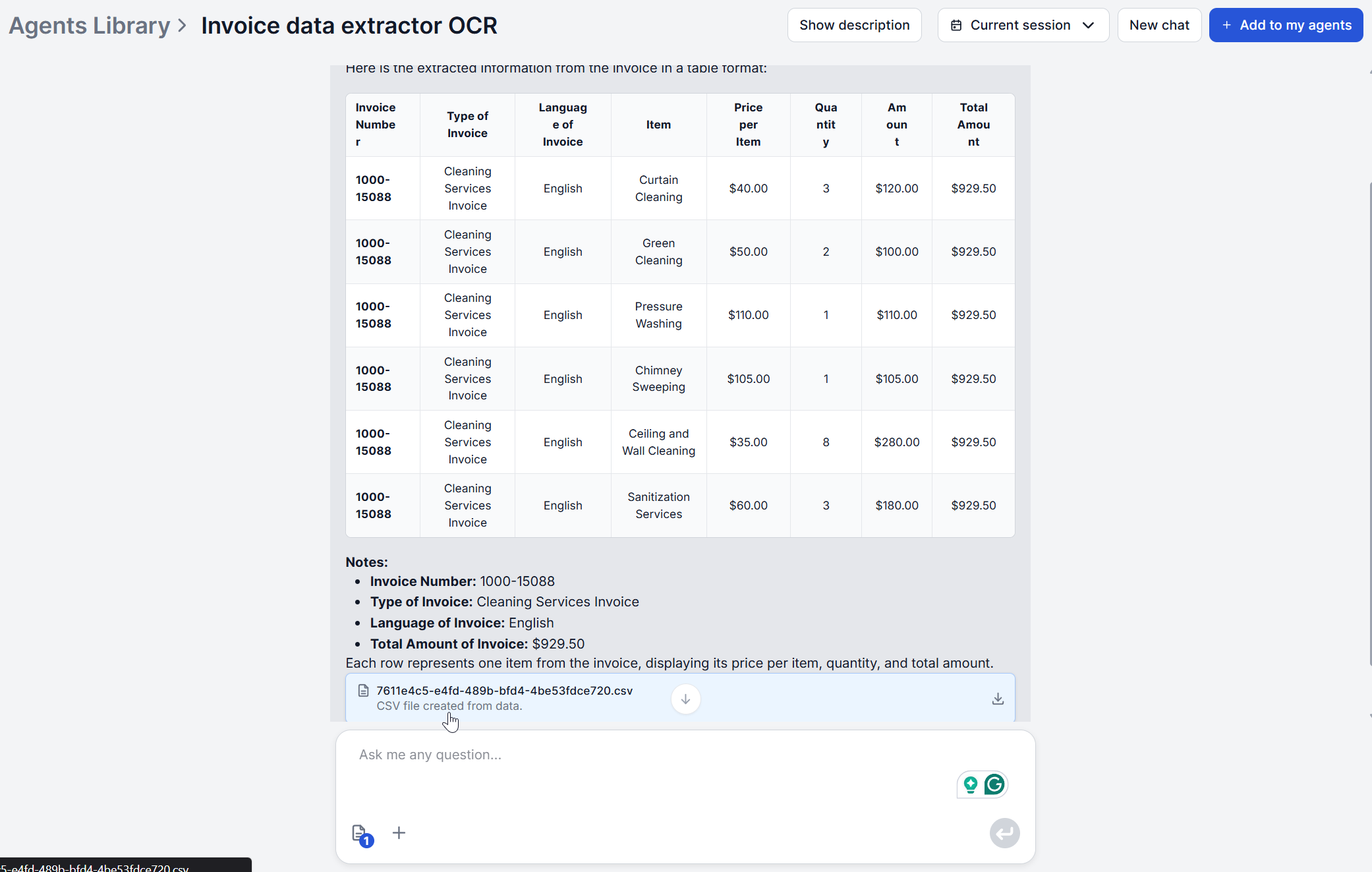
The result appears directly in the chat as a markdown table, with one row per invoice line item. If your invoice lists three items, you’ll see three rows. The invoice’s language is detected automatically as part of this step, meaning you don’t need to tell the flow what language to expect.

Start your free trial today and see results within days.
Read through the table before moving on. Because the table lists every line item individually, it’s also the fastest way to spot a line the OCR might have merged or split incorrectly.
This flow doesn’t include an editable form for corrections, so if something comes back wrong, there are two practical fixes. The most common cause of a misread field is image quality, so if a total or an item description looks off, re-uploading a clearer photo or a higher-resolution scan of the same invoice is the first thing to try.
If the image itself is as good as it’s going to get, the CSV generated in Step 4 is a plain, editable file. Correcting a misread invoice number or a mistyped total there, before importing it downstream, takes seconds and doesn’t require re-running the extraction.
Alongside the chat table, the flow runs a second step that structures the extracted information further, pulling out company name, VAT ID, service description, and the amount charged. These fields are then generated as a downloadable CSV file.
This is the file meant for use outside the chat interface. While the markdown table is for a quick read of what’s on the invoice, the CSV is formatted for import into a spreadsheet, an accounting tool, or an ERP system.
Notice that the CSV’s fields aren’t identical to the chat table’s fields. The CSV is a second, separate extraction pass tuned for the specific data an accounting workflow needs (company identity and VAT information in particular), rather than just the table reformatted.
Get latest tips, trends, and deals for free.
Getting extracted data into your accounting system doesn’t have to mean manually importing anything. FlowHunt connects to external systems through MCP servers rather than a fixed integration list, so it can generally be wired directly into whatever accounting or ERP tool you already use — covering both custom triggers (kicking off extraction from a message in that third-party system) and custom output (sending the structured data straight back into it). FlowHunt already has a direct Xero integration built this way, and the same MCP-based approach extends to other accounting and ERP tools that expose an MCP server or API. That integration is separate from the extraction flow itself, so it’s worth setting up once if you have a system of record you use regularly, rather than exporting and re-importing a CSV every time.
Manual CSV import is still there as a fallback, if you’d simply rather handle it yourself or your accounting tool doesn’t have an MCP server or API to connect to. Most accounting and bookkeeping tools, including QuickBooks and standard spreadsheet-based workflows, accept a CSV import directly — you’d upload the downloaded file the same way you would any other CSV import.
The chat interface is built around one invoice at a time, but FlowHunt’s flow editor has a dedicated Batch Runs feature for exactly this. Open the Invoice Data Extractor’s flow in the editor, switch from the chat view to the Batch tab, and upload as many invoice images as you want processed. Set concurrency, click Run Pending, and FlowHunt works through every invoice — each one comes back with its own markdown table and CSV, tracked as a separate row, instead of waiting on them one at a time in chat.
If you’d rather call the same extraction flow from your own code, FlowHunt also documents a Python script approach via the API .
If part of your review process also involves checking a contract or vendor terms alongside a batch of invoices, Chat with PDF is the tool built for exactly that — upload the contract once and ask it directly, rather than re-reading it yourself every time a question comes up during review.
For more walkthroughs like this one, browse the rest of FlowHunt Academy .
Ready to try it on a real invoice? Open the Invoice Data Extractor and upload your first one — no setup required.
Upload an invoice image and get a structured table plus a downloadable CSV back in seconds. No setup, no configuration.
Discover a scalable Python solution for invoice data extraction using AI-based OCR. Learn how to convert PDFs, upload images to FlowHunt’s API, and retrieve str...
FlowHunt, Rossum, Docsumo, Nanonets, and Klippa compared on invoice format handling, integrations, and premium pricing. See which AI invoice processing tool fit...
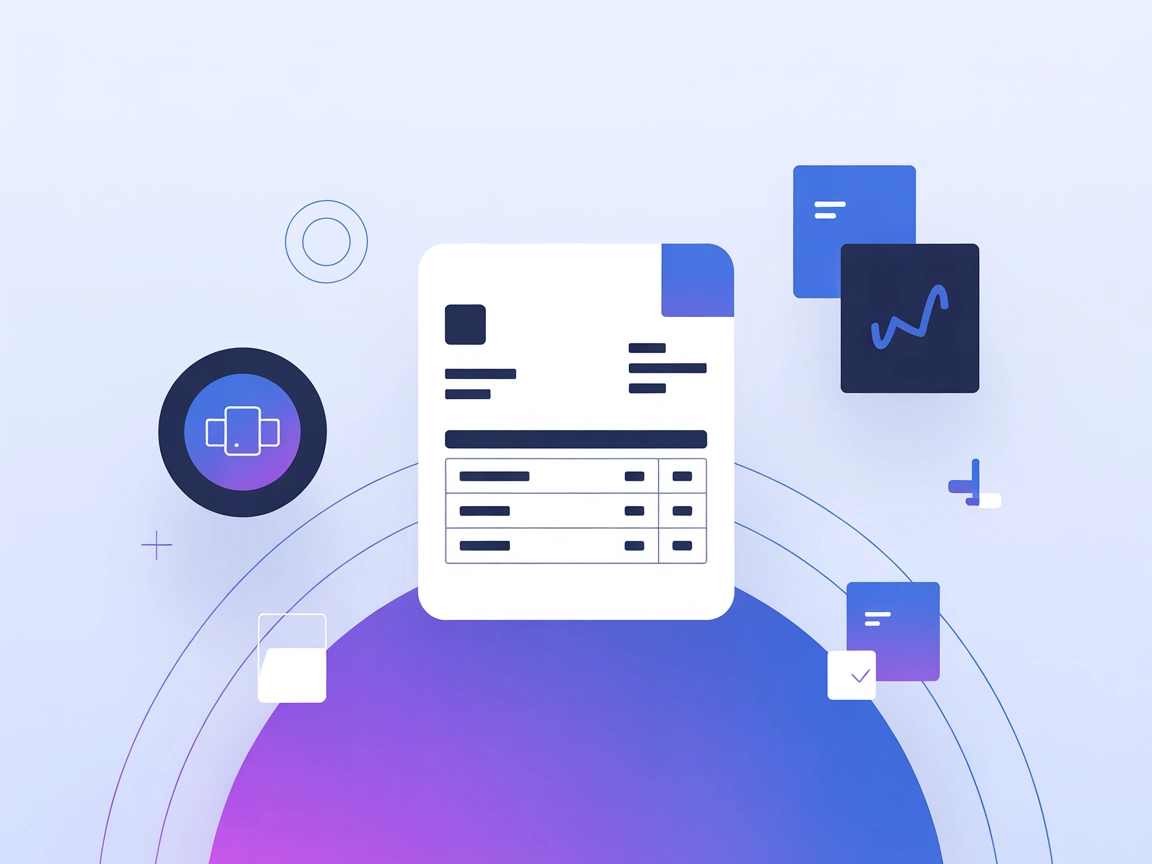
Discover how an Invoice Data Extractor OCR Flow can streamline your financial processes by automating the extraction and organization of invoice data. Learn abo...
Cookie Consent
We use cookies to enhance your browsing experience and analyze our traffic. See our privacy policy.