Picture a store where every dashboard looks fine. The homepage is indexed, Lighthouse is green, and the structured-data validator shows no errors. But at the very same time, the price in Google Shopping doesn’t match the price in the cart, the mobile filter drawer traps keyboard users, and every purchase is recorded twice.
None of this shows up on a quick health check. That’s because an online store is a connected system, not just a basic collection of pages. Product data flows into the page, the structured data and the shopping feeds. Scripts and third-party tags decide how fast it all loads. Checkout turns interest into revenue, and analytics is supposed to record the whole journey accurately. When one part breaks, it can quietly distort everything else.
That’s why a useful e-commerce audit follows the shopper, not the sitemap. The checklist below starts with discovering the store, and ends with a completed order. It will give you a ranked list of real problems, each with evidence, an owner and a clear test for when it’s fixed.
When to run this audit, and why order matters
Run the full audit when you take on a new e-commerce client, after a redesign or platform migration, before a big growth push, or when a routine check turns up a store-wide regression. Set aside three to six hours for a light pass, or one to two days for a standard audit that tests every important template properly. Deep investigations into logs, feeds or analytics usually need separate time.
The order is deliberate. There’s no point judging conversion friction if Google can’t index the category pages, and there’s no point trusting the funnel report if the purchase tag fires twice.
A duplicated purchase event isn’t evidence of more sales, and a fast product page isn’t healthy if the price Google sees differs from the price in the cart. That’s why the audit moves in stages. It starts with first discovery, then moves on to product truth, speed, and the purchase itself, and only then it moves on to measurement.
Before you begin, gather what you need. That means access to:
- Search Console,
- Analytics,
- Tag manager,
- Catalogue or feed source,
- Merchant Center,
- a list of recent changes to the site.
Stage 1: Can search engines find the catalogue?
1. Build a sample that represents the whole store
Most e-commerce bugs live in shared templates and unusual product states. A clean homepage tells you nothing about filtered categories, variant logic, stockouts or checkout. That’s why you should start by confirming you’re testing the live production site in the right market, currency and language. Then pick at least one URL for each of these:
- the homepage
- a priority category
- a deeper category or an approved filter page
- a typical product
- a product with variants
- an out-of-stock or discontinued product
- an internal search results page, including one that returns no results
- the cart, the checkout and the order confirmation page
Add a tricky or unusual example for any template that looks risky. Your analytics landing-page report and a catalogue export will help you choose.
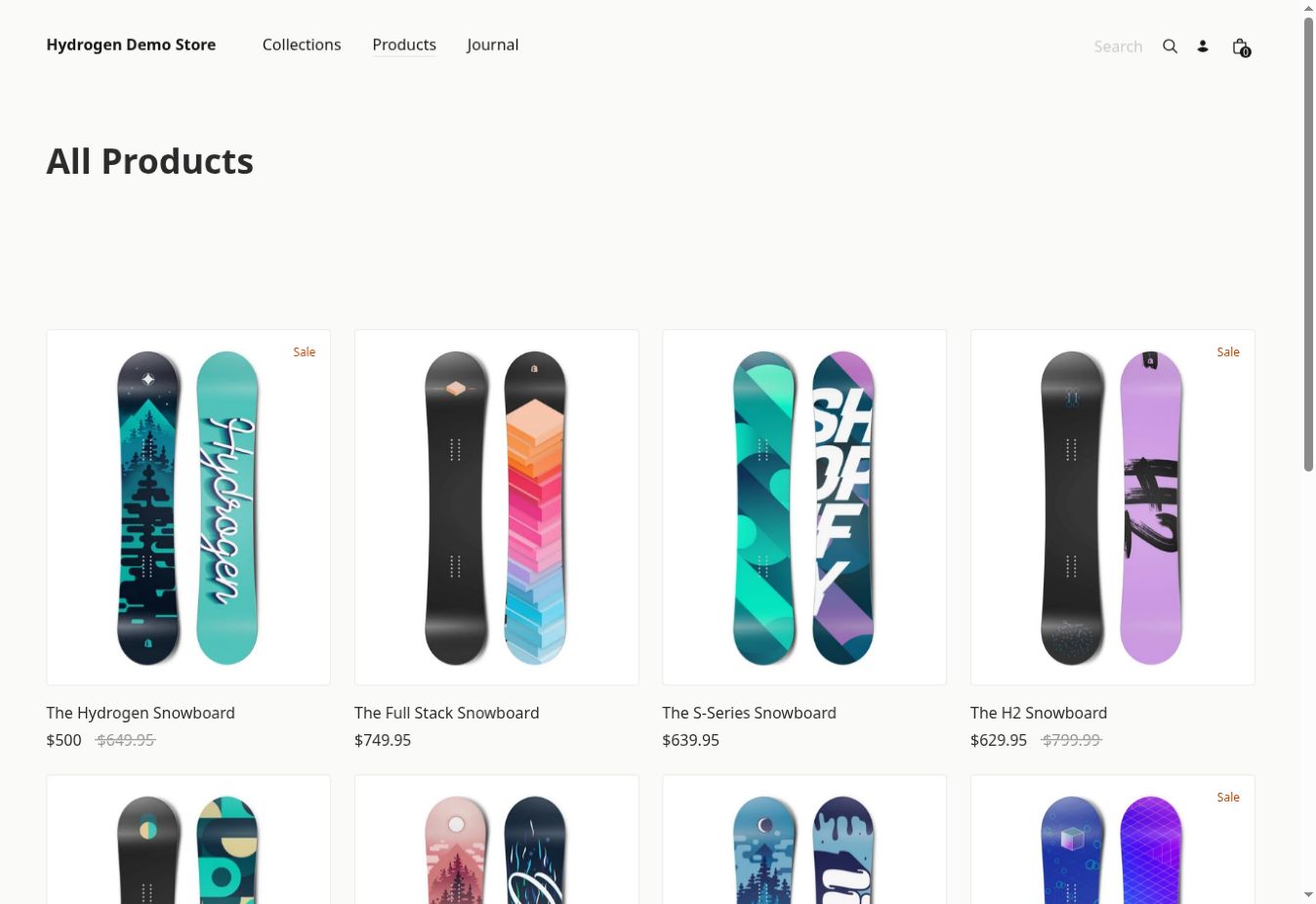
You’re done when every important template and checkout state has a named test URL, and anything you couldn’t test is marked “not tested”.
2. Check crawlability, indexing, canonicals and sitemaps
If the crawl path is broken, publishing more products will just multiply the number of affected URLs. Mixed signals also make problems harder to diagnose. Robots rules may one thing, while canonical tags and sitemap may say something completely different.
Review robots.txt, the XML sitemaps, response codes, robots meta tags and headers, canonical tags, pagination and internal links. Use URL Inspection in Search Console to see which canonical Google actually chose for your sample pages. Then compare the sitemap with reality. It should list live, indexable pages that return a 200 status, not redirects, errors, noindexed pages or duplicates.
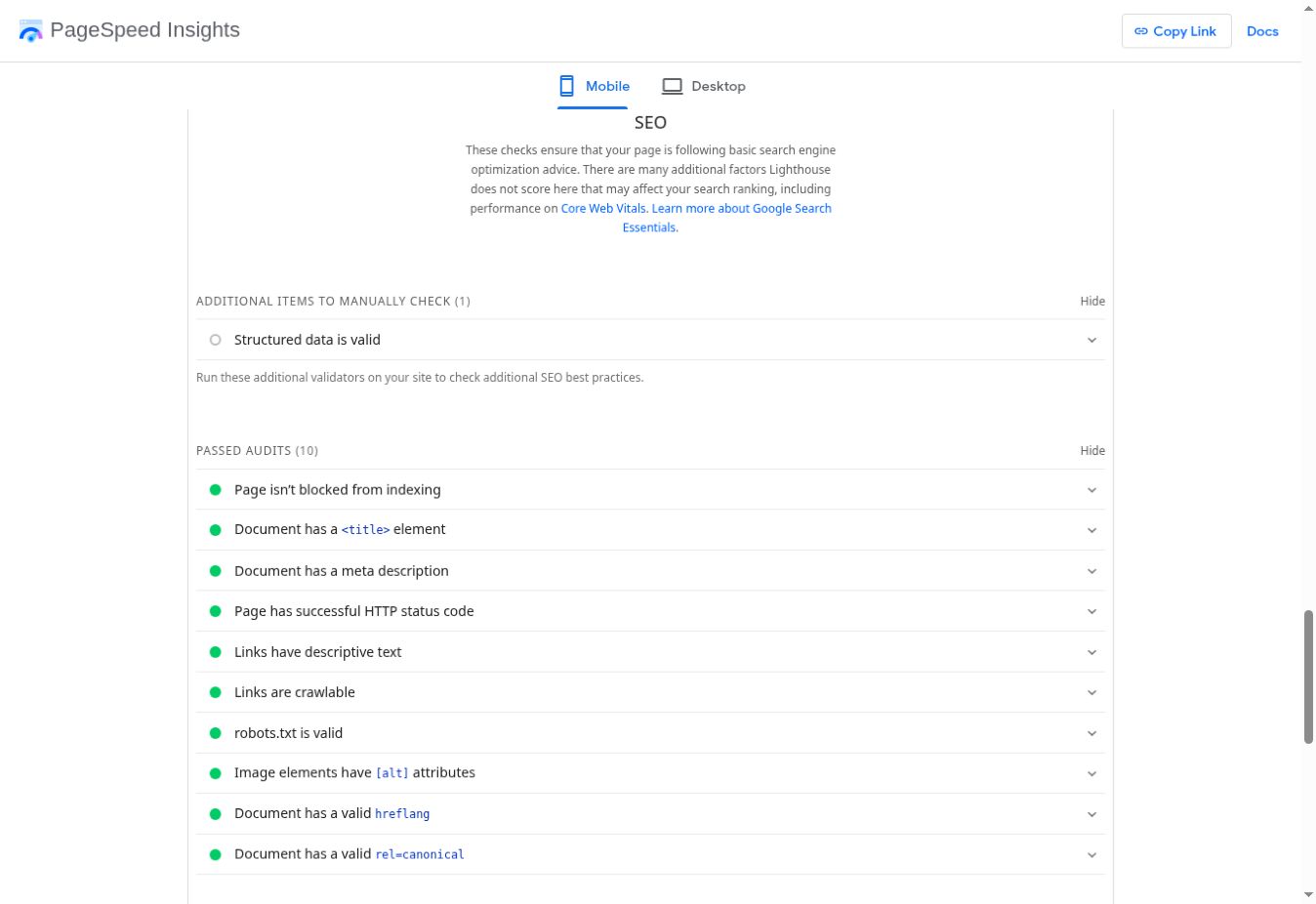
You’re done when your intended landing pages return 200, can be crawled, follow a consistent canonical and indexing policy, and appear in the sitemap. Every significant exclusion should have an explanation or an owner.
3. Follow the links: redirects, errors and JavaScript
A store can look complete in a browser while crawlers and assistive technology see a much thinner version. Run a crawler to find broken internal links, redirect chains, loops and soft 404s. Then compare the rendered page with the raw HTML. Product cards, pagination, breadcrumbs and category links should be real and crawlable, and important content shouldn’t depend on JavaScript alone.
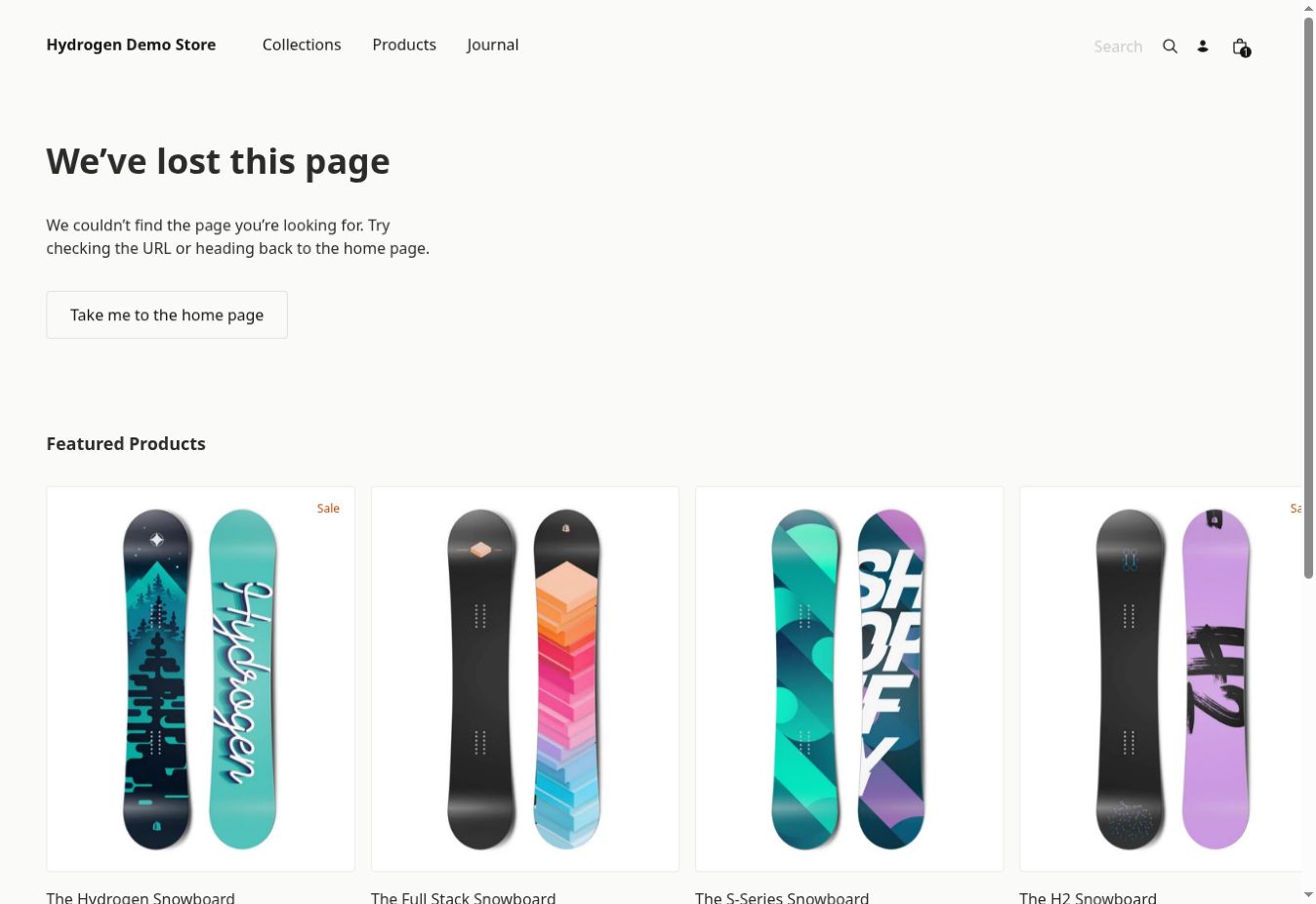
You’re done when internal links point straight to their final destination, error pages return the right status code, and priority products can be found without relying on infinite scroll.
4. Test categories, filters, pagination and site search
Category and filter systems can create crawl traps for search engines and frustration for shoppers at the same time. A page can be technically indexable and still be a weak landing page if half the products on it are irrelevant.
Try the filters on desktop and mobile. Check multi-select, “clear all”, result counts, sorting, pagination or “load more”, and filter combinations that return nothing. Look at the URLs the filters generate and compare them with the store’s indexing policy. Notice, too, whether a long block of category copy pushes the product grid below the fold.
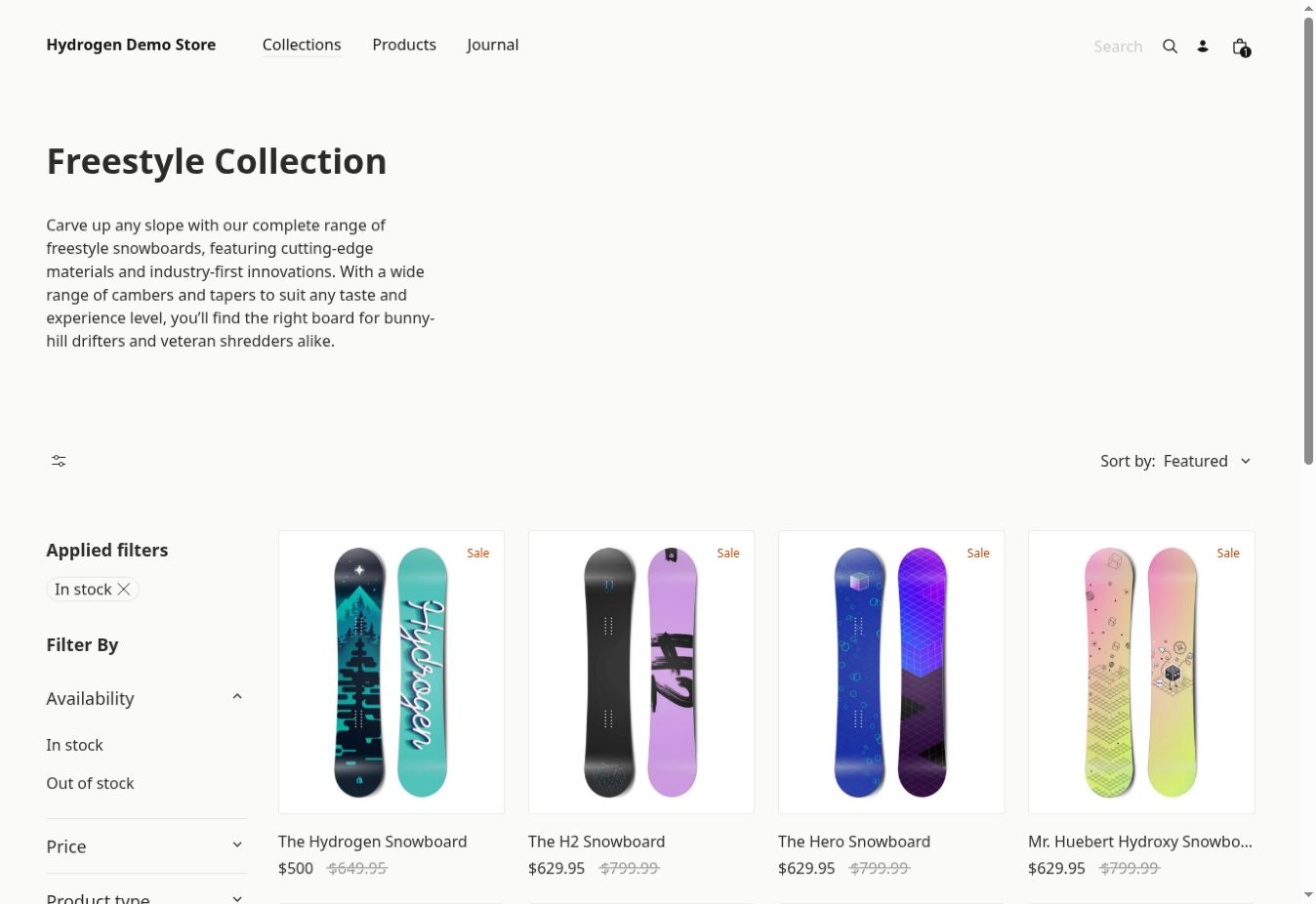
You’re done when the controls behave consistently, random filter combinations don’t turn into accidental landing pages, and shoppers can undo a filter without losing their place.

Ready to grow your business?
Start your free trial today and see results within days.
Stage 2: Is the product data telling the truth?
5. Reconcile product identity, price, stock and variants
One wrong field can not only mislead a shopper, but go all the way to causing a mismatch at checkout. Meanwhile, the data can be perfectly formatted and still be wrong.
For a handful of representative products, compare the name, brand, SKU, GTIN or EAN, selected variant, price, currency, availability, images and key specs everywhere they appear. Check what’s displayed on the page, in the structured data, in the merchant feed, in the cart and at checkout. Include sale items, variants, stockouts, preorders and discontinued products.

You’re done when the sampled facts match across every surface, and any intentional difference, such as brand versus manufacturer, is explicit in the data model.
6. Validate structured data against what shoppers see
Structured data only helps when it describes the page accurately. A validator will happily accept “InStock” while the page and the checkout both say the product is unavailable. That’s why you should run each product state through the Google Rich Results Test or the Schema.org Validator. Then compare the marked-up values with the visible content and the source feed. For products with variants, check that your markup approach and canonical setup match how the pages are actually built.
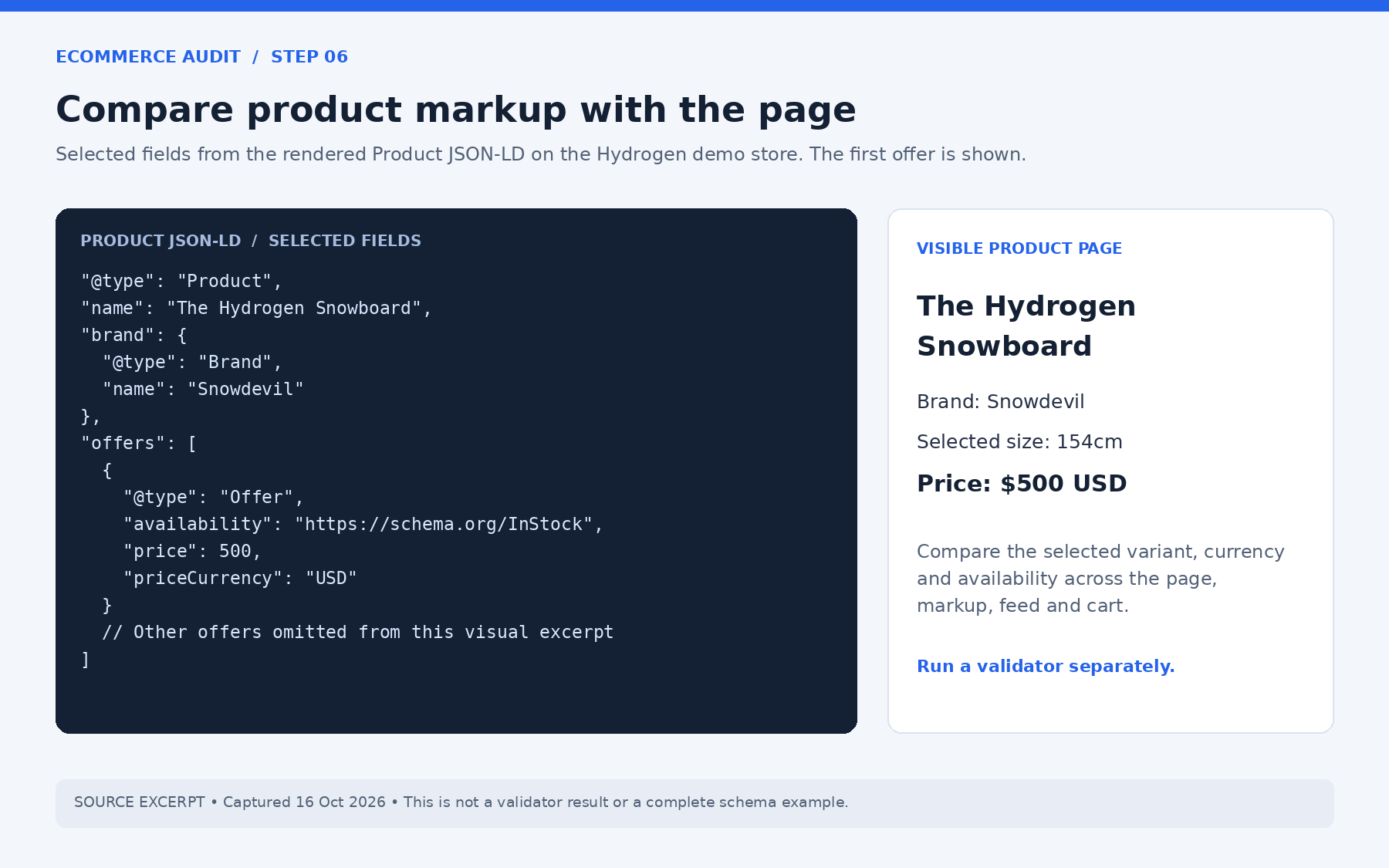
You’re done when sampled eligible pages have no missing required properties, the markup matches what’s visible, and reviews and ratings are only marked up when shoppers can see them on that product.
Stage 3: Is the store fast for real shoppers?
7. Measure Core Web Vitals from field data first
Real-user data and a single Lighthouse run answer different questions. Lighthouse helps you reproduce a problem, but it can’t tell you whether real shoppers pass or fail.
Start with PageSpeed Insights and the Core Web Vitals report in Search Console. Note whether field data exists for the exact URL or only for the whole site. Google’s “good” thresholds, measured at the 75th percentile, are:
- LCP (loading): 2.5 seconds or less
- INP (responsiveness): 200 milliseconds or less
- CLS (visual stability): 0.1 or less
Look at mobile and desktop separately. If there’s no field data, record the result as unknown and treat lab results as provisional. Unknown is not the same as green.
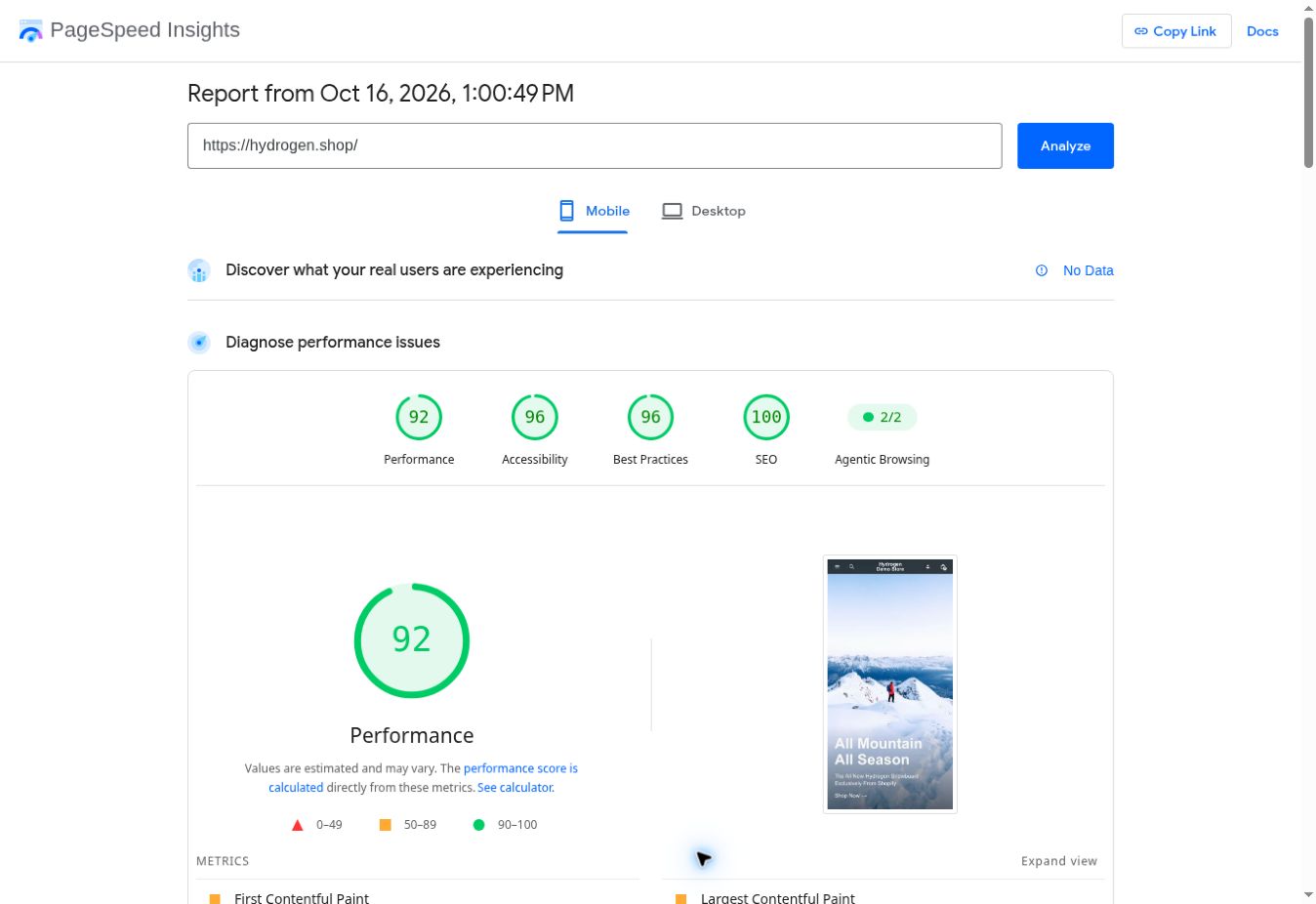
You’re done when each priority template has a field verdict per device, or a clearly stated lack of data, with the source and date range recorded.
8. Find the cause, not just the score
Generic advice like “compress your images” or “reduce JavaScript” often misses the real bottleneck and creates work that doesn’t move the failing metric. Find the specific element, request or script responsible.
Identify the LCP element and what delays it. Then check the usual suspects, such as image sizing, lazy-loading on above-the-fold images, render-blocking CSS, font loading, third-party scripts, long tasks, caching, server response time, layout-shift sources and tags loaded twice.
Run repeat tests under the same conditions and compare a consistent statistic, not your best run. Remember that Total Blocking Time is a useful lab signal, but it isn’t INP.
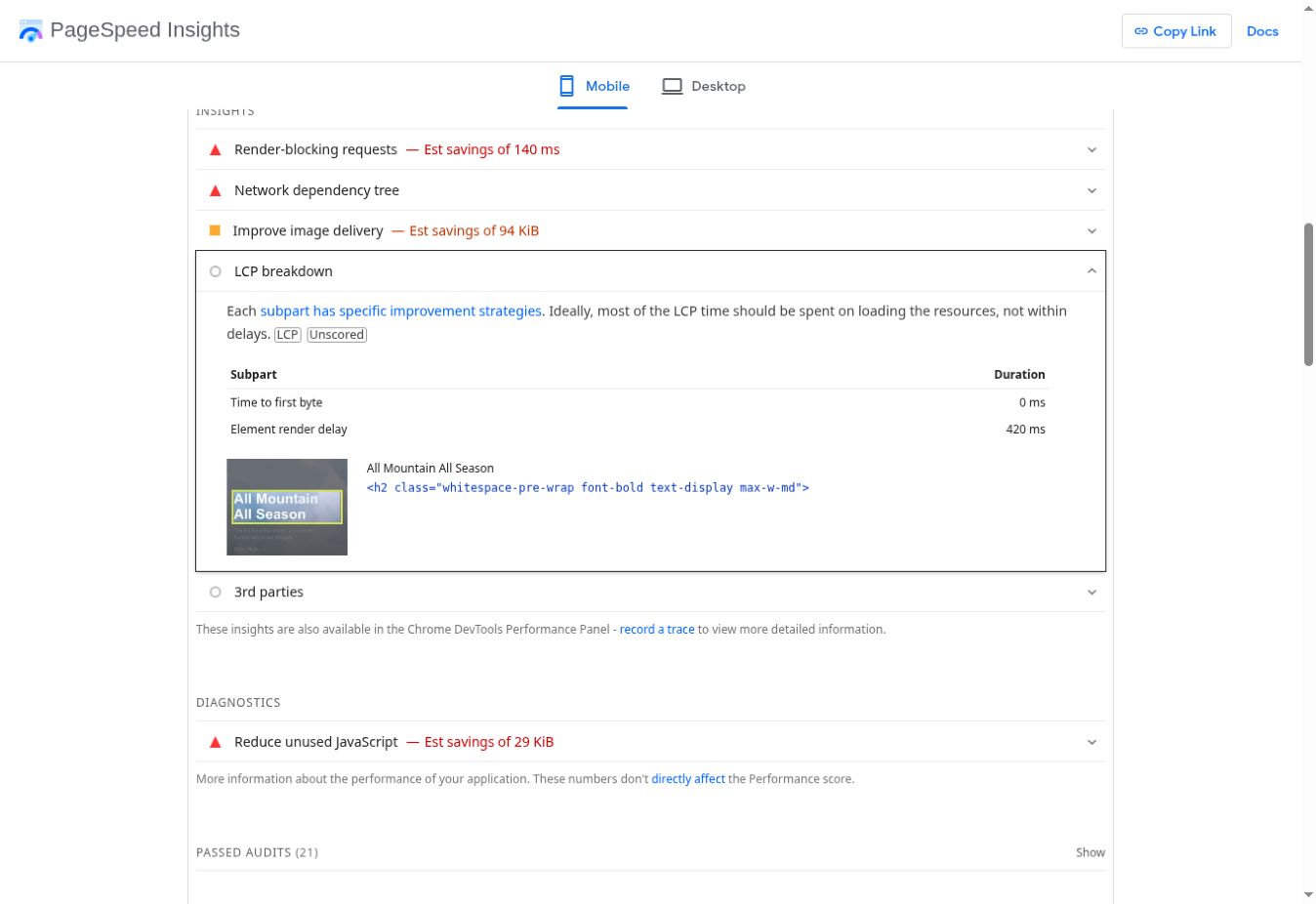
You’re done when every significant performance finding names the failing metric, the affected template, a reproducible cause and an owner.
Join our newsletter
Get latest tips, trends, and deals for free.
Stage 4: Can people actually buy something?
9. Test mobile usability and accessibility on real shopping controls
Automated scores don’t cover every interaction. A store can pass a scan while the filter drawer traps keyboard focus, the cookie banner covers the add-to-cart button or the size selector has no accessible label.
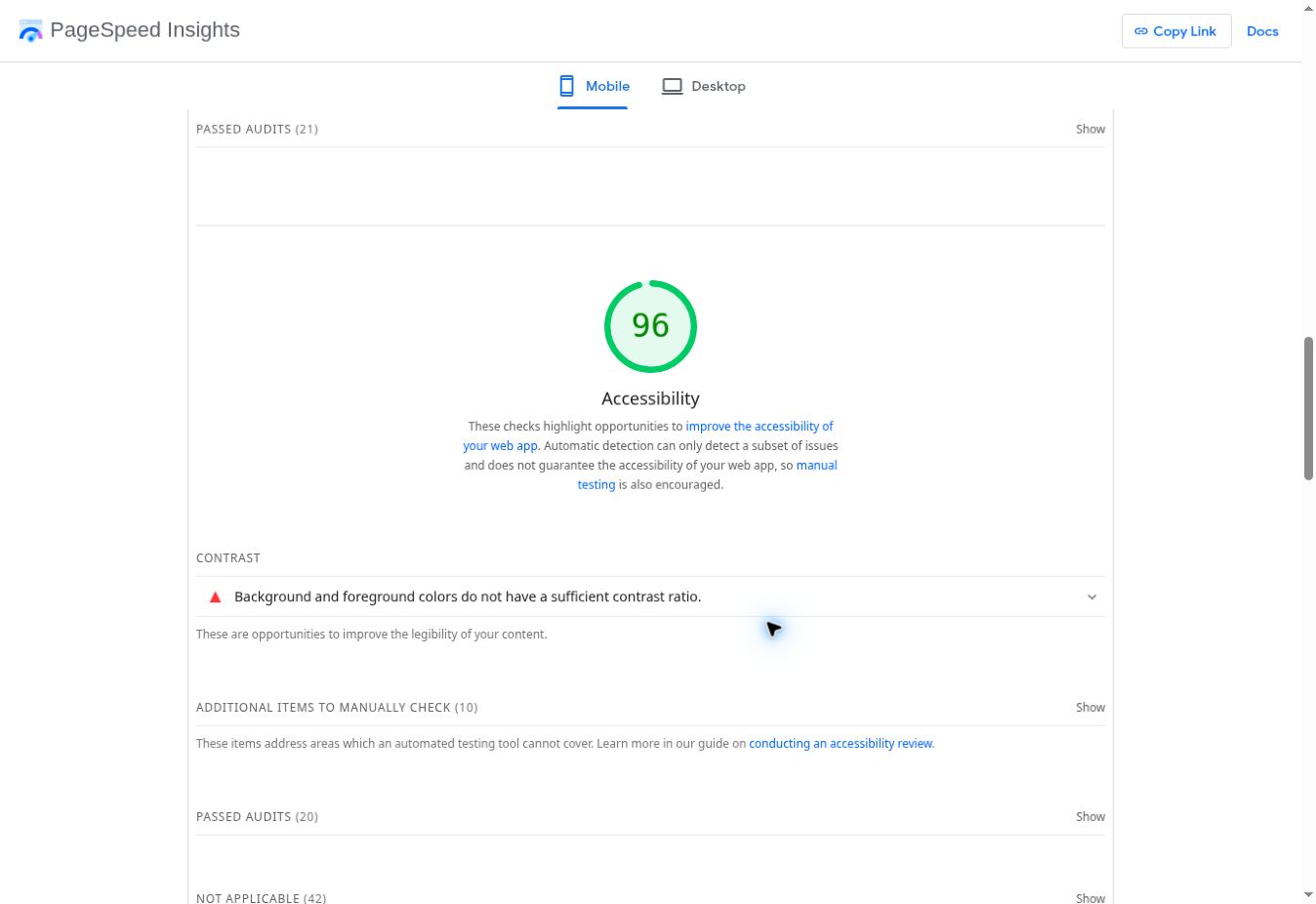
Test at phone widths of 360 to 390 pixels, zoom the text, and try the whole journey with only a keyboard. Watch focus order and visibility in menus, drawers and dialogs. Check that labels, buttons, form errors and touch targets still make sense.

You’re done when a shopper can get through the main journey without hidden controls or focus traps, and nothing on mobile hides the price, availability, variant choice, add-to-cart button or checkout.
10. Run the cart and checkout as a controlled test
A visible checkout button doesn’t prove the checkout works. Checkout bugs are commercial incidents, and they also undermine your analytics.
To test this, add a normal product and a variant to the cart. Change the quantity, remove an item, and apply a coupon (or a deliberately invalid one) if you have one. Then test guest and account checkout, shipping options, payment selection, validation errors, the back button and the mobile layout. Use a test order or an approved non-charging path. Never place a real order without permission.
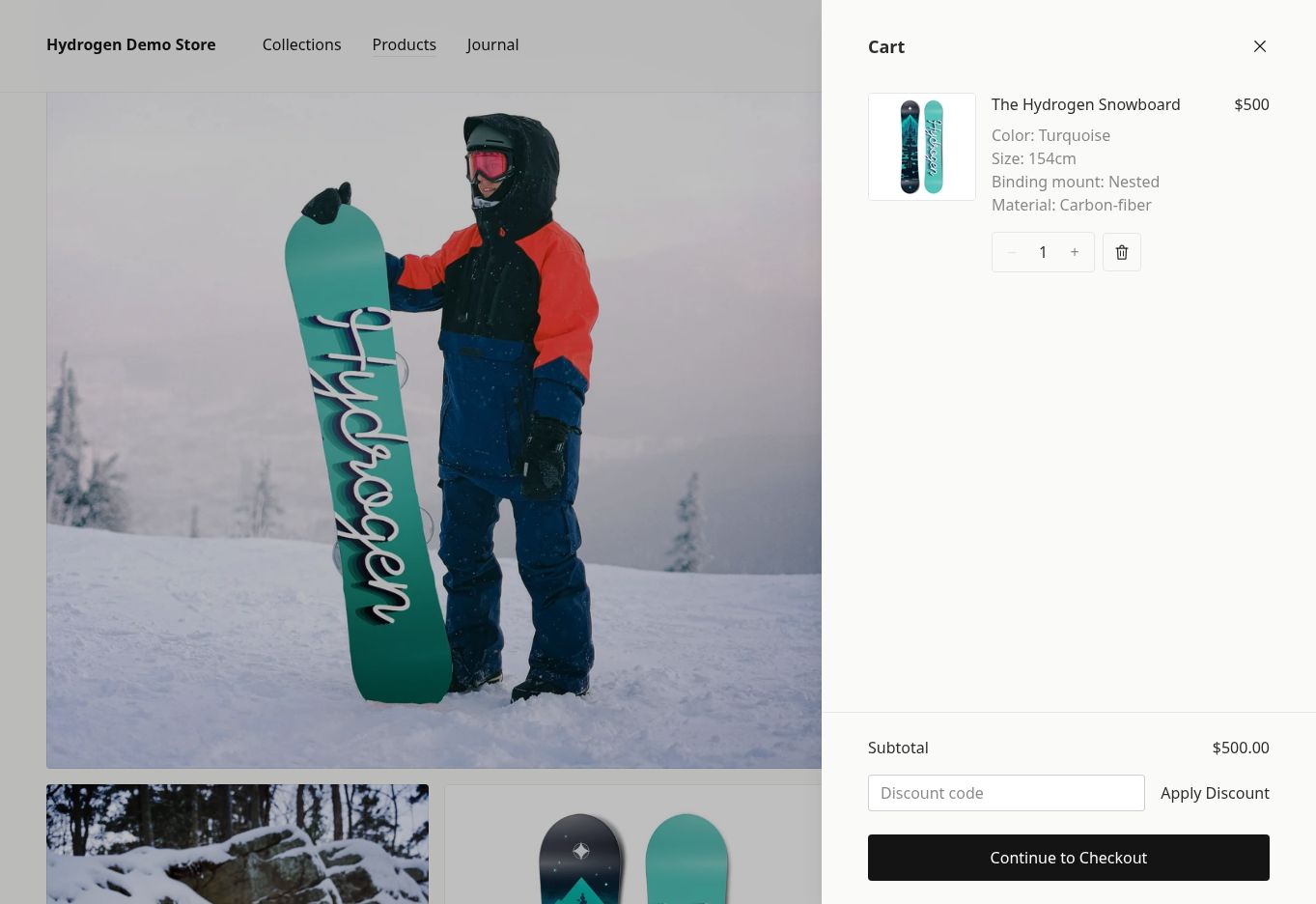
You’re done when the purchase completes or reaches the agreed test boundary, totals stay correct, error messages tell people what to do, and any blocked path is documented with evidence and business impact.
Stage 5: Are you measuring the journey correctly?
11. Verify analytics, duplicate tags and consent
Duplicate tags inflate page views, add-to-cart events and purchases. Missing or malformed values make revenue reports unsafe to base decisions on. The goal is simple: one shopper action should produce one event, with the right product, value, currency, transaction ID and consent state.
List every tag manager container, Google tag, ad pixel, affiliate script and server-side integration. Then, in a controlled session, trace view_item, add_to_cart, begin_checkout and purchase. Compare what the browser sends with GA4 DebugView and the order record in the backend. Test before and after the shopper makes a consent choice.
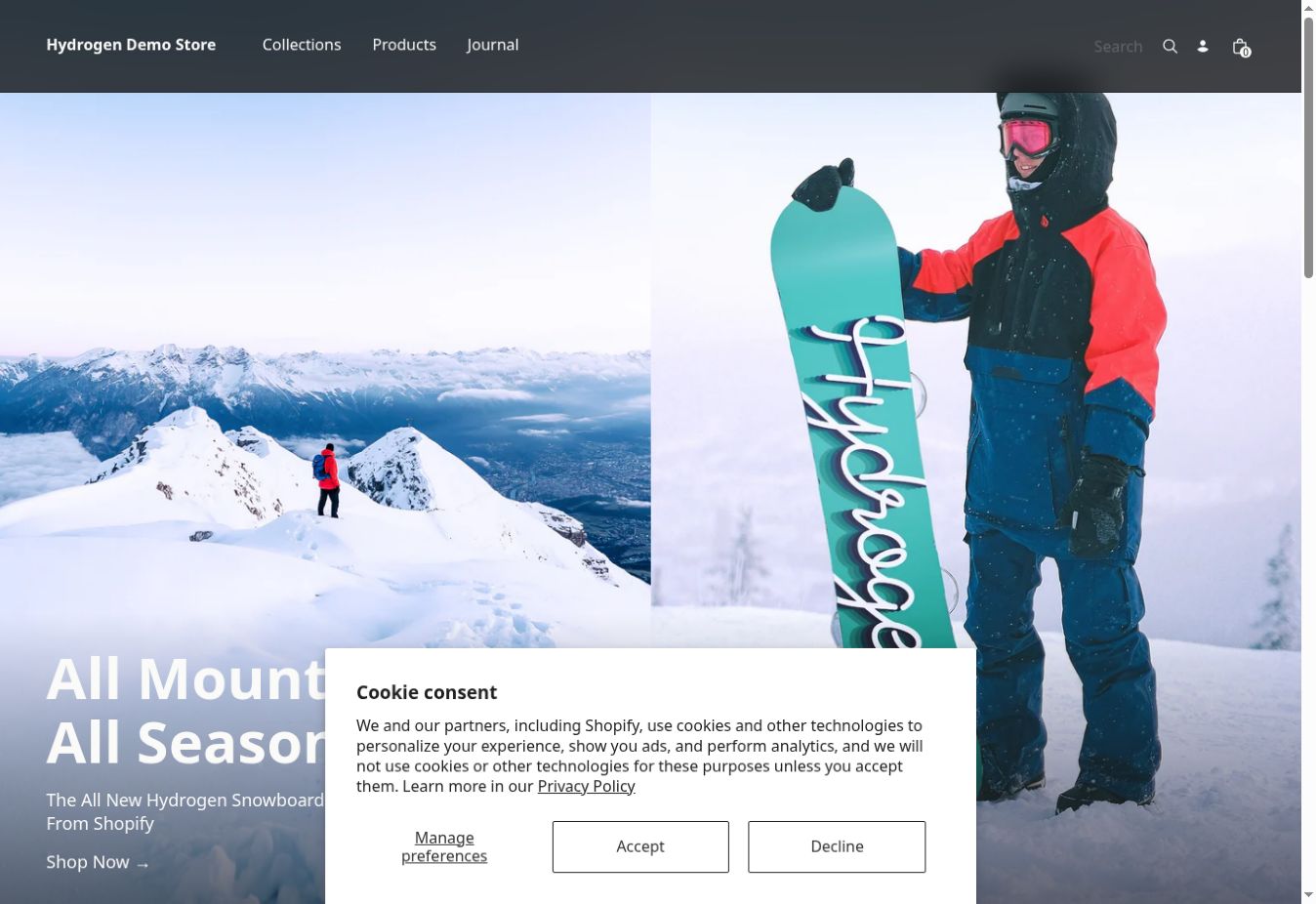
You’re done when each action fires its event exactly once, purchases carry a stable transaction ID, values and currency reconcile with the backend, and non-essential tags respect the consent policy.
12. Reconcile Search Console and Merchant Center with what you found
A local page test can’t show you every indexed canonical, sitemap warning, product disapproval or lost search query. A dashboard alert, on the other hand, might describe a problem that’s already been fixed.
Inspect your priority URLs in Search Console, review the product and merchant listing reports, and check Merchant Center diagnostics against what you saw on the live site. Note the dates, because recrawling and feed processing lag behind deployments.
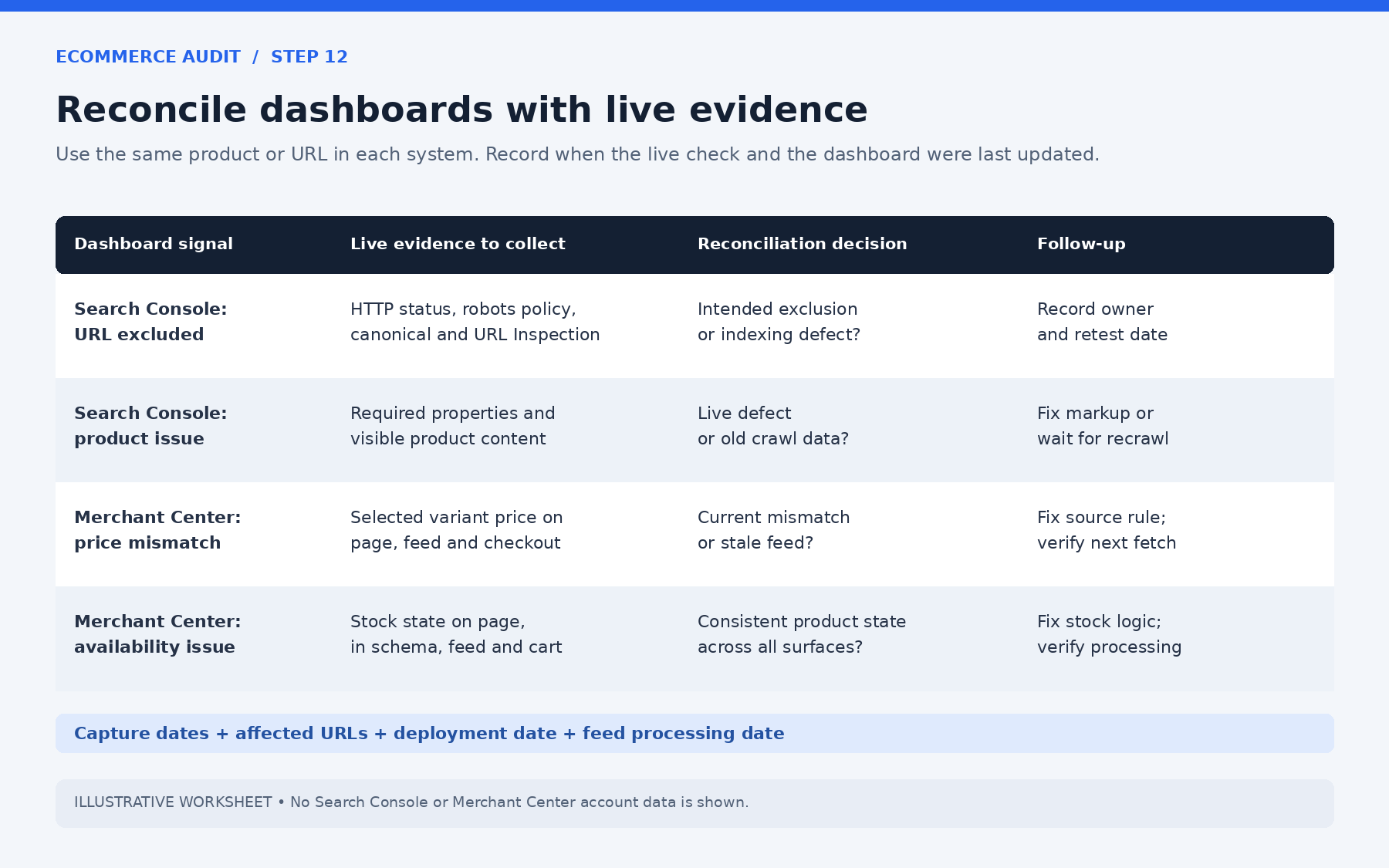
You’re done when every significant dashboard issue matches live evidence or is marked as waiting to propagate, and each open issue has an owner.
Stage 6: Would a shopper trust this store?
13. Check trust signals, contact details, shipping and returns
Hidden or conflicting commercial information makes shoppers hesitate and drives up support tickets. Compare the header and footer, contact page, checkout and policy pages.
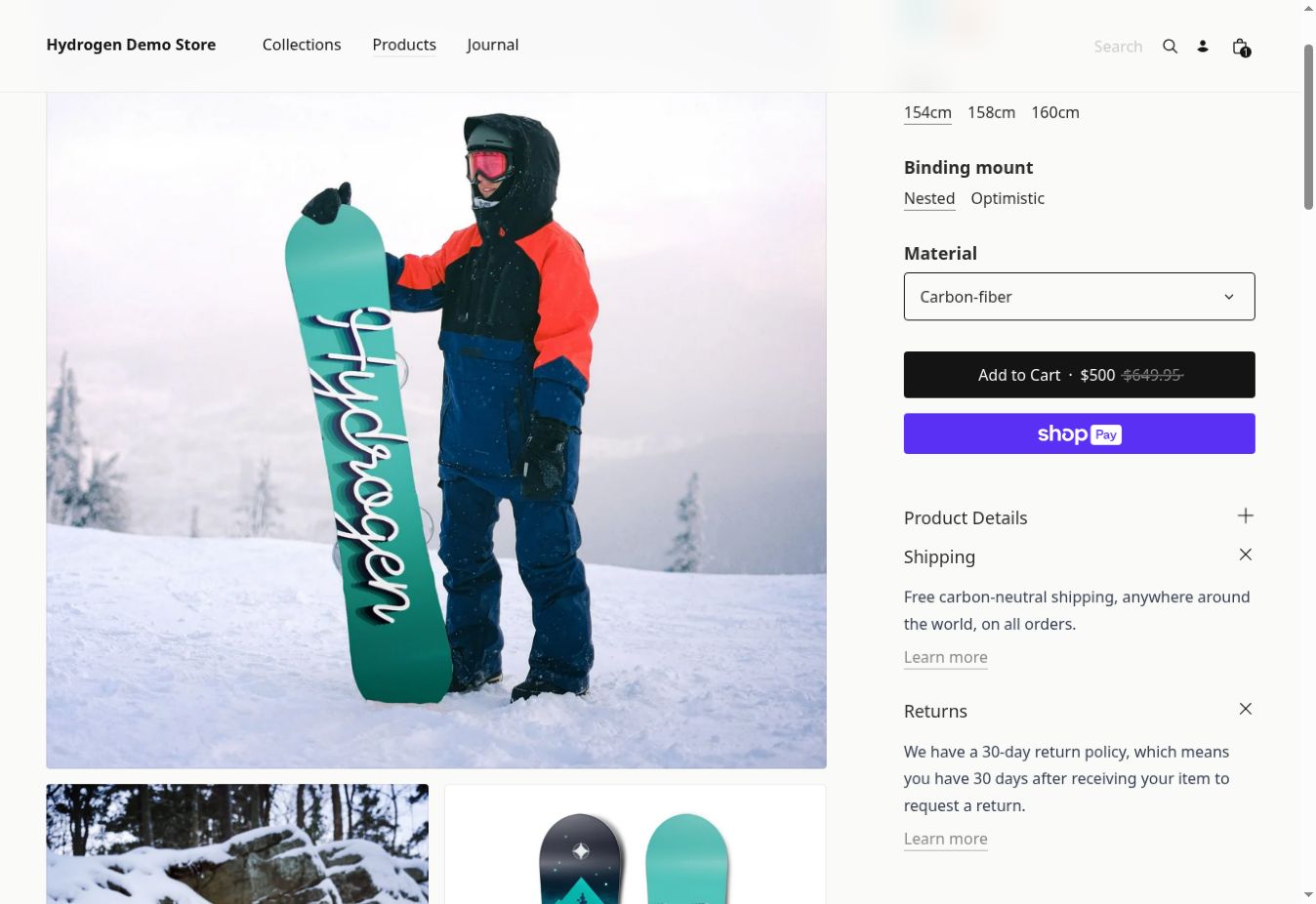
You’re done when the business identity is clear, shipping, returns and payment claims agree across the journey, and no trust badge is unverifiable.
14. Check HTTPS, mixed content and front-end hygiene
This isn’t a penetration test, but a matter of basic data hygiene. Confirm that HTTP redirects to HTTPS in one hop, the certificate is valid, there’s no mixed content and forms submit correctly. Check the console for serious errors. If something looks like a real security vulnerability, pass it to a specialist rather than diagnosing it from a generic warning.
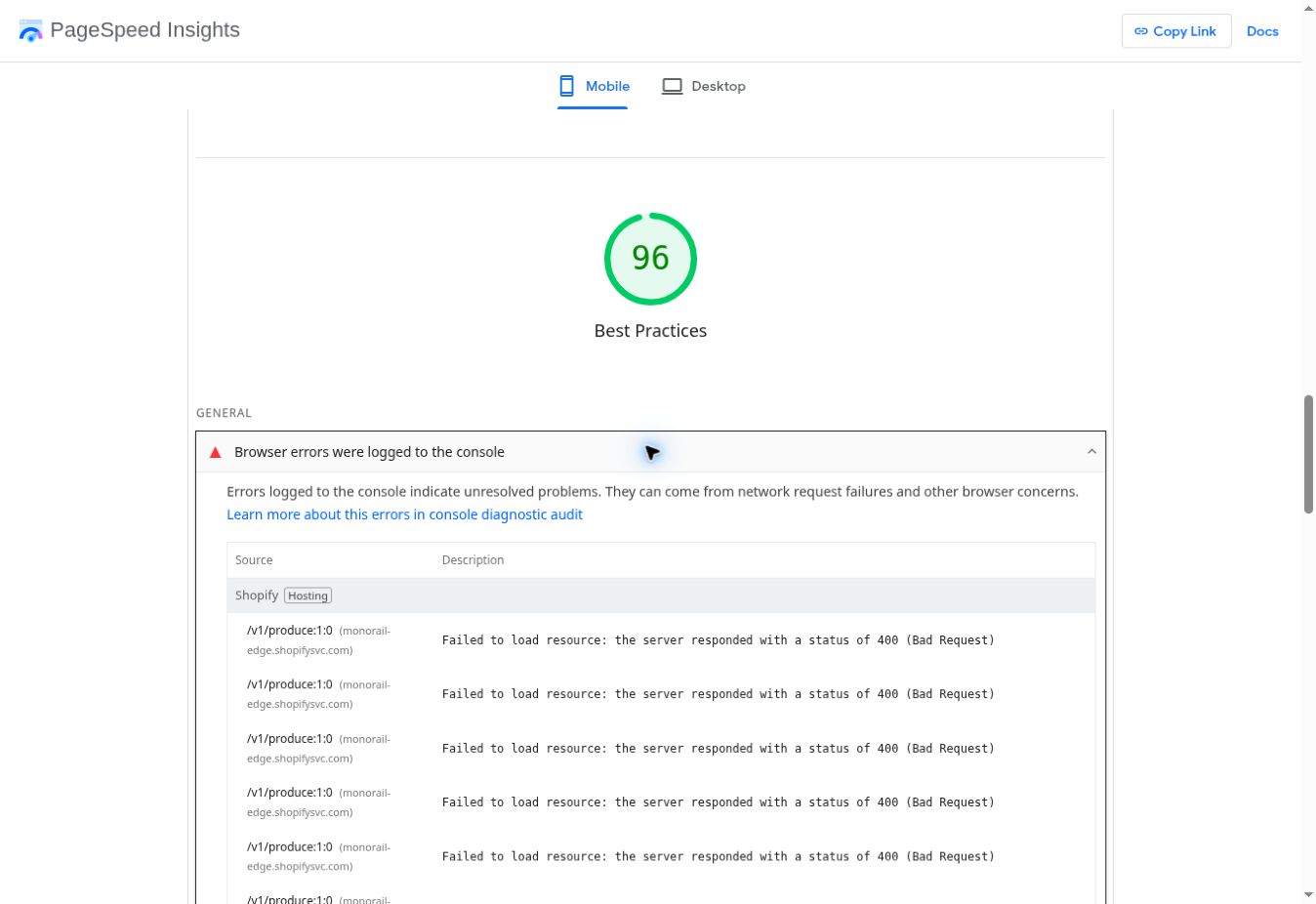
You’re done when priority pages and the checkout load securely, redirects take one hop and forms behave as expected.
From findings to fixes
15. Turn findings into an owned remediation queue
An audit that ends in screenshots or a score doesn’t reduce risk. Fifty symptoms caused by one broken template shouldn’t become fifty unrelated tickets. Group findings by their root cause. Note wether it’s the component, template, feed rule or tracking setup. Keep the affected URLs as evidence. Then prioritize:
- P0: an active failure that blocks the business, or a critical site-wide problem
- P1: a significant defect you’re confident about
- P2: an important issue with limited scope
- P3: an improvement to monitor
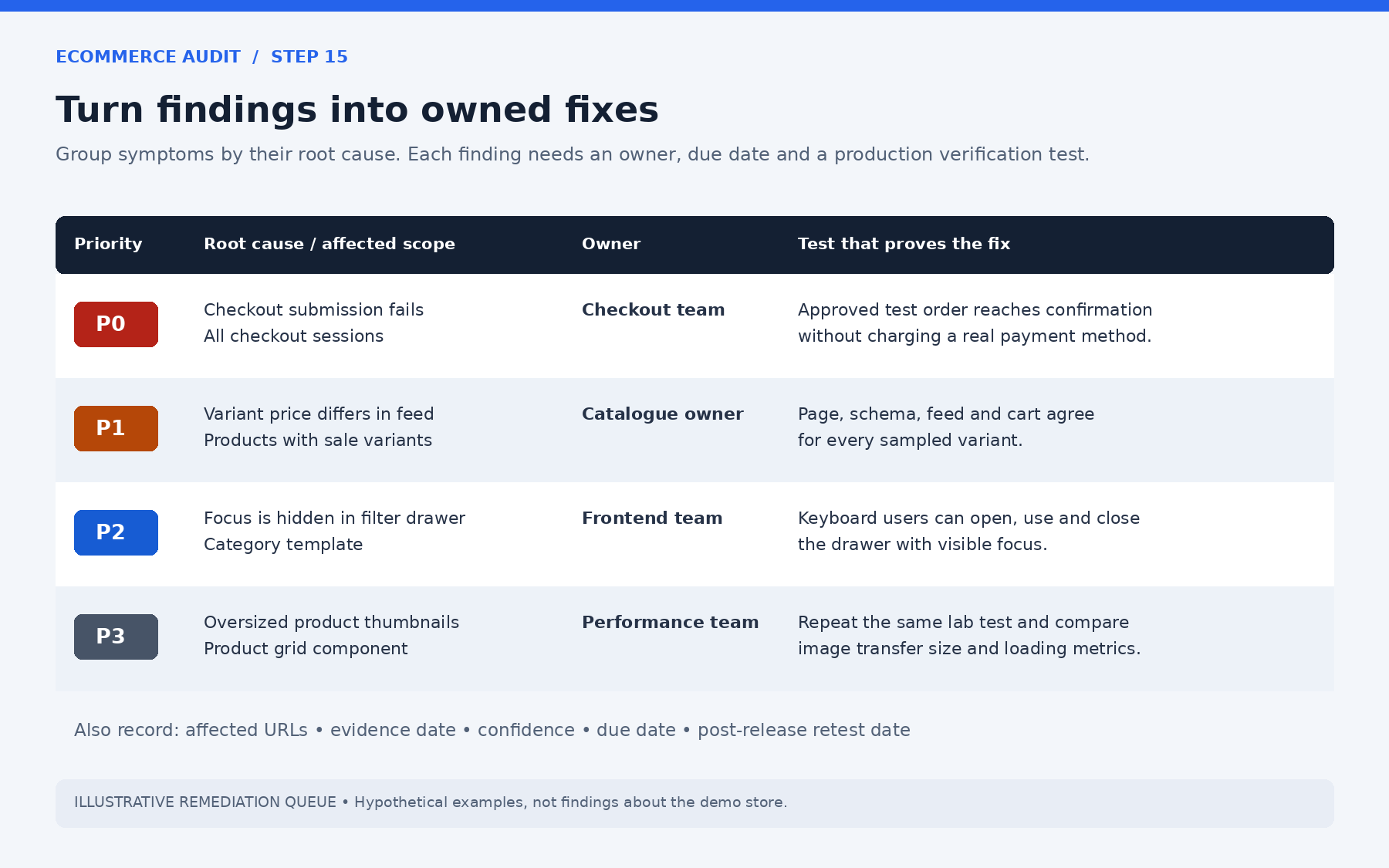
You’re done when every significant finding has one owner, a due date, a test for “fixed” and a date to check it again after release.
The deliverable
Hand over a versioned document or spreadsheet with one row per finding and a short summary at the top. Each row should cover:
- The behaviour,
- the expected behaviour,
- the affected URLs,
- the evidence and when you collected it,
- severity and confidence,
- the likely cause,
- the recommended fix,
- the owner and the test that proves it’s done.
But remember that you shouldn’t mark an issue fixed because someone closed the ticket. Mark it verified when the test passes in production.
Tools for the job
You don’t need any subscriptions to successfully do a strong first pass. All you need are these free tools:
- Google PageSpeed Insights for field data (where available) and Lighthouse diagnostics
- Google Search Console for indexing, sitemaps, URL Inspection, Core Web Vitals and structured-data reports
- Google Rich Results Test and the Schema.org Validator for structured data
- Chrome DevTools and Lighthouse for network, performance, layout shifts, accessibility and console checks
- Google Tag Assistant and GA4 DebugView for event tracking
- SSL Labs Server Test for TLS configuration
If you’d like a shortcut, AmICited will let you bring all that evidence together and keep the baseline for later. The Performance Impact view compares templates by LCP, INP, CLS and server response time. URL Inspection and Sitemaps and Indexing track indexing for priority URLs. Products and Assortment show which parts of the catalogue carry the most commercial weight. Annotations in the Reports Hub tie each release to what happened afterwards. The tools supply the evidence. The store owner, developer or analyst still decides what’s correct and which trade-offs are acceptable.
After the audit
Send each confirmed issue to the specialist workflow that can close it: crawl and rendering problems to a technical SEO audit , field performance failures to Core Web Vitals remediation , facet and stock-state issues to a category and product review , and tracking problems to whoever owns analytics.
There’s no need to rerun the whole audit after every fix. Retest the affected area, annotate the release so you can see what changed afterwards, and let the regular health check catch the next regression.
Back to the store where everything looked fine
Remember the store from the start? Its homepage was indexed, Lighthouse was green and the validator was clean. Yet Google Shopping showed the wrong price, the filter drawer trapped keyboard users and every sale was counted twice.
No dashboard flagged any of it. This checklist would have caught all three: the price mismatch in step 5, the focus trap in step 9 and the double-counted purchase in step 11. Each one breaks somewhere along the shopper’s path, and that’s exactly where the audit looks.
That’s what following the shopper instead of the sitemap gets you. You stop asking “does the site look healthy?” and start asking four harder questions. Can people find the product? Is what the store says about it true? Can they actually buy it? And can you see that they did? A store that can answer yes to all four is in better shape than one with a perfect score.
So pick your sample URLs, block out the time and start with Stage 1. The first pass is the slowest. After that, the job is mostly making sure that what you fixed stays fixed.