


Chat with PDF
Upload a PDF and ask questions about it with FlowHunt's Chat with PDF tool. Get accurate answers, summaries, and relevant excerpts drawn directly from your docu...
3 min read
AI
PDF
+3
A practical walkthrough of using Chat with PDF in FlowHunt, from uploading documents to writing queries that get precise, context-grounded answers.
Chat with PDF lets you upload any text-based PDF and ask questions about it in plain language. Instead of reading it end to end, you get accurate answers drawn directly from the document, with the full conversation context maintained so follow-up questions work naturally.
This guide walks you through the complete setup from upload to output, including the query patterns that consistently produce the best results, the mistakes most users make early on, and the adjustments you can make to get the most out of your workflows.
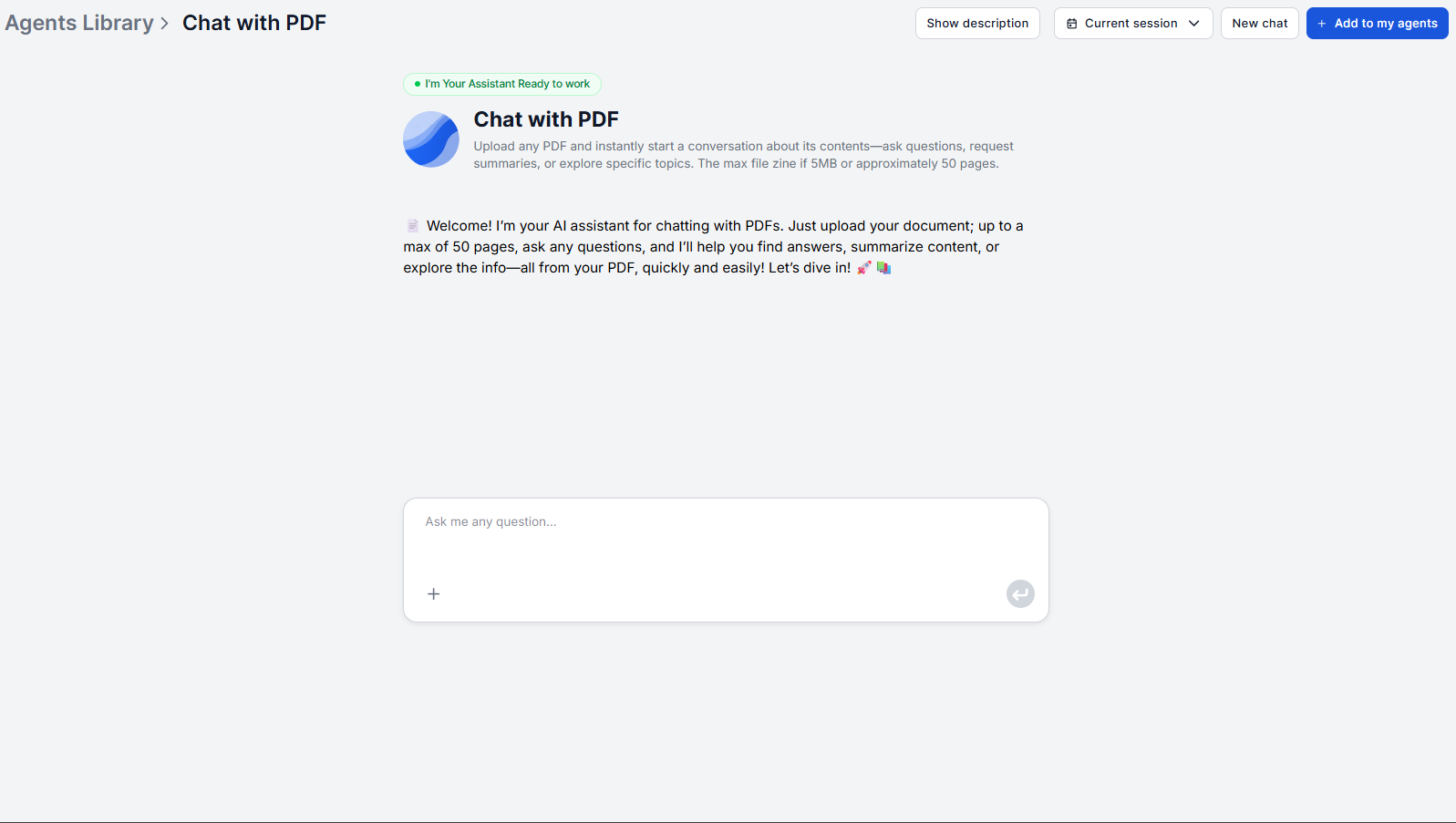
Open Chat with PDF and upload your document using the file upload interface. The tool works with any text-based PDF, as well as other text formats.
One important constraint is, that the tool extracts text directly from the document, so it only works with PDFs where the text is selectable. Scanned PDFs that are images of pages rather than text-embedded documents will not produce results. You can, however enable OCR processing in your flow to allow FlowHunt to read these as well.
Once the file is uploaded, the session is ready. There is no configuration step, no document tagging, and no need to pre-read the document before asking your first question.
Before asking your first question, it is worth understanding what happens when you submit a query. The assistant does not summarize the whole document and answer from that summary. Instead, it runs a file retrieval pass, searching the document for the passages most relevant to your specific query.
This means the precision of your answer is directly tied to the precision of your question. Two guidelines follow from this:
Be specific, not broad. “What does this contract say about liability limits?” retrieves the liability sections. “Tell me about the contract” asks the retriever to search for everything, which produces a generic high-level response rather than the clause language you need.
Reference what you’re looking for by name. Section titles, clause types, defined terms, and topic keywords all give the retriever a precise target. “What is the definition of ‘confidential information’ in this document?” is more targeted than “What are the definitions?”
Answers are based solely on the content of the uploaded PDF. The assistant does not pull in outside information, which means the answer reflects exactly what your document says rather than what a standard version of that document typically contains.

Start your free trial today and see results within days.
Once uploaded, start with questions that map the document’s structure before drilling into specifics. For most document types, a useful opening sequence looks like this:
For contracts: “What are the main obligations of each party under this agreement?” This gives you the structural map before you ask about specific clauses.
For reports: “What does this document cover, and what are its main sections?” Followed by: “What were the key findings or conclusions?”
For research papers: “What was the research question and methodology?” Followed by: “What were the main results?”
For technical documents: “What does this manual cover, and what systems or components does it apply to?”
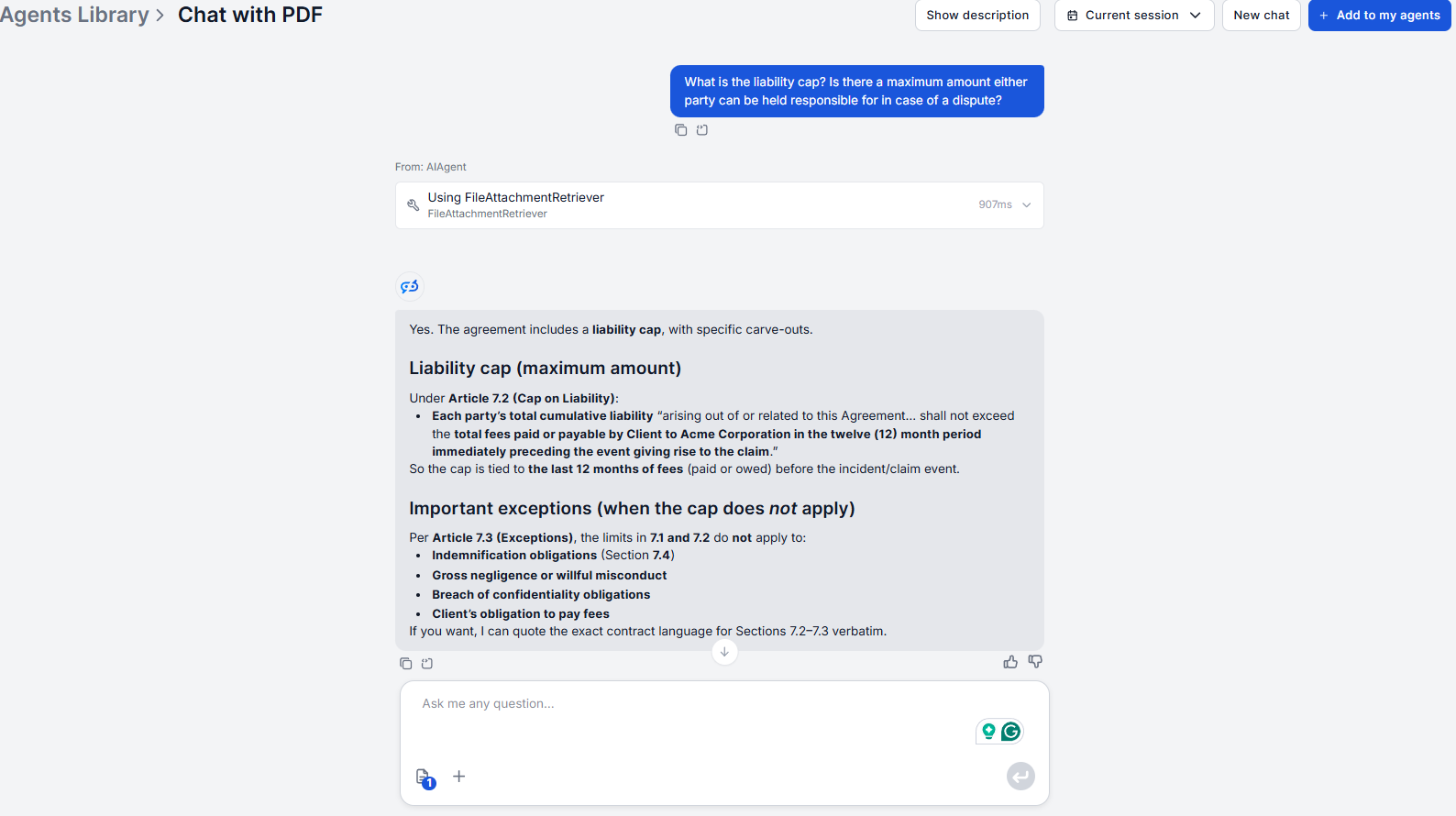
After the initial orientation questions, move to specifics. Because the assistant maintains full conversation history throughout the session, each follow-up question builds on the previous exchange. You do not need to re-explain context. “What are the exceptions to that clause?” works correctly because the assistant knows what clause you were just discussing.
If a question is ambiguous, asking about “the pricing” in a document with three separate pricing sections, the assistant asks a clarifying question rather than guessing. Simply answer the clarification prompt.
The assistant provides answers with relevant excerpts and context from the document included where they aid understanding. Use these excerpts to verify the response against the original file.
For any answer that will inform a decision a contract clause you’re relying on, a figure you’re including in a report, a technical specification you’re acting on, cross-reference the returned excerpt against the corresponding section in the PDF directly. The excerpt tells you what section to check. Cross-reference takes seconds and gives you full peace of mind.
This step matters because the tool is precise for well-formatted, clearly written PDFs and accurate for what the document says. The professional standard is to verify primary-source claims before acting on them, regardless of how well the retrieval was performed.
Get latest tips, trends, and deals for free.
Answers appear in the chat interface. Copy responses from the conversation to paste into external documents, client notes, redlines, or reports. If you need a structured output or a formatted summary, the underlying flow can be modified within FlowHunt to change the response format to match your document workflow.
For teams that regularly extract the same type of information across many documents, such as a legal team running the same clause checklist against every inbound contract, configuring the flow to return structured output rather than conversational answers significantly reduces the formatting work downstream.
For multi-document workflows, knowledge sources allow you to upload multiple documents to an AI knowledge base, and query across all of them in a single session.
Based on how the retrieval system works (querying relevant passages before every response), these query structures produce better results consistently:
Targeted clause retrieval: “What does section [number or name] say about the topic?” Example: “What does section 12 say about governing law?”
Definition lookup: “How does this document define the term?” Example: “How does this document define ‘material breach’?”
Scope questions: “What are all the conditions under which X can happen?” Example: “What are all the conditions under which either party can terminate this agreement?”
Comparison within the document: “Does this document treat concept A differently in different sections?” Example: “Does this contract apply different notice periods in different contexts?”
Summary of a specific section: “Summarize section name or number in plain language.” The assistant summarizes from the actual section content rather than generating independently.
Explicit follow-up: “What are the exceptions to what you just described?” or “Does the document address what happens if that condition isn’t met?”
Uploading a scanned PDF without embedded text. The retriever has nothing to search. Run the document through our OCR tool first.
Asking overly broad questions first. “Tell me everything important about this contract” asks the retriever to prioritize without enough direction. Start with structural questions, then go specific.
Ignoring the clarification prompt. When the assistant asks for clarification, it means your question matched multiple sections. Answering the prompt routes the retrieval to the right part of the document.
Treating a long response as complete coverage. The tool retrieves the most relevant passages for your query. It does not guarantee it has found every instance of a topic across the whole document. If completeness matters, ask the follow-up: “Are there any other sections in this document that address topic?”
Starting a new session when a follow-up would work. Use the conversation history. Re-uploading the same document and re-asking questions that build on prior answers wastes context that the session already maintains.
For professional use case walkthroughs — legal contract review, financial analysis, RFP documents, and more — see Chat with PDF: 7 Professional Use Cases . If you’re evaluating which tool fits your workflow, the PDF chat tool comparison tests FlowHunt, ChatPDF, Adobe, and Humata head-to-head.
Upload any document and ask questions in plain language. FlowHunt's Chat with PDF retrieves exact passages from your file and keeps the full conversation in context.
Upload a PDF and ask questions about it with FlowHunt's Chat with PDF tool. Get accurate answers, summaries, and relevant excerpts drawn directly from your docu...

Stop scrolling through 200-page PDFs looking for a single answer. Upload any document and ask questions in plain language to get accurate answers with page refe...

We compared ChatPDF, FlowHunt Chat with PDF, Adobe Acrobat AI Assistant, and Humata AI on five document types: legal contract, financial report, academic paper,...
Cookie Consent
We use cookies to enhance your browsing experience and analyze our traffic. See our privacy policy.