



How to Use Copilot in Microsoft Word
A clear introduction to the three main ways you can use Copilot inside Microsoft Word.
3 min read
Beginner
Copilot
+1

Learn how to use Microsoft Copilot in Word to instantly rewrite, summarize, or enhance internal company documents like policies, handbooks, or memos — all from a built-in panel.
Need to rewrite a dry internal policy? Summarize a 20-page handbook? Or just improve the tone of your HR documents? Microsoft Copilot inside Word makes it easy. You can transform any document directly inside Word without leaving the page or copying into a chatbot.
This progressive guide walks you from a first-time prompt to advanced rewrites and structured document enhancements — all using the built-in Copilot panel and natural language.
Try it instantly for free: Need to polish a document, refine your tone, or rewrite content with clarity and ease? Let AI handle the heavy lifting, so you can focus on what really matters.
👉 Enhance your writing instantly with the AI Rewriter.
Enhancing documents with Copilot in Word turns your everyday internal docs into polished, professional assets in minutes. Whether it’s tone, clarity, length, or formatting, you’re in control.
Start from any document. You’ll need a Microsoft 365 subscription with the Copilot feature enabled. Look for the Copilot button in the ribbon (top right of Word). Click it to open the side panel.
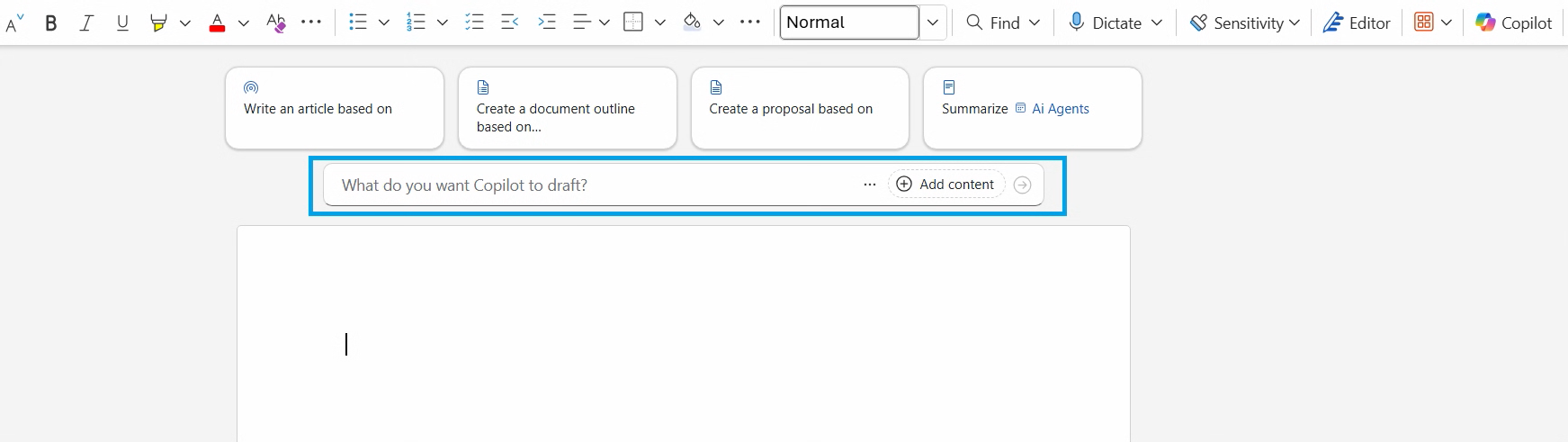
This feature requires a Microsoft Copilot for Microsoft 365 license. You won’t see it in personal or basic versions.
You can start fresh or open an internal document like a company policy, employee guide, or rules document.
To try quickly, paste this sample into a blank doc:
“Our office hours are flexible, but everyone should be online by 10am latest. No meetings on Fridays unless absolutely necessary. Use Slack for urgent stuff, and email for everything else.”
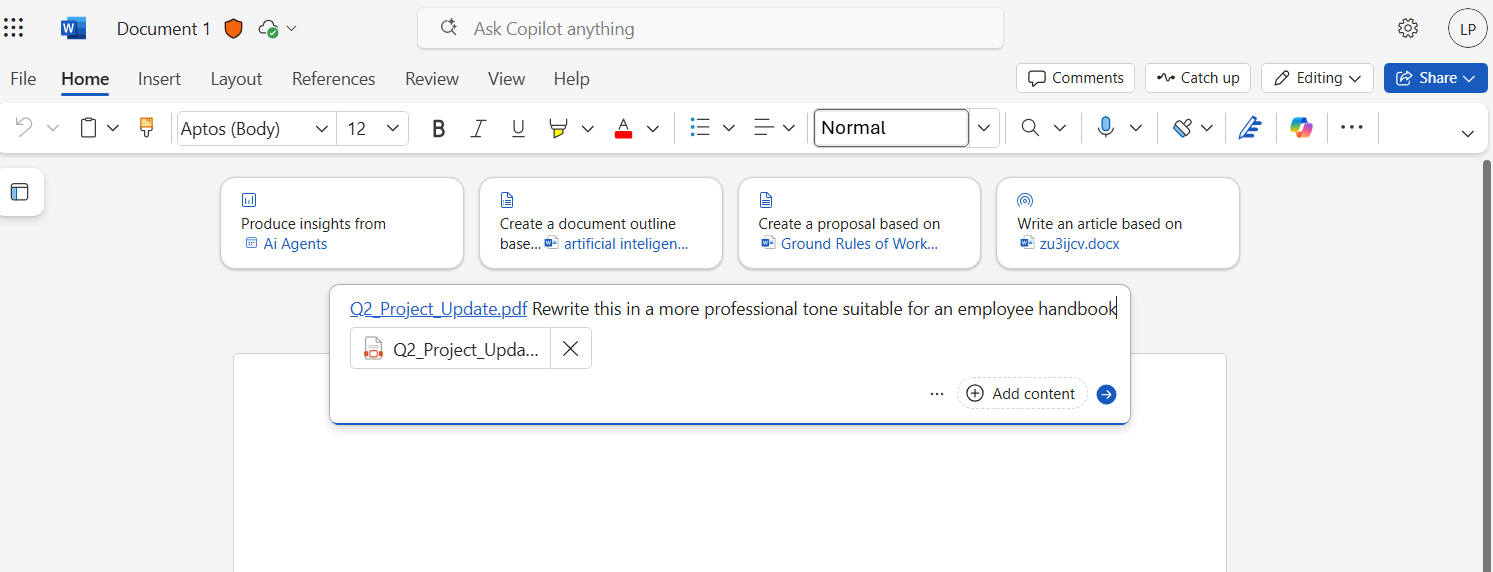
In the Copilot panel, type in a plain-language request like:
Rewrite this in a more professional tone suitable for an employee handbook.
Copilot will scan your document and offer a full rewritten version directly in the panel or as suggested edits in your doc.
You can also try:
After Copilot rewrites the content, you can:
Once you’re comfortable with the basics, you can use Copilot to enhance the structure of longer documents — not just rewrite them. This is where Copilot becomes a serious editing assistant.
Want something even more polished? Follow up with:
Make the tone more encouraging and remove passive voice.
Copilot keeps the context and applies your edits instantly. You can chain prompts to refine tone, length, and structure step-by-step.
Use prompts like:
This turns unstructured drafts into navigable, professional documents.

Start your free trial today and see results within days.
For polished publishing-quality output, treat Copilot as a senior editor. Layer multiple passes for tone, accuracy, and house-style alignment.
Copilot can flag inconsistencies in figures or contradictions across paragraphs. Ask:
Review this document for inconsistent figures, contradictions, or claims that need a source. List each one.
If you have a style guide, paste a short summary into the prompt and ask Copilot to enforce it (preferred terms, banned words, sentence length, tone). This keeps published documents on-brand without manual line-editing.
| PROS | CONS |
|---|---|
| Built into Word, no switching apps | Requires a Copilot for Microsoft 365 license |
| Rewrites entire docs in seconds | Works best with clear, structured input |
| Easy to refine with follow-up prompts | May need manual review for sensitive content |
| Supports tone, clarity, and length | Can occasionally over-edit or remove useful nuance |
Get latest tips, trends, and deals for free.
Using Microsoft Copilot inside Word lets you rewrite or enhance internal documents without needing a copywriter or even a second tool. Start with a single prompt, layer in structural improvements, then use multi-pass editing for publishing-quality output.
Whether you’re refreshing handbooks, refining memos, or summarizing HR policies, Copilot handles the hard part and you stay in control.
Looking to take automation to the next level? Whether you’re streamlining team communication or organizing your own tasks, you can build a fully customized workflow that saves time and reduces manual effort, start in just a few clicks.
👉 Generate now using this AI Flowhunt Template
A clear introduction to the three main ways you can use Copilot inside Microsoft Word.

A clear overview of the key capabilities Copilot brings into Microsoft Word to help you draft, analyse, and refine content.

A clear beginner friendly overview of how Copilot supports you across Microsoft 365.
Cookie Consent
We use cookies to enhance your browsing experience and analyze our traffic. See our privacy policy.