



AI Text Humanizer
Transform AI-generated or robotic text into natural, engaging human-like language with our advanced AI Text Humanizer. This powerful tool rewrites formal or sti...
3 min read
AI
Content Writing
+3

A practical guide to getting the best output from FlowHunt’s AI Text Humanizer — which tone settings to use for different content types and a review process that catches what the tool misses.
Getting consistent, natural output from the AI Text Humanizer comes down to two things: knowing which inputs shape the output and having a review process that catches what the tool doesn’t fix on its own. This FlowHunt text humanizer guide walks through every step, with recommendations for different content types.
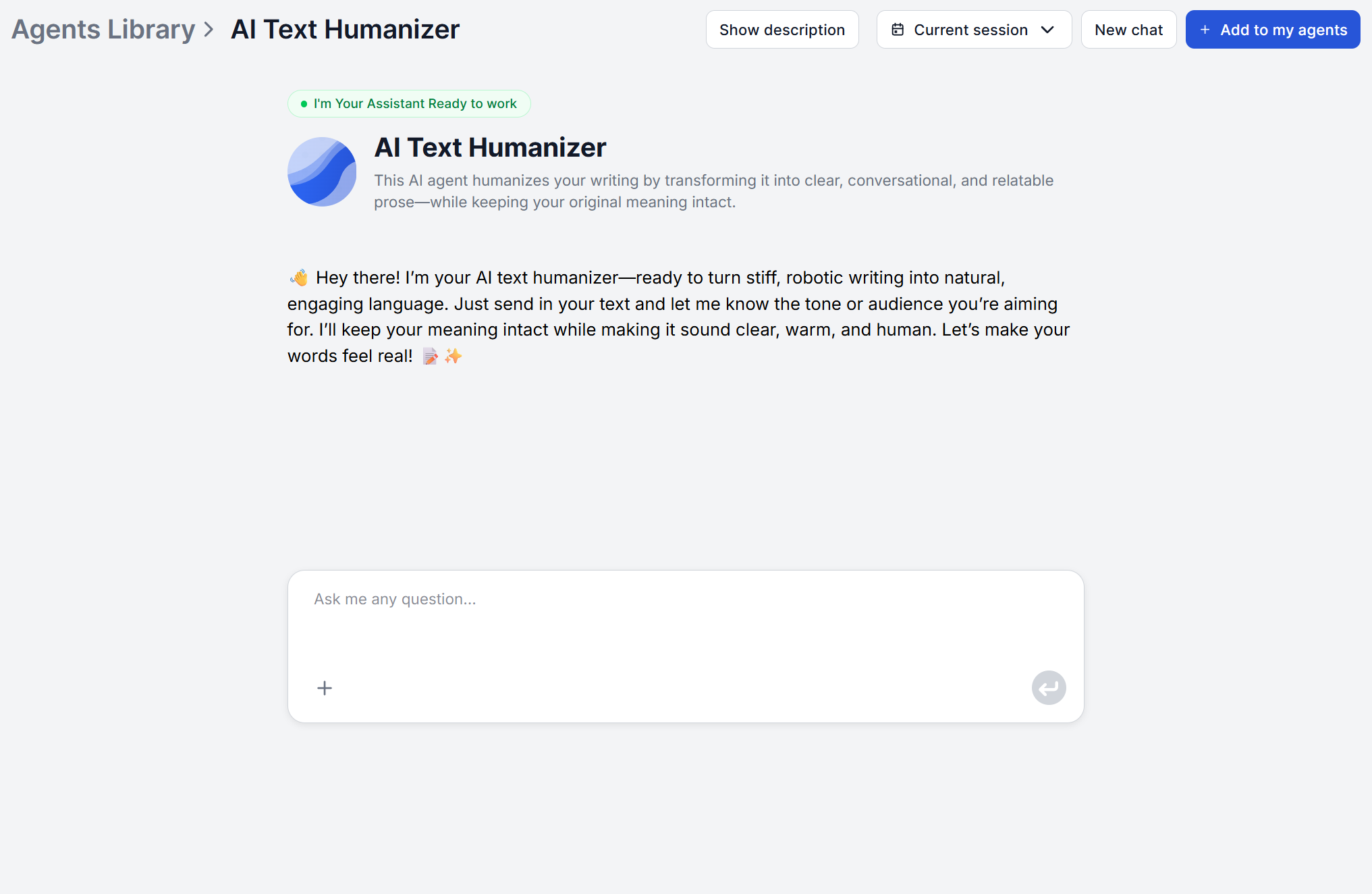
Open the FlowHunt Agents Library, search for “AI Text Humanizer” and add it to your agents. Once you have the agent open, paste your text directly into the input field. The tool fixes any AI-generated, formal, or robotic text, regardless if it’s a blog post draft, an email, a product description, a report section.
If you’d like to try the agent befor comitting, follow this link AI Text Humanizer to try it for free online.
For best results at this stage:
This is where you shape the output. The AI Text Humanizer’s tone and intent analysis uses your inputs to guide the entire rewrite, deciding which patterns to remove, how formal to make the language, and which vocabulary register suits your readers.
Tone options:
If no tone is specified, the tool defaults to warm and conversational, which is a good baseline for most blog content.
Audience specification: Describe your reader in one sentence. For example, “Senior engineers at DevOps companies,” “first-time homebuyers,” or “non-technical decision-makers at enterprise companies” all give the tool enough context to adjust vocabulary and sentence complexity to the right level.
Requesting variations: If you’re unsure which tone fits best, ask for 2–3 variations. The tool will produce multiple rewrites with different approaches so you can compare and choose.

Start your free trial today and see results within days.
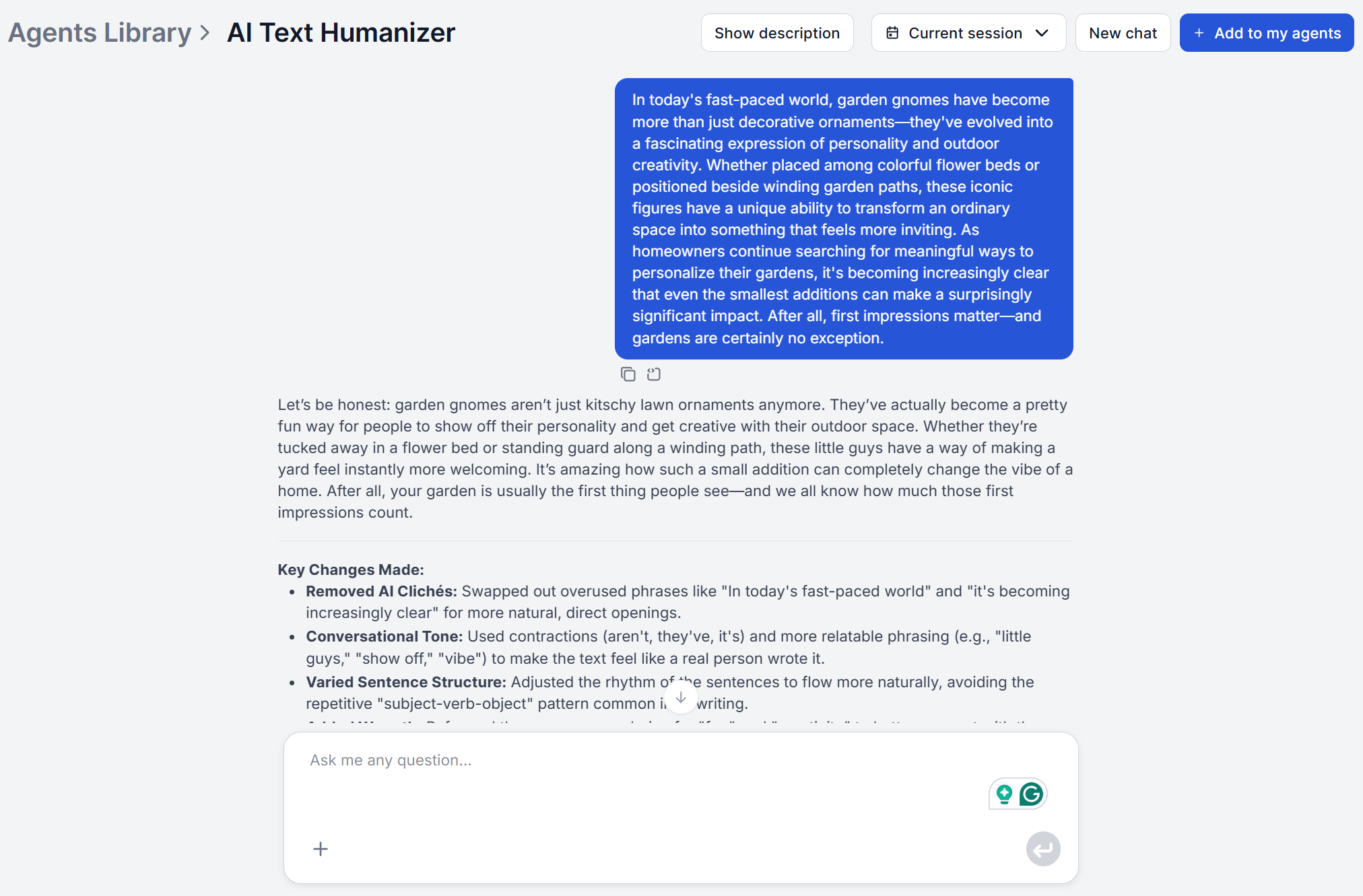
The humanized output preserves your original ideas, facts, and intent.
When reviewing, Check these first:
What the tool does not change: specific claims, data points, named sources, and factual content. If those were in the original, they carry through. If they were wrong in the original, they remain wrong in the output. Fact-checking is the human step. In case AI ends up changing any of these, reinforce it in the general prompt or future one-off instructions.
The humanizer handles the linguistic layer. For everything else, the more you teach FlowHunt through knowledge sources and agent instructions , the less your reviewer needs to add from scratch. Their job becomes making the final call, not filling in what the AI missed. Work through this checklist before treating the output as a draft:
Get latest tips, trends, and deals for free.
Before the content goes live, run two quick passes:
Read it cold. Step away for at least ten minutes, then read the final version without referring to the original AI draft. If something feels off to a fresh reading, it will feel off to your readers.
Check for any remaining AI tells. The most persistent ones are in the intro and outro, where AI tends to summarize and restate using tell-tale phrases. Also check the lists, where uniform structure across all bullets reads as generated even when the prose is natural. You’ll have to adjust these manually or keep asking AI to rewrite them.
| Content Type | Recommended Tone | Audience Note | Variation? |
|---|---|---|---|
| SEO blog post | Professional or casual | Specify reader skill level | Optional |
| LinkedIn post | Professional | Name the role/seniority | Yes — compare 2 |
| Marketing email | Friendly or casual | Name the list segment | Yes — compare 2 |
| Product description | Professional | Name the buyer persona | Optional |
| Technical documentation | Academic | Specify expertise level | No |
| Social media copy | Casual or humorous | Platform and community | Yes — compare 2–3 |
| Executive summary | Professional | C-suite, non-technical | No |
For content types where voice matters the most, such as LinkedIn or email, always generate at least two variations and compare against existing published examples from the same channel before choosing one.
Issue: The output sounds natural but doesn’t sound like us. The tone setting gets you to the right register, but a brand-specific voice needs further setup or a human pass. Keep your brand manual on hand, along with a short list of 5–10 phrases your brand uses and 5–10 it never uses. Apply those as a final filter. You can alternatively include these instructions right in the workflow to minimize or completely remove the need for manual brand insertion.
Issue: A technical term got replaced with an incorrect synonym. Describe the audience as technical and familiar with the relevant vocabulary. Alternatively, you can create a vocabulary document and instruct the workflow to always consult it by default.
Issue: The opening still reads as AI-generated. Request a second variation specifically for the opening paragraph. AI openings are the hardest to humanize automatically, as the agent is likely to repeatedly revert to classic vague phrases. A small manual rewrite here often has disproportionate impact on how the whole piece reads.
Issue: Long sentences are still too uniform. The tool varies sentence length, but very long source paragraphs can constrain the output. Break the source into shorter paragraphs before pasting, or flag the affected section for a separate humanization pass with a note to focus on rhythm variation.
TIP: For building the humanizer into a full publishing workflow, the AI Blog Writer is the generation step that produces the raw draft.
Maria is a copywriter at FlowHunt. A language nerd active in literary communities, she's fully aware that AI is transforming the way we write. Rather than resisting, she seeks to help define the perfect balance between AI workflows and the irreplaceable value of human creativity.

Try FlowHunt's AI Text Humanizer with your own content — see how tone, audience, and variation settings affect the output before you build it into your workflow.
Transform AI-generated or robotic text into natural, engaging human-like language with our advanced AI Text Humanizer. This powerful tool rewrites formal or sti...

We evaluated five AI text humanizer tools across detection bypass rates, output quality, and price. Here's which produces the most natural, accurate content, an...
Learn 7 proven techniques to humanize AI-generated text. Plus: best AI humanizer tools compared and how to automate humanization at scale with FlowHunt workflow...
Cookie Consent
We use cookies to enhance your browsing experience and analyze our traffic. See our privacy policy.