


Chat with PDF
Upload a PDF and ask questions about it with FlowHunt's Chat with PDF tool. Get accurate answers, summaries, and relevant excerpts drawn directly from your docu...
3 min read
AI
PDF
+3

Stop scrolling through 200-page PDFs looking for a single answer. Upload any document and ask questions in plain language to get accurate answers with page references in seconds. Here’s how it works and the 7 professional use cases where it saves the most time.
Stop scrolling through 200-page PDFs looking for one number. Whether it’s a contract clause buried on page 47, a methodology detail buried in a research paper, or a revenue figure somewhere in a quarterly filing, manually hunting through dense documents is a reliable way to waste an afternoon.
You can get the same information quicker by having a simple conversation. AI Chat with PDFs allows you to upload the document, ask your question in plain language, and get an accurate answer drawn directly from the file in seconds. Here’s how the technology works, how to use it step by step, and the seven professional scenarios where it saves the most time.
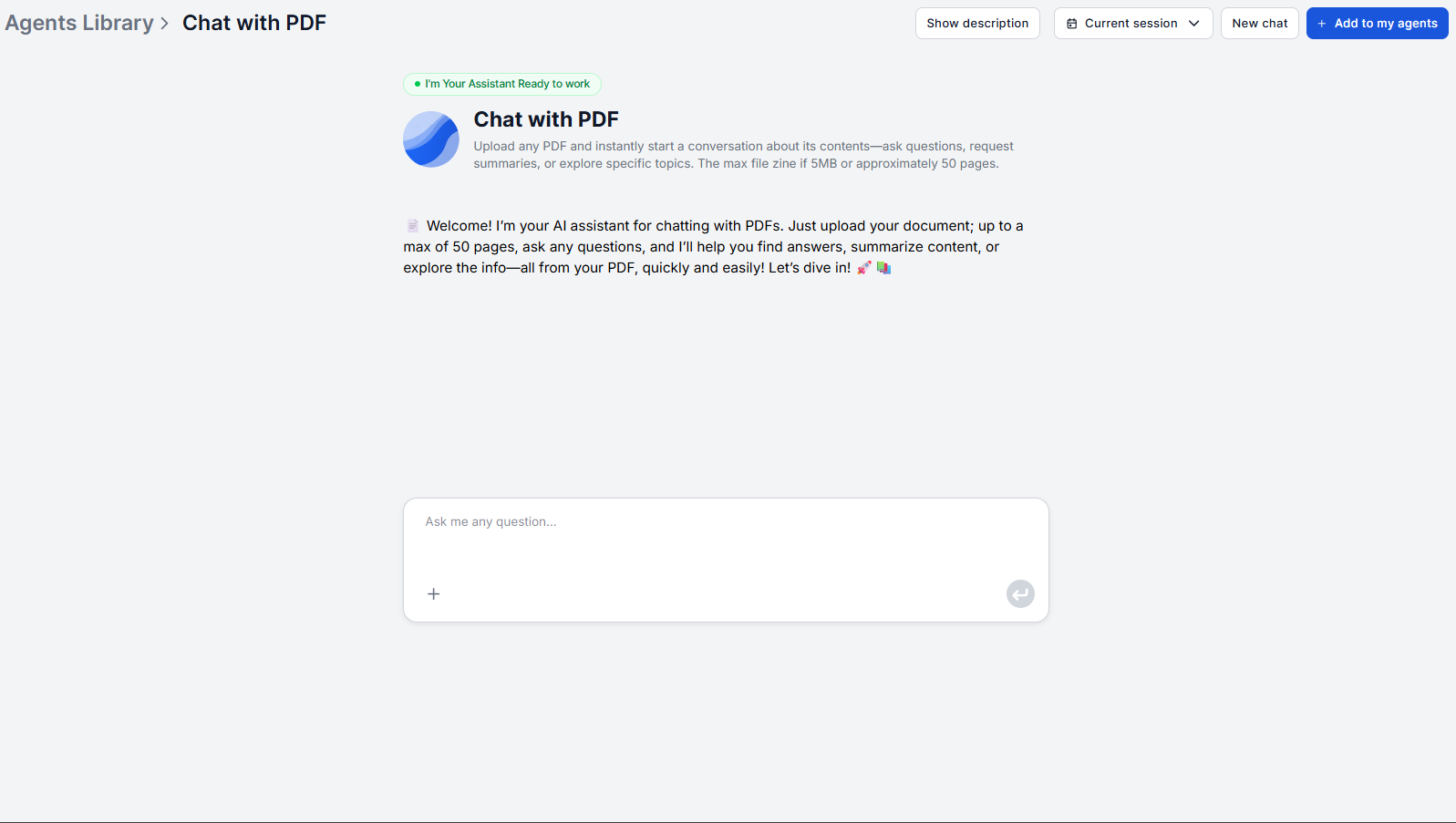
An AI PDF reader isn’t a glorified search bar. When you upload a document and ask a question, the system does something meaningfully different from keyword matching: it uses a file retriever to locate the most relevant passages in the document before generating any response. That step — retrieval before reasoning — is what separates accurate answers from approximate ones.
Here’s the process in plain terms:
1. You upload a PDF. The document is processed so the system can search its content.
2. You ask a question. The retriever searches the document for the passages most relevant to your specific query.
3. The AI answers from those passages. The response is grounded in the actual document text, not in the model’s training data or any external source. Answers come only from the PDF.
4. Conversation context is maintained throughout the session. Follow-up questions stay coherent. The assistant tracks everything said in the conversation so you don’t need to re-explain context or restate what you’re asking about.
The key architectural detail worth understanding is that retrieval happens for every query, not just once at upload. That’s what keeps answers precise even when you ask about a specific figure on page 83 of a 200-page report, or when your follow-up question depends on the answer to your first one.
One constraint to know upfront is that by default, the tool works with text-based PDFs only. In other words, documents where the text is digitally embedded and selectable. Scanned PDFs that are image files without embedded text cannot be retrieved from by default.
You may first run scanned PDFs via an OCR to grab the text. You can also enable OCR right in the main chat workflow, but we advise against that as it may add unnecessary processing time and cost to the chat workflow. If you’re regularly working with scanned documents, run them through OCR processing first to make the text selectable.
If a question is ambiguous, for example when you ask about “the pricing section” in a document with three pricing tables, the assistant asks a clarifying question rather than guessing, since a clarifying prompt is more useful than a confidently wrong answer. This also means the tool is honest about the edges of what’s in the document. If you ask about something the PDF doesn’t cover, it will tell you rather than pulling in external information.
The workflow is direct. Open the PDF Q&A AI tool , upload your document, and start typing. No configuration, no tagging, no setup required.
Step 1: Upload your document. Use the file upload interface to attach your PDF. Any text-based PDF works.
Step 2: Ask your first question in plain language. You don’t need to phrase questions as search queries. “What are the termination clauses?” works just as well as typing “termination.” The retriever handles the interpretation.
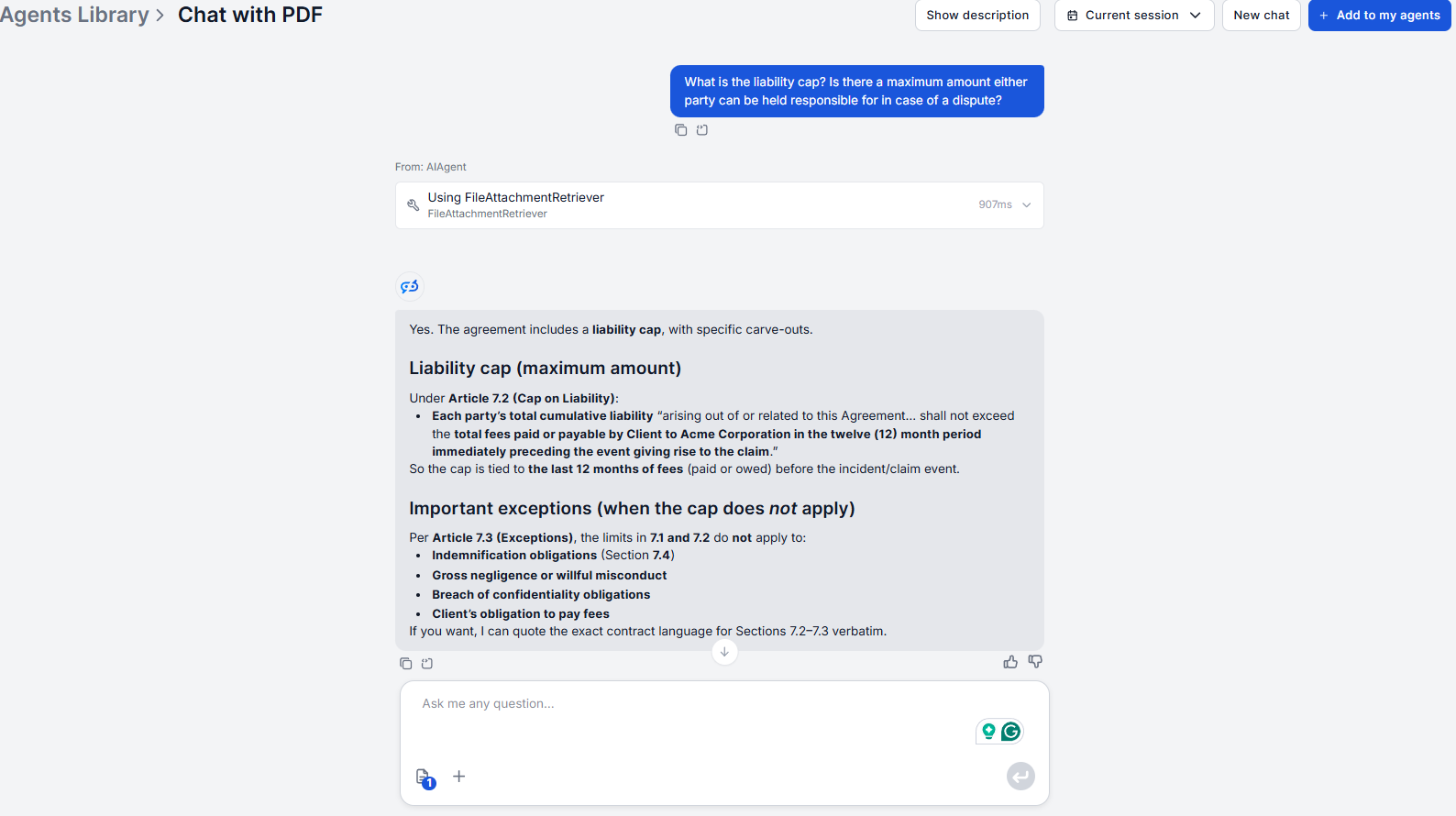
Step 3: Read the answer and follow up naturally. The assistant provides a concise answer with relevant context from the document. Since the session maintains full conversation history, follow-up questions work exactly as they would in a human conversation. “What does that section say about notice periods?” picks up from where the last answer left off.
Step 4: Request summaries when needed. Beyond question-answering, you can ask the assistant to summarize specific sections or the full document. Summaries are generated from the actual content rather than from a cached abstract, so they reflect the document accurately.

Start your free trial today and see results within days.
The common thread across every use case is the same. The answer is in the document, but finding it manually takes too long. AI document chat removes that bottleneck across a surprisingly wide range of professional tasks. For a detailed look at each with specific query examples, see Chat with PDF: 7 Use Cases .
| Task | Manual Search | Chat with PDF AI |
|---|---|---|
| Locating a specific clause | 20–40 min | Under 1 min |
| Extracting key findings from a paper | 45–90 min | 5–10 min |
| Pulling figures from a financial report | 30–60 min | 5–10 min |
| Summarizing a specific section | 15–30 min | Under 1 min |
| Following up with a related question | Restart from scratch | Instant, context maintained |
For knowledge workers who process multiple documents a week the compounded time saving across a month is substantial. The tool works best as a first pass to get the specific information you need quickly, and then you return to the full document only for the sections that warrant deeper reading.
For workflows that go beyond a single document, you can building a searchable knowledge base, connecting multiple documents the chatbot can access simultaneously via the knowledge sources feature. And for generating technical documentation from source material rather than querying it, the AI documentation writer handles that end of the workflow.
If you’re comparing PDF chat tools before committing, the ChatPDF vs FlowHunt comparison tests all four tools on the same documents, covering accuracy, pricing, and scanned PDF support.
Maria is a copywriter at FlowHunt. A language nerd active in literary communities, she's fully aware that AI is transforming the way we write. Rather than resisting, she seeks to help define the perfect balance between AI workflows and the irreplaceable value of human creativity.

FlowHunt's Chat with PDF tool lets you upload any document and get accurate, document-grounded answers in seconds — no manual searching, no skimming required. Try it free.
Upload a PDF and ask questions about it with FlowHunt's Chat with PDF tool. Get accurate answers, summaries, and relevant excerpts drawn directly from your docu...
A practical walkthrough of using Chat with PDF in FlowHunt, from uploading documents to writing queries that get precise, context-grounded answers.

From legal teams reviewing contracts to analysts extracting data from reports, here are seven specific workflows where AI PDF chat replaces hours of manual sear...
Cookie Consent
We use cookies to enhance your browsing experience and analyze our traffic. See our privacy policy.