



Hosted MCP Server for Atlassian Jira
The Atlassian Jira MCP Server connects AI agents to Jira's issue tracker — search and JQL across projects, create and transition issues, manage sprints/boards/v...
8 min read
AI
Atlassian Jira
+5

Hosted MCP server for Atlassian Confluence — search and create pages, update wiki content, and run knowledge-base automations from FlowHunt AI agents (use the Atlassian Jira MCP server instead for issues, sprints, and agile boards).
Host MCP Servers using FlowHunt
FlowHunt’s platform lets users create AI Agents for any service without the usual hassles of MCP servers. Host MCP servers for any service, automate workflows, connect with external tools, and use analytics to improve performance. FlowHunt makes AI Agent creation simple and efficient for all users.
The Confluence MCP server is the right choice when you need agents to operate on wiki content — pages, spaces, release notes, runbooks, meeting notes and knowledge-base articles. For tickets, sprints, or agile boards, use the Atlassian Jira MCP server instead — it targets the issue tracker rather than wiki pages.
Access Atlassian Account: Log in to Atlassian Account .
Create API Token:
Select Create API token with scopes.
Give your API token a descriptive name (e.g., FlowHunt-Confluence-Integration).
Select an expiration date for the token (1 to 365 days).
Click Create.
Select Copy to clipboard and paste the token to a secure location, such as a password manager, for use in FlowHunt.

💡 Pro Tip: Store your API token securely and avoid sharing it publicly. Using environment variables for API token management is recommended for enhanced security.
Access FlowHunt: Log in to your FlowHunt.io dashboard .
Navigate to Integrations: Find the “Integrations” section in the left sidebar.
Select Atlassian Confluence: Click on the Atlassian Confluence integration option to begin the setup process.


Start your free trial today and see results within days.
In the Atlassian Confluence integration setup page, provide the following information:
| Field | Description | Example |
|---|---|---|
| Atlassian Domain | Your Confluence URL | https://your-site.atlassian.net/ |
| API Token | The API token generated in Atlassian | your-secure-api-token |
| Username | Your Atlassian account email | user@yourcompany.com |
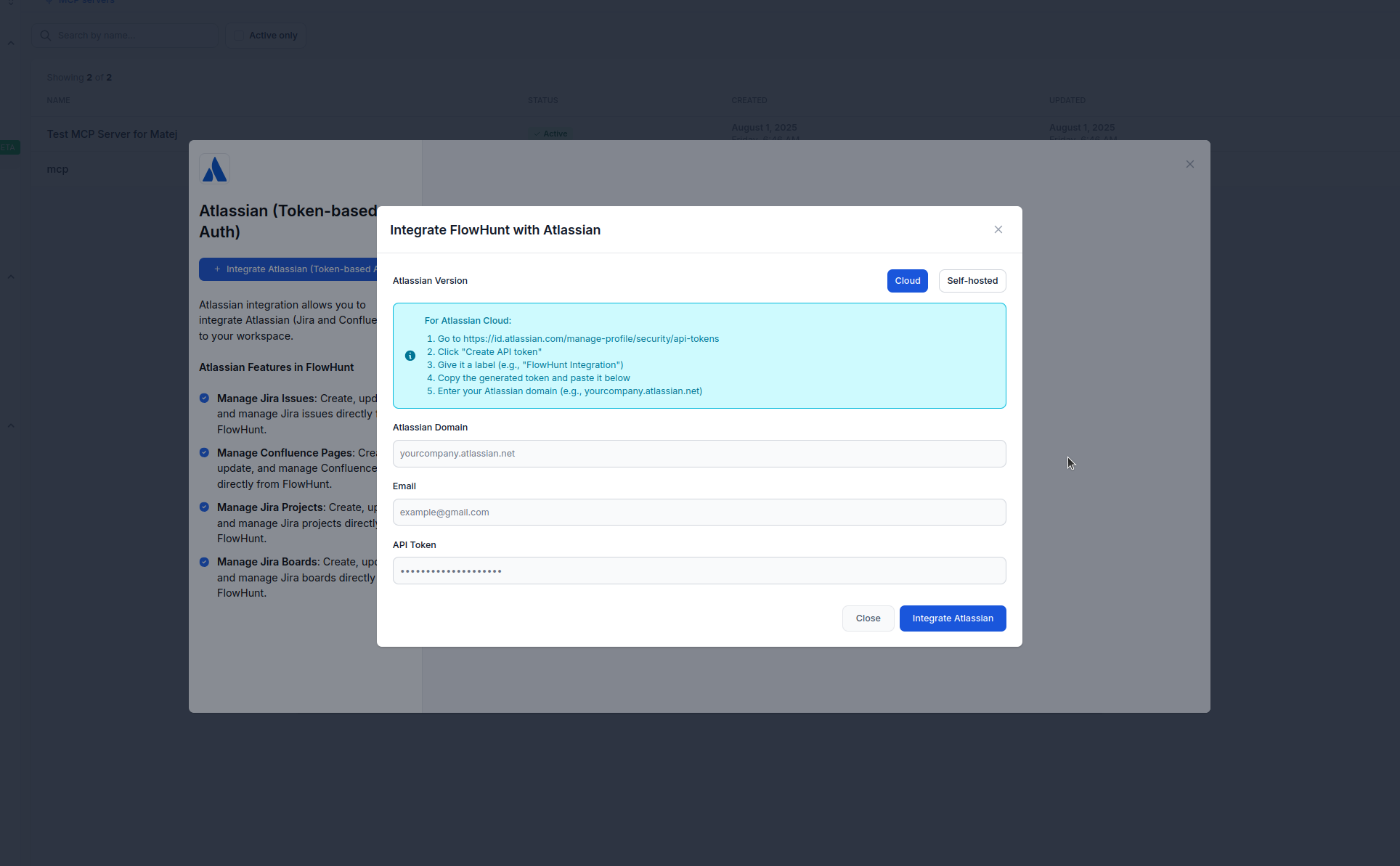
Navigate to MCP Servers: Go to the “MCP Servers” tab in your FlowHunt dashboard.
Add New Server: Click “Add New MCP Server”.
Select Atlassian Confluence: Choose “Atlassian Confluence MCP Server” from the available options.
Enter API Details: Provide the API token and, if required, the API URL and username.
Configure Server Tools: Select the tools you want to enable for your MCP server.
MCP INTEGRATION
The following tools are available as part of the Atlassian Confluence MCP integration:
Search Confluence pages using keywords, space keys, or other filters to locate specific content.
Retrieve detailed information about a specific Confluence page, including content and metadata, by providing the page ID.
Create new pages in a Confluence space with specified content, titles, and parent pages.
Modify existing Confluence pages by updating content, titles, or other attributes.

Finalize Setup: Click “Add MCP Server” to complete the configuration.
📝 Note: You can modify or add tools later based on your evolving automation needs.
Get latest tips, trends, and deals for free.
{
  "mcp": {
    "transport": "streamable_http",
    "url": "https://mcp.flowhunt.io/••••••••"
  }
}
🔒 Important: Treat your MCP server URL as a password. It provides direct access to your Confluence data and server tools. Never share it publicly or commit it to version control.
You have two powerful options for implementing your Atlassian Confluence automation:
Best for: Getting started quickly with proven automation patterns
Generate Flow: In your MCP Server configuration, click “Create Preconfigured Flow”.
Select Template: Choose “AI Agent with MCP” to create a ready-to-use workflow.
Customize Logic: Use FlowHunt’s visual flow builder to tailor the automation:
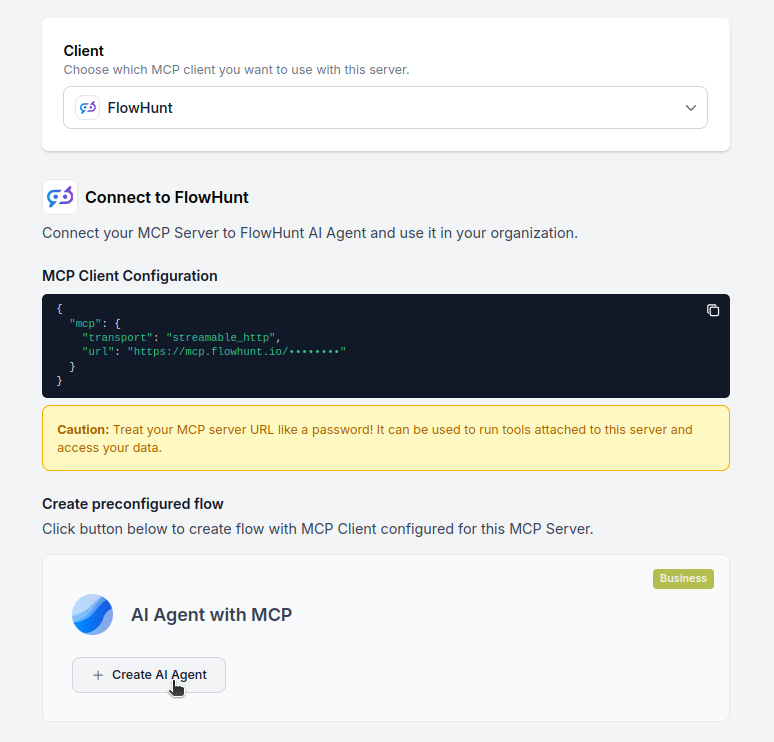
Activate: Save and activate your flow to begin automated operations.
Best for: Specific automation requirements or existing workflow enhancement
{
  "mcp": {
    "transport": "streamable_http",
    "url": "https://mcp.flowhunt.io/••••••••"
  }
}
Design Workflow: Create custom logic that leverages the MCP server tools:
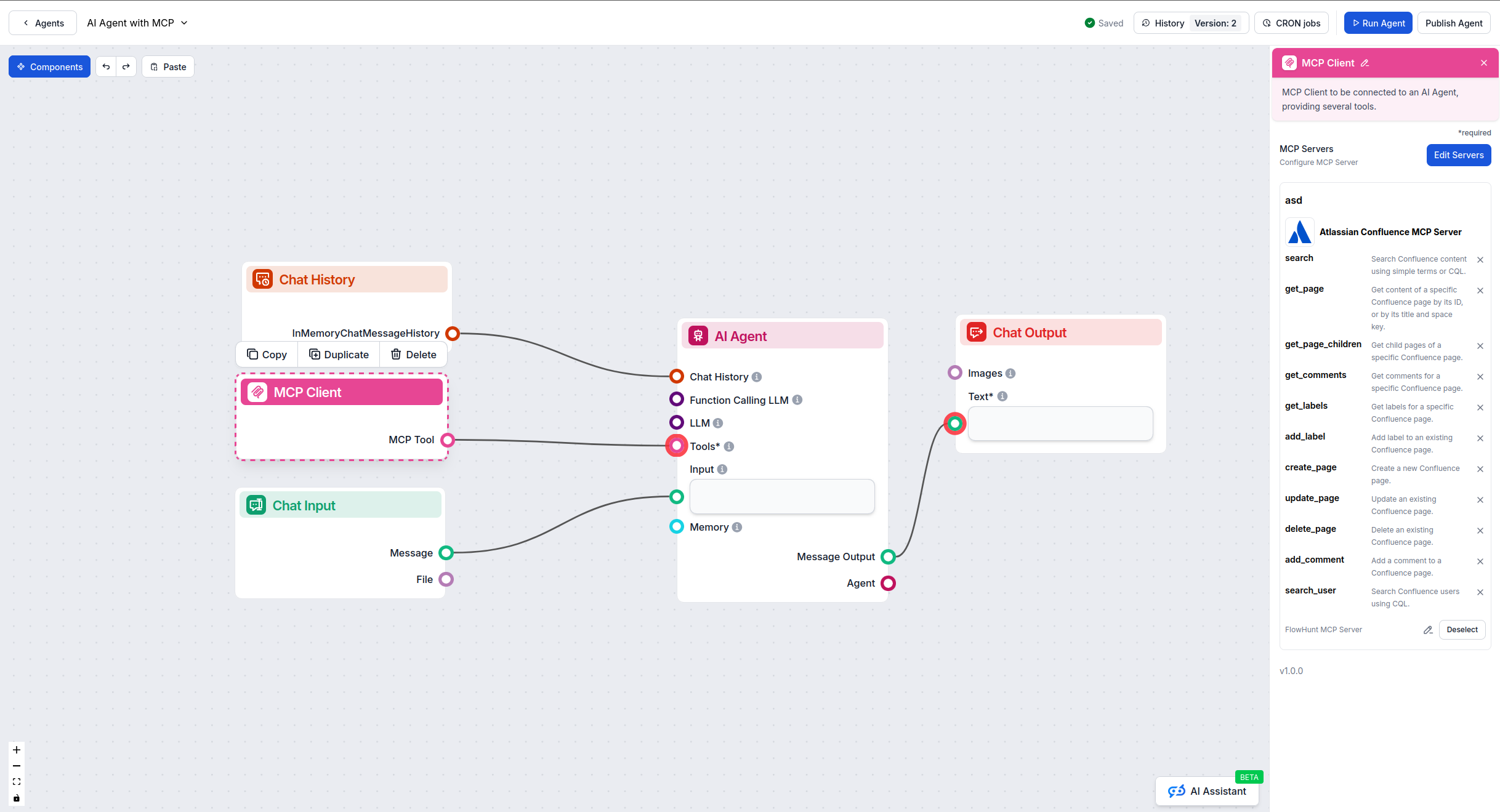
Deploy: Save your configuration and activate the flow.
Here are practical examples demonstrating how to use the Confluence MCP Server with your AI agents. These prompts showcase real-world documentation and knowledge management scenarios:
Search for all pages in the Engineering space that contain 'API documentation' and were updated in the last 30 days
Find all pages created by sarah@company.com in the Product space that have 'roadmap' in the title
Search for meeting notes from Q4 2025 across all spaces
Get the complete content of page ID 123456 including all metadata and formatting
Retrieve the 'Onboarding Guide' page from the HR space and summarize the key steps for new employees
Create a new page in the Engineering space titled 'Q1 2026 Sprint Planning' with a template for sprint goals, team capacity, and key deliverables
Create a meeting notes page for today's standup in the Development space with sections for blockers, completed items, and action items
Generate a new troubleshooting guide page in the Support space for common login issues based on recent support tickets
Update the 'Product Roadmap' page in the Product space to add the new features planned for next quarter
Append this week's engineering highlights to the existing Weekly Updates page in the Engineering space
Update the 'Team Directory' page to add three new team members with their roles and contact information
Create a release notes page for version 2.5.0 in the Product space and populate it with changes from the last sprint
Search for all pages with 'DRAFT' in the title and list them for review
Update the FAQ page in the Customer Support space by adding answers to the 5 most common questions from last month
Create a new troubleshooting article in the IT Support space for VPN connectivity issues with step-by-step resolution steps
Search for outdated documentation by finding all pages in the Technical Docs space that haven't been updated in over 6 months
These prompts demonstrate how Confluence MCP integration streamlines documentation workflows, from content creation and organization to knowledge sharing and team collaboration.
The Confluence MCP Server is purpose-built for agentic automation over your wiki and knowledge base — page search, create/update operations, release-notes generation, meeting-notes capture, and routine docs maintenance. If you also want agents to act on tickets, sprints and agile boards in the same Atlassian Cloud, pair it with the Atlassian Jira hosted MCP server — it targets the issue tracker rather than pages and spaces.
Start with one automation — agent-generated weekly engineering updates, runbook drafting from Slack threads, or release notes built from Jira tickets — then expand. Ready to get started? Connect Confluence to FlowHunt today and put AI in charge of your wiki content.
Unlock the power of AI-driven automation for your Confluence workspace. Easily manage pages, spaces, and content from within FlowHunt.
The Atlassian Jira MCP Server connects AI agents to Jira's issue tracker — search and JQL across projects, create and transition issues, manage sprints/boards/v...

Integrate Jira and Confluence with AI assistants using the Atlassian MCP Server. Enable smart project management, automate workflows, and allow AI to interact w...

The LiveAgent MCP Server enables seamless integration between AI tools and LiveAgent, allowing automated workflows to manage tickets, agents, and contacts direc...
Cookie Consent
We use cookies to enhance your browsing experience and analyze our traffic. See our privacy policy.