


Hosted MCP Server for Microsoft Planner
The Microsoft Planner MCP Server connects AI agents to team-based task boards in Microsoft 365 — list and create plans, organise tasks into buckets, assign work...
6 min read
AI
Microsoft Planner
+5

Hosted MCP server for Microsoft To Do — manage personal task lists, daily reminders, and Outlook flagged-email tasks from FlowHunt AI agents (use the Microsoft Planner MCP server instead for team-owned project boards and buckets).
Host MCP Servers using FlowHunt
FlowHunt’s platform lets users create AI Agents for any service without the usual hassles of MCP servers. Host MCP servers for any service, automate workflows, connect with external tools, and use analytics to improve performance. FlowHunt makes AI Agent creation simple and efficient for all users.
The Microsoft To Do MCP server is the right choice when an AI agent needs to manage a single user’s personal task lists — daily reminders, “My Day”, and especially the tasks Outlook creates when you flag emails for follow-up. If your use case is shared team boards with buckets, multi-assignees and Group ownership, use the Microsoft Planner MCP server — it targets a different Microsoft Graph surface (Group-scoped Planner, not the per-user Tasks API).
Access FlowHunt: Log in to your FlowHunt.io dashboard .
Navigate to Integrations: Find the “Integrations” section in the left sidebar.
Select Microsoft To Do: Click on the Microsoft To Do integration option to begin the setup process.

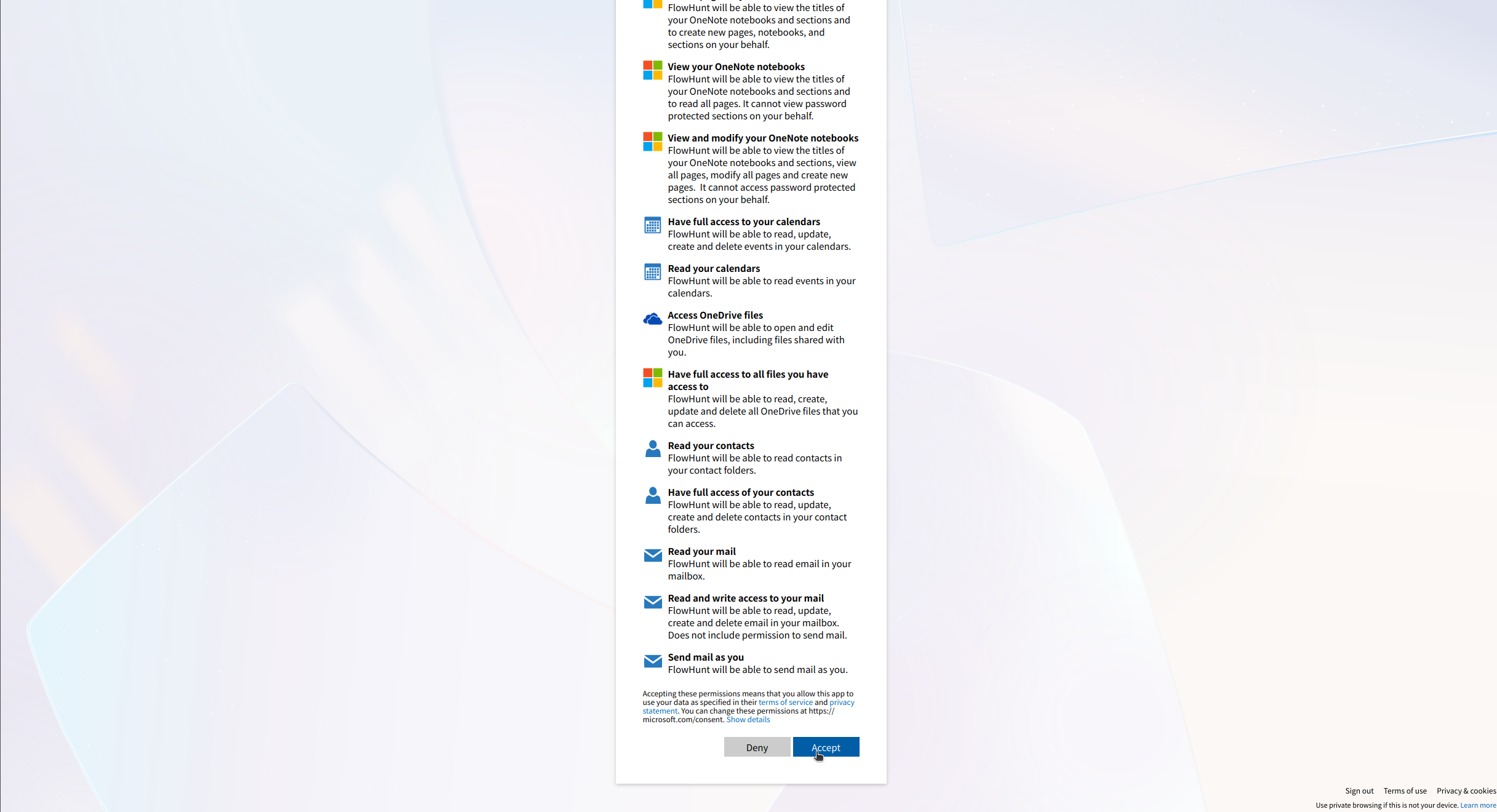
Integrate with Microsoft To Do: Click Integrate and sign in with the Microsoft account whose personal task lists you want to manage; this also covers tasks created from Outlook flagged emails.
💡 Pro Tip: Sign in as the individual whose lists you want to automate — Microsoft To Do is single-user-scoped. For shared project boards, switch to the Microsoft Planner MCP server.
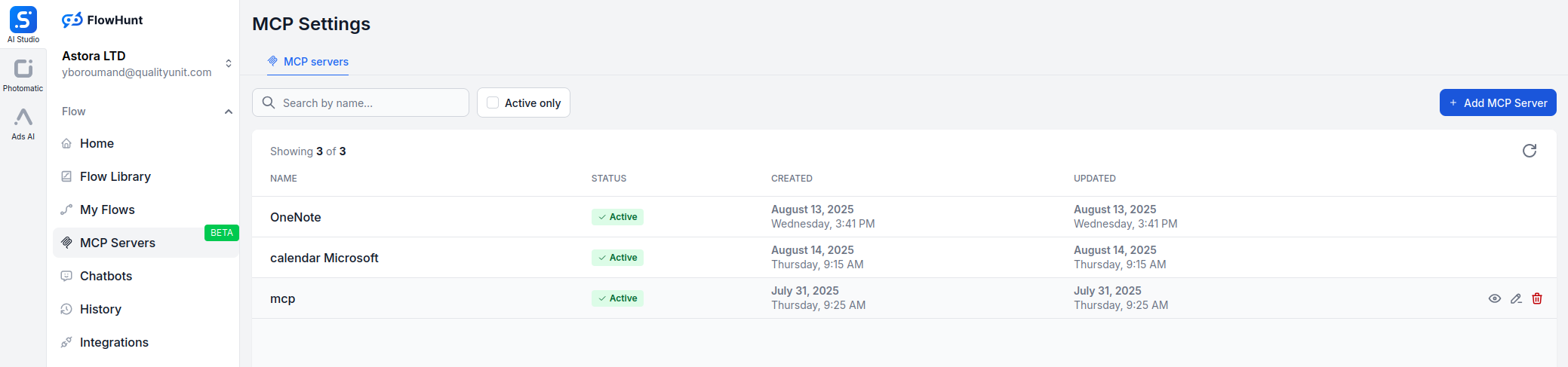
Navigate to MCP Servers: Go to the “MCP Servers” tab in your FlowHunt dashboard.
Add New Server: Click “Add New MCP Server”.
Select Microsoft To Do: Choose “Microsoft To Do MCP Server” from the available options.
Configure Server Tools: Select the tools you want to enable for your MCP server.

MCP INTEGRATION
The following tools are available as part of the Microsoft To Do MCP integration:
List all of the user's To Do task lists, including the default list, custom lists, and lists synced from Outlook flagged emails.
Get details of a specific Microsoft To Do task list, including its name and metadata.
Create a new Microsoft To Do task list for personal organisation (e.g. 'Personal Goals 2026').
List tasks in a To Do list — including those auto-created from Outlook flagged emails.
Get details of a specific task: title, body, due date, reminder time, importance, and completion state.
Create a new task in a personal To Do list with optional due date, reminder, importance, and notes.
Update an existing task — change title, body, due date, reminder, importance, or completion.
Mark a Microsoft To Do task as completed (or reopen it).
Delete a task from a personal To Do list.
List all checklist sub-items (steps) for a To Do task.
Add a checklist sub-step to a task — e.g. 'Download file' on a 'Review budget proposal' task.
Update or mark complete a checklist sub-step on a task.
📝 Note: You can modify or add tools later based on your evolving automation needs.

Start your free trial today and see results within days.
{
  "mcp": {
    "transport": "streamable_http",
    "url": "https://mcp.flowhunt.io/••••••••"
  }
}
Best for: Getting started quickly with proven automation patterns
Generate Flow: In your MCP Server configuration, click “Create Preconfigured Flow”.
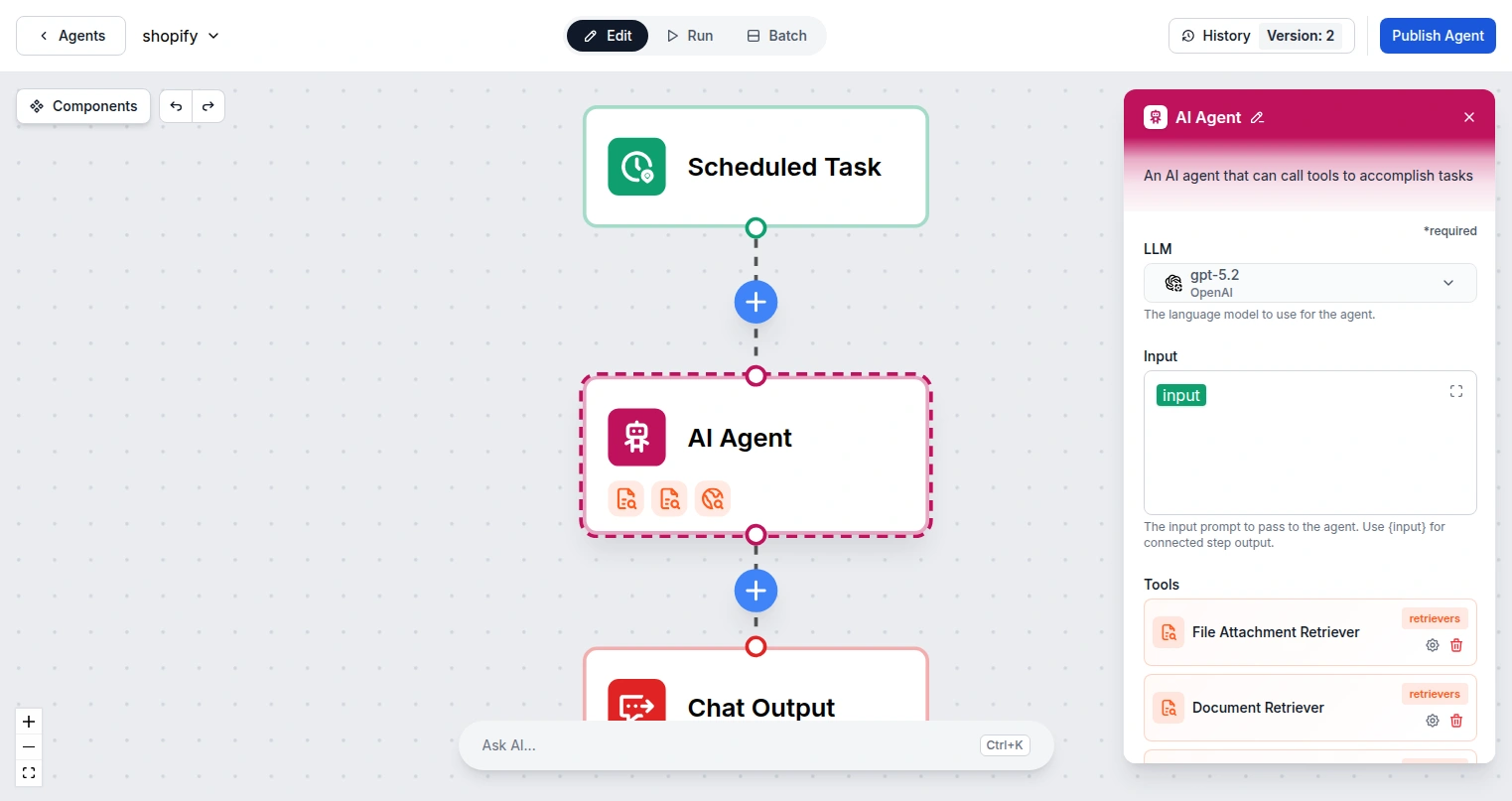
Select Template: Choose “AI Agent with MCP” to create a ready-to-use workflow.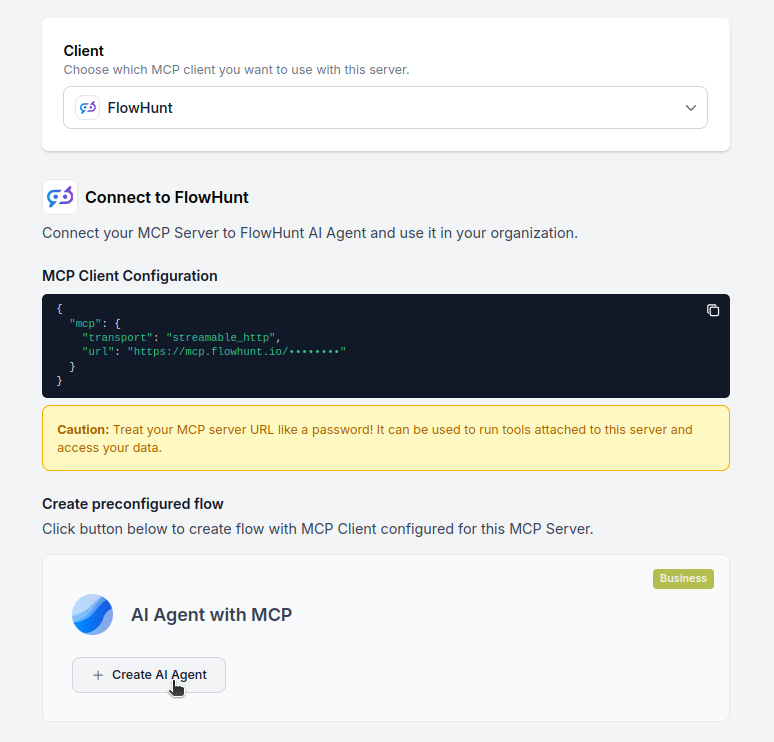
Customize Logic: Use FlowHunt’s visual flow builder to tailor the automation:
Activate: Save and activate your flow to begin automated operations.
Best for: Specific automation requirements or existing workflow enhancement
{
  "mcp": {
    "transport": "streamable_http",
    "url": "https://mcp.flowhunt.io/••••••••"
  }
}
Design Workflow: Create custom logic that leverages the MCP server tools:
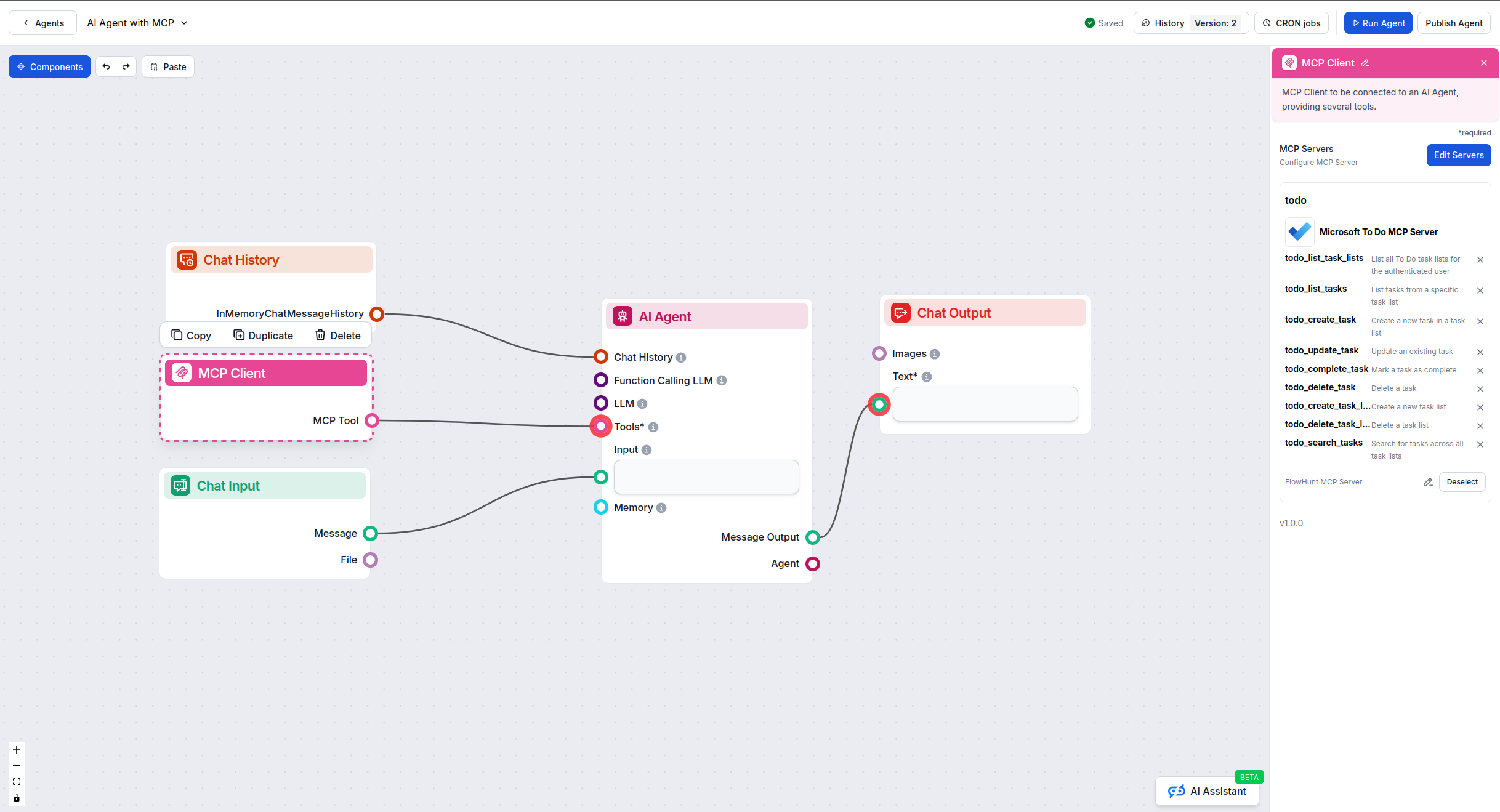
Deploy: Save your configuration and activate the flow.
Get latest tips, trends, and deals for free.
Below are practical examples showing how to manage your personal and team tasks naturally using the Microsoft To Do MCP Server.
Show me all my task lists
Create a new task list called "Personal Goals 2025"
Get all details for my "Work Projects" task list
Show me the "Shopping List" and all its items
Add a task "Buy groceries" to my Shopping List with a reminder for tomorrow at 5 PM
Create a task "Finish quarterly report" in Work Projects, mark it as important, and set the due date to Friday
Show me all tasks that are due this week across all my lists
Mark task "Call dentist" as completed
Update the "Team meeting prep" task to change the due date to next Monday
List all tasks marked as important that aren't completed yet
Show me overdue tasks in my Work Projects list
Find all tasks with "email" in the title or description
Create a task "Review budget proposal" with steps: "Download file", "Analyze numbers", "Prepare feedback", "Schedule meeting"
What tasks do I have scheduled for today?
Show me all my incomplete high-priority tasks
Add a quick task "Pick up dry cleaning" to my Errands list
List all tasks I added yesterday that are still pending
These prompts demonstrate how the Microsoft To Do MCP Server makes task management intuitive and efficient, allowing you to organize your work and personal life through simple, natural language interactions.
The Microsoft To Do MCP Server is purpose-built for personal productivity automation — daily planning, “My Day” curation, reminder triage, and acting on tasks generated from Outlook flagged emails. Unlike the Microsoft Planner MCP server (which targets shared team boards, buckets and multi-assignee Group plans), the To Do MCP server keeps every operation scoped to a single user’s task lists.
Start with one personal-productivity automation — a morning agent that reviews your lists and proposes “My Day”, an Outlook follow-up triager, or a smart capture for your shopping/errands lists — then expand. Ready to get started? Connect Microsoft To Do to FlowHunt today and let an AI agent run your personal task lists.
Unlock the power of AI-driven automation for your Microsoft To Do workspace. Easily manage task lists, tasks, and data from within FlowHunt.
The Microsoft Planner MCP Server connects AI agents to team-based task boards in Microsoft 365 — list and create plans, organise tasks into buckets, assign work...
Integrate FlowHunt with Microsoft To Do to automate personal task management. Let AI agents create task lists, add tasks, search, and update them across your Mi...
The Microsoft Calendar MCP Server enables seamless integration between AI tools and Microsoft Calendar, allowing automated workflows to manage events, calendars...
Cookie Consent
We use cookies to enhance your browsing experience and analyze our traffic. See our privacy policy.