


Weather MCP Server
The Weather MCP Server connects FlowHunt and AI assistants to rich, real-time weather data, forecasts, air quality, astronomy, and more via WeatherAPI, streamli...
5 min read
AI
MCP
+6

Integrate real-time and historical weather data into your AI workflows with the Weather MCP Server—no API keys required, fully open-source, and easy to set up.
FlowHunt provides an additional security layer between your internal systems and AI tools, giving you granular control over which tools are accessible from your MCP servers. MCP servers hosted in our infrastructure can be seamlessly integrated with FlowHunt's chatbot as well as popular AI platforms like ChatGPT, Claude, and various AI editors.
The Weather MCP Server is a Model Context Protocol (MCP) server that connects AI assistants with real-time and historical weather data by interfacing with the Open-Meteo API. Designed to enhance AI-driven development workflows, it allows AI agents to query current weather, retrieve weather information for specific date ranges, and obtain the current time in any specified timezone. By exposing these capabilities as tools, the Weather MCP Server enables seamless integration of external weather data into large language model (LLM) interactions, supporting use cases like travel planning, context-aware assistants, and data-driven automation—all without requiring API keys or credentials.
No prompt templates are listed or mentioned in the repository.

Start your free trial today and see results within days.
No explicit MCP resources are documented in the repository.
get_weather
Retrieves the current weather information for a specified city. Requires the city name as input.
get_weather_by_datetime_range
Fetches weather data for a given city between a start and end date (in YYYY-MM-DD format).
get_current_datetime
Returns the current time in a specified IANA timezone (e.g., “America/New_York”). Defaults to UTC if not specified.
Get latest tips, trends, and deals for free.
Travel Planning Assistants
Use real-time and forecasted weather data to help users plan trips, suggest optimal travel dates, or pack appropriately.
Event Scheduling
Integrate weather predictions to recommend suitable dates or locations for outdoor events, meetings, or activities.
Contextual AI Conversations
Enable chatbots or virtual assistants to provide context-aware responses based on current or historical weather conditions in a user’s location.
Data Analysis and Visualization
Retrieve historical weather data for analytical tools or dashboards to uncover trends or inform business decisions.
Smart Home Automation
Trigger actions (e.g., adjust thermostats, close windows) based on current or upcoming weather conditions provided by the server.
Ensure you have Python and pip installed.
Install the MCP Weather Server:pip install mcp_weather_server
Locate your Windsurf MCP configuration file (typically windsurf_mcp_settings.json).
Add the Weather MCP Server configuration:
{
  "mcpServers": {
    "weather": {
      "command": "python",
      "args": [
        "-m",
        "mcp_weather_server"
      ],
      "disabled": false,
      "autoApprove": []
    }
  }
}
Save the file and restart Windsurf.
Verify that the “weather” server appears in the MCP server list.
Install Python and pip if not already present.
Run pip install mcp_weather_server.
Edit your Claude MCP settings file (e.g., claude_mcp_settings.json).
Insert the following under the mcpServers key:
{
  "mcpServers": {
    "weather": {
      "command": "python",
      "args": [
        "-m",
        "mcp_weather_server"
      ],
      "disabled": false,
      "autoApprove": []
    }
  }
}
Save changes and restart Claude.
Check that the Weather MCP Server is available.
Make sure Python and pip are available.
Execute pip install mcp_weather_server.
Open your Cursor configuration file (cursor_mcp_settings.json).
Add the Weather MCP Server entry:
{
  "mcpServers": {
    "weather": {
      "command": "python",
      "args": [
        "-m",
        "mcp_weather_server"
      ],
      "disabled": false,
      "autoApprove": []
    }
  }
}
Save and restart Cursor.
Confirm the server is running in the MCP integrations panel.
Ensure Python and pip are installed.
Install the server using:pip install mcp_weather_server
Locate your cline_mcp_settings.json configuration file.
Add the following block:
{
  "mcpServers": {
    "weather": {
      "command": "python",
      "args": [
        "-m",
        "mcp_weather_server"
      ],
      "disabled": false,
      "autoApprove": []
    }
  }
}
Save the configuration file.
Restart Cline and verify the Weather MCP Server is active.
This server does not require API keys, as it uses the free and open-source Open-Meteo API. If API keys were needed, you would use environment variables in your configuration like this:
{
  "mcpServers": {
    "weather": {
      "env": {
        "API_KEY": "<YOUR_KEY>"
      },
      "inputs": {
        "api_key": "<YOUR_KEY>"
      }
    }
  }
}
Using MCP in FlowHunt
To integrate MCP servers into your FlowHunt workflow, start by adding the MCP component to your flow and connecting it to your AI agent:
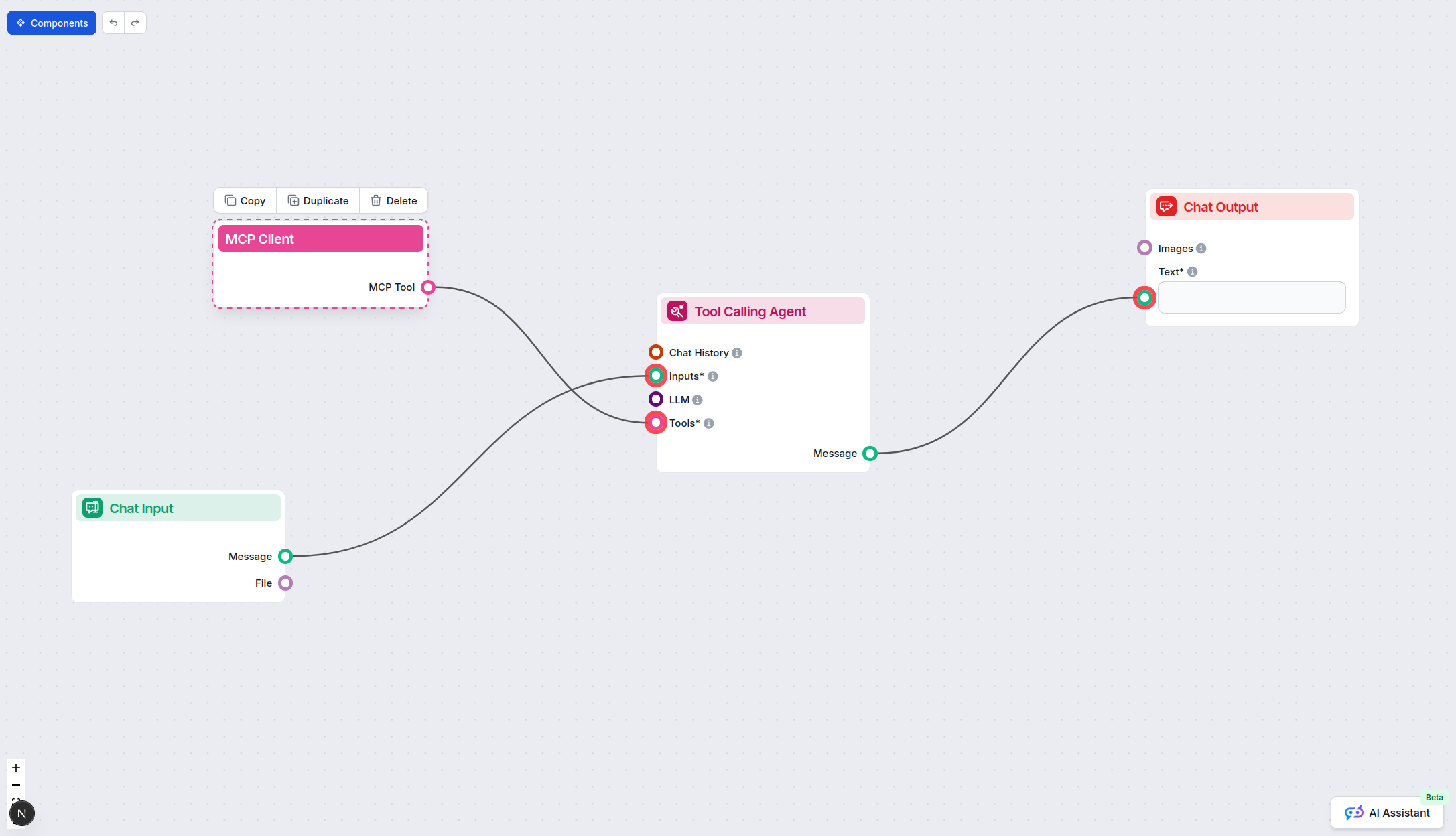
Click on the MCP component to open the configuration panel. In the system MCP configuration section, insert your MCP server details using this JSON format:
{
  "weather": {
    "transport": "streamable_http",
    "url": "https://yourmcpserver.example/pathtothemcp/url"
  }
}
Once configured, the AI agent is now able to use this MCP as a tool with access to all its functions and capabilities. Remember to change “weather” to whatever the actual name of your MCP server is and replace the URL with your own MCP server URL.
| Section | Availability | Details/Notes |
|---|---|---|
| Overview | ✅ | |
| List of Prompts | ⛔ | No prompt templates documented |
| List of Resources | ⛔ | No explicit MCP resources listed |
| List of Tools | ✅ | 3 tools: get_weather, get_weather_by_datetime_range, get_current_datetime |
| Securing API Keys | ✅ | Not required; example for env vars provided |
| Sampling Support (less important in evaluation) | ⛔ | Not mentioned |
Based on the above, the Weather MCP Server offers solid core functionality (tools), clear setup, and is open source, but lacks advanced MCP features like resources, prompt templates, or sampling. Its utility is straightforward and easy to use. I would rate this MCP server a 6/10 for general-purpose integration—great for weather, but limited in MCP extensibility.
| Has a LICENSE | ✅ (Apache-2.0) |
|---|---|
| Has at least one tool | ✅ |
| Number of Forks | 8 |
| Number of Stars | 7 |
Power up your AI agents with live weather data and historical insights. Start using the Weather MCP Server for smarter, context-aware automations.
The Weather MCP Server connects FlowHunt and AI assistants to rich, real-time weather data, forecasts, air quality, astronomy, and more via WeatherAPI, streamli...

The OpenWeather MCP Server connects AI assistants to real-time weather data using the OpenWeatherMap API. It enables retrieval of current weather and 5-day fore...

The iMCP MCP Server bridges AI assistants with your Mac's native apps, providing secure access to Messages, Contacts, Calendar, Reminders, Weather, Maps, and mo...
Cookie Consent
We use cookies to enhance your browsing experience and analyze our traffic. See our privacy policy.