How to Get Great Results with Copilot in PowerPoint
Practical guidance on prompting, refining and collaborating with Copilot to build strong presentations.
Beginner
Copilot
PowerPoint
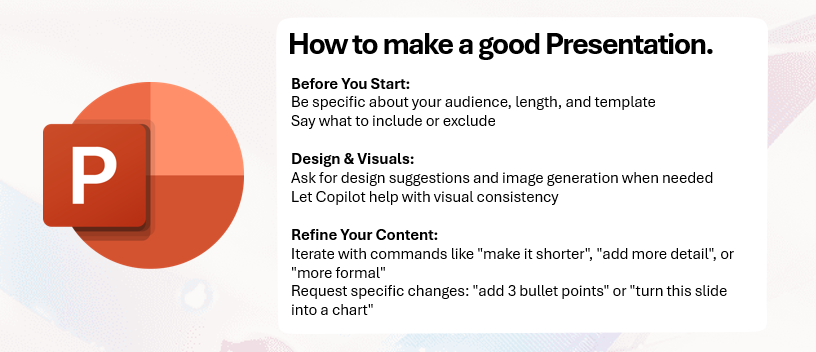
To get strong results from Copilot in PowerPoint, the key is clear instructions and iterative refinement. Copilot can support you with structure, writing and visuals, but the quality of the outcome improves when you guide it with specific information.
Here are the three key points:
Provide specific instructions about audience, length and style.
Use Copilot for visuals and design support.
Iterate and refine until the deck fits exactly what you need.
Before generating anything, tell Copilot exactly what you want. Include details such as:
Who the audience is
How long the presentation should be
What template or style you prefer
If there are sections you do not want, say so directly. For example: exclude financial details or remove product history. The clearer the instructions, the stronger the first draft.
Ask Copilot to generate images and design elements
Copilot can support your design process by creating visuals on demand. You can request:
Images
Illustrations
Icons
For example, generate an image of a modern office space. Copilot produces visuals that match the content of your slides, which speeds up your design workflow.
Ready to grow your business?
Start your free trial today and see results within days.
Your first draft will rarely be perfect. Copilot is designed to respond to refinement. You can ask it to:
Make the content shorter
Add more detail
Change the tone to be more formal or casual
Add a set number of bullet points
Turn a slide into a chart
This iterative process lets you shape the presentation step by step while Copilot handles the writing and layout adjustments.
Treat Copilot as a collaborative partner
You bring subject knowledge. Copilot brings drafting speed and design support. Together, you can create a strong presentation far faster than working alone. Use Copilot to handle structure, improve visuals and adjust tone while you focus on the message you want to deliver.
Join our newsletter
Get latest tips, trends, and deals for free.
Summary
Be specific about audience, length, style and exclusions.
Ask Copilot to generate images and design elements.
Use iteration to refine tone, detail and structure.
Request precise edits such as extra bullet points or chart conversions.
Treat Copilot as an assistant who helps you create a polished deck quickly.
Getting Started with Copilot in PowerPoint: Capabilities and Workflow
A progressive guide to Copilot in PowerPoint — from drafting your first deck and using inline actions to generating outlines from data, applying templates, and ...
How to Instantly Generate a Simple Speech using Copilot
A super-easy, step-by-step guide for anyone who needs to write and deliver a short speech using Microsoft Copilot. No writing skills or experience required—just...
3 min read
Use Case
Beginner
+1
Cookie Consent We use cookies to enhance your browsing experience and analyze our traffic. See our privacy policy.