



Core Capabilities of Copilot in Outlook
A clear overview of how Copilot supports writing, tone, clarity, and communication inside Outlook.
4 min read
Beginner
Copilot
+1

Use Microsoft Copilot to reply to emails faster — start with a simple copy/paste workflow, then graduate to the built-in Copilot reply button in Outlook for context-aware drafts in seconds.
Replying to emails doesn’t have to be slow or stressful! With Copilot, you can generate a thoughtful response in seconds, no need to write from scratch. If you want to save time or find the right words, let AI help you sound professional and clear every time.
Learning to reply to emails with Copilot is easy, even if you’re brand new to AI. This guide walks you through the basics so you can reply faster, avoid mistakes, and look professional with minimal effort.
Open your inbox and find the email you want to answer. Highlight the entire message (just the part you want to reply to), then copy it.

Go to the Copilot 365. Paste the copied email into the input box. Copilot needs to see the original message so it knows what you’re responding to.
Just below the pasted email, type a short instruction for Copilot. For example:
Our Example:
Hi Luce,Hope you’re doing well. I wanted to quickly check in regarding the onboarding timeline for the new FlowHunt clients we discussed last week.
Jessica Tran from Marketing mentioned that the client materials were finalized on Monday. Do you know if the implementation team has already received the updated documentation? We’re aiming to have the kickoff calls scheduled by early next week, so just trying to ensure everything’s aligned on our side.
Also, could you confirm whether anyone has been assigned as the primary technical point of contact for the Greenwave account?
Appreciate your help—no rush, but ideally by EOD tomorrow if possible. Thanks,
Darren Patel
Client Success Lead
Voice of AI
darren.patel@voiceofai.coReply to this email confirming the docs were sent and Alex Kim is the tech contact.
Click “Generate” or “Submit.” In a few seconds, you’ll see a draft reply. Read it over and make any quick edits you want.
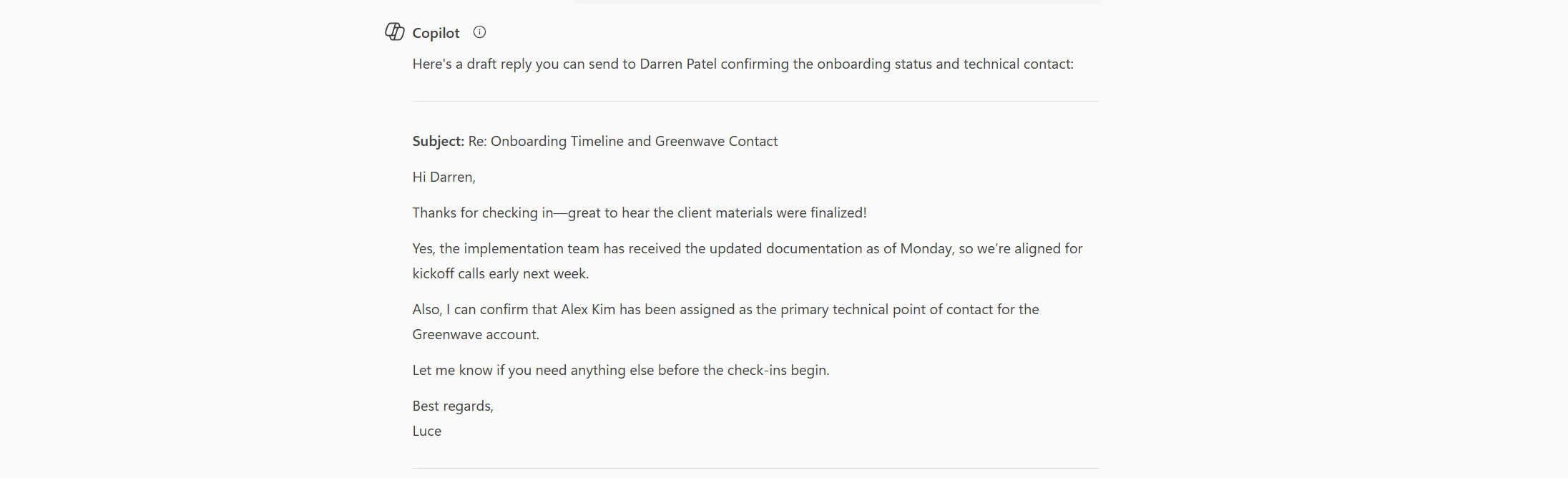
For professionals who handle a high volume of emails, Microsoft Copilot’s Outlook integration is a game-changer. Instead of manually crafting replies or relying on generic templates, you can use the built-in Copilot reply button to generate tailored responses in seconds. Here’s how to leverage this tool for faster, more polished inbox management.
After logging into your Outlook account (web or desktop), select any email you want to reply to. You’ll notice a Copilot icon, often a sparkle or Copilot logo, directly in the email action bar, to find the draft option, you need first press Reply to the given email.
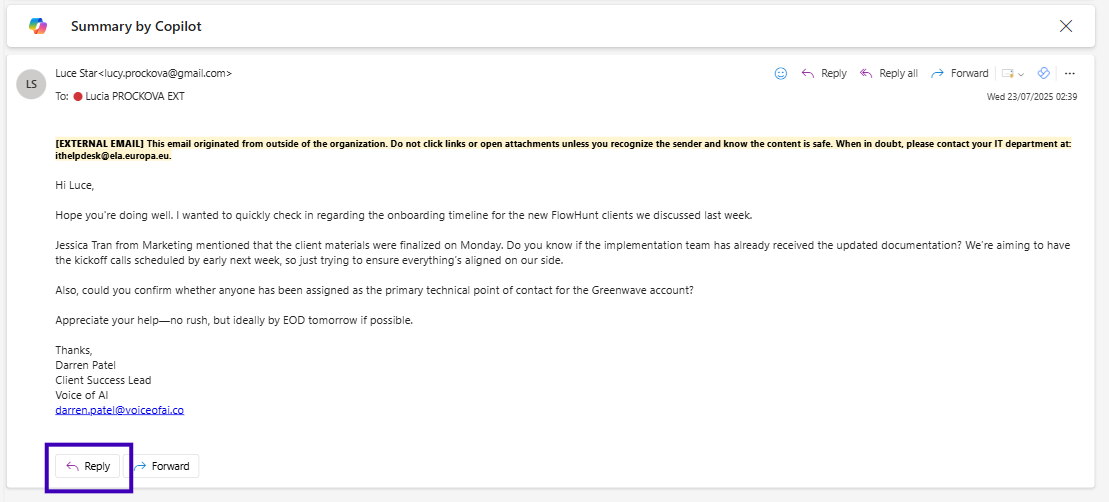
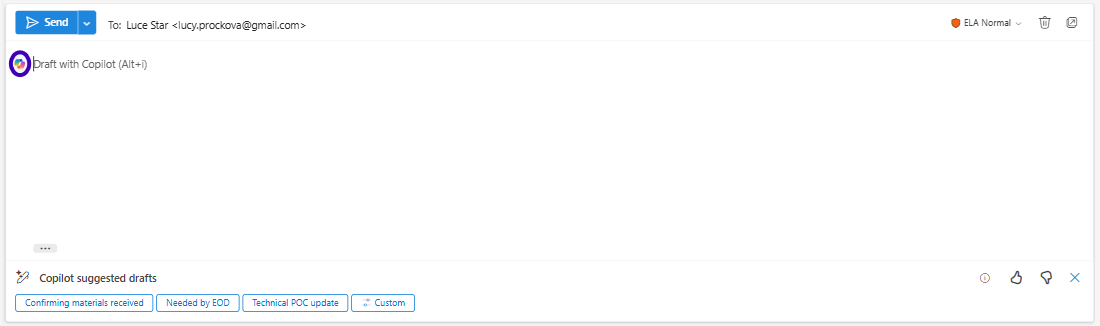
Here you can see next to your first line a Copilot Button which when pressed will instantly analyze the email’s content and draft a suggested reply, tailored to the conversation’s context, no manual copying or pasting required.
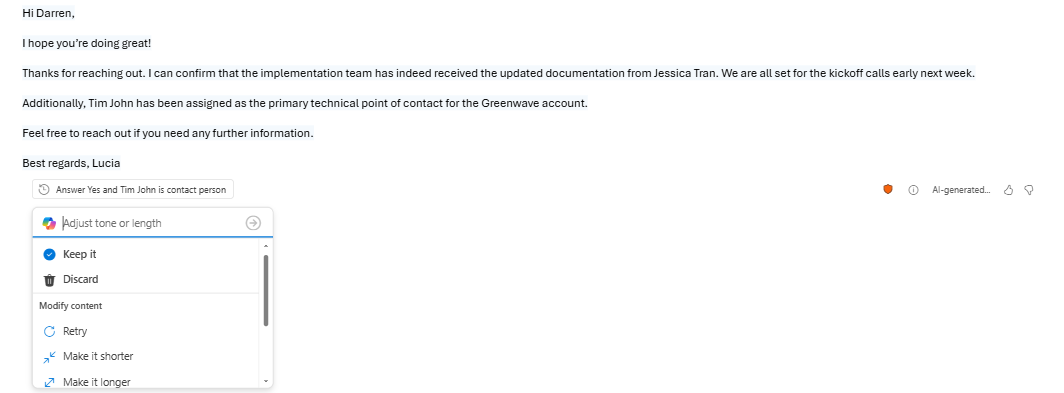
Inside the draft itself you will be able to review the AI-generated reply and ask Copilot to reword it further. You can make it more formal, concise, or friendly using built-in options. Ask Copilot for further adjustments or clarify the tone you want. Once you are happy with your answer, you are done and you can send the email!

Start your free trial today and see results within days.
| PROS | CONS |
|---|---|
| Instantly generates replies using full email context | Requires paid Outlook with Copilot enabled (not all versions supported) |
| No copying/pasting or switching apps needed | Drafts may still need review and light edits |
| Saves time for professionals with heavy email loads | May occasionally misinterpret tone or intent |
| Built directly into Outlook for seamless workflow | Limited customization compared to advanced prompt engineering |
| Consistent, polished responses every time | AI suggestions depend on email clarity |
Using Microsoft Copilot’s built-in reply feature in Outlook, professionals can respond to emails faster and more effectively, without ever leaving their inbox. By leveraging AI’s contextual understanding, you’ll maintain high-quality communications, save valuable time, and focus on more important tasks. Start using Copilot replies today to transform your inbox workflow.
Want to automate more of your daily communication? Explore ready-made AI templates for business communication and see how much time you can save.
👉 Check out the AI Email Generator Template
A clear overview of how Copilot supports writing, tone, clarity, and communication inside Outlook.

A clear beginner friendly overview of how Copilot supports you across Microsoft 365.
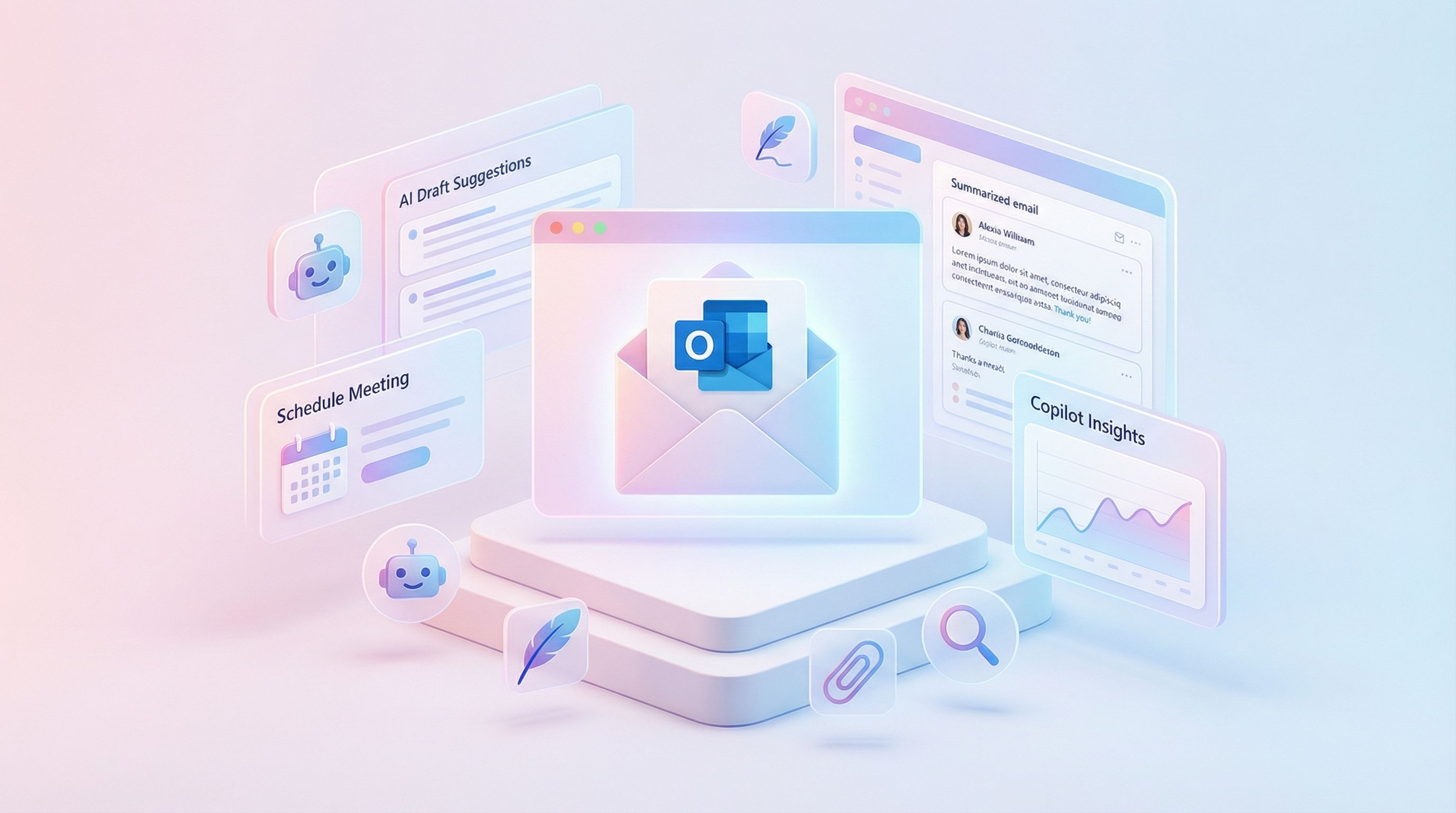
A beginner friendly walkthrough of how the Copilot interface in Outlook helps you summarise threads, draft responses and navigate your inbox efficiently.
Cookie Consent
We use cookies to enhance your browsing experience and analyze our traffic. See our privacy policy.