



How to Get Great Results with Copilot in PowerPoint
Practical guidance on prompting, refining and collaborating with Copilot to build strong presentations.
2 min read
Beginner
Copilot
+1

A progressive guide to Copilot in PowerPoint — from drafting your first deck and using inline actions to generating outlines from data, applying templates, and producing speaker notes.
Copilot in PowerPoint helps you create presentations with far less manual work. You can generate full slide decks from a prompt, refine your wording, and extend your content without leaving the app. This progressive guide walks from a first prompt to advanced capabilities — outlines from your files, template enforcement, speaker notes, and consistency checks.
Here are the three key points to remember:
Read more AI Academy stories:
https://www.flowhunt.io/academy/
Copilot in PowerPoint can build a complete presentation, then act as your in-app assistant while you polish each slide.
Copilot can build a complete presentation for you. Type a short instruction such as create a presentation about our Q2 marketing strategy, then add any extra details or reference files from your Drive. Once the content looks right, select Generate and Copilot will produce the full design.
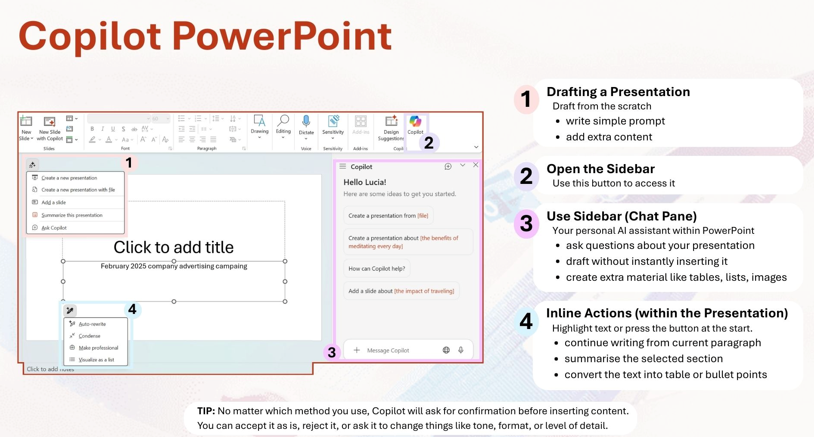
The sidebar acts as your personal assistant while you work. You can ask questions about your slide content, request better wording or generate new material without switching context. It supports:
It feels like having a colleague next to you who can instantly propose variations and improvements.
Inline actions let you improve specific text directly on the slide. Select any sentence or paragraph, then use options like Auto rewrite, Make it perfect, or provide your own prompt.
You can ask Copilot to:
Copilot will always show a preview so you remain in control. You can accept, reject or adjust the tone and detail before anything is inserted.
Every action requires confirmation. Copilot will never insert text automatically, which means you always decide how the final presentation looks. You can refine the draft, ask for alternatives or remove suggestions entirely.
Once you’re comfortable with the quick-start workflow, Copilot in PowerPoint offers a much wider toolkit — from outlining decks based on internal data to enforcing templates and producing speaker notes.
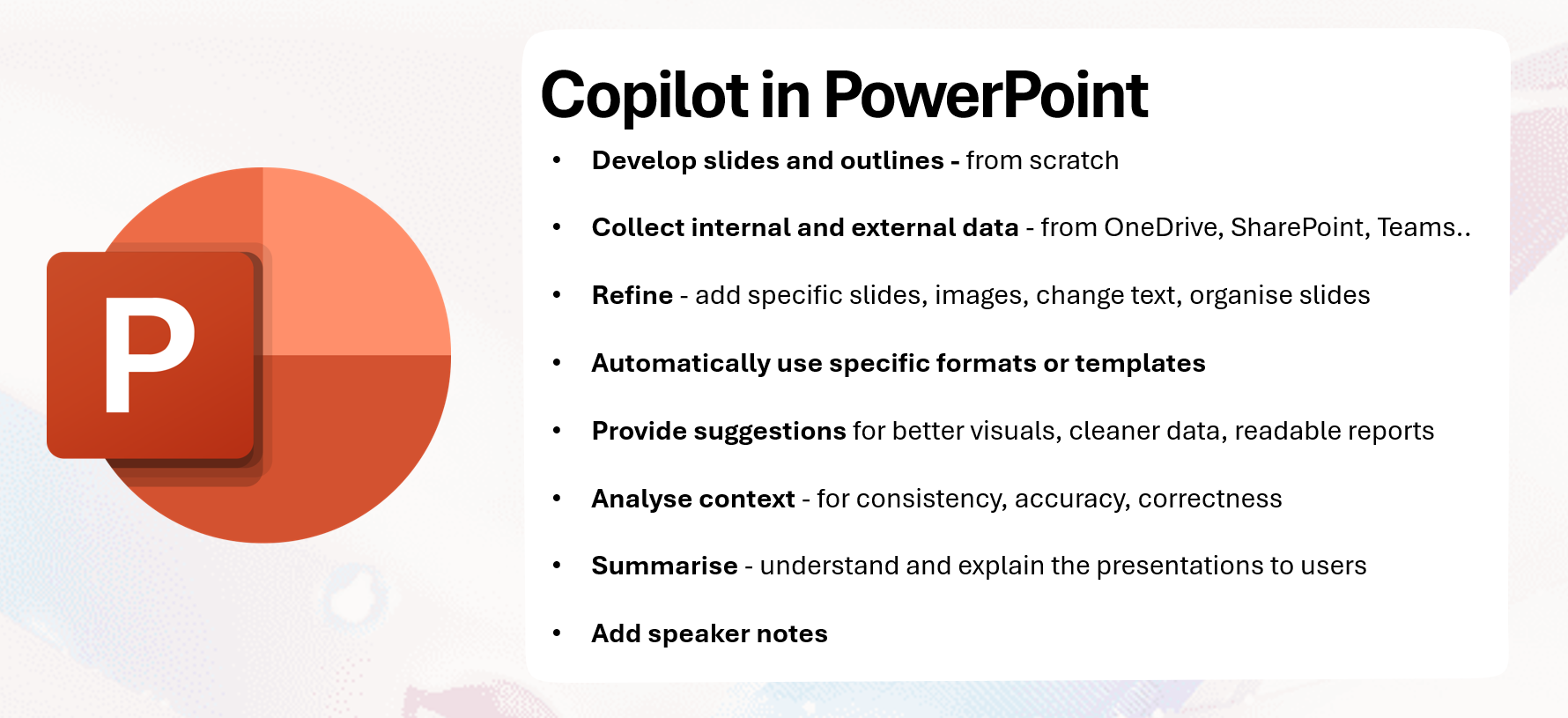
Copilot can develop a full slide outline starting from a blank file. Use Create new presentation and describe the audience and purpose of the deck. Copilot will propose:
If you want visuals early, ask it to generate simple illustrations or icons that match each slide.
Copilot can read context from OneDrive, SharePoint and Teams when you work in Work mode. Attach or select files and it can pull:
If you switch to Web mode, it can add public background information. Keep the two sources clearly separated and tell Copilot which files to prioritise.
Copilot can enhance your draft deck through the sidebar or inline actions. You can:
You can also request new slides for missing steps, new images, or replacements for unclear visuals. Dense text can be converted into charts, suggestions or comparison layouts.
Your deck can follow a specific organisational template. Copilot can apply:
or use any premade design. It can also propose clearer visuals, better chart types, cleaner tables and improved labels. If a table looks cluttered, Copilot may recommend a chart with clearer axis labels.
Copilot can analyse your presentation for consistency:
Ask Copilot to list mismatches and propose corrections so you can approve each change.
Use the sidebar to produce:
This is useful for training sessions and virtual presentations when you need a fast overview.
Copilot can write speaker notes for all slides or only the current one. You can set:
Then refine the notes for clarity or emphasis. Copilot can also turn notes into a full presenter script.

Start your free trial today and see results within days.
If you want to master Copilot from the ground up and learn every essential skill for real world productivity, explore our Microsoft 365 Copilot Essentials training programme:
https://www.flowhunt.io/services/ai-training/microsoft-365-copilot-essentials/
Practical guidance on prompting, refining and collaborating with Copilot to build strong presentations.

A clear overview of the key capabilities Copilot brings into Microsoft Word to help you draft, analyse, and refine content.

A clear introduction to the three main ways you can use Copilot inside Microsoft Word.
Cookie Consent
We use cookies to enhance your browsing experience and analyze our traffic. See our privacy policy.