


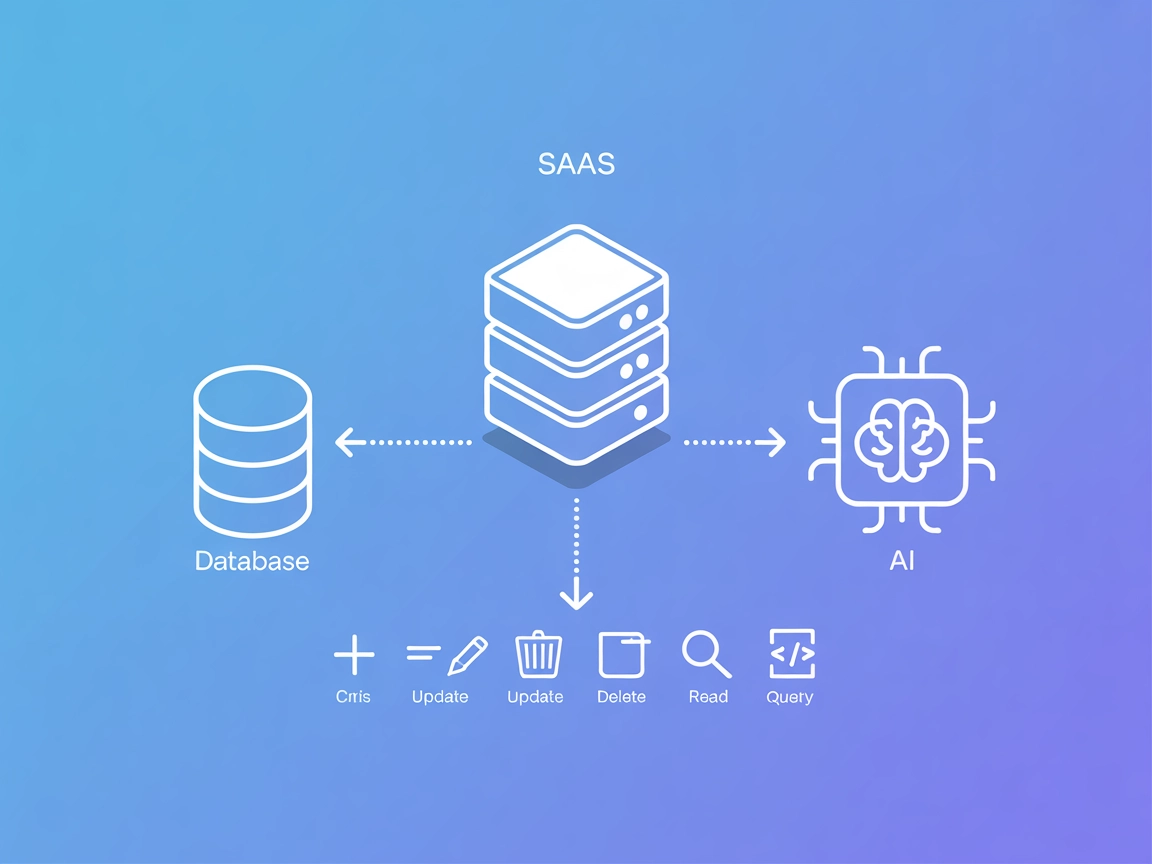
Couchbase MCP Server
The Couchbase MCP Server connects AI agents and LLMs directly to Couchbase clusters, enabling seamless natural language database operations, automated managemen...
5 min read
MCP Server
Database
+4
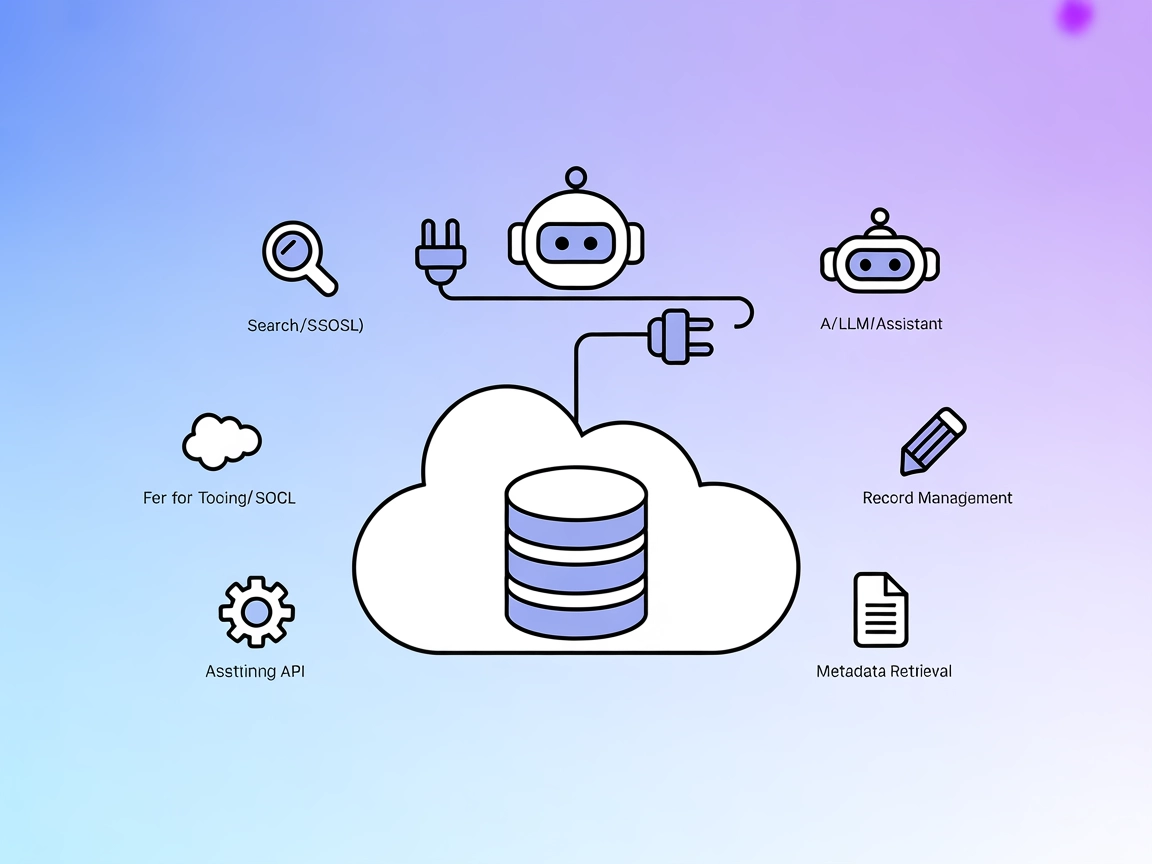
FlowHunt’s Salesforce MCP Server provides AI-native access to Salesforce data, APIs, and automation tools, empowering developers to supercharge CRM workflows and automate business processes with ease.
The Salesforce MCP (Model Context Protocol) Server acts as a connector that allows AI assistants and large language models (LLMs) to interact directly with Salesforce data. By exposing Salesforce’s rich set of APIs, this server enables development workflows such as querying databases with SOQL, searching with SOSL, retrieving metadata, managing records, and executing tooling or REST API requests. It streamlines the integration between AI clients and Salesforce, empowering developers and AI agents to automate business processes, extract insights, and manage Salesforce resources programmatically. This connectivity enhances productivity by making Salesforce’s data and services accessible in any AI-driven workflow.
No explicit prompt templates are mentioned in the repository.

Start your free trial today and see results within days.
No specific MCP “resources” are enumerated in the available documentation.
Get latest tips, trends, and deals for free.
Ensure uvx and the MCP Salesforce connector are installed.
Open your Windsurf configuration file (e.g., windsurf_config.json).
Add the Salesforce MCP Server under the mcpServers section:
{
  "mcpServers": {
    "salesforce": {
      "command": "uvx",
      "args": [
        "--from",
        "mcp-salesforce-connector",
        "salesforce"
      ],
      "env": {
        "SALESFORCE_ACCESS_TOKEN": "SALESFORCE_ACCESS_TOKEN",
        "SALESFORCE_INSTANCE_URL": "SALESFORCE_INSTANCE_URL"
      }
    }
  }
}
Save the configuration and restart Windsurf.
Verify the setup by running a test Salesforce query.
Note: Secure your Salesforce credentials using environment variables, as shown above.
Install uvx and ensure the MCP Salesforce connector is available.
Edit claude_desktop_config.json.
Add the following under mcpServers:
{
  "mcpServers": {
    "salesforce": {
      "command": "uvx",
      "args": [
        "--from",
        "mcp-salesforce-connector",
        "salesforce"
      ],
      "env": {
        "SALESFORCE_ACCESS_TOKEN": "SALESFORCE_ACCESS_TOKEN",
        "SALESFORCE_INSTANCE_URL": "SALESFORCE_INSTANCE_URL"
      }
    }
  }
}
Save changes and restart Claude.
Run a SOQL query to confirm the server is connected.
Note: Use environment variables for Salesforce credentials as shown.
Install uvx and the Salesforce MCP connector.
Access the Cursor MCP configuration file.
Add the Salesforce server in the mcpServers section:
{
  "mcpServers": {
    "salesforce": {
      "command": "uvx",
      "args": [
        "--from",
        "mcp-salesforce-connector",
        "salesforce"
      ],
      "env": {
        "SALESFORCE_ACCESS_TOKEN": "SALESFORCE_ACCESS_TOKEN",
        "SALESFORCE_INSTANCE_URL": "SALESFORCE_INSTANCE_URL"
      }
    }
  }
}
Save and restart Cursor.
Test with a sample Salesforce operation.
Note: Secure API keys using environment variables as above.
Install prerequisites (uvx and connector package).
Edit the Cline MCP configuration file.
Insert the following configuration:
{
  "mcpServers": {
    "salesforce": {
      "command": "uvx",
      "args": [
        "--from",
        "mcp-salesforce-connector",
        "salesforce"
      ],
      "env": {
        "SALESFORCE_ACCESS_TOKEN": "SALESFORCE_ACCESS_TOKEN",
        "SALESFORCE_INSTANCE_URL": "SALESFORCE_INSTANCE_URL"
      }
    }
  }
}
Restart Cline and ensure the server is active.
Verify with a basic Salesforce REST API call.
Note: Always secure credentials using environment variables in the “env” section.
{
  "mcpServers": {
    "salesforce": {
      "command": "uvx",
      "args": [
        "--from",
        "mcp-salesforce-connector",
        "salesforce"
      ],
      "env": {
        "SALESFORCE_ACCESS_TOKEN": "your-access-token-here",
        "SALESFORCE_INSTANCE_URL": "https://your-instance.salesforce.com"
      }
    }
  }
}
Using MCP in FlowHunt
To integrate MCP servers into your FlowHunt workflow, start by adding the MCP component to your flow and connecting it to your AI agent:
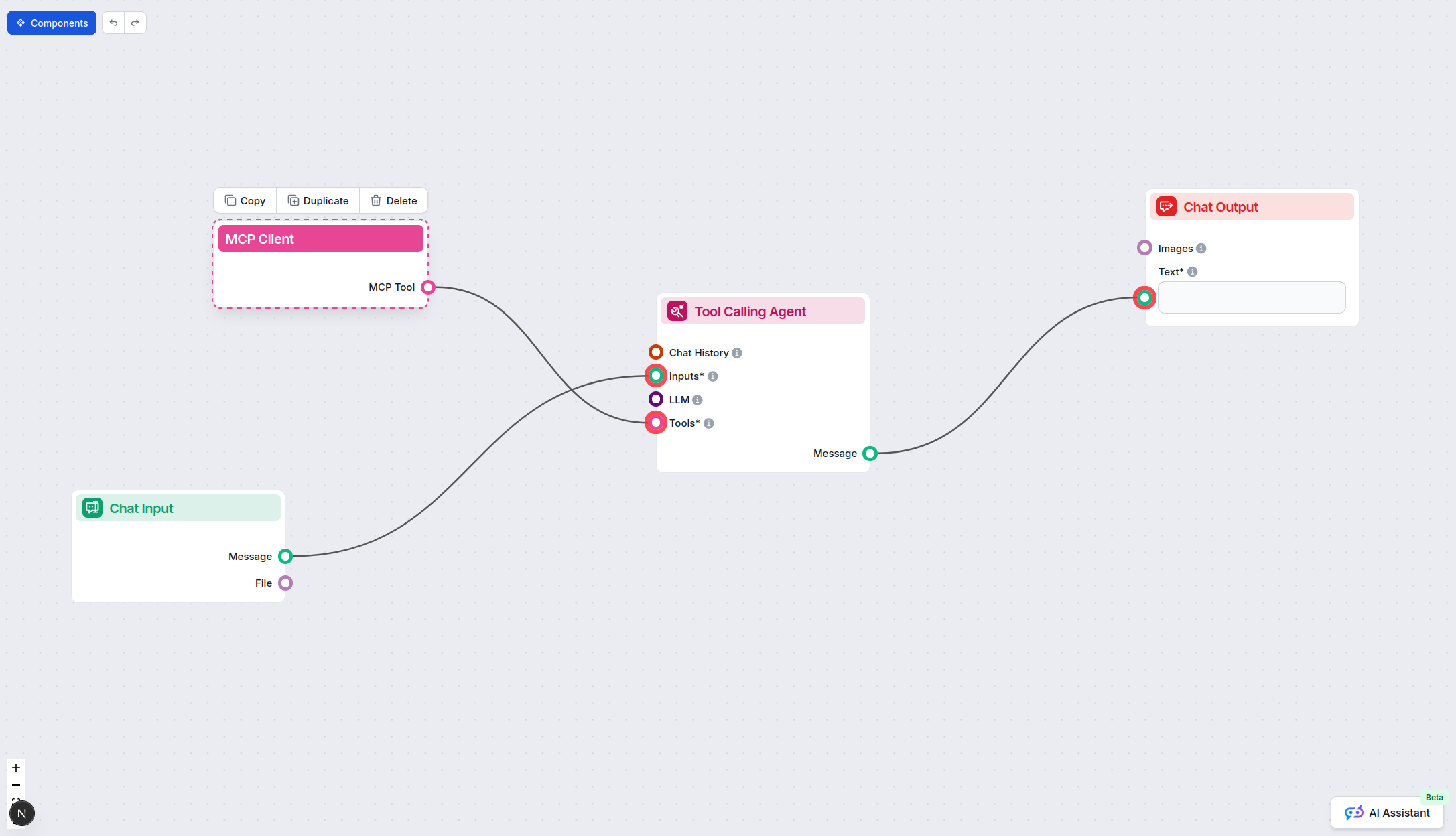
Click on the MCP component to open the configuration panel. In the system MCP configuration section, insert your MCP server details using this JSON format:
{
  "salesforce": {
    "transport": "streamable_http",
    "url": "https://yourmcpserver.example/pathtothemcp/url"
  }
}
Once configured, the AI agent is now able to use this MCP as a tool with access to all its functions and capabilities. Remember to change “salesforce” to whatever the actual name of your MCP server is and replace the URL with your own MCP server URL.
| Section | Availability | Details/Notes |
|---|---|---|
| Overview | ✅ | Description in README.md |
| List of Prompts | ⛔ | No explicit prompt templates listed |
| List of Resources | ⛔ | No MCP “resources” enumerated |
| List of Tools | ✅ | Tool functions described in README.md |
| Securing API Keys | ✅ | Environment variable usage shown |
| Sampling Support (less important in evaluation) | ⛔ | Not mentioned |
Based on the above tables, the Salesforce MCP Server is well-documented for setup and describes its tools thoroughly, but lacks explicit information on prompt templates, resource primitives, and sampling/roots support. Its developer focus and clear authentication setup make it a strong option, though not fully featured by MCP standards.
| Has a LICENSE | ✅ (MIT) |
|---|---|
| Has at least one tool | ✅ |
| Number of Forks | 37 |
| Number of Stars | 96 |
Connect your AI agents to Salesforce using FlowHunt’s Salesforce MCP Server for seamless data management, automated insights, and powerful integrations.
The Couchbase MCP Server connects AI agents and LLMs directly to Couchbase clusters, enabling seamless natural language database operations, automated managemen...
The MSSQL MCP Server connects AI assistants with Microsoft SQL Server databases, enabling advanced data operations, business intelligence, and workflow automati...
The Solr Search MCP Server integrates Large Language Models (LLMs) with Apache Solr, enabling secure, authenticated, and type-safe search and retrieval of docum...
Cookie Consent
We use cookies to enhance your browsing experience and analyze our traffic. See our privacy policy.