


Google Tasks MCP 服务器
Google Tasks MCP 服务器桥接了AI助手与Google Tasks,实现通过标准化协议动作直接无缝管理和自动化任务。非常适合工作流自动化、生产力工具和个人助手集成。...
2 分钟阅读
AI
MCP
+5

将 AI 代理连接到 Google Workspace,实现端到端工作流自动化,以及智能访问文档、日历、邮件和协作工具。
Google Workspace MCP 服务器是一款全面、高性能的模型上下文协议(MCP)服务器,可无缝连接 AI 助手和大型语言模型与各类 Google Workspace 服务。它为日历、Gmail、文档、表格、幻灯片、聊天、表单和云端硬盘等提供完整支持,使开发者能够创建可编程访问、修改和交互 Google Workspace 数据的工作流。通过标准化的 MCP 工具和资源,可以实现如查询日历事件、管理邮件、处理文档、协作表格,以及与聊天和表单集成等任务。这极大提升了依赖 Google Workspace 的组织中 AI 驱动应用的生产力和自动化能力。
仓库文件或文档中未明确提及提示词模板。
现有仓库内容中未详细列出 MCP 资源清单。
根据文件夹结构和功能描述,Google Workspace MCP 服务器大概率提供如下与各 Google Workspace 产品对应的工具:

免费获取最新提示、趋势和优惠。
windsurf.config.json)。mcpServers 下添加 Google Workspace MCP 服务器:{
"mcpServers": {
"google-workspace": {
"command": "npx",
"args": ["@google-workspace/mcp-server@latest"]
}
}
}
{
"mcpServers": {
"google-workspace": {
"command": "npx",
"args": ["@google-workspace/mcp-server@latest"],
"env": {
"GOOGLE_API_KEY": "${GOOGLE_API_KEY}"
},
"inputs": {}
}
}
}
{
  "mcpServers": {
    "google-workspace": {
      "command": "npx",
      "args": ["@google-workspace/mcp-server@latest"]
    }
  }
}
{
  "mcpServers": {
    "google-workspace": {
      "command": "npx",
      "args": ["@google-workspace/mcp-server@latest"],
      "env": {
        "GOOGLE_API_KEY": "${GOOGLE_API_KEY}"
      },
      "inputs": {}
    }
  }
}
mcpServers 下添加以下内容:{
"mcpServers": {
"google-workspace": {
"command": "npx",
"args": ["@google-workspace/mcp-server@latest"]
}
}
}
{
"mcpServers": {
"google-workspace": {
"command": "npx",
"args": ["@google-workspace/mcp-server@latest"],
"env": {
"GOOGLE_API_KEY": "${GOOGLE_API_KEY}"
},
"inputs": {}
}
}
}
{
  "mcpServers": {
    "google-workspace": {
      "command": "npx",
      "args": ["@google-workspace/mcp-server@latest"]
    }
  }
}
{
  "mcpServers": {
    "google-workspace": {
      "command": "npx",
      "args": ["@google-workspace/mcp-server@latest"],
      "env": {
        "GOOGLE_API_KEY": "${GOOGLE_API_KEY}"
      },
      "inputs": {}
    }
  }
}
注意:如上所示,务必通过环境变量存储 API 密钥,切勿将敏感凭据直接写入配置文件。
在 FlowHunt 中使用 MCP
要将 MCP 服务器集成到您的 FlowHunt 工作流中,请先将 MCP 组件添加到流程,并将其连接到您的 AI 代理:
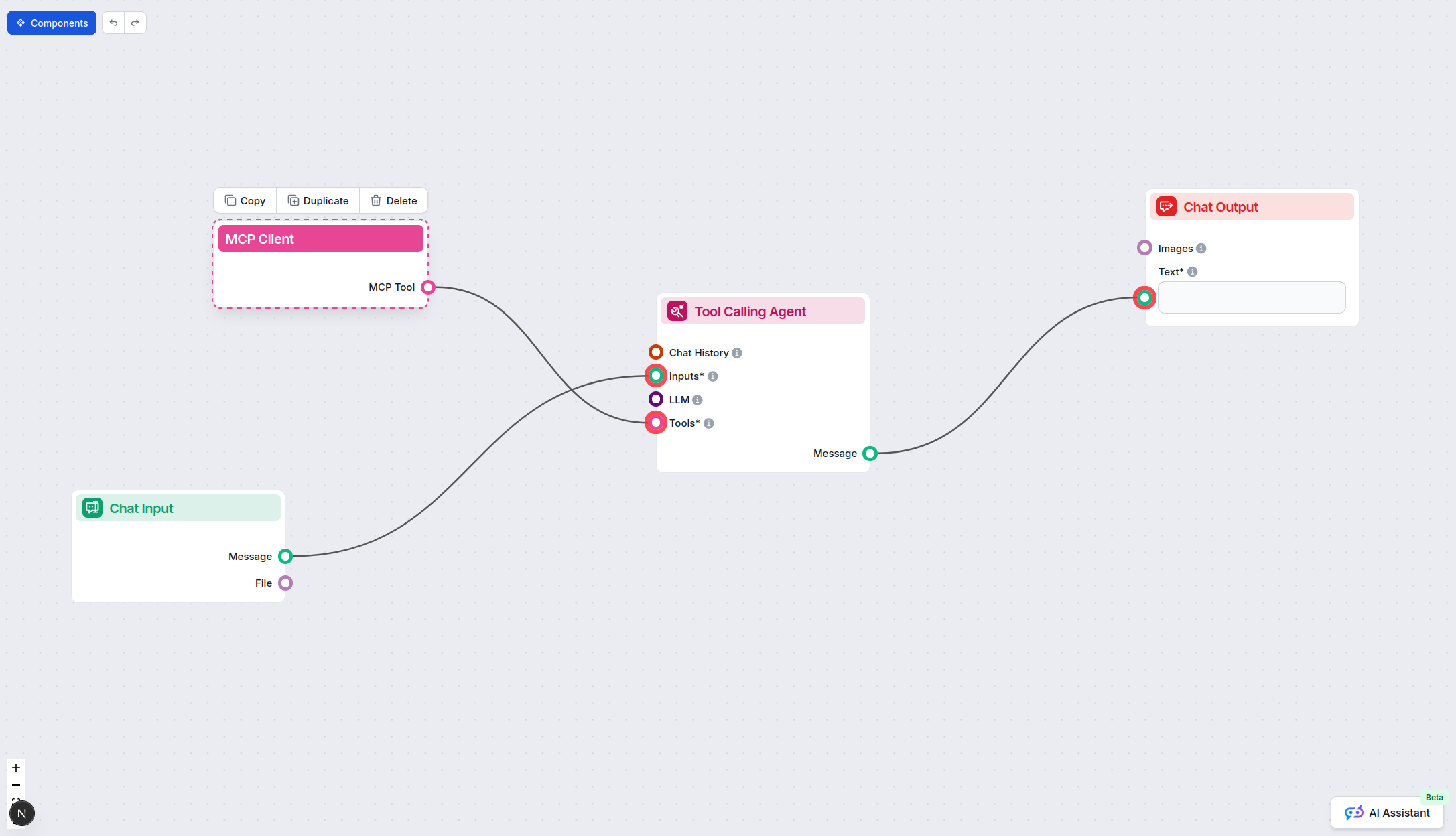
点击 MCP 组件以打开配置面板。在系统 MCP 配置部分,使用如下 JSON 格式填写您的 MCP 服务器信息:
{
  "google-workspace": {
    "transport": "streamable_http",
    "url": "https://yourmcpserver.example/pathtothemcp/url"
  }
}
配置完成后,AI 代理即可作为工具调用此 MCP,访问其全部功能。请务必将 “google-workspace” 替换为您 MCP 服务器的实际名称,并将 URL 更换为您的 MCP 服务器地址。
| 部分 | 是否可用 | 详情/备注 |
|---|---|---|
| 概览 | ✅ | 通过 MCP 实现完整 Google Workspace 集成。 |
| 提示词列表 | ⛔ | 未有提示词模板文档。 |
| 资源列表 | ⛔ | 未找到明确的资源定义。 |
| 工具列表 | ✅ | 根据文件夹结构推断覆盖主要 Workspace 产品的工具。 |
| API 密钥安全 | ✅ | 提供了环境变量 JSON 示例。 |
| 采样支持(评测中较次要) | ⛔ | 未提及。 |
根据现有信息,Google Workspace MCP 服务器在集成性和工具覆盖上表现出色,但尚缺少公开的提示词、资源及采样/roots 支持。安装说明标准,API 安全措施得当。整体来看,该 MCP 在功能和潜力方面得分较高,但文档部分仍有提升空间。
| 是否有 LICENSE | ✅ (MIT) |
|---|---|
| 是否有至少一个工具 | ✅ |
| Fork 数 | 34 |
| Star 数 | 124 |
Google Tasks MCP 服务器桥接了AI助手与Google Tasks,实现通过标准化协议动作直接无缝管理和自动化任务。非常适合工作流自动化、生产力工具和个人助手集成。...
Google Sheets MCP 服务器为 AI 代理和开发者实现对 Google Sheets 的安全、可编程访问。它提供强大的自动化、类型化工具和灵活的身份验证,助力简化表格操作、协作流程和数据处理。...

通过 Gmail MCP 服务器将 Gmail 集成到您的 AI 工作流中。FlowHunt 使 AI 助手能够安全地发送、读取、组织和自动化邮件,利用先进的 Gmail 工具和资源——全部通过 OAuth2 认证。...
Cookie 同意
我们使用 cookie 来增强您的浏览体验并分析我们的流量。 See our privacy policy.