


Flow of the Week #12: The AI Documentation Writer
Flow of the Week #12 is the AI Documentation Writer. This Agent turns raw source code into a structured, audience-aware technical manual in minutes.
3 min read
AI
Developer Tools
+3
Step-by-step guide from entering your source code and context to reviewing a structured technical document ready for your knowledge base or developer portal.
This FlowHunt documentation writer tutorial walks you through generating your first structured technical document from real source code, start to finish. The AI Documentation Writer takes your code plus a few contextual inputs and returns a complete document covering architecture, logic flow, and usage instructions, without you needing to write the first draft by hand. Here’s the exact process, step by step.
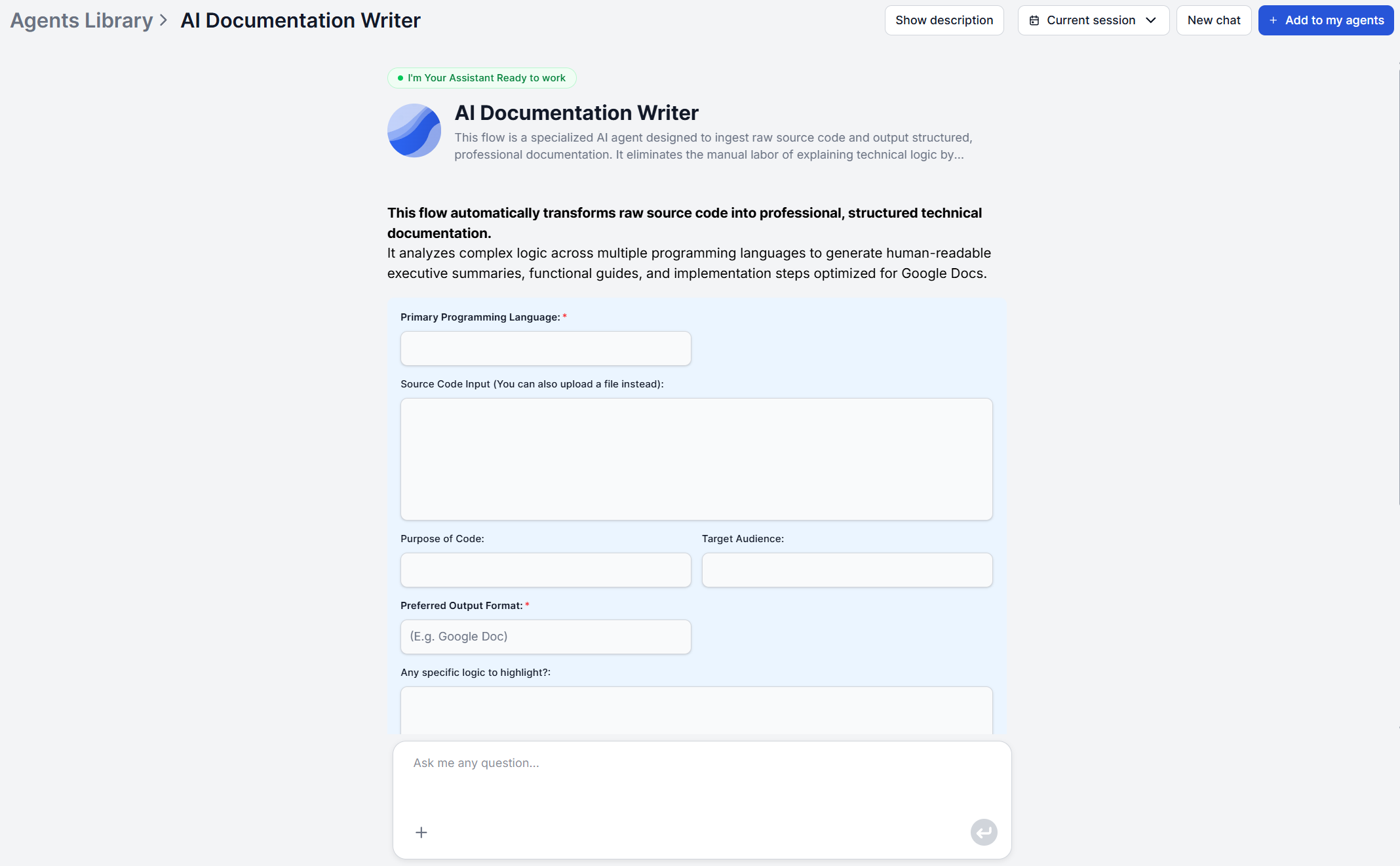
Search for the AI Documentation Writer in your Agent Library and add it to your agents. Take your source code, and either paste it directly into the chat or upload it as a file. This is the one input the tool actually needs to work from. It analyzes the code, not a description written in place of it.
Would you like to try the tool free before committing? Just follow this link
Alongside the code, you should ideally also input the primary programming language, the purpose of the code (a plain-language sentence on what it does and why it exists), your target audience, and your preferred output format.
A full file is ideal, but isn’t required. A partial snippet or an incomplete codebase both work, since the tool infers the most likely intent from whatever you provide rather than stalling on missing context.
This matters for how you scope your first run. If you’re documenting a small utility, paste the whole thing. If you’re working from a larger service, pick the file or module that represents the piece you actually need documented, rather than dumping an entire repository in at once.
Enter the purpose of the code and your preferred output format alongside your source. There’s no separate “document type” menu to pick from, every run produces the same complete structure. An executive summary, functional capabilities, technical architecture, logic flow and process, key functions and components, and implementation and usage instructions.
What changes between runs is how those six sections get filled in. A purpose like “internal deployment script for the release pipeline” versus “public SDK method for third-party developers” steers the document analysis stage toward the details that matter for that use case.

Start your free trial today and see results within days.
Specify who the document is for. Is it for developers, clients, or non-technical stakeholders? You can also be more specific, such as “junior engineers new to this codebase” or “support staff with no coding background.”
This single input drives the logic translation stage, which converts technical operations into plain-language explanations calibrated to whoever you named. The same source code produces a noticeably different document depending on this field alone, so it’s worth being precise rather than defaulting to “developers” out of habit.
If there’s a specific piece of logic you don’t want the tool to gloss over, an authentication flow, a rate-limiting mechanism, an edge case that’s easy to miss on a first read, name it here too. It gets folded into the analysis rather than left to chance.
Once your code and context are in, generation runs through three stages. The code analysis interprets the functionality, the logic translation converts that into plain language for your specified audience, the document structuring organizes everything into a hierarchy that explains why and how the code works.
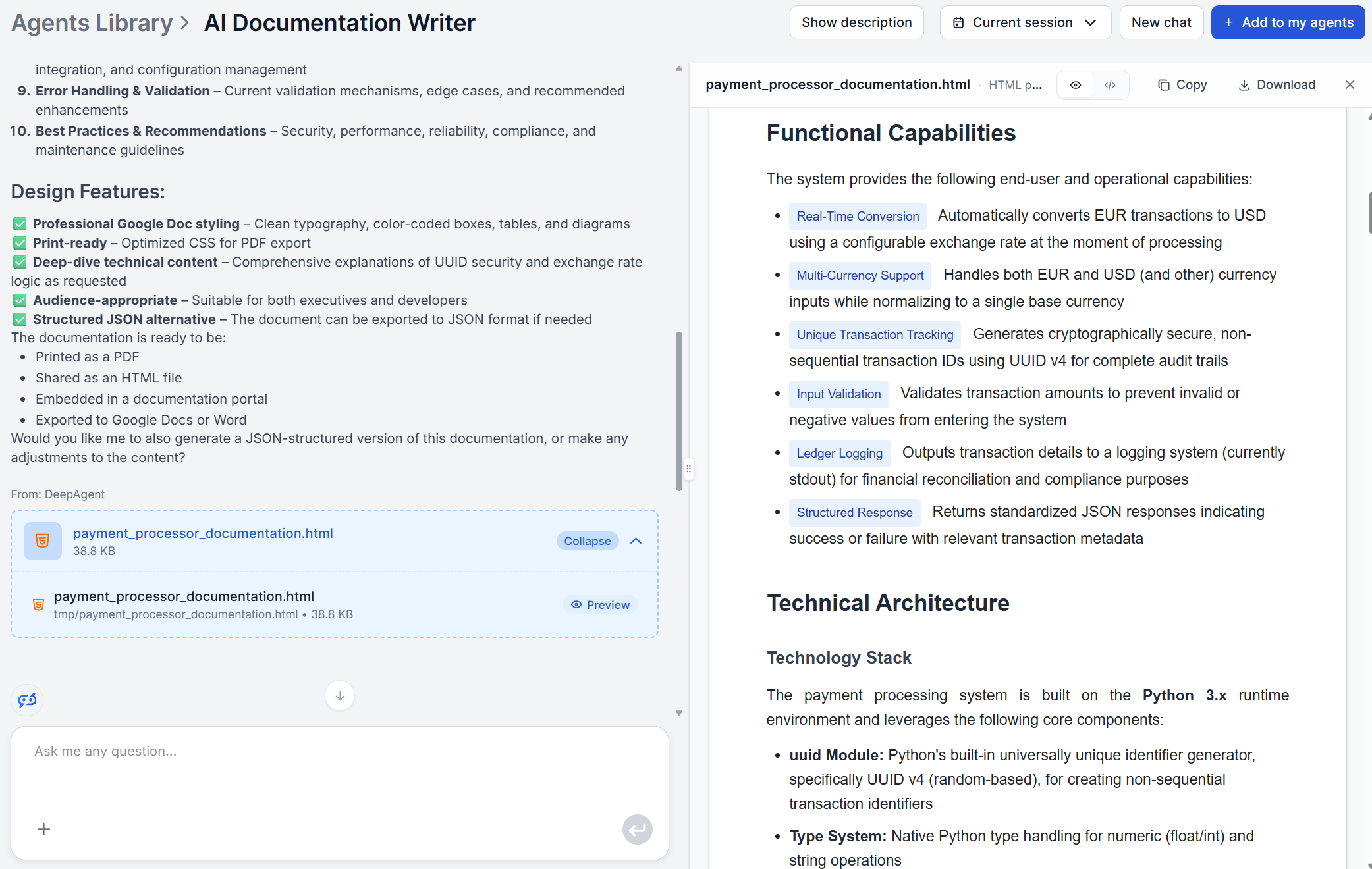
Read through the result before treating it as final. Confirm tha the setup & configuration steps actually work in a real environment, check that a legacy piece of the system the tool couldn’t infer from code alone is described accurately, and verify the audience calibration landed the way you intended.
The executive summary and functional capabilities sections are the fastest sanity-check, since they’re short and easy to compare against what you already know. The technical architecture and logic flow sections deserve a slower read, since that’s where an incomplete input is most likely to produce a plausible-sounding but slightly wrong inference.
Get latest tips, trends, and deals for free.
If the first pass misses something crucial, it’s easier to just re-run generation with a sharper “specific logic to highlight” input naming exactly what got missed.
Raw source code is excluded from the output by default, since the tool focuses on explaining what the code does rather than reproducing it, but you can explicitly request it included if your use case calls for it.
One real limitation worth knowing upfront is that the output doesn’t include screenshots or diagrams by default. You can adjust the agent flow to include the Photomatic tool and set it up to generated images and diagrams based on the text. If the documented functionality is publicly accessible, you can use the Screenshot tool to get actual screenshot.
The output is delivered in chat as an attachment containing the structured format of your choosing. It’s ready for ingestion into documentation systems, developer portals, or client deliverables without manual reformatting.
To move it into your actual workflow, FlowHunt connects through MCP servers rather than requiring copy-paste. A hosted GitHub MCP server can pull the source code straight from a repository at the start of the process, and a Notion or hosted Confluence MCP server connection can push the finished document into your team’s existing wiki once it’s generated.
Be specific in the purpose field. “Handles user authentication” gives the tool far less to work with than “Validates login credentials against the user database and issues a session token, called on every login attempt.”
Match the audience wording to the real reader. Vague audience inputs produce a generically technical document. Missing the mark ay make it unusable for the target audience. Overly technical output will scare end users, while developer will find user guides too shallow. Don’t be afraid to be specific, for example “support agents troubleshooting login issues,” not just “non-technical”.
Flag what’s missing from a partial codebase. If you’re only pasting one file from a larger system, say so in the purpose field. The tool still infers intent from incomplete input, but a heads-up about what’s out of scope prevents it from guessing at context it doesn’t have.
Long after everyone started generating sloppy articles about general themes, technical documentation remained a strictly human affair. It was all due to the need to give AI proprietary data and make sure it can understand reasonably well to produce output that’s worth it. Now that’s a thing of past as well. All you need is ten minutes to go from input to a reviewed first draft.
Generate your first document free and see how much of that first draft survives editing. For the full mechanics behind why this process works the way it does, see how to write technical documentation automatically with AI , and for capturing context that lives outside the code entirely, the AI meeting report generator turns a recorded walkthrough into structured notes you can feed into your next run.
For more documentation types this same process covers well, see five documentation types AI writes faster .
Explore more workflows in the academy .
Stop writing documentation from scratch. Provide your source code and context, and FlowHunt's AI Documentation Writer returns a complete, structured technical manual in seconds.
Flow of the Week #12 is the AI Documentation Writer. This Agent turns raw source code into a structured, audience-aware technical manual in minutes.
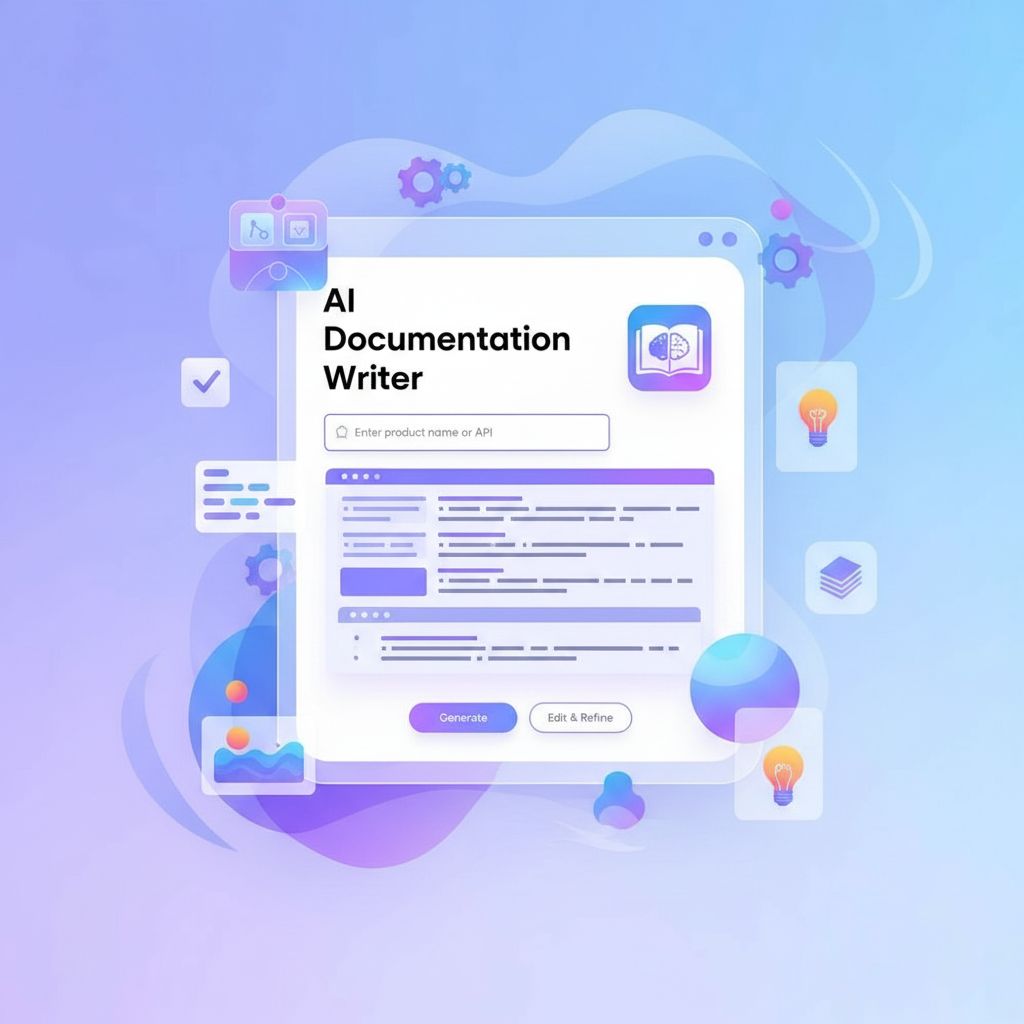
Convert source code into structured, professional technical documentation with FlowHunt's AI Documentation Writer — also known as the Technical Documentation Ar...
Technical documentation takes developers away from building. AI documentation writers generate structured, accurate docs from code in minutes. Here's how to use...
Cookie Consent
We use cookies to enhance your browsing experience and analyze our traffic. See our privacy policy.