


Lightdash
Integrate FlowHunt with Lightdash via the Lightdash MCP Server for secure, AI-powered access to analytics data, unified project management, and automated workfl...
4 min read
AI
Lightdash
+4
Connect FlowHunt to Lightdash BI with the Lightdash MCP Server, allowing AI agents to automate analytics tasks, retrieve project data, and streamline business intelligence workflows.
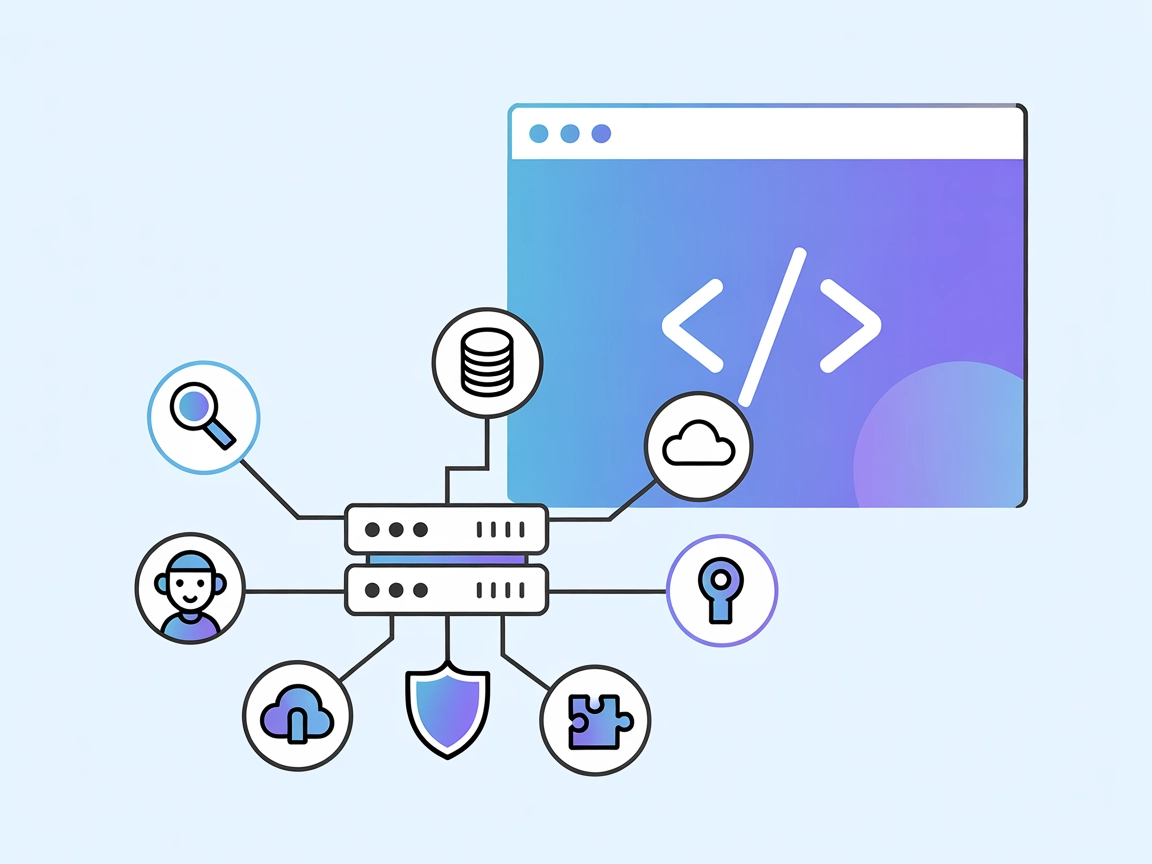
The Lightdash MCP (Model Context Protocol) Server is a tool that connects AI assistants with Lightdash, a modern business intelligence (BI) and analytics platform. By providing MCP-compatible access to Lightdash’s API, this server enables AI agents and development tools to interact programmatically with Lightdash data. This integration allows developers to perform tasks such as listing projects, retrieving project details, and exploring analytics spaces and charts directly from their AI workflows. As a result, the Lightdash MCP Server enhances development productivity by simplifying data access, automating analytics-related actions, and supporting more intelligent, context-aware AI-driven processes within engineering and business intelligence workflows.
No prompt templates are mentioned in the repository or documentation.
No explicit MCP resource definitions are provided in the repository or documentation.
windsurf.json).mcpServers section:{
"mcpServers": {
"lightdash": {
"command": "npx",
"args": ["lightdash-mcp-server"]
}
}
}
Securing API Keys: Store your Lightdash API keys in environment variables:
{
"command": "npx",
"args": ["lightdash-mcp-server"],
"env": {
"LIGHTDASH_API_KEY": "your_api_key"
}
}
{
  "mcpServers": {
    "lightdash": {
      "command": "npx",
      "args": ["lightdash-mcp-server"]
    }
  }
}
Securing API Keys:
{
"env": {
"LIGHTDASH_API_KEY": "your_api_key"
}
}
mcpServers, add:{
"mcpServers": {
"lightdash": {
"command": "npx",
"args": ["lightdash-mcp-server"]
}
}
}
Securing API Keys:
{
"env": {
"LIGHTDASH_API_KEY": "your_api_key"
}
}
{
  "mcpServers": {
    "lightdash": {
      "command": "npx",
      "args": ["lightdash-mcp-server"]
    }
  }
}
Securing API Keys:
{
  "env": {
    "LIGHTDASH_API_KEY": "your_api_key"
  }
}
Using MCP in FlowHunt
To integrate MCP servers into your FlowHunt workflow, start by adding the MCP component to your flow and connecting it to your AI agent:
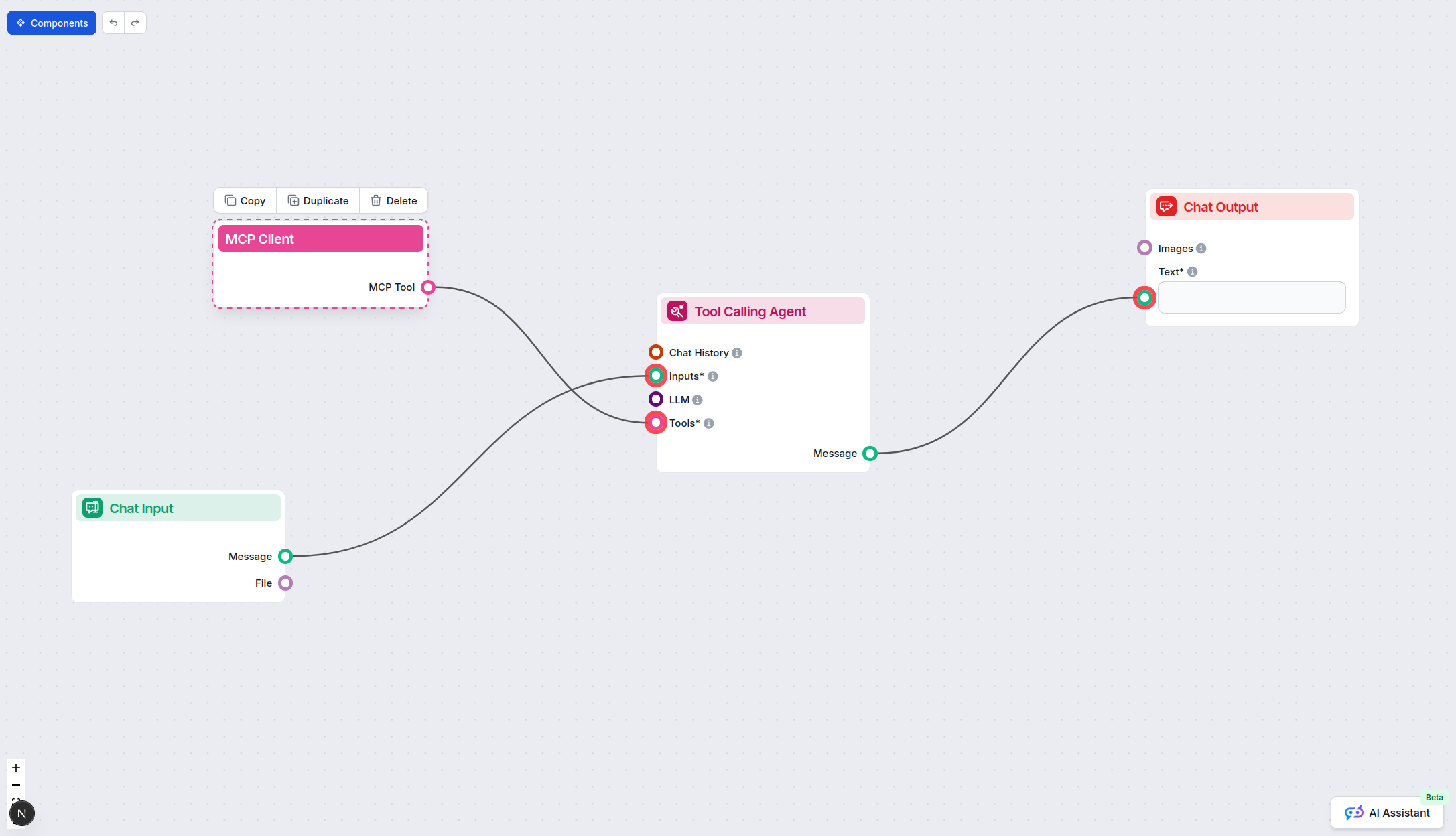
Click on the MCP component to open the configuration panel. In the system MCP configuration section, insert your MCP server details using this JSON format:
{
  "lightdash": {
    "transport": "streamable_http",
    "url": "https://yourmcpserver.example/pathtothemcp/url"
  }
}
Once configured, the AI agent is now able to use this MCP as a tool with access to all its functions and capabilities. Remember to change “lightdash” to whatever the actual name of your MCP server is and replace the URL with your own MCP server URL.
| Section | Availability | Details/Notes |
|---|---|---|
| Overview | ✅ | Explains Lightdash MCP Server connecting AI to Lightdash BI platform. |
| List of Prompts | ⛔ | No prompt templates mentioned. |
| List of Resources | ⛔ | No explicit MCP resource definitions. |
| List of Tools | ✅ | Four tools: list_projects, get_project, list_spaces, list_charts. |
| Securing API Keys | ✅ | Environment variable configuration shown. |
| Sampling Support (less important in evaluation) | ⛔ | Not mentioned in the documentation. |
Based on the above tables, the Lightdash MCP Server provides essential tool integration for Lightdash analytics but lacks prompt templates, explicit resources, or sampling/roots support. It is well-documented for setup and provides clear examples of securing credentials. I would rate this MCP server a 5/10 for completeness and utility in the current state.
| Has a LICENSE | ✅ (MIT) |
|---|---|
| Has at least one tool | ✅ |
| Number of Forks | 5 |
| Number of Stars | 17 |
Supercharge your BI automation by connecting FlowHunt to Lightdash using the MCP Server. Effortlessly access analytics resources in your AI workflows.
Integrate FlowHunt with Lightdash via the Lightdash MCP Server for secure, AI-powered access to analytics data, unified project management, and automated workfl...
The MSSQL MCP Server connects AI assistants with Microsoft SQL Server databases, enabling advanced data operations, business intelligence, and workflow automati...
MCP GraphQL is a Model Context Protocol (MCP) server that standardizes access to GraphQL APIs, dynamically exposing each query as a tool for AI assistants and d...
Cookie Consent
We use cookies to enhance your browsing experience and analyze our traffic. See our privacy policy.