



TeamRetro MCP
Integrate FlowHunt with TeamRetro MCP Server to automate retrospective workflows, enhance team collaboration, and gain AI-powered insights for continuous improv...
3 min read
AI
TeamRetro
+3
Integrate TeamRetro’s powerful team management and retrospective tools into your AI workflows via the MCP server for automated analytics, team health checks, and seamless collaboration.
The TeamRetro MCP Server is a Model Context Protocol (MCP) server designed to integrate AI assistants with the TeamRetro platform. It acts as a bridge between AI clients and TeamRetro’s official API, enabling seamless access to team management, retrospectives, health checks, and other collaboration features. By exposing over 20 standardized MCP tools, the server allows developers to automate tasks such as managing teams, users, and actions, as well as retrieving analytical insights. The TeamRetro MCP Server supports secure API authentication and offers built-in pagination and filtering for efficient data handling. This enables AI applications to easily incorporate TeamRetro functionality into workflows, improving productivity and empowering AI-driven team analytics and management.
No prompt templates are mentioned in the available documentation or repository files.

Start your free trial today and see results within days.
No explicit resources are listed or described in the available documentation or repository files.
Get latest tips, trends, and deals for free.
AI-powered team analytics
Leverage TeamRetro data for automated insights and reporting to support data-driven decision-making for team health and performance.
Automated retrospective management
Use AI to schedule, run, and summarize retrospectives, reducing manual overhead and ensuring actionable outcomes.
Integration into custom AI workflows
Seamlessly connect TeamRetro features to other AI-driven tools or dashboards, streamlining team management processes.
Health check automation
Automatically trigger and analyze health checks, providing real-time team sentiment and engagement data for leaders.
Efficient team/user management
Simplify the creation, deletion, and modification of teams and users from an AI interface, improving administrative efficiency.
Ensure Node.js and npm are installed on your system.
Locate your Windsurf configuration file (e.g., windsurf.config.json).
Add the TeamRetro MCP Server to the mcpServers section:
{
  "mcpServers": {
    "teamretro-mcp": {
      "command": "npx",
      "args": ["@teamretro/mcp-server@latest"]
    }
  }
}
Save the configuration and restart Windsurf.
Verify the MCP server is running and accessible in your platform.
Set your TeamRetro API key using environment variables. Example:
{
  "mcpServers": {
    "teamretro-mcp": {
      "command": "npx",
      "args": ["@teamretro/mcp-server@latest"],
      "env": {
        "TEAMRETRO_API_KEY": "your-teamretro-api-key"
      }
    }
  }
}
Install Node.js and npm, if not already present.
Open Claude’s configuration file.
Add the TeamRetro MCP Server as follows:
{
  "mcpServers": {
    "teamretro-mcp": {
      "command": "npx",
      "args": ["@teamretro/mcp-server@latest"]
    }
  }
}
Restart Claude to load the new MCP server.
Confirm setup by checking the MCP connections in Claude.
Make sure Node.js and npm are available.
Edit your Cursor settings.json (or platform-specific config).
Include the TeamRetro MCP Server:
{
  "mcpServers": {
    "teamretro-mcp": {
      "command": "npx",
      "args": ["@teamretro/mcp-server@latest"]
    }
  }
}
Save changes and restart Cursor.
Check the MCP integration status for confirmation.
Install Node.js and npm.
Open Cline’s MCP configuration file.
Add the following entry:
{
  "mcpServers": {
    "teamretro-mcp": {
      "command": "npx",
      "args": ["@teamretro/mcp-server@latest"]
    }
  }
}
Save and restart Cline.
Validate that the TeamRetro MCP Server is operational.
Always use environment variables to manage sensitive credentials. Example:
{
  "mcpServers": {
    "teamretro-mcp": {
      "command": "npx",
      "args": ["@teamretro/mcp-server@latest"],
      "env": {
        "TEAMRETRO_API_KEY": "your-teamretro-api-key"
      }
    }
  }
}
Using MCP in FlowHunt
To integrate MCP servers into your FlowHunt workflow, start by adding the MCP component to your flow and connecting it to your AI agent:
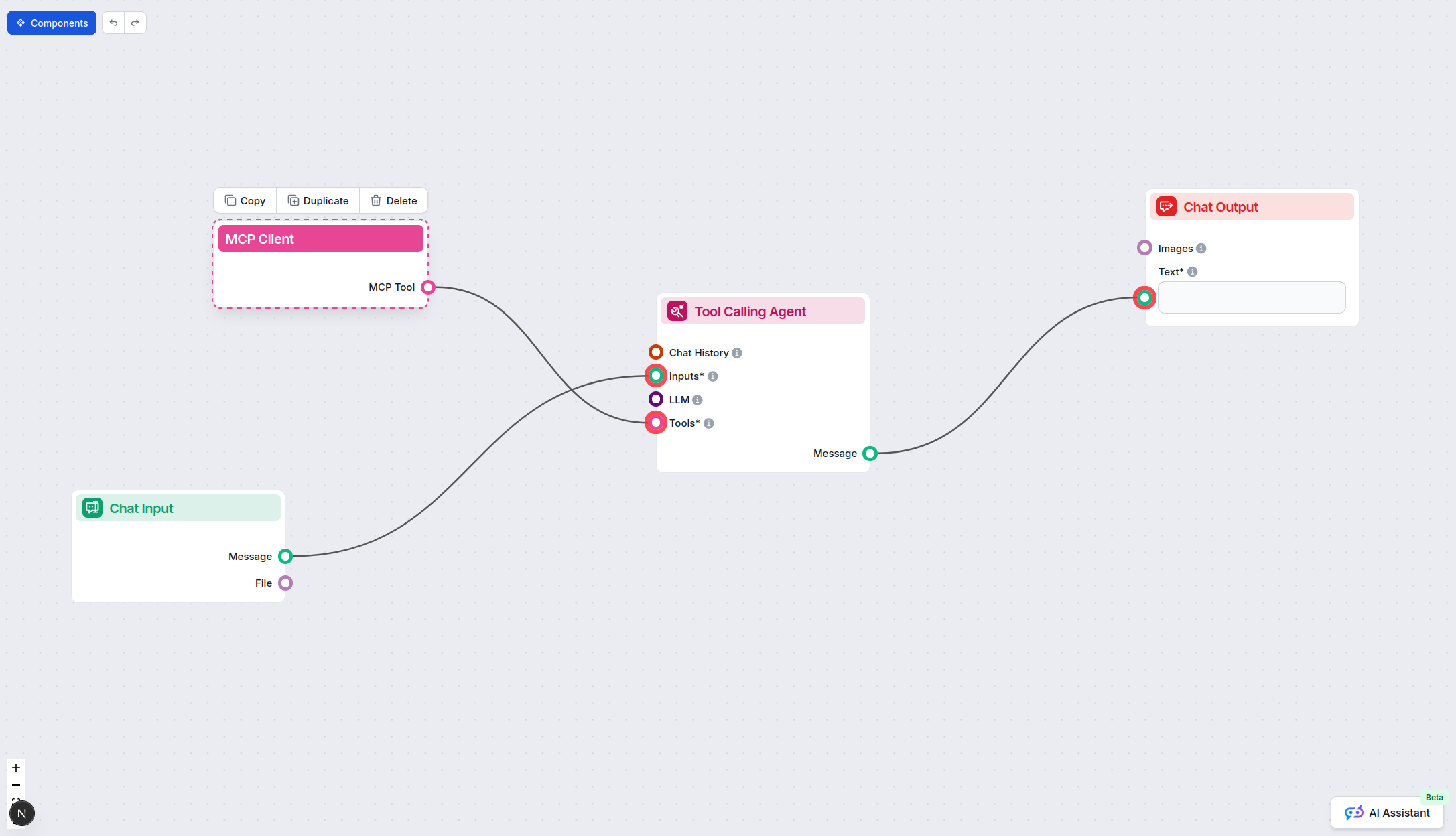
Click on the MCP component to open the configuration panel. In the system MCP configuration section, insert your MCP server details using this JSON format:
{
  "teamretro-mcp": {
    "transport": "streamable_http",
    "url": "https://yourmcpserver.example/pathtothemcp/url"
  }
}
Once configured, the AI agent is now able to use this MCP as a tool with access to all its functions and capabilities. Remember to change “teamretro-mcp” to whatever the actual name of your MCP server is and replace the URL with your own MCP server URL.
| Section | Availability | Details/Notes |
|---|---|---|
| Overview | ✅ | Present in README |
| List of Prompts | ⛔ | No prompt templates referenced |
| List of Resources | ⛔ | No explicit resources documented |
| List of Tools | ⛔ | General mention of 20+ tools, no details in README or visible files |
| Securing API Keys | ✅ | Environment variable usage shown |
| Sampling Support (less important in evaluation) | ⛔ | Not mentioned |
Based on the provided documentation, the TeamRetro MCP Server provides strong overview and setup guidance, but lacks public documentation for its prompt templates, explicit resources, and tool specifics. It supports secure API key management via environment variables, but there is no mention of Roots or sampling support. The project is open source and licensed under Apache-2.0.
This MCP server has solid documentation for setup and integration, and a reputable open-source license. However, the absence of detailed tool, prompt, and resource documentation lowers its score for immediate usability and discoverability. If the missing documentation is addressed, it would greatly improve both user experience and developer integration.
| Has a LICENSE | ✅ (Apache-2.0) |
|---|---|
| Has at least one tool | ✅ (Mentioned 20+ tools, details missing) |
| Number of Forks | 3 |
| Number of Stars | 0 |
Automate retrospectives, team analytics, and health checks by connecting your AI agents to TeamRetro using the MCP server. Streamline collaboration and decision-making today.
Integrate FlowHunt with TeamRetro MCP Server to automate retrospective workflows, enhance team collaboration, and gain AI-powered insights for continuous improv...
The mcp-teams-server brings Microsoft Teams functionality to FlowHunt via the Model Context Protocol (MCP), enabling AI assistants to read, create, and reply to...
The Azure DevOps MCP Server acts as a bridge between natural language requests and the Azure DevOps REST API, enabling AI assistants and tools to automate DevOp...
Cookie Consent
We use cookies to enhance your browsing experience and analyze our traffic. See our privacy policy.