Step-by-step: from your first topic query to an automated daily news digest delivered where your team already works. A FlowHunt news summary setup tutorial for first-time users.
Setting up automated news monitoring with FlowHunt doesn’t require a settings dashboard or a research brief. This FlowHunt news summary setup tutorial walks you through everything from your first topic query to a fully automated daily digest delivered where your team already works, start to finish in about ten minutes. For the broader case for automating this in the first place, see how to automate your daily news monitoring
.
What You Need Before Starting
There’s very little to prepare. The tool works out of the box and setup is only necessary for customization:
A FlowHunt account. The Daily News Summary tool is available in the agent library, and works out of the box. Setup is only necessary if you want to customize it or set up scheduled runs.
A topic in mind. A company name, a competitor, an industry, or a specific keyword. Vague topics work less well than specific ones, so have a concrete starting point ready.
A destination for the digest, if you plan to automate it. A Slack channel or an inbox the team already checks, so Step 4 has somewhere real to route to.
That’s it. No API keys, no data connectors, no separate research brief to write before your first run.
Step 1: Define Your Topic
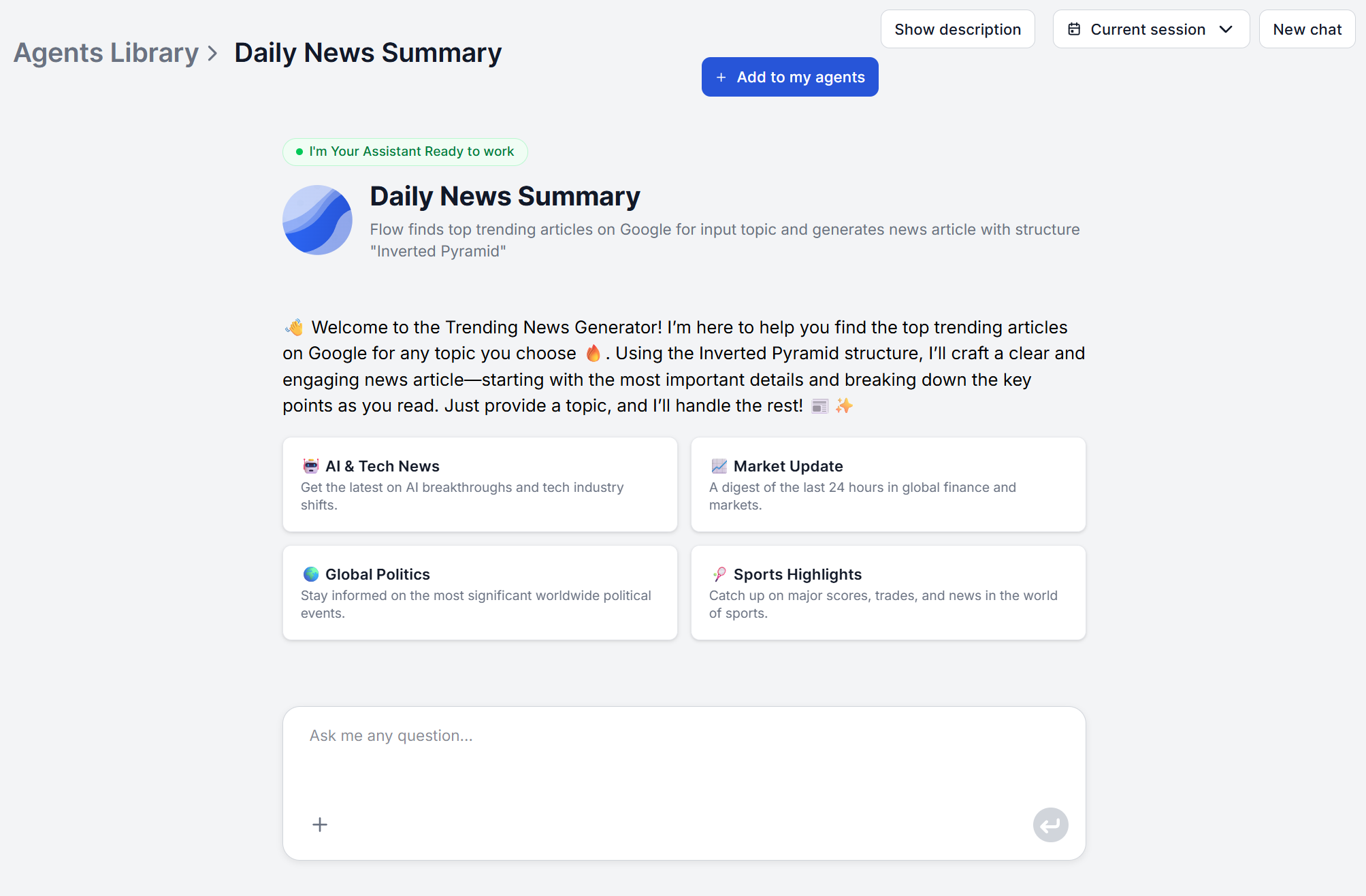
Open the Daily News Summary tool and type your topic directly into the chat. It may be a general topic, industry news, a company name, a keyword, or a specific event. Niche subjects work as well as broad ones. The tool searches in real time and summarizes whatever is currently being reported on the exact term you give it.
Ready to grow your business?
Start your free trial today and see results within days.
Unlike an RSS reader, there’s no source list to build before your first digest. The tool searches current sources on your behalf, including trending results from places like Google and YouTube, so what comes back reflects live coverage rather than a static feed you curated in advance.
That also means source selection isn’t a setting you toggle in the standard chat interface. If your team needs monitoring restricted to a specific, fixed set of publications, that’s a change to the underlying flow itself, done directly in FlowHunt’s visual flow editor, rather than a dropdown inside the chat tool. For one-off, you may send the list over in the chat message. For a permanent solution, edit the agent’s prompt to restrict the sources to your list.
Step 3: Read Your Output Format
There’s no length or format picker before you run a query. What you get back is a single structured digest. The tool searches for recent coverage, extracts the developments that matter most across sources rather than summarizing any one article alone, and organizes the findings with the most important points first.
If your team needs a different structure or depth by default, that’s another flow-level change rather than a per-run option, the flow itself is visual and editable in FlowHunt directly.
Join our newsletter
Get latest tips, trends, and deals for free.
Step 4: Automate It With a Scheduled Task
This is where a one-off digest becomes a standing routine. FlowHunt’s Scheduled Task
component replaces the flow’s chat input with a trigger that runs automatically on an interval you define, so no one has to remember to open the chat and type the topic each morning. The next step is to set an easily accessible output destination, such as a Slack channel.
To set it up:
Open the Daily News Summary flow in the flow editor and delete the default Chat Input component.
From the Triggers category in the component panel, add a Scheduled Task component and connect it where Chat Input used to sit.
Click the Scheduled Task component and set the schedule, hourly, daily, weekly, or a custom cron expression, whichever matches how often your topic needs checking.
Add your topic as the Input Message (or as a variable, if you want to swap topics without editing the message each time), so it’s passed into the flow automatically on every scheduled run.
Save your changes and hit Publish so the schedule goes live.
The schedule options aren’t limited to a simple daily toggle. Common intervals like hourly, daily, or weekly cover most monitoring needs, but a custom cron expression is available if your topic needs a less standard cadence, checking every weekday morning but skipping weekends, for example.
You’re not locked into automation once it’s set up. You can either create a new copy of the default tool, or simply switch the trigger back to a plain Chat Input in the flow editor if you want to run a one-off manual query alongside the scheduled version.
Step 5: Review and Customize Your First Output
Read your first digest with an eye on two things: did it surface what you expected, and was the volume right for a quick read. If a broad topic returned more than you have time to read daily, narrow the phrasing for the next run. If a niche topic came back thin, broaden it slightly. This calibration usually takes a run or two, not a long setup process.
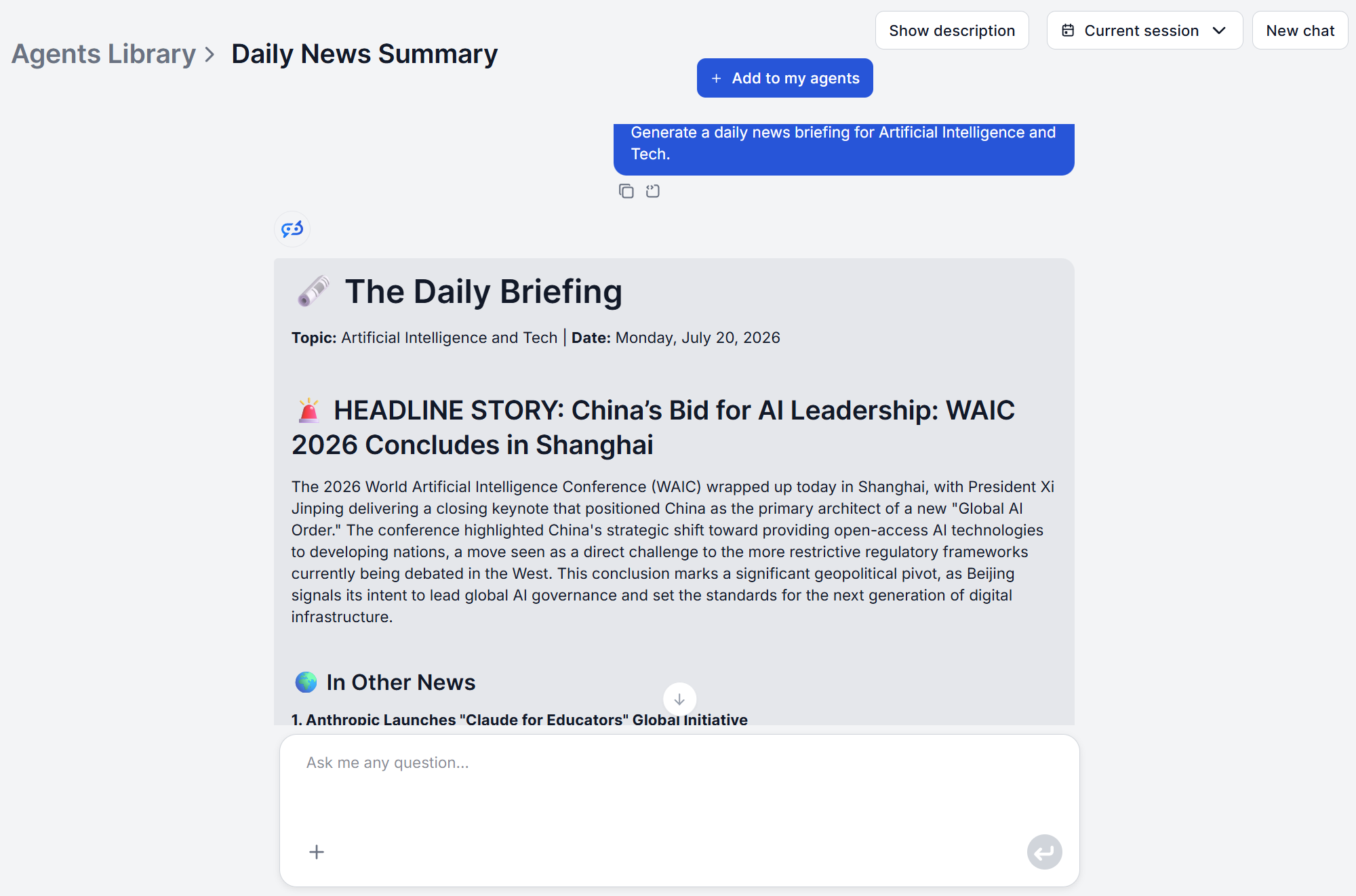
For reference, here’s an actual first output: we ran an “AI and Tech” query on July 20, 2026, the same day this tutorial was written, and this is the digest it returned for that day.
It’s worth resisting the urge to fix a disappointing first run by adding more topics rather than adjusting the one you have. A single well-tuned topic that reliably returns a useful digest is worth more than five loosely defined ones that each need their own troubleshooting. Get one right before automating it, then repeat the process for the next topic that matters.
Distributing Your Digest (Slack, Email, and Beyond)
A Scheduled Task on its own only runs the query, it still needs somewhere for the output to land, since nobody is sitting at a chat window waiting for a scheduled result. Pair the flow’s output with a non-chat destination, such as a Slack
message to the team channel, an email notification, a write to a spreadsheet or CRM record. If you need the digest as a document rather than a message, paste the structured output into a doc and export it from there, that’s a manual step downstream, not a native export format.
Once this is running, the whole setup, topic, source behavior, output format, and delivery, keeps working without anyone re-opening the chat every morning. For teams that want to extend the same monitoring into social platforms and forums, the AI Social Listening Tool
follows the same flow-editor customization pattern for automated delivery.
By default, there's no saved topic list to edit, each digest is a fresh query on whatever topic you type in. However, if you set up scheduled runs with a defined list, this list will be located in the Agent's prompt.
Yes. If you've customized the underlying flow, use Run Flow in the flow editor to test your changes privately before they go live, Publish Flow is a separate, deliberate step. For the standard chat tool, running a query once and reading the result is itself the preview, there's no separate draft and live state.
Replace the flow's Chat Input with a Scheduled Task component and pair it with a non-chat output, a Slack message or an email, instead of a chat response. Since no one is watching a chat window on a schedule, the output needs somewhere to land automatically.
Adjust the specificity of the topic itself. A broad query like an entire industry name returns more ground to cover than useful for a quick read. Narrowing it to a specific company, product line, or event usually tightens the result. Conversely, a very narrow or obscure topic may return a thinner digest, in which case broadening the phrasing slightly gives the search more to work with.
Yes. Each digest is an independent query, so nothing about the standard tool limits you to one topic at a time. You can also create several iterations of this tool within your workspace. For automated versions, set up a separate Scheduled Task (or duplicate the flow) per topic, each with its own topic variable and its own delivery destination, so one team's competitor digest doesn't land in another team's channel.
Maria is a copywriter at FlowHunt. A language nerd active in literary communities, she's fully aware that AI is transforming the way we write. Rather than resisting, she seeks to help define the perfect balance between AI workflows and the irreplaceable value of human creativity.
Maria Stasová
Copywriter & Content Strategist
Set Up Your First News Digest Free
FlowHunt's Daily News Summary searches recent sources and delivers a structured digest on any topic in seconds. Try it free and set up your first automated digest today.
How to Automate Your Daily News Monitoring With an AI News Summarizer Tool
An AI news summarizer tool turns daily news monitoring into a five-minute task. Here's how automated summary generation works and how to set up your first diges...
Get a concise, structured summary of the latest news on any topic with FlowHunt's Daily News Summary. AI searches recent sources and delivers a clear, readable ...
5 AI News Monitoring Use Cases: How Teams Stay Ahead Without Drowning in Content
From executive briefings to subscriber newsletters, these are five real AI news monitoring use cases teams rely on to stay informed without hours of manual cura...
4 min read
AI
News
+3
Cookie Consent We use cookies to enhance your browsing experience and analyze our traffic. See our privacy policy.