


Playwright MCP Server
The Playwright MCP Server empowers AI agents and developers with advanced browser automation and API interaction, enabling seamless integration in development e...
5 min read
Automation
AI Integration
+5
A step-by-step guide to installing and using the Playwright MCP server with Claude Code for browser automation, end-to-end testing, and AI-driven web workflows.
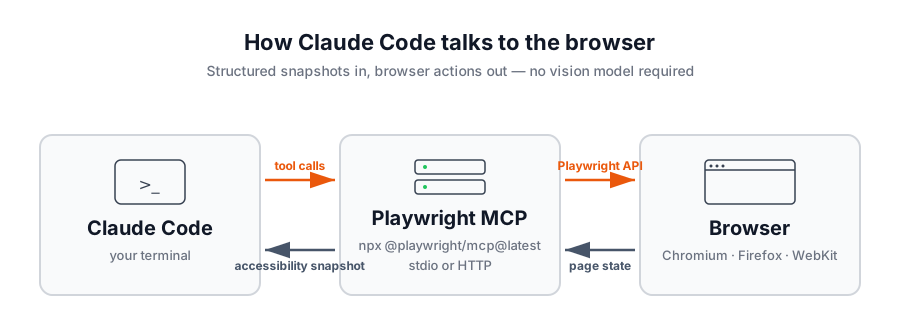
The Playwright MCP server gives any Model Context Protocol client browser automation superpowers. Instead of asking an AI to “look at” pixels, the server returns structured accessibility snapshots of the page, and the model interacts with elements by reference ID. That makes the loop fast, deterministic, and free of vision-model overhead. It works with VS Code, Cursor, Windsurf, Claude Desktop, Claude Code, and any other MCP client.
For Claude Code in particular, this means the agent in your terminal can now open a browser, click around, fill forms, mock network requests, capture screenshots, and even execute custom Playwright scripts — all driven from natural-language prompts.

Before you begin, make sure you have:
claude in your terminal to verify)That’s it — Playwright MCP downloads its own browser binaries on first run.

Start your free trial today and see results within days.
Connecting Playwright MCP to Claude Code is a single command. Follow these steps to wire it up:
Open your terminal and run:
claude mcp add playwright npx @playwright/mcp@latest
This registers a new MCP server named playwright that Claude Code launches via npx whenever it needs browser tools. The first invocation downloads the package and the required browser binaries, so give it a minute the first time.
Start a new Claude Code session and run the /mcp command:
claude
/mcp
You should see playwright listed as a connected server, along with the tools it exposes (navigation, clicking, typing, screenshots, network mocking, and more).
If you prefer editing config files directly, the same server can be added to ~/.claude.json (or a project-scoped .mcp.json) using the standard MCP format:
{
  "mcpServers": {
    "playwright": {
      "command": "npx",
      "args": [
        "@playwright/mcp@latest"
      ]
    }
  }
}
Restart Claude Code after editing the file and the server will appear in /mcp.
With the server connected, your prompts can now drive a real browser. Try the canonical first interaction from the Playwright docs:
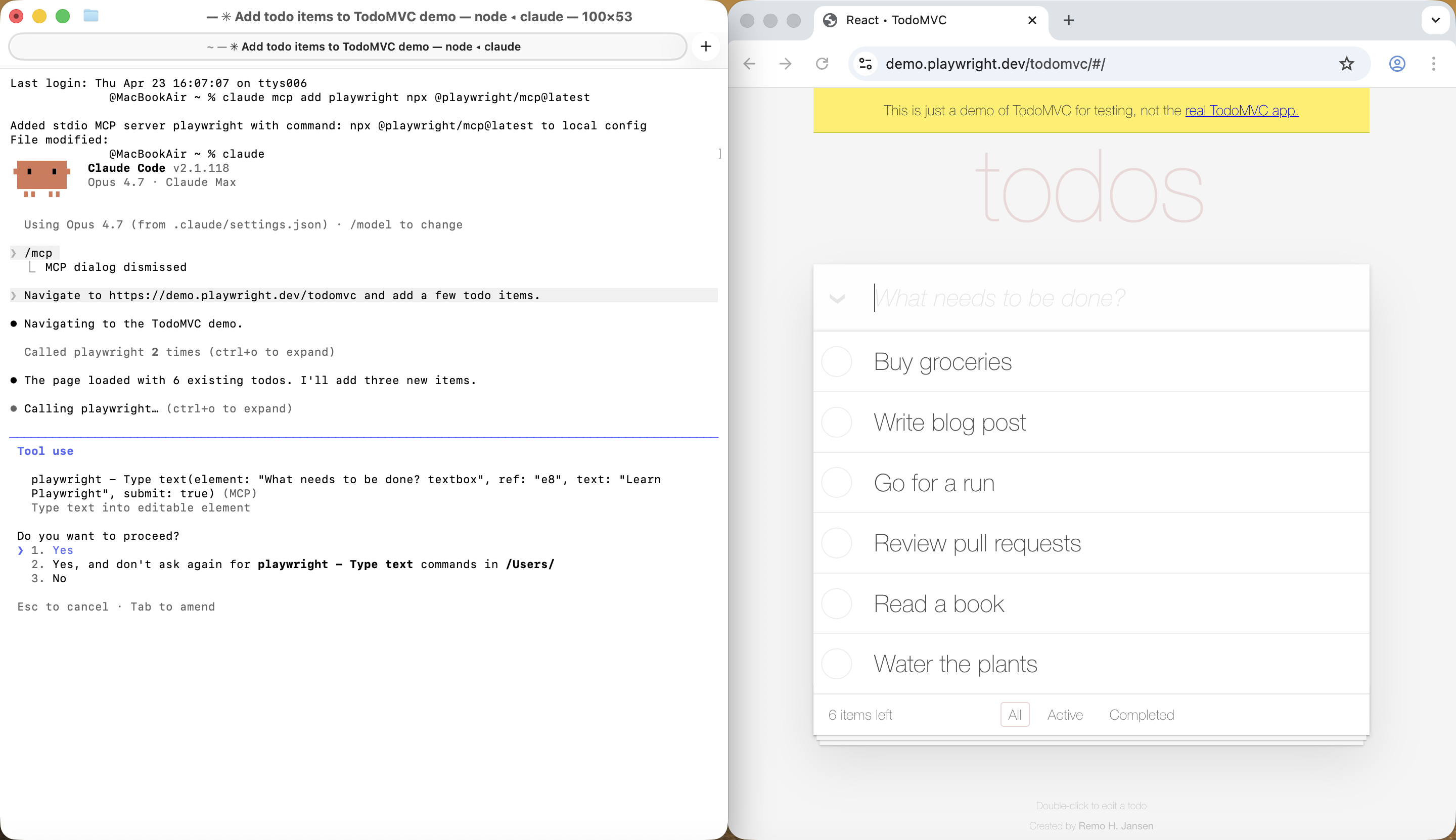
Navigate to https://demo.playwright.dev/todomvc and add a few todo items.
Claude Code will open the browser, request an accessibility snapshot of the page, locate the input by its element reference, type each todo, and confirm the result back to you in the terminal.
Heads up on which browser opens: by default this launches Chromium in headed mode. To change it, add flags to the args in your MCP config and restart Claude Code: --headless to hide the window, or --browser=firefox|webkit|msedge to switch engines.
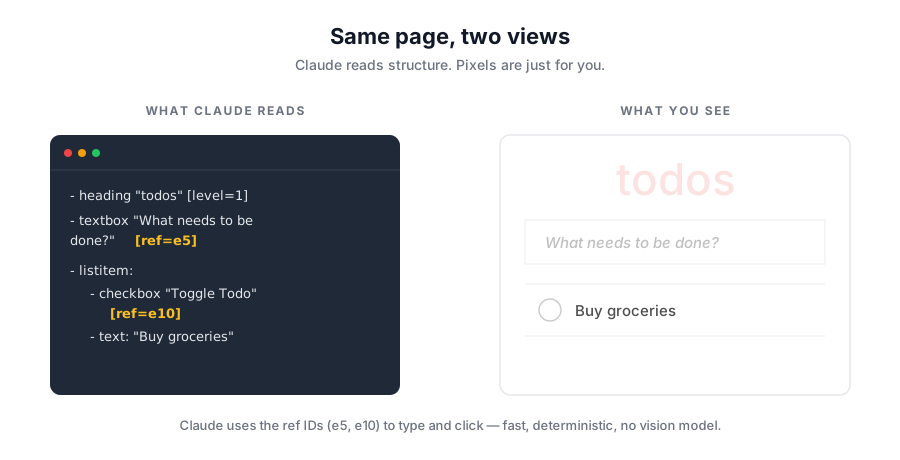
When a Playwright MCP tool runs, it returns a structured snapshot of the page — element roles, text content, and reference IDs — instead of pixels. Claude reads the snapshot and uses references like ref=e5 to type into the textbox or ref=e10 to flip the checkbox. No pixel-pushing, no brittle CSS selectors — just structured page state the model can reason about.
Get latest tips, trends, and deals for free.
Once Playwright MCP is wired up, the same prompts you’d give a teammate work in Claude Code:
For workflows that need more than a single tool call, you can ask Claude Code to invoke browser_run_code and execute a Playwright script inline — useful for assertions, data extraction, or anything that benefits from a few lines of imperative code.
Playwright MCP has a handful of flags worth knowing about. Add them to the args array in your config (or to the claude mcp add command after --).
The browser runs headed by default so you can watch what’s happening. To run headless — useful for CI or remote shells — pass --headless:
{
  "mcpServers": {
    "playwright": {
      "command": "npx",
      "args": [
        "@playwright/mcp@latest",
        "--headless"
      ]
    }
  }
}
Switch engines with the --browser flag. Supported values are chrome, firefox, webkit, and msedge:
{
  "mcpServers": {
    "playwright": {
      "command": "npx",
      "args": [
        "@playwright/mcp@latest",
        "--browser=firefox"
      ]
    }
  }
}
Playwright MCP supports three profile modes:
--isolated to start each session fresh, optionally seeded with --storage-state.--extension to attach to your existing browser tabs via the Playwright MCP Bridge extension.If you need to run a headed browser somewhere without a display attached (or from an IDE worker), launch the server separately and connect over HTTP.
Open a second terminal — leave it running for the whole session — and start the server there:
npx @playwright/mcp@latest --port 8931
Keep that terminal open. It’s what exposes the browser on localhost:8931 so you can view the session in your own browser and so Claude Code has something to connect to. Closing the terminal shuts the server down.
Then, in the terminal where you run Claude Code, point it at the endpoint by updating your config:
{
  "mcpServers": {
    "playwright": {
      "url": "http://localhost:8931/mcp"
    }
  }
}
Once Playwright MCP is connected, Claude Code can handle end-to-end test scaffolding, bug reproductions, API mocking checks, page audits, and release smoke tests — anything that involves driving a browser and reporting back.
Two things make those prompts actually work in practice. First, a CLAUDE.md in your project root that documents your staging URL, demo credentials, and any conventions the agent should follow — without it, “sign in as the demo user” has nothing to anchor to. Second, if you want Claude Code to pull context from issues or tickets, connect a second MCP server for that — the GitHub MCP server
is the common pick. Skip both and Claude Code will (reasonably) ask you what issue #482 is.
A few reasons this combination is hard to beat:
Add the server, run /mcp to confirm, and your next “go test the login page” prompt becomes a real browser session — driven by Claude Code, watched (or not) in headed mode, and verifiable through accessibility snapshots.
Arshia is an AI Workflow Engineer at FlowHunt. With a background in computer science and a passion for AI, he specializes in creating efficient workflows that integrate AI tools into everyday tasks, enhancing productivity and creativity.

Stop clicking through repetitive browser tasks. Plug Playwright MCP into Claude Code and let your terminal drive the web.
The Playwright MCP Server empowers AI agents and developers with advanced browser automation and API interaction, enabling seamless integration in development e...
Integrate FlowHunt with Playwright MCP Server to enable advanced browser automation, real-time testing, web scraping, and intelligent workflows powered by AI ag...

Integrate ClickUp project management with AI assistants using the ClickUp MCP Server. This bridge enables AI agents to access and automate tasks, projects, and ...
Cookie Consent
We use cookies to enhance your browsing experience and analyze our traffic. See our privacy policy.